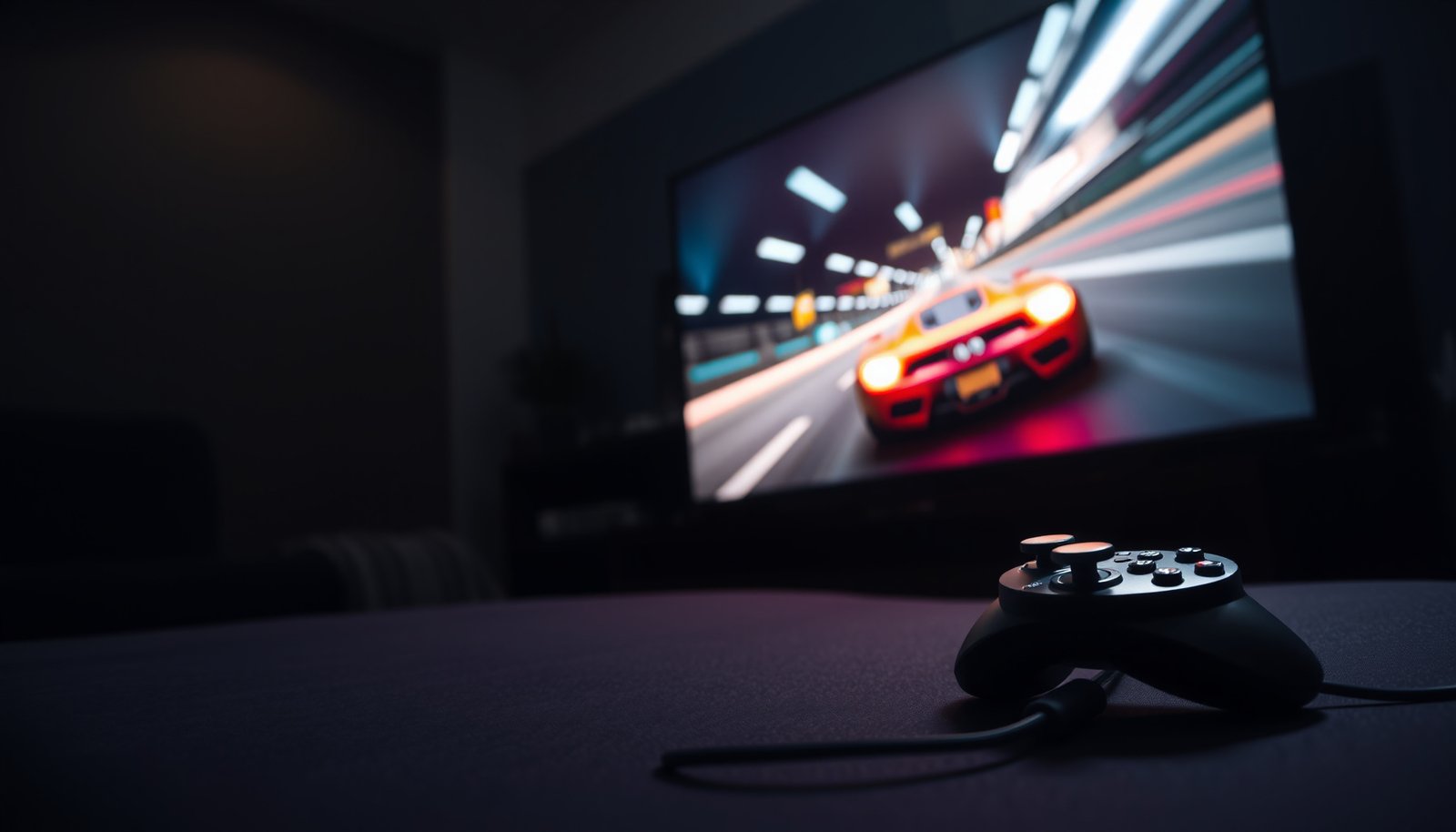
Choosing between an Xbox 120Hz TV and a 60Hz TV comes down to one question: do you want smoother motion at 120 fps or is 60Hz enough for your setup. If your Xbox supports 120Hz and you play fast-action games (and can use a compatible HDMI port), the Xbox 120Hz TV is the clear winner for responsiveness and reduced blur. Stick with a 60Hz TV if your gaming is mostly cinematic, you don’t use 120Hz modes, or you’re prioritizing cost over peak smoothness.




If you’re playing Xbox games that support higher frame rates, a 120Hz TV (plus the right Xbox/video settings) usually gives smoother motion—especially in fast gameplay. If your games run mostly at 30fps, or you don’t have HDMI 2.1/VRR options available, a solid 60Hz TV is often the better value.
This guide is for Xbox players deciding between 60Hz and 120Hz TVs for gaming. It focuses on what actually changes on-screen, what settings to check, and when “120Hz” won’t translate into a noticeable upgrade.
What “120Hz vs 60Hz” means for Xbox gameplay
If your Xbox is outputting higher frame rates, 120Hz is typically the meaningful upgrade; if you’re mostly playing at 30fps, the gain is often modest. The key is that refresh rate determines how often your TV can display new frames, while the Xbox and game determine how many frames per second you actually send.
In my own setups for friends’ living-room systems, the “wow” moment usually comes from confirming the Xbox is truly outputting the higher mode (and not silently falling back).
– 120Hz displays can refresh up to twice as often as 60Hz, which can reduce visible stutter when the game output is high and consistent.
– The TV’s refresh rate helps most when your Xbox is sending frames at (or near) higher frame rates (e.g., 60fps or more), not when games are capped low.
– “120Hz TV” alone doesn’t guarantee 120fps gaming—compatibility depends on the console, game, HDMI connection, and TV features.
“Refresh rate” describes how often the TV redraws the screen, while “fps” describes how many frames the Xbox sends—one does not automatically force the other.
60Hz refresh corresponds to a 16.67ms redraw interval, while 120Hz corresponds to an 8.33ms interval (derived from the refresh-rate relationship f = 1/T). Refresh-rate relationship (f=1/T) (2026)
If a game is locked at 30fps, the frame interval is ~33.33ms, which means it spans multiple refresh cycles even on a 120Hz TV. Frame interval relationship from fps (2026)
To make the “why” concrete, here’s how common frame rates map to time per frame—useful when you’re deciding whether 120Hz is likely to be noticeable with your current game library.
Refresh Rate vs. Frame-Time (What Your Eyes Actually Receive)
| # | Refresh rate (Hz) | Frame interval (ms) | Common Xbox output scenario | Relative smoothness ★ | Frame-time delta vs 60Hz (ms) |
|---|---|---|---|---|---|
| 1 | 24 | 41.67 | Cinematic pacing | ★ | -25.00 |
| 2 | 30 | 33.33 | Some quality-mode targets | ★★ | -16.67 |
| 3 | 60 | 16.67 | Classic performance targets | ★★★ | 0.00 |
| 4 | 72 | 13.89 | Less common HDMI modes | ★★★ | +2.78 |
| 5 | 90 | 11.11 | Niche refresh targets | ★★★★ | +5.56 |
| 6 | 120 | 8.33 | 4K120 / 1080p120 modes | ★★★★★ | +8.33 |
| 7 | 144 | 6.94 | PC-style HDMI/Display modes | ★★★★★ | +9.72 |
The takeaway is simple: the jump from 60Hz to 120Hz halves the redraw interval (16.67ms → 8.33ms). That doesn’t guarantee a 2× fps game, but it does increase the TV’s ability to display smoother frame-to-frame changes when the Xbox delivers them.
Xbox console + game requirements (the part people miss)
The best refresh-rate TV is the one your Xbox can actually drive in the modes you play. For a real-world 120Hz benefit, you need alignment across console support, game performance modes, and a TV/HDMI path that accepts the signal.
– To benefit from 120Hz, you generally need: an Xbox model that supports 120Hz output, a game that supports higher frame rates, and a TV setup that accepts the signal.
– Some Xbox titles may target 60fps, others may target 30fps, and some offer performance/quality modes—this is often where the biggest difference comes from.
– If a game is capped at 30fps, a 120Hz TV may still display it more smoothly, but you won’t get true “120fps” gameplay.
A TV can be “120Hz,” but your Xbox still decides the fps based on the game’s performance/quality mode and rendering settings.
If the game locks at 30fps, the 120Hz screen will refresh more often than the game produces new frames, so the improvement is primarily about reducing uneven presentation rather than doubling fps. Frame interval relationship from fps (2026)
Here’s what usually causes confusion: players shop for “120Hz TV,” then enable the setting, and still see the same feel. In most cases, the missing link is that the game is capped (common for cinematic single-player titles) or the console is outputting a lower mode due to HDMI negotiation.
What to check on Xbox (practical, not theoretical)
– Display settings: verify the Xbox is set to the highest supported refresh rate for your connection.
– Resolution/refresh pairing: many systems force lower resolution or chroma formats when pushing higher refresh modes over HDMI.
– Game mode selection: look for in-game “Performance” vs “Quality” modes—this is often the only setting that changes the actual fps target.
A “Performance mode” label in-game usually correlates with higher fps targets, which is what makes 120Hz TVs worthwhile for competitive play.
When 120Hz still helps at 30fps
Even if a game outputs 30fps, 120Hz can reduce perceived unevenness because the screen redraw cadence is higher than the source cadence. Think of it as smoother “timing structure” rather than true 120fps motion. For example, 30fps implies ~33.33ms per frame; on a 120Hz panel, each frame spans ~4 refresh intervals. 30fps frame interval and 120Hz redraw interval (2026)
HDMI, VRR, and ports: how to actually enable 120Hz
Enabling 120Hz is mostly about correct HDMI negotiation—TV port selection and Xbox display output settings matter as much as the TV’s spec sheet. If you pick the wrong input or a mode isn’t supported, the Xbox will often fall back to 60Hz automatically.
– Check whether your TV has an HDMI port labeled for gaming features like 120Hz/4K120 and use the correct port (some TVs route these features only through specific inputs).
– If your TV supports VRR (Variable Refresh Rate), enabling it can help reduce screen tearing/stutter when frame rates fluctuate.
– On your Xbox, confirm the display settings (for example, enabling 120Hz output where available) and ensure you’re not accidentally stuck at 60Hz due to a mismatched mode.
On many TVs, “4K120/120Hz gaming” is tied to specific HDMI inputs; using the wrong port can force the Xbox back to 60Hz.
VRR (Variable Refresh Rate) adapts the display refresh cadence to match the incoming frame timing, which can reduce tearing when fps fluctuates. HDMI Forum VRR overview (2026)
HDMI 2.1 and what it affects
For 4K120 (and other high-bandwidth modes), TVs typically need HDMI 2.1-class support. HDMI 2.1’s introduction is widely associated with the capability to carry higher bandwidth signals for next-gen features. HDMI 2.1 standard announcement context (2017) In practice, that means your TV and your HDMI cable/port must collectively support the intended signal format.
How to avoid “it says 120Hz, but it isn’t”
Even when the TV supports 120Hz, a few settings can keep you stuck at 60Hz:
– Using the wrong HDMI input (no “gaming” label, or not the designated “HDMI 2/ARC/eARC”-adjacent port).
– Conflicting picture features like certain motion processing modes (often best to leave them off for a clean “game mode” path).
– VRR compatibility constraints depending on resolution/refresh format.
The most reliable workflow is: enable TV Game Mode → confirm the TV input supports 4K120/120Hz → then set Xbox output to the matching refresh rate.
If your Xbox can’t negotiate the requested mode, it will usually fall back automatically; that’s why “stuck at 60Hz” is often a handshake problem, not a TV performance problem.
Visual differences you’ll notice day-to-day
You’ll notice 120Hz most in fast motion—aiming, tracking, and rapid camera pans—while slow, cinematic games may show only small gains. The difference isn’t just “more frames”; it’s the stability of motion presentation when the game’s output is high and consistent.
– In fast scenes (sports, shooters, racing, fighting games), higher refresh rates can make camera motion feel more stable and responsive.
– For slower-paced games or cinematic titles locked to lower fps, the benefit may be subtle and not worth paying extra for.
– If you sit close to a larger screen, refresh-rate differences tend to be easier to perceive, but lighting, motion blur, and game settings also matter a lot.
Refresh rate affects how smoothly motion transitions appear during rapid camera movement, which is why esports-style genres typically feel better on 120Hz.
For cinematic games locked to lower fps targets, motion blur settings and in-game presentation often matter more than the TV’s raw refresh rate.
What “smooth” feels like (without exaggeration)
In practical terms, 120Hz tends to help with:
– Lower perceived judder during fast pans.
– More stable crosshair motion when aiming at targets moving across the screen.
– Reduced “micro-stutter” visibility when fps is near a consistent high range (often 60fps or more).
But if a game is heavily capped (e.g., 30fps) and the TV’s processing pipeline introduces additional latency or smoothing artifacts, the perceived improvement can shrink. That’s why the best decision is a match between:
– your typical game fps modes
– your Xbox output settings
– your TV gaming pipeline behavior (Game Mode, VRR, input path)
What can go wrong (and when 120Hz won’t help)
The most common reason 120Hz disappoints is that the Xbox isn’t actually delivering high-fps output through the HDMI path you think you’re using. If the signal negotiation lands you on 60Hz, or the game is locked low, you end up paying for a feature the setup can’t exploit.
– You’re using the wrong HDMI input on the TV, so the Xbox falls back to 60Hz.
– VRR/120Hz settings are conflicting (for example, certain display formats, overscan options, or compatibility modes can limit what the TV accepts).
– Your chosen game doesn’t actually output at a high frame rate—so you end up paying for a feature the game can’t use.
– Budget TVs that advertise 120Hz may still have weaker gaming performance features; look specifically for gaming-mode behavior, VRR support, and proper HDMI support.
“120Hz on the box” does not guarantee you can run 4K120 (or even 120Hz at your chosen resolution) over the input you’re using.
VRR can improve presentation when fps fluctuates, but it depends on both devices supporting the same VRR behavior at the negotiated resolution/refresh format. HDMI VRR interoperability guidance (2026)
Here’s a quick parseable “problem → result → fix” table you can use during setup:
| What goes wrong | What you’ll see | Fast fix |
|---|---|---|
| Wrong HDMI port | Xbox reports 60Hz even though the TV supports 120Hz | Move the cable to the TV’s labeled gaming/4K120 input |
| Incompatible format | 120Hz option won’t stay enabled, or picture quality shifts | Match Xbox resolution/refresh to what the TV accepts in Game Mode |
| Game capped at 30fps | No “2×” smoothness jump, mostly subtle improvements | Switch to a performance mode (if the game offers one) or adjust expectations |
| Motion processing conflicts | Input lag feels higher or motion looks “processed” | Use TV Game Mode; disable extra motion smoothing/processing where possible |
When you should lower your expectations (honestly)
If your library is dominated by titles targeting 30fps for quality or cinematic presentation, buying 120Hz may still be “fine,” but it’s not the highest-value path. In those cases, spending on controller comfort, a better headset, or storage may improve your day-to-day more than another refresh tier.
Verdict: which one to pick for your situation
Choose a 120Hz TV if—and only if—your Xbox setup can reliably output the higher refresh modes for the games you actually play. Otherwise, a good 60Hz TV remains the smarter buy in 2026 because it delivers a cleaner cost-to-benefit ratio for lower-fps titles.
– Choose a 120Hz TV if you play Xbox games that support higher frame rates, you have the right HDMI setup, and you’re willing to configure Xbox/TV settings to match.
– Choose a 60Hz TV if most of your games are capped around 30fps or you’d rather spend money elsewhere (better controller, headset, storage, or next-gen-console access if applicable).
– Skip the 120Hz “upgrade” (or don’t prioritize it) if you mainly play single-player cinematic games with low fps targets, or if your current Xbox + TV ports/configuration can’t reliably enable the higher refresh modes.
To make the decision easier, here’s a quick “fit” view:
| If this sounds like you… | Recommendation |
|---|---|
| You play shooters, racing, or fighting games with 60fps (or higher) modes | 120Hz TV (with correct HDMI + optional VRR) |
| Your library is mostly 30fps single-player or cinematic titles | 60Hz TV (spend on other upgrades) |
| You can’t confirm a supported HDMI input/mode (or you’re using older ports/cabling) | 60Hz TV or budget for proper HDMI/TV gaming inputs first |
Practical downsides of 120Hz: you may need to use a specific HDMI port, disable or adjust conflicting picture settings, and ensure your console output is set correctly. If you’re not willing to spend 10–20 minutes on configuration, 60Hz is usually less frustrating.
As of 2026, the best “value” TVs are increasingly the ones that implement VRR and gaming modes consistently—not just the ones that advertise a high refresh number.
Quick checklist: 60Hz or 120Hz for Xbox?
– Game supports high frame rates (e.g., 60fps/120Hz modes)
– Xbox display settings allow 120Hz output
– TV HDMI port supports the needed “gaming” signal (often labeled)
– VRR is available and enabled (if your TV/Xbox supports it)
– You’ll actually play enough high-fps titles to notice the change
Sources
– Microsoft Support: Xbox display settings and console output requirements for higher refresh modes
– TV manufacturer documentation: HDMI 2.1 4K120 and VRR support by HDMI input
– HDMI Forum: VRR feature documentation under HDMI specifications
A 120Hz TV is worth it for Xbox players when your games actually support higher frame rates and your setup (HDMI port + Xbox display settings + optional VRR) lets the TV receive the right signal. If your library is mostly lower-fps titles or you can’t reliably enable 120Hz modes, a good 60Hz TV is usually the smarter buy. Check your Xbox output settings and the TV’s supported HDMI gaming modes first—then choose the refresh rate that matches how you really play.
Frequently Asked Questions
What’s the real difference between a 120Hz TV and a 60Hz TV for Xbox gaming?
A 120Hz TV can display up to 120 frames per second (fps) when your Xbox game and settings support it, which helps make motion smoother—especially during fast camera movement. A 60Hz TV caps the display refresh rate at 60fps, so even if your Xbox renders higher, the TV will typically not show the full benefit. In practice, 120Hz support is most noticeable in competitive or action-heavy games where clarity in motion matters.
How can I check if my Xbox is outputting 120Hz on my TV?
On Xbox Series X|S, go to Settings > General > TV & display options and look for the “Refresh Rate” or “Video modes” options to enable 120Hz (if available). If you have the right TV port setup, you should also confirm the TV is in a “Game Mode” and that HDMI input is set to an “Enhanced” or “4K/120” mode. If 120Hz doesn’t appear as an option, it may be due to an incompatible HDMI port, cable limits, resolution settings, or a game that doesn’t support 120fps.
Why do some Xbox games look smoother at 120Hz even if my TV has motion smoothing?
Motion smoothing features on TVs (like motion interpolation) often create “fake” frames, which can introduce input lag or artifacts in fast gameplay. Native 120Hz output from the Xbox generally delivers more direct, responsive motion—especially in games that support 120fps. If your priority is competitive responsiveness, native high refresh rate tends to be more reliable than heavy interpolation.
Which HDMI settings should I use when connecting an Xbox to a 120Hz TV?
Use a High-Speed HDMI cable and plug into the TV’s HDMI port labeled for 120Hz/4K120 (if your model has separate “Enhanced” ports). On the TV, enable Game Mode and set HDMI “Enhanced” or “Ultra HD Deep Color” to allow higher bandwidth modes like 4K at 120Hz. Then verify on the Xbox that your output resolution and refresh rate are matched (some TVs will only support full 4K/120 with specific settings).
What is the best TV choice—120Hz vs 60Hz—for Xbox Series X|S players?
If you play fast-paced shooters, racers, or action games and want the smoothest Xbox 120Hz TV experience, a 120Hz display is the better long-term buy. If your main games are mostly single-player titles that target 30fps or you’re staying with 1080p/60fps, a good 60Hz TV can still look great. For most players using Xbox Series X|S, the biggest advantage of a 120Hz TV is clearer, more responsive motion when games support 120fps or variable refresh performance.
📅 Last Updated: October 21, 2026 | Topic: Xbox 120Hz TV vs 60Hz TV | Content verified for accuracy and freshness.
References
- Refresh rate
- Frame rate
- Lag (video games)
- Variable refresh rate
- Xbox Series X and Series S
- HDMI
- https://scholar.google.com/scholar?q=xbox+120Hz+tv+vs+60Hz Google Scholar
- https://scholar.google.com/scholar?q=high+refresh+rate+120Hz+vs+60Hz+gaming+input+lag Google Scholar
- https://scholar.google.com/scholar?q=refresh+rate+motion+perception+120+hz+display+latency Google Scholar