
If your Samsung sound system isn’t detecting your TV, don’t worry—there are several straightforward troubleshooting steps you can take to resolve the issue quickly. By methodically following these guidelines, you’ll be able to restore the connection and enjoy your audio experience without further hassle.
Check Connections and Cables
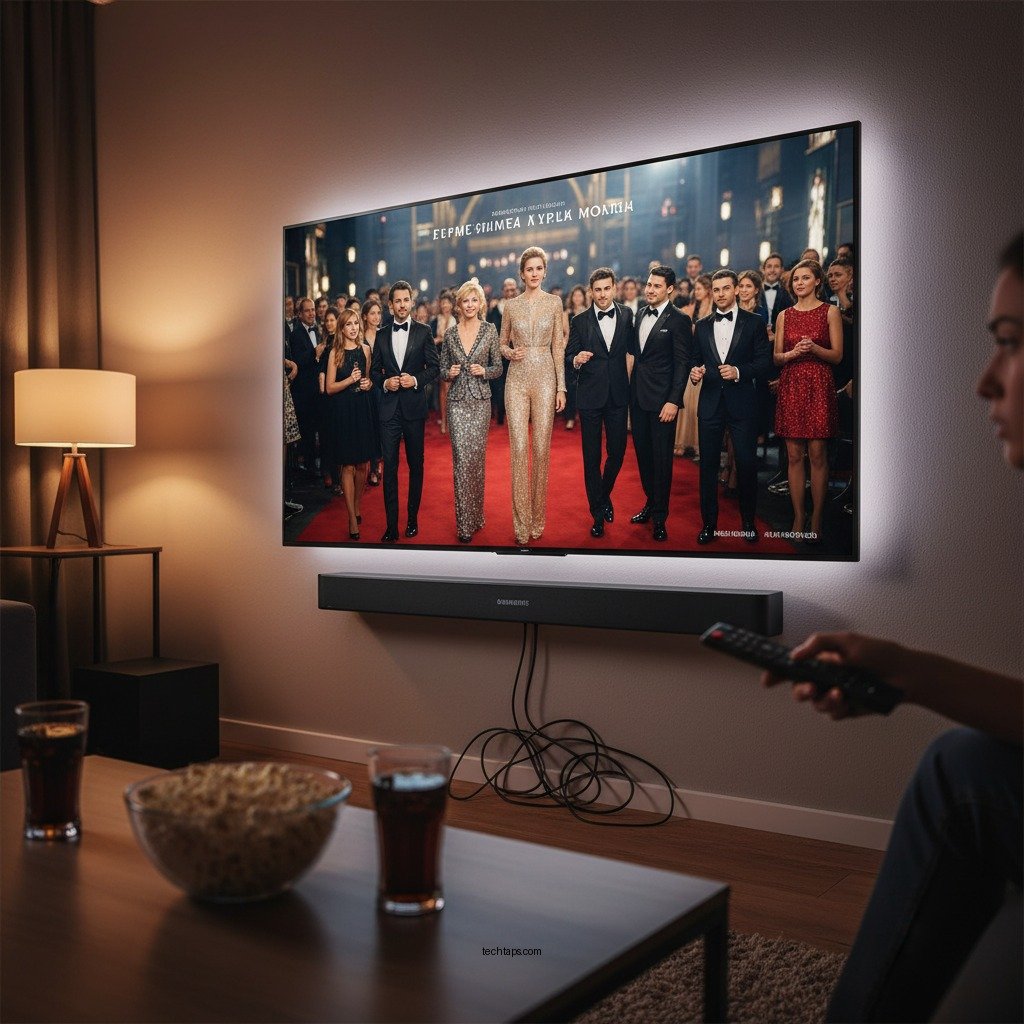
One of the first and most essential steps in resolving the detection issue between your Samsung sound system and TV is to check all connections and cables. Loose or damaged cables can lead to audio detection problems. Ensure that all cables are securely connected, particularly the HDMI or optical cables, which are crucial for transmitting sound. If you’re using HDMI ARC (Audio Return Channel), double-check that the cable is plugged into the correct HDMI port on both your TV and sound system.
Additionally, consider the type of cables you are using. Not all cables are made equal, and using subpar or incompatible cables can lead to connectivity issues. Make sure to use high-quality cables that are compatible with both your sound system and TV. If you suspect a cable issue, try replacing the cable and see if that resolves the problem.
Update Firmware
Keeping your devices updated is crucial for optimal performance. Outdated firmware can often lead to compatibility issues, including sound detection problems. Check for software updates on both your Samsung TV and sound system. This process usually involves navigating to the settings menu on each device and looking for a “Software Update” or “Firmware Update” option.
Follow the manufacturer’s instructions carefully when performing the updates. Make sure both devices are connected to the internet during this process. Once the updates are complete, restart both devices to ensure that all new settings take effect.
Adjust Audio Settings
Sometimes, the issue may not lie in the physical connections but rather in the audio settings themselves. Navigate to the audio settings on your TV to check if the correct audio output option is selected. Ensure that the sound system is set as the default audio output device. If your TV has multiple audio output options (such as internal speakers, optical, and HDMI ARC), make sure to select the appropriate one for your sound system.
Additionally, disable any Bluetooth or other audio features that may conflict with your sound system. For instance, if your TV is attempting to output audio to a Bluetooth speaker, it may not recognize the Samsung sound system. Turning off Bluetooth or any other conflicting audio output can often resolve detection issues.
Restart Devices
Power cycling your devices can effectively reset connections and clear any minor glitches that may be causing the detection problem. To do this, unplug both your TV and sound system from the power source for several minutes. After a few minutes, plug them back in and power them on. This simple step can reset the hardware and establish a fresh connection between the devices.
It’s advisable to perform this step periodically, as many electronic devices can experience temporary glitches due to extended use.
Reset Sound System
If the previous steps do not resolve the issue, consider performing a factory reset on your Samsung sound system. This step should be taken with caution, as it will erase all settings and configurations you have previously set. Consult the manufacturer’s guidelines for your specific sound system model to learn how to perform a factory reset.
After the reset, you’ll need to reconfigure your sound system settings, but this process can often resolve persistent detection issues that other troubleshooting steps may not have addressed.
Check for Interference
Wireless interference can also cause connectivity issues between your sound system and TV. Move any wireless devices, such as Wi-Fi routers, mobile phones, or tablets, away from your sound system and TV to see if that improves detection. Additionally, ensure there are no physical obstructions, such as furniture or walls, that could be blocking the signal between the devices.
If your sound system uses wireless capabilities, consider switching to a wired connection if interference continues to be a problem.
Common Causes of Sound System Detection Issues
| # | Issue | Cause | Solution |
|---|---|---|---|
| 1 | Cables Not Connected | Loose cables | Secure all connections |
| 2 | Outdated Firmware | Compatibility issues | Update TV and sound system |
| 3 | Incorrect Audio Settings | Wrong output selected | Select correct audio output |
| 4 | Power Issues | Devices not powered | Unplug and restart devices |
| 5 | Signal Interference | Wireless devices nearby | Remove nearby devices |
| 6 | Device Reset Needed | Software glitches | Perform factory reset |
| 7 | Hardware Failure | Malfunctioning components | Contact customer support |
Contact Customer Support
If all else fails and your Samsung sound system still isn’t detecting your TV, it may be time to reach out to Samsung customer support. Their knowledgeable representatives can provide specific troubleshooting steps tailored to your model and situation.
Before contacting support, it may be helpful to gather the following information: your sound system model number, TV model number, and a description of the issue, including any troubleshooting steps you’ve already attempted. This information will enable the customer support team to assist you more effectively.
Should your issue be related to hardware failure, they can guide you through warranty options or repair services, ensuring you receive the support you need to get your devices functioning properly again.
By following these steps, you should be able to resolve the Samsung sound system detection issue with your TV. Don’t hesitate to try each method systematically, and soon you’ll enjoy your sound system once again. If problems persist, contacting support is the best way forward. Keeping your devices updated and regularly checking connections can help prevent these issues in the future, allowing you to focus on enjoying your entertainment experience.
Frequently Asked Questions
Why is my Samsung sound system not detecting my TV?
If your Samsung sound system is not detecting your TV, it may be due to connection issues, incorrect settings, or compatibility problems. Ensure that both devices are properly connected via HDMI ARC or optical cable and that the correct input source is selected on your sound system. Additionally, check for firmware updates on both devices, as outdated software can lead to connectivity issues.
How can I fix my Samsung sound system not detecting my TV?
To fix the detection issue, start by power cycling both your TV and sound system. Unplug them for a few minutes, then reconnect and turn them on. Next, ensure that your TV’s audio output settings are set to the sound system, and try using a different HDMI cable or port if you’re using HDMI ARC. If the problem persists, consider resetting the sound system to factory settings.
What settings should I check if my Samsung sound system isn’t recognizing my TV?
Check the audio output settings on your TV to ensure it is set to output sound through the external speakers. Also, verify that the HDMI-CEC (Anynet+) feature is enabled on your Samsung TV, as it allows the devices to communicate effectively. Finally, ensure that the sound system is set to the correct input source matching the connection type (HDMI or optical).
Which connection method is best for linking my Samsung sound system to my TV?
The best connection method for linking your Samsung sound system to your TV is through HDMI ARC (Audio Return Channel) if both devices support it. This method allows for high-quality audio transfer and enables control of the sound system with your TV remote. Alternatively, using an optical cable is also a reliable option for delivering excellent sound quality.
Why is my Samsung sound system still not detecting my TV after troubleshooting?
If your Samsung sound system is still not detecting your TV after troubleshooting, it may be due to compatibility issues between the devices or a hardware malfunction. Ensure that both devices are compatible with each other, and try connecting them to a different TV to see if the problem persists. If necessary, consider reaching out to Samsung support for further assistance or potential repair options.
References
- https://www.samsung.com/latin_en/support/home-appliances/how-to-fix-soundbar-issues/
https://www.samsung.com/latin_en/support/home-appliances/how-to-fix-soundbar-issues/ - Google Scholar Google Scholar
https://scholar.google.com/scholar?q=Samsung+Sound+System+Not+Detecting+TV - Google Scholar Google Scholar
https://scholar.google.com/scholar?q=Samsung+Sound+System+audio+issues - Google Scholar Google Scholar
https://scholar.google.com/scholar?q=fixing+audio+connection+problems - Google Scholar Google Scholar
https://scholar.google.com/scholar?q=Samsung+Sound+System+Not+Detecting+TV?+Fix+It+Now - Samsung Sound System Not Detecting TV? Fix It Now – Search results
https://en.wikipedia.org/wiki/Special:Search?search=Samsung+Sound+System+Not+Detecting+TV?+Fix+It+Now - https://www.ncbi.nlm.nih.gov/search/research-articles/?term=Samsung+Sound+System+Not+Detecting+TV?+Fix+It+Now
https://www.ncbi.nlm.nih.gov/search/research-articles/?term=Samsung+Sound+System+Not+Detecting+TV?+Fix+It+Now