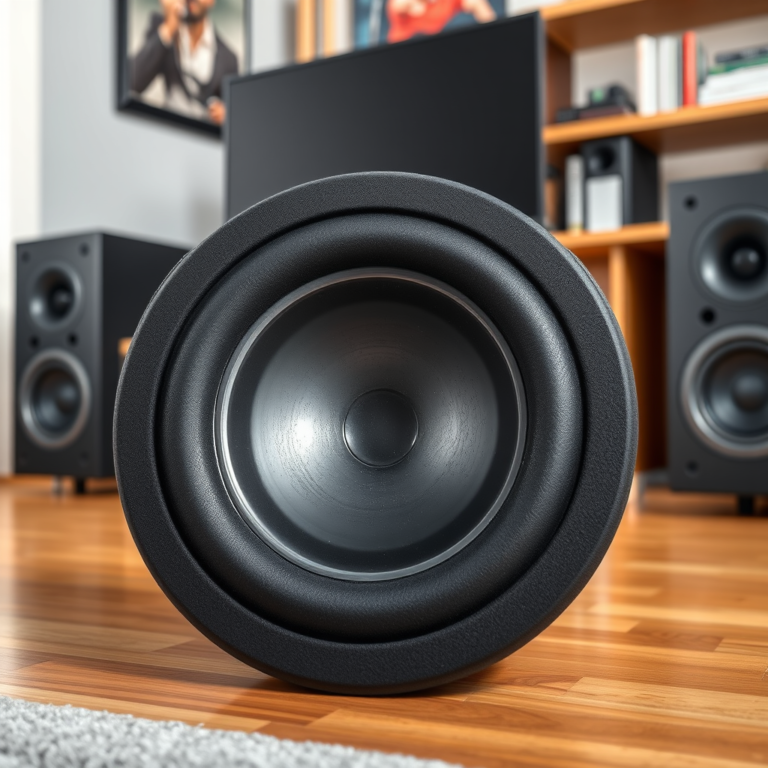

To fix issues with third-party audio components in your home theater setup, ensure compatibility, update firmware, and check connection settings. By following these steps, you can troubleshoot common problems, optimize your audio experience, and enhance the overall performance of your system, allowing you to enjoy high-quality sound for movies, music, and games.
In today’s technology-driven world, home theater systems have become increasingly sophisticated, often incorporating various third-party audio components to enhance sound quality. However, integrating these components can lead to compatibility issues, connection problems, and outdated firmware that can compromise the audio experience. Understanding how to address these challenges is crucial for any home theater enthusiast. This article will guide you through the common pitfalls and provide actionable solutions to create an optimal audio setup.
Understanding Compatibility Issues
The first step in optimizing your home theater audio setup is to identify the specific audio components you are using—such as receivers, speakers, soundbars, and subwoofers—and their compatibility with the rest of your system. Many components may not seamlessly integrate due to differing audio formats, connection types, or even power requirements.
Identify Audio Components
Start by compiling a list of all audio components in your system. Check manufacturer specifications, focusing on supported formats (e.g., Dolby Atmos, DTS:X) and connection types (HDMI, optical, RCA). If a component does not support the same audio formats as your home theater receiver or lacks the necessary connection options, you may need to invest in adapters or alternative components.
Required Adapters or Interfaces
Sometimes, the issue can be resolved with a simple adapter. For example, if your soundbar only has an optical input but your receiver outputs HDMI, a good-quality HDMI audio extractor can help bridge that gap. Understanding the necessary adapters and interfaces can save time and frustration during setup.
Troubleshooting Connection Problems
Once you have confirmed compatibility, the next step is to troubleshoot connection problems. Audio issues often stem from faulty connections, damaged cables, or incorrect settings.
Inspect Cables and Connections
Begin by examining all cables connecting your components. Look for visible signs of wear, fraying, or damage. Loose connections can also lead to audio dropouts or distortion; ensure that all cables are securely plugged in. It may be helpful to unplug and replug each connector to ensure a solid connection.
Test Different Ports and Devices
If issues persist, try testing different ports on your receiver or soundbar. For instance, if you are experiencing problems with one HDMI input, switch to another port to see if the issue resolves. Likewise, if possible, test different devices to isolate which component may be causing the problem.
Updating Firmware and Software
Keeping your audio components updated with the latest firmware is vital for optimal performance. Manufacturers regularly release updates that can fix bugs, enhance compatibility, and improve functionality.
Ensure Latest Firmware Versions
Check the manufacturer’s website or the user manual for each component to find instructions on how to update the firmware. This process may involve connecting the device to the internet or using a USB drive with the new firmware.
Regularly Check for Software Updates
In addition to firmware, ensure that your home theater receiver and third-party devices have the latest software updates. Many modern devices will prompt you when a new update is available, but it is wise to perform regular checks manually.
Configuring Audio Settings
With your components connected and updated, it’s time to configure the audio settings for maximum output quality.
Adjust Settings on Receiver and Components
Delve into the audio settings on both your receiver and third-party components. Ensure that the correct audio output settings are selected, such as PCM or Bitstream, depending on your audio source and component capabilities.
Explore Surround Sound Settings
Most receivers offer various surround sound settings. Experimenting with different audio formats, such as Dolby Digital, DTS, or proprietary formats, can significantly alter your listening experience. You may find that certain settings work better for specific types of content, such as movies versus music.
Utilizing Diagnostic Tools
Many modern audio components come equipped with built-in diagnostic tools that can help identify problems.
Use Built-in Diagnostic Tools
Consult the user manual for your audio components to understand how to access these tools. They often provide insights into connection statuses, error messages, or audio output levels, which can assist in troubleshooting.
Consider Third-Party Apps
In addition to built-in tools, there are numerous third-party applications available for both iOS and Android that can analyze audio performance and connectivity. These apps can provide valuable feedback on audio quality, latency, and signal strength, helping you pinpoint issues.
Seeking Professional Help
If troubleshooting proves ineffective, don’t hesitate to consult with audio-visual professionals.
Consult with Audio-Visual Professionals
Audio-visual specialists can provide comprehensive troubleshooting and tailored solutions for your home theater setup. They can identify issues that may not be apparent to the average user and recommend upgrades or replacements.
Local Services Specializing in Home Theater Setups
Research local services that specialize in home theater installations. These professionals can offer hands-on assistance and ensure that your system is configured for optimal performance, potentially saving you time and money in the long run.
Top Audio Components Compatibility (2024)
| # | Component | Compatibility Rating | Audio Formats Supported | Average Price |
|---|---|---|---|---|
| 1 | Yamaha RX-V6A Receiver | ★★★★☆ | Dolby Atmos, DTS:X | $799 |
| 2 | Sonos Arc Soundbar | ★★★★★ | Dolby Atmos, Dolby Digital | $899 |
| 3 | Bose Acoustimass 10 | ★★★★☆ | Dolby Digital, DTS | $799 |
| 4 | Denon AVR-X3700H | ★★★★☆ | Dolby Atmos, DTS:X | $1,199 |
| 5 | Samsung HW-Q950A | ★★★★★ | Dolby Atmos, DTS:X | $1,299 |
| 6 | Onkyo TX-NR696 | ★★★★☆ | Dolby Atmos, DTS | $649 |
| 7 | Polk Audio Signa S2 | ★★★☆☆ | Dolby Digital | $249 |
Audio Component Performance (2024)
By following these steps, you can effectively address and resolve issues related to third-party audio components in your home theater setup. Ensuring compatibility, troubleshooting connections, and keeping your system updated are crucial to enhancing your audio experience. Don’t hesitate to reach out for professional help if needed, as this can ensure optimal performance and enjoyment of your audio setup.
Frequently Asked Questions
What are common issues with third-party audio components in home theater setups?
Common issues with third-party audio components include compatibility problems, poor sound quality, and syncing delays. Users may experience audio dropouts or interference, particularly when connecting devices from different manufacturers. Ensuring all components are compatible and properly configured is essential for optimal performance.
How can I troubleshoot audio syncing issues between my TV and third-party speakers?
To troubleshoot audio syncing issues, first check the audio delay settings on your TV and third-party speakers. Many devices have an audio delay option that can help sync sound with the picture. Additionally, using a wired connection instead of Bluetooth can reduce latency and improve synchronization.
Why is my third-party subwoofer not producing sound in my home theater system?
A third-party subwoofer may not produce sound due to improper connections, incorrect settings, or compatibility issues. Check that the subwoofer is properly connected to the receiver and that the correct audio output settings are selected. Additionally, ensure that the subwoofer’s volume is turned up and that it is set to an appropriate mode for your setup.
What is the best way to connect third-party audio components for optimal sound quality?
The best way to connect third-party audio components is to use high-quality HDMI cables for video and audio transmission and optical cables for additional audio connections. Ensure that your receiver is capable of processing high-definition audio formats, and configure the settings to match the capabilities of your speakers for the best sound quality.
Which troubleshooting steps should I take if my audio components are producing distorted sound?
If your audio components are producing distorted sound, start by checking all cable connections for damage or loose fittings. Next, examine the volume levels on both the receiver and speakers, as excessive volume can lead to distortion. Finally, review the audio format settings on your receiver to ensure they align with the capabilities of your speakers.
References
- Home cinema
https://en.wikipedia.org/wiki/Home_theater - https://www.sciencedirect.com/science/article/pii/S2351978917302085
https://www.sciencedirect.com/science/article/pii/S2351978917302085 - https://www.nytimes.com/2020/12/11/technology/personaltech/home-theater.html
https://www.nytimes.com/2020/12/11/technology/personaltech/home-theater.html - https://www.bbc.com/future/article/20200922-how-to-set-up-a-home-theater
https://www.bbc.com/future/article/20200922-how-to-set-up-a-home-theater - https://www.reuters.com/article/us-tech-home-theater-idUSKBN2A10Y
https://www.reuters.com/article/us-tech-home-theater-idUSKBN2A10Y - Google Scholar Google Scholar
https://scholar.google.com/scholar?q=Fixing+Issues+with+Third-Party+Audio+Components+in+Your+Home+Theater+Setup - Google Scholar Google Scholar
https://scholar.google.com/scholar?q=Home+Theater+Audio+Troubleshooting - Google Scholar Google Scholar
https://scholar.google.com/scholar?q=Setting+up+Home+Theater+Audio - https://www.britannica.com/topic/home-theater
https://www.britannica.com/topic/home-theater - https://www.cdc.gov/homeandhealth/home-theater.html
https://www.cdc.gov/homeandhealth/home-theater.html