
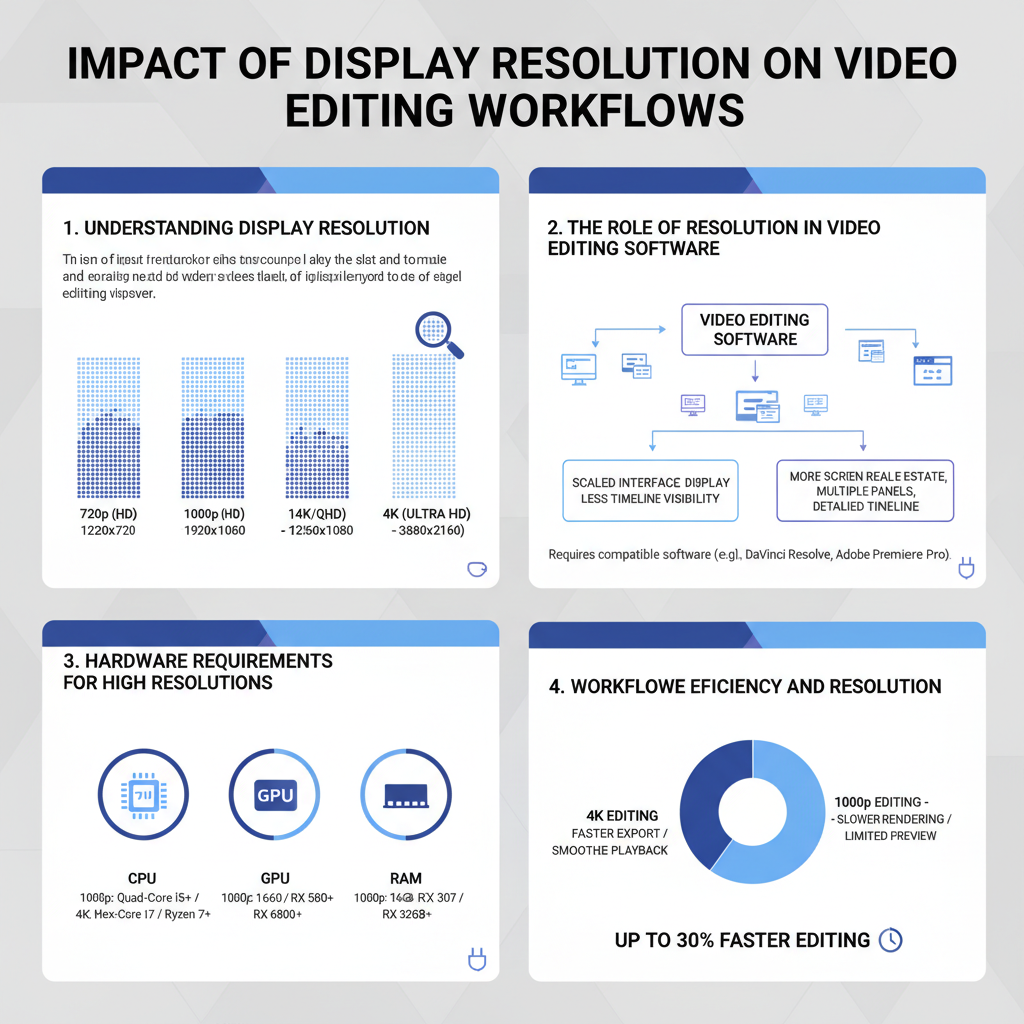
The display resolution significantly influences video editing workflows by affecting clarity, detail, and overall editing efficiency. Higher resolutions provide more pixel density, allowing editors to see finer details, but they also demand more from hardware and can slow down workflows if not managed properly. In this article, we’ll explore how different display resolutions can impact your editing process and what you can do to optimize your workflow.
Understanding Display Resolution
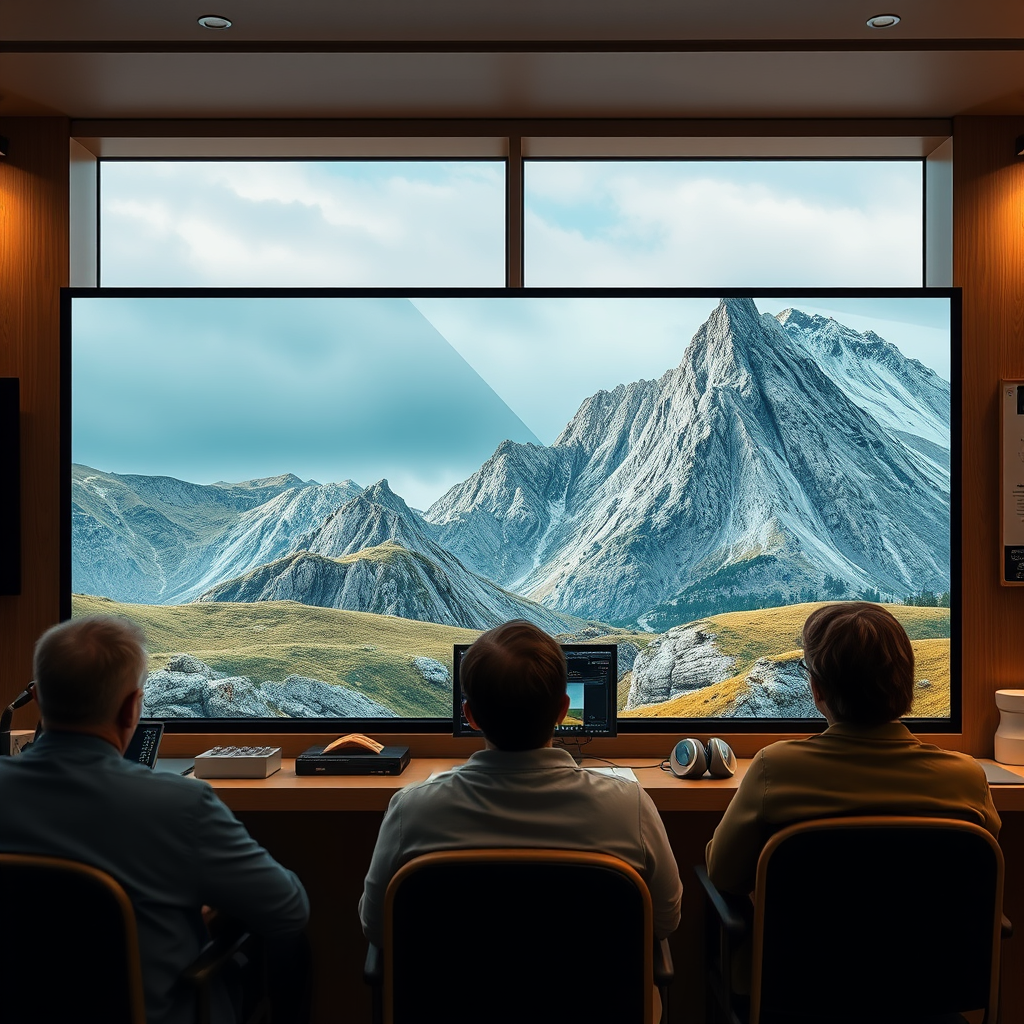
Display resolution refers to the number of pixels that make up the display on a screen, typically expressed in terms of width x height (e.g., 1920 x 1080). Common types of resolutions include 720p (HD), 1080p (Full HD), 1440p (2K), and 4K (Ultra HD). Each step up in resolution provides a more detailed and clearer image, which is essential for video editing where precision matters. For instance, editing 4K video allows an editor to see intricate details that would be lost at lower resolutions, such as facial expressions or small text. However, it’s important to recognize that higher resolutions require more powerful hardware, which can complicate workflows if the necessary resources aren’t available.
The Role of Resolution in Video Editing Software
Video editing software is designed to accommodate various display resolutions, but performance can vary significantly based on the resolution selected. Many popular editing programs, such as Adobe Premiere Pro and Final Cut Pro, are optimized for 1080p and above, but they can struggle with 4K footage on less capable machines. As resolution increases, so does the demand on the software, leading to potential lag or crashes if the system cannot keep up. Editors should choose software that aligns with their hardware capabilities to ensure a smooth editing experience. Additionally, utilizing proxies—lower-resolution versions of your footage—can significantly enhance software responsiveness, permitting faster editing without sacrificing quality in the final output.
Hardware Requirements for High Resolutions
When it comes to editing high-resolution video, having the right hardware is non-negotiable. Minimum system specifications should include a multi-core processor (ideally, a modern i7 or Ryzen 7), at least 16GB of RAM (32GB is preferable for 4K editing), and a dedicated graphics card with 4GB or more of VRAM. Popular options include NVIDIA’s GTX or RTX series, which provide the necessary power for rendering and playback. A solid-state drive (SSD) is also recommended for faster file access and reduced loading times. Investing in quality hardware not only enhances performance but also prolongs the life of your editing station, allowing you to tackle more demanding projects with ease.
Workflow Efficiency and Resolution
The relationship between resolution and workflow efficiency is a double-edged sword. On one hand, higher resolutions can significantly enhance the quality of your edits, allowing for more detailed adjustments and corrections. On the other hand, the increased file sizes and processing demands can slow down your workflow if not managed properly. To strike the right balance, consider working in a lower resolution during the editing phase and switching to full resolution for final touches and export. This approach allows you to maintain a fast editing pace while ensuring that your final output retains the clarity and quality required for professional work.
Color Grading and Resolution
Color grading is a critical part of the video editing process that can be heavily influenced by resolution. Higher resolutions provide greater detail and clarity, which is essential for achieving accurate color representation. When working with 4K footage, subtle color variations are more apparent, making it easier to achieve a polished look. However, this also means that any color grading mistakes are magnified, necessitating greater attention to detail. Tools like DaVinci Resolve offer advanced features for color correction and grading, and working in high resolution can help ensure that your color decisions translate well across different screens and formats. To maintain color fidelity, use calibrated monitors and ensure that your workspace is set up to handle high dynamic range (HDR) content.
Scaling and Exporting Considerations
When it comes to exporting, scaling down high-resolution footage can present unique challenges. For instance, when you downscale 4K footage to 1080p, you may encounter issues like aliasing or loss of detail. It’s crucial to choose the correct export settings to ensure that the final product maintains quality while effectively reducing the resolution. Most editing software provides options for scaling, but using techniques like bicubic downsampling can yield better results. Additionally, always export a few test clips to evaluate how well the scaling process preserves detail before finalizing your project.
Future Trends in Display Resolution for Video Editing
As technology continues to evolve, display resolutions are set to advance even further. Emerging technologies like 8K and beyond are already making their way into the market, promising even greater detail and clarity. This will undoubtedly impact video editing workflows, as editors will need to adapt to manage larger file sizes and increased processing demands. Moreover, developments in AI and machine learning are paving the way for smarter editing solutions that can automate certain tasks, making it easier to handle high-resolution footage. Keeping abreast of these trends will be essential for editors looking to stay competitive and efficient in an ever-evolving landscape.
In summary, understanding how display resolution affects your video editing workflow is crucial for optimizing both the quality of your projects and your editing speed. By considering hardware requirements and workflow implications, you can make informed decisions that enhance your editing experience. To further improve your skills, explore advanced editing techniques or invest in better hardware tailored for high-resolution video editing. Embracing these insights will not only elevate the quality of your work but also streamline your editing process, making it more enjoyable and productive.
Frequently Asked Questions
How does display resolution impact the quality of video editing?
Display resolution significantly affects the quality of video editing by determining how much detail you can see in your footage. Higher resolutions, such as 4K or 8K, allow editors to work with finer details, making it easier to spot issues like color grading inconsistencies or unwanted artifacts. This clarity can enhance the precision of your edits and ultimately improve the final output quality.
What is the best display resolution for video editing?
The best display resolution for video editing largely depends on the type of projects you work on. For most professional editing, a 4K resolution is recommended, as it provides a good balance of detail and performance without overwhelming your system. However, if you frequently edit in higher resolutions, such as 6K or 8K, investing in a high-resolution display can significantly enhance your workflow and ensure that you’re seeing your projects accurately.
Why does my video editing software lag with high-resolution displays?
Video editing software may lag with high-resolution displays due to the increased amount of data being processed. Higher resolutions require more graphics processing power and RAM, which can strain your system if it’s not equipped to handle it. To alleviate this issue, consider optimizing your playback settings, using proxies for editing high-resolution footage, or upgrading your hardware to improve overall performance.
How can I optimize my video editing workflow with different display resolutions?
To optimize your video editing workflow with different display resolutions, start by customizing your workspace layout according to your screen size and resolution. Utilize dual monitors, one for editing and the other for previewing, which can enhance productivity. Additionally, adjust your playback resolution settings in your editing software to lower resolutions while editing, which can reduce lag and improve responsiveness.
Which display settings should I consider for color grading in video editing?
For effective color grading in video editing, you should consider using a display with at least 100% sRGB coverage and ideally 10-bit color depth for better color accuracy. Calibration is also crucial to ensure that what you see on screen closely matches the final output. High dynamic range (HDR) displays can further enhance your color grading capabilities by providing a wider color gamut and improved contrast, allowing for more precise adjustments in your projects.
References
- Display resolution
- https://www.sciencedirect.com/science/article/abs/pii/S0263224121001341
- https://www.adobe.com/content/dam/acom/en/devnet/video/pdfs/Adobe_Video_Workflow.pdf
- https://www.wired.com/story/how-to-choose-the-right-resolution-for-your-video/
- https://www.pcgamer.com/what-resolution-should-i-use-for-video-editing/
- https://www.technologyreview.com/2020/07/12/1016178/video-editing-resolution/