

To connect multiple Bluetooth speakers to one device, you’ll typically need to use either a compatible app or a Bluetooth feature like party mode. This guide will walk you through the necessary steps and options available, so you can enjoy synchronized audio throughout your space. Whether you want to fill your home with music or amplify your outdoor gathering, there are various methods to achieve multi-speaker connectivity. Let’s dive into the details!
Understanding Bluetooth Technology
Bluetooth technology allows devices to communicate wirelessly over short distances. One of the key aspects to understand is the Bluetooth profiles, particularly the Advanced Audio Distribution Profile (A2DP). This profile is essential for streaming high-quality audio from one device to multiple speakers. It enables the transmission of stereo audio, making it ideal for music playback.
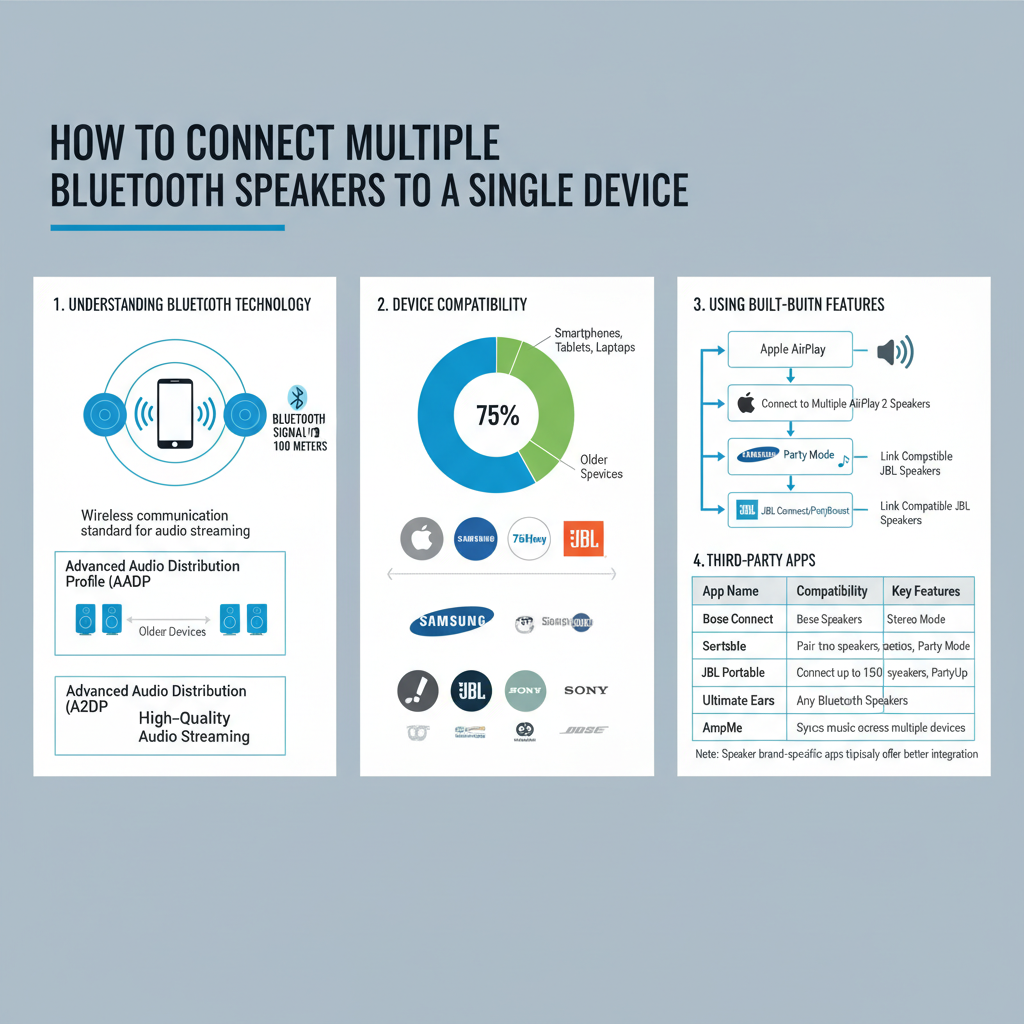
However, it’s important to consider the range limitations of Bluetooth connections. Typically, Bluetooth operates effectively within a range of about 30 feet (10 meters). Walls, furniture, and other obstacles can interfere with the signal, leading to a drop in audio quality or connection failures. Hence, when setting up your multiple Bluetooth speakers, try to keep them within this range of the device to ensure optimal connectivity.
Device Compatibility
Before diving into the setup process, check if your device is compatible with multiple Bluetooth connections. Not all devices support this feature, so it’s crucial to verify compatibility. Most modern smartphones and laptops are equipped with the necessary technology, but older models may not support connecting to more than one Bluetooth speaker at a time.
Operating system considerations also play a role in how you connect your devices. For instance, Android devices often have built-in features to support multiple connections, while iOS devices may require specific apps to achieve the same result. Windows and macOS devices might have different processes, so it’s best to refer to your device’s user manual or online support resources for guidance.
Using Built-in Features
Many manufacturers have recognized the demand for multi-speaker setups and have included built-in features to facilitate this. For example, brands like JBL and Bose offer a “party mode” on their speakers, allowing you to connect multiple units effortlessly. This feature is particularly popular among users who enjoy hosting parties or outdoor events where music needs to be spread across a larger area.
If you own a newer Samsung device, you can take advantage of the Dual Audio feature. This allows you to connect two Bluetooth speakers at once, creating a stereo sound experience. To enable this feature, simply go to your device’s Bluetooth settings, pair your speakers, and toggle on the Dual Audio option. It’s that easy!
Third-party Apps
If your speakers don’t have built-in multi-speaker capabilities, don’t worry! There are several third-party apps designed specifically for this purpose. Popular options include Bose Connect, JBL Connect, and Ultimate Ears. These apps not only help you connect multiple speakers but also provide additional features like EQ settings, firmware updates, and more.
For example, with the JBL Connect app, you can easily pair multiple JBL speakers with just a few taps. After downloading the app, follow these steps:
1. Open the JBL Connect app and ensure Bluetooth is enabled on your device.
2. Select the speaker you want to connect from the app.
3. Tap on the ‘Connect’ button and then choose additional speakers to link.
4. Enjoy your music playing across all connected speakers simultaneously!
Each app has its specific steps, but generally, they are user-friendly and straightforward.
Troubleshooting Common Issues
Sometimes, even the best setups can run into hiccups. Connection errors are common when trying to pair multiple Bluetooth speakers. If you encounter pairing issues, try the following tips:
– Ensure that all speakers are in pairing mode.
– Turn off Bluetooth on your device and turn it back on.
– Forget the speakers from your device’s Bluetooth settings and reconnect them.
Audio synchronization can also be a challenge, especially if there’s a noticeable delay between speakers. To address this, ensure that all speakers are updated with the latest firmware, as manufacturers often release updates to improve performance. Additionally, try to keep the speakers within a close range of the audio source to reduce lag.
Alternative Solutions
If Bluetooth connectivity isn’t working out for you, there are alternative solutions to achieve multi-speaker audio. One option is to use a wired connection with an audio splitter or an audio receiver. This method can provide a more stable connection and eliminates the potential for Bluetooth interference.
Moreover, smart speakers offer another avenue for multi-room audio. Devices like Google Home or Amazon Echo can sync music across various rooms in your home, allowing you to enjoy a seamless audio experience. With voice commands or through their respective apps, you can control the music effortlessly.
By following these steps and tips, you can easily connect multiple Bluetooth speakers to enhance your listening experience. Whether you’re hosting a party or just want to fill your home with music, utilizing the right methods will ensure seamless audio enjoyment. Don’t hesitate to experiment with different devices and apps to find the best solution for your needs!
Frequently Asked Questions
How do I connect multiple Bluetooth speakers to one device?
To connect multiple Bluetooth speakers to one device, you generally need to use a feature called “Party Mode” or “Multi-Connect,” depending on your speaker brand. For instance, with devices like JBL or Bose, you can pair them using their respective apps, which allow you to connect multiple speakers seamlessly. Always ensure your smartphone or tablet supports these features, and follow the manufacturer’s instructions for the best results.
What devices support connecting multiple Bluetooth speakers?
Many modern smartphones, tablets, and laptops support connecting multiple Bluetooth speakers simultaneously, particularly those running on Android 5.0 (Lollipop) or higher and iOS 13 or later. Additionally, certain brands like Samsung (with their Dual Audio feature), Apple (using AirPlay 2), and specific Windows laptops offer settings that enable multi-device audio output. Always check your device specifications to confirm compatibility.
Why can’t I connect multiple Bluetooth speakers to my device?
If you’re struggling to connect multiple Bluetooth speakers to your device, it could be due to limitations in your device’s Bluetooth version or lack of support for multi-speaker functionality. Additionally, interference from other Bluetooth devices or incorrect pairing steps can hinder the connection. To troubleshoot, ensure your device’s software is updated, and consult the user manual for your speakers to check for compatibility.
What is the best way to connect multiple Bluetooth speakers for a party?
The best way to connect multiple Bluetooth speakers for a party is to use speakers that support a multi-speaker function, like JBL’s Connect+ or Bose’s Party Mode. Utilizing these features allows you to pair up to 100 speakers, creating a synchronized sound experience. Alternatively, consider using a Bluetooth transmitter that can connect multiple speakers to enhance audio spread throughout your space.
Which Bluetooth speakers are best for connecting multiple devices?
Some of the best Bluetooth speakers for connecting multiple devices include the JBL Charge 5, Bose SoundLink Revolve+, and Ultimate Ears MEGABOOM 3. These speakers offer robust multi-connection capabilities and impressive sound quality, making them ideal for parties or gatherings. Be sure to check if the speaker has a dedicated app that facilitates easy pairing and management of multiple connections for added convenience.


