
Editing 4K videos without a high-end PC is entirely possible with the right tools and techniques. By leveraging efficient software, optimizing your workflow, and utilizing cloud-based services, you can achieve impressive results even on less powerful machines. This guide will walk you through essential tips and methods to make your 4K editing experience smoother and more efficient, ensuring that you can create stunning content without breaking the bank on expensive hardware.
Choose Lightweight Video Editing Software

When it comes to editing 4K videos on a budget, choosing the right software is crucial. Opt for lightweight video editing programs that are designed to work well on lower-end systems. For instance, HitFilm Express offers a free version packed with powerful features while maintaining a user-friendly interface, making it ideal for beginners and experienced editors alike. Another excellent choice is DaVinci Resolve, which also has a free version that provides professional-grade tools for color correction and audio editing.
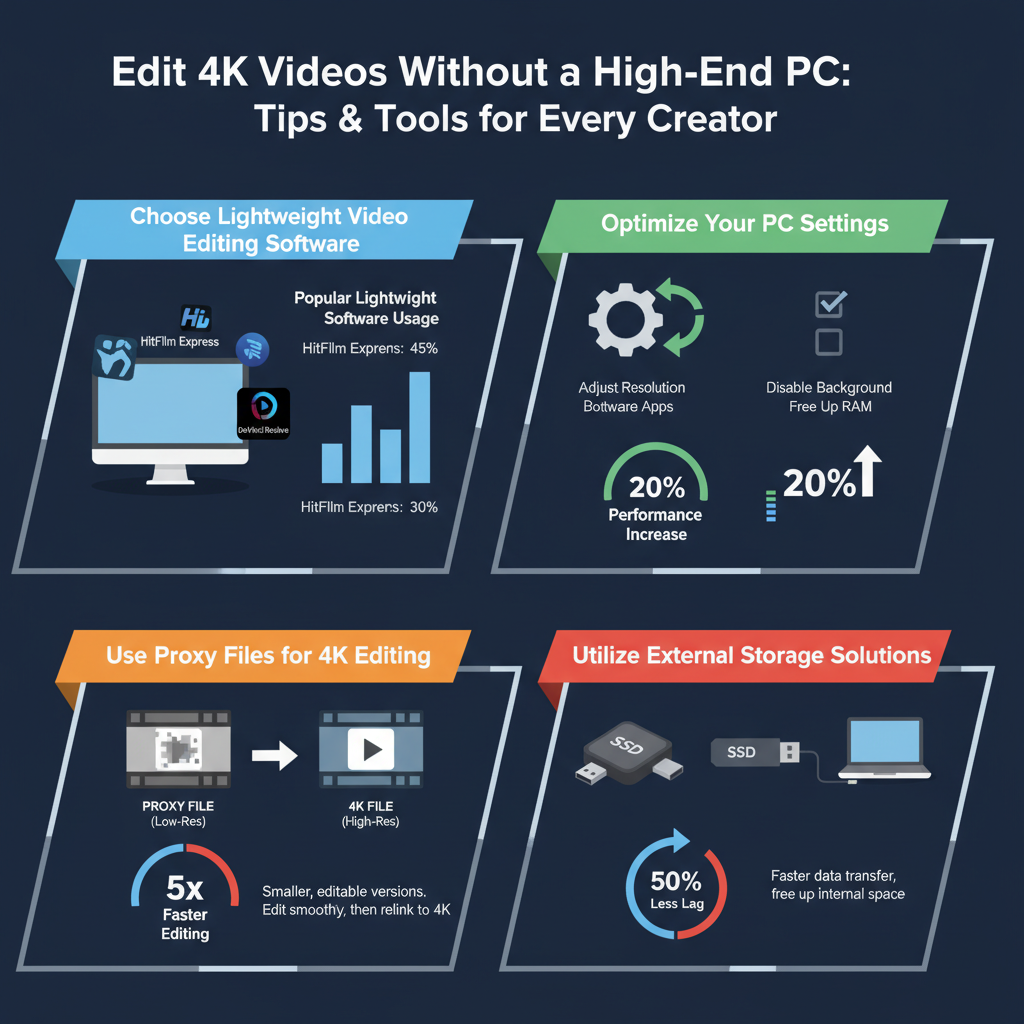
One of the game-changing features to look for is proxy editing. This allows you to edit with lower resolution files, significantly reducing the strain on your system. Programs that support proxy editing will create a lightweight version of your footage, making it easier to edit without sacrificing quality. After finishing your edit, you can seamlessly switch back to the original 4K files for the final rendering.
Optimize Your PC Settings

Optimizing your PC settings can make a world of difference when editing 4K video. Start by adjusting your performance settings to prioritize processing power for editing tasks. This can usually be done through your system settings. Look for options that allow you to enhance performance, such as setting your power plan to high performance or adjusting the visual effects for better processing efficiency.
Additionally, closing unnecessary applications and background processes can free up valuable RAM and CPU resources. Use Task Manager on Windows or Activity Monitor on macOS to identify and terminate any non-essential applications. This simple step can significantly improve your editing experience, allowing your software to run more smoothly.
Use Proxy Files for 4K Editing
Proxy editing is one of the most effective techniques for handling 4K footage on a less powerful PC. Creating proxy files involves generating lower-resolution copies of your original video files, which you can use during the editing process. This drastically reduces the amount of data your computer needs to process, making playback smoother and editing more responsive.
Most modern editing software allows you to easily create proxy files with just a few clicks. Once you’ve completed your editing, you can replace the proxy files with the original high-resolution footage for the final render. This ensures that your final output maintains the stunning quality of 4K resolution without compromising your editing workflow. Tutorials and guides specific to your editing software can provide detailed steps for setting up proxy editing.
Utilize External Storage Solutions
In the world of video editing, storage speed is just as important as processing power. Investing in fast external SSDs can dramatically improve load times and performance. SSDs (Solid State Drives) are much quicker than traditional hard drives and can provide the speed necessary for working with large 4K files.
Moreover, consider utilizing cloud storage solutions. Services like Google Drive, Dropbox, or dedicated video storage platforms can help you back up your footage securely and access it from various devices, making collaboration easier and providing peace of mind. Just ensure that your internet connection is stable and fast enough to handle large video files for seamless editing.
Explore Online Editing Platforms
Cloud-based editing platforms have revolutionized the way we edit videos, especially for those without high-end PCs. Consider using tools like WeVideo or Adobe Premiere Rush, which allow you to edit directly in your browser. These platforms are designed with built-in optimizations that enable smoother performance on lower-end systems.
These online tools come equipped with various features such as easy-to-use drag-and-drop interfaces, stock media libraries, and collaborative options, making them ideal for both beginner and advanced editors. Plus, working in the cloud means you don’t have to worry about your hardware’s limitations as the processing is done on powerful servers.
Leverage Hardware Upgrades
If you find that editing 4K videos is still a struggle despite using lightweight software and proxy files, it might be time to consider some hardware upgrades. Increasing your RAM can significantly enhance your PC’s performance during editing tasks. For video editing, 16GB is often the minimum recommended, but going up to 32GB or more can make a notable difference.
Another upgrade to consider is swapping out your traditional hard drive for an SSD. This can drastically reduce load times and improve overall system responsiveness. If you’re using a laptop, you might also explore the option of using an eGPU (external GPU), which can significantly boost your graphics processing capabilities without the need for an entirely new machine.
Learn Efficient Editing Techniques
Efficient editing techniques can save you a lot of time and headaches during the editing process. One of the best ways to speed up your workflow is to familiarize yourself with keyboard shortcuts specific to your editing software. These shortcuts can help you navigate the interface faster and execute commands without relying on the mouse.
Moreover, organizing your media files and project sequences will streamline your editing process. Create a logical folder structure for your footage, audio, and assets, and label everything clearly. This will not only make finding files easier but also allow you to focus on the creative side of editing rather than wasting time searching for clips.
By implementing these strategies, you can effectively edit 4K videos without the need for a high-end PC. Embrace lightweight software, optimize your settings, and explore various editing methods to enhance your workflow and output quality. Don’t hesitate to experiment with different tools and techniques to find what works best for you and your system.
In conclusion, editing 4K videos on a budget-friendly PC is entirely feasible with the right approach. By choosing lightweight software, optimizing your system, utilizing proxies, leveraging external storage, exploring online platforms, considering hardware upgrades, and mastering efficient techniques, you can create stunning video content without needing an expensive setup. Embrace these tips, and who knows? You might just surprise yourself with the quality of work you can produce!
Frequently Asked Questions
What are the best video editing software options for 4K editing on a low-end PC?
Some of the best video editing software for editing 4K videos on a low-end PC includes DaVinci Resolve, Shotcut, and Lightworks. These programs are designed to optimize performance, allowing for smoother playback and editing even on less powerful machines. Additionally, consider using software that supports proxy editing, which can significantly reduce the strain on your system by allowing you to edit lower-resolution versions of your footage before finalizing in 4K.
How can I optimize my PC for editing 4K videos without upgrading hardware?
To optimize your PC for editing 4K videos, start by closing unnecessary background applications to free up system resources. Increasing your virtual memory (paging file) can also help improve performance. Additionally, consider using an SSD for your video files and project files, as this can drastically improve load times and playback performance. Finally, regularly update your video drivers and editing software to ensure compatibility and performance improvements.
Why is editing 4K video challenging on a low-end PC?
Editing 4K video can be challenging on a low-end PC due to the high resolution and data requirements, which can overwhelm limited CPU and RAM resources. This often results in slow playback, longer rendering times, and potential software crashes. Moreover, many low-end systems lack the graphical power needed for real-time effects and transitions, making the editing process frustrating and inefficient.
Which file formats are best for 4K video editing on a budget PC?
The best file formats for 4K video editing on a budget PC are those that offer a balance between quality and performance, such as ProRes, DNxHD, or even lower resolution proxy files. These formats are optimized for editing and provide a smoother workflow. Avoid highly compressed formats like H.264 for editing, as they can be more taxing on your system and slow down the editing process.
What techniques can I use to improve the editing process of 4K videos on a low-end machine?
To improve your editing process of 4K videos on a low-end machine, consider using proxy editing, where you create lower-resolution copies of your files for editing and then link back to the original 4K files for final rendering. Additionally, limit the use of heavy effects and transitions, and utilize optimized previews to ease the load on your system. Organizing your footage and using efficient workflows can also help streamline the editing process and reduce lag.
References
- Video editing
- https://www.pcmag.com/how-to/how-to-edit-video-on-a-low-end-pc
- https://www.techradar.com/how-to/how-to-edit-video-on-a-low-spec-pc
- https://www.howtogeek.com/711338/how-to-edit-video-on-a-low-end-pc/
- https://www.makeuseof.com/tag/edit-videos-on-a-low-spec-pc/
- https://www.lifewire.com/best-free-video-editing-software-4174528
- https://www.digitaltrends.com/computing/how-to-edit-4k-video-on-a-laptop/