
Resolving home theater connection issues with smart TVs often involves checking cables, settings, and device compatibility. By following systematic troubleshooting steps, you can identify and rectify common problems to ensure a seamless viewing experience. This article provides an in-depth guide to diagnosing and fixing connection issues effectively.
Common Connection Issues
When integrating a smart TV with a home theater system, several connection issues may arise. Among the most frequent problems are no audio output, intermittent video signal loss, or devices not being recognized by the TV. Such issues can stem from a variety of factors, including incompatible devices, incorrect settings, or loose cables.
For instance, if your smart TV displays a “no signal” message, it might be due to a misconfigured input source or disconnected cables. In another scenario, if the audio works inconsistently, this could indicate issues with the audio settings or the integrity of the connection cables. Understanding these common problems is the first step toward troubleshooting effectively.
Checking Cable Connections
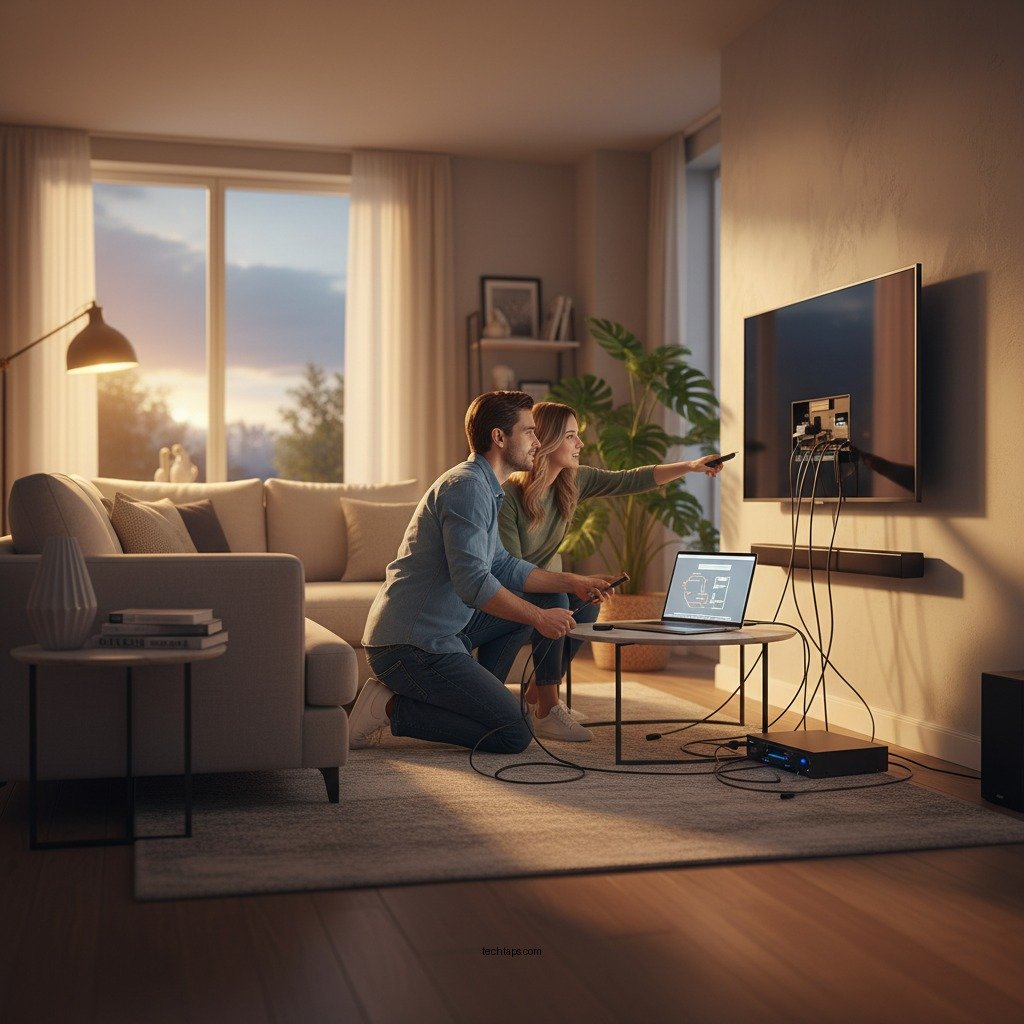
One of the most straightforward yet often overlooked steps in fixing connection issues is to check the cable connections. Ensure that all cables are securely connected to both the TV and the audio/video components. Loose or damaged cables can lead to a host of issues, including loss of signal or poor audio quality.
Using high-quality HDMI or optical cables is essential, as these support the specifications of modern devices. For example, HDMI cables should be rated for HDMI 2.0 or higher to transmit 4K video and audio formats effectively. Always inspect cables for visible damage and replace any that appear worn or frayed to maintain optimal performance.
Configuring TV Settings
After ensuring all physical connections are secure, the next step is to configure your TV settings correctly. Access the settings menu on your smart TV to confirm that the correct input source is selected. This is often a common oversight, especially when multiple devices are connected.
Additionally, reviewing the audio settings is crucial. Ensure that the sound output matches your home theater system’s configuration. Many smart TVs allow you to choose between different audio outputs, such as internal speakers, optical audio, or HDMI ARC. Selecting the correct output will significantly enhance your audio experience and eliminate sound-related issues.
Updating Firmware and Software
Regularly updating the firmware and software on both your smart TV and connected devices can prevent many connectivity issues. Manufacturers often release updates that fix bugs and improve compatibility with new devices.
To check for updates, navigate to the settings menu of your smart TV and look for the software update section. Ensure that your devices are also set to automatically update whenever connected to the internet. Keeping your devices updated not only enhances performance but also resolves known issues that may be affecting your connection.
Top 7 HDMI Cables for Home Theater Systems (2024)
| # | Cable Name | Length | Rating | Price |
|---|---|---|---|---|
| 1 | Amazon Basics HDMI Cable | 6 ft | ★★★★☆ | $8.99 |
| 2 | Mediabridge HDMI Cable | 12 ft | ★★★★★ | $12.99 |
| 3 | Cable Matters HDMI Cable | 15 ft | ★★★★☆ | $14.99 |
| 4 | Ultra Clarity Cables HDMI Cable | 25 ft | ★★★★☆ | $18.99 |
| 5 | J-Tech Digital HDMI Cable | 30 ft | ★★★★★ | $21.99 |
| 6 | BlueRigger HDMI Cable | 10 ft | ★★★★☆ | $9.99 |
| 7 | Mediabridge Ultra Series HDMI Cable | 4 ft | ★★★★★ | $7.99 |
Resetting Devices
If you have performed all the previous troubleshooting steps without success, consider resetting your devices. A factory reset can often resolve persistent connectivity issues, but it should be viewed as a last resort. Before proceeding, ensure you have noted any important settings that you might need to reconfigure afterward.
To perform a factory reset on your smart TV, navigate to the settings menu, look for the reset option, and follow the on-screen prompts. The process can vary slightly depending on the brand and model of your TV. Similarly, for your home theater system, check the user manual for specific instructions on resetting. Be mindful that resetting will erase all custom settings, so proceed with caution.
Troubleshooting Wireless Connections
For users relying on wireless connections, ensuring a strong Wi-Fi signal is critical. Interference from other devices, walls, or even microwaves can disrupt your connection. To troubleshoot, check the signal strength on your smart TV and consider repositioning your router or using a Wi-Fi extender for better coverage.
If wireless issues persist, consider switching to a wired Ethernet connection. Wired connections provide a more stable and reliable internet connection, which is particularly beneficial for streaming high-definition content. By connecting your smart TV directly to the router with an Ethernet cable, you can often eliminate buffering and connectivity issues entirely.
Seeking Professional Help
If, after exhausting all troubleshooting options, your home theater system still faces connectivity issues, it may be time to consult with a tech expert or customer support. Complex issues, such as hardware malfunctions or specific compatibility problems, might require professional intervention.
Before reaching out, check if your devices are still under warranty. Many manufacturers offer repair or replacement services for faulty devices, so it’s worth exploring your warranty options to save on potential repair costs.
In conclusion, ensuring your home theater setup works seamlessly with your smart TV may require checking connections, adjusting settings, and keeping devices updated. By following these troubleshooting steps, you can significantly enhance your viewing experience and resolve most connection issues. If problems persist, don’t hesitate to seek professional assistance to restore your home theater’s functionality.
Frequently Asked Questions
How can I troubleshoot my smart TV connection issues with my home theater system?
To troubleshoot connection issues between your smart TV and home theater system, start by checking all cable connections for secure fittings. Ensure that you’re using the correct input on your TV and that the home theater system is set to the corresponding output. If problems persist, reset both devices and check for firmware updates, as outdated software can often lead to connectivity problems.
What settings should I adjust on my smart TV for optimal home theater performance?
For optimal home theater performance, adjust your smart TV’s audio settings to match your home theater system. This may include setting the audio output to external speakers and ensuring that any surround sound features are enabled. Additionally, check the picture settings, such as brightness and contrast, to enhance the viewing experience and complement your audio setup.
Why is my smart TV not recognizing my home theater system?
If your smart TV is not recognizing your home theater system, it could be due to incompatible connection types or settings. Ensure that both devices are connected via compatible HDMI cables and that the HDMI-CEC feature is enabled on both ends. Sometimes, a simple power cycle of both devices can also resolve recognition issues.
What is the best way to connect my smart TV to a home theater system?
The best way to connect your smart TV to a home theater system is through an HDMI cable, as it provides high-quality audio and video signals. If your home theater system supports multiple inputs, use the HDMI ARC (Audio Return Channel) port to simplify the connection and control. Alternatively, consider using optical cables for audio if HDMI is not an option.
Which devices should I consider for enhancing my smart TV’s home theater capabilities?
To enhance your smart TV’s home theater capabilities, consider investing in a quality AV receiver that supports various audio formats and multiple HDMI inputs. Additionally, a soundbar can provide a simpler solution with great audio quality. Streaming devices like Roku or Amazon Fire TV can also expand your smart TV’s functionality with access to more content and apps.
References
- Home cinema
https://en.wikipedia.org/wiki/Home_theater - https://www.sciencedirect.com/topics/engineering/home-theater
https://www.sciencedirect.com/topics/engineering/home-theater - https://www.bbc.com/news/technology-50584938
https://www.bbc.com/news/technology-50584938 - HDMI Licensing Administrator, Inc.
https://www.hdmi.org/spec/ - https://www.nytimes.com/2020/12/09/technology/personaltech/smart-tv-setup.html
https://www.nytimes.com/2020/12/09/technology/personaltech/smart-tv-setup.html - Google Scholar Google Scholar
https://scholar.google.com/scholar?q=Home+Theater+Connection+Issues - Google Scholar Google Scholar
https://scholar.google.com/scholar?q=Smart+TV+Connection+Troubleshooting - Google Scholar Google Scholar
https://scholar.google.com/scholar?q=Home+Theater+Setup+Guide - Google Scholar Google Scholar
https://scholar.google.com/scholar?q=How+to+Solve+Home+Theater+Connection+Issues+with+Smart+TVs - How to Solve Home Theater Connection Issues with Smart TVs – Search results
https://en.wikipedia.org/wiki/Special:Search?search=How+to+Solve+Home+Theater+Connection+Issues+with+Smart+TVs