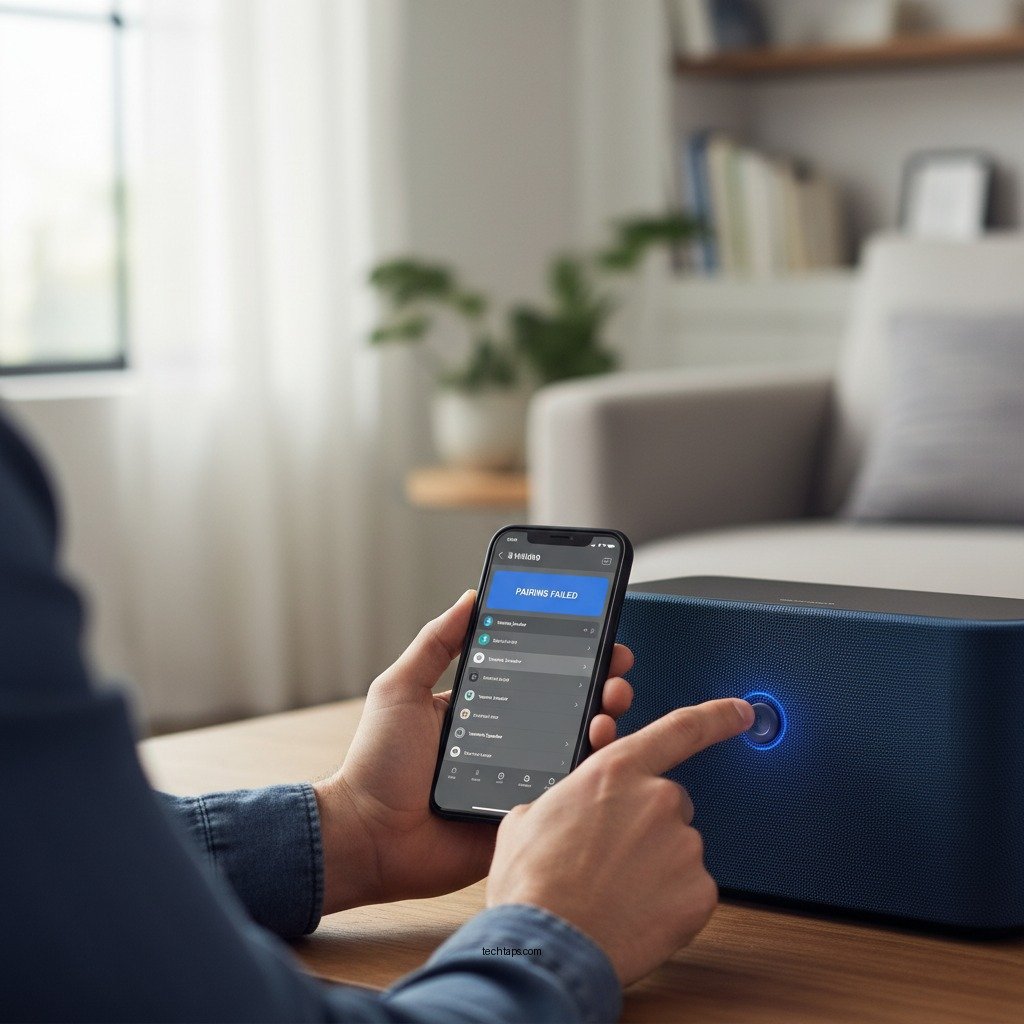

If your Yamaha wireless speaker is not connecting to Bluetooth, try resetting the speaker and ensuring it is in pairing mode. This article will guide you through troubleshooting steps to restore your speaker’s Bluetooth functionality effectively. Whether you’re enjoying music at home or relying on your speaker for a presentation, a stable Bluetooth connection is crucial. We will explore the common causes of connectivity issues and provide detailed solutions to help you get back to your audio experience seamlessly.
Check Bluetooth Compatibility
Before diving into more complex troubleshooting, it’s essential to confirm that your device is compatible with your Yamaha wireless speaker. Most modern devices, including smartphones, tablets, and laptops, support Bluetooth technology. However, older devices may not support the necessary Bluetooth version required for optimal performance with newer speakers. To check compatibility, refer to the specifications of both your device and the Yamaha speaker model.
Additionally, ensure that your device’s Bluetooth feature is turned on. Navigate to your device’s settings and confirm that Bluetooth is enabled. A simple restart of your device can often resolve temporary connection issues. If other Bluetooth devices connect without problems, this suggests that the issue lies with the speaker or the initial pairing process.
Reset the Yamaha Speaker
If you’ve confirmed compatibility and your device’s Bluetooth is functioning correctly, the next step is to reset your Yamaha speaker. The process may vary slightly depending on the model, but generally, you will find a reset button or a specific button combination to initiate a factory reset.
1. Locate the Reset Button: This is often found on the back or bottom of the speaker. If your model lacks a physical button, consult the user manual for alternative reset instructions.
2. Perform the Reset: Press and hold the reset button for a few seconds until you see an indicator light flash, signaling that the speaker is resetting. This process clears any previous settings, including paired devices, and restores factory defaults.
Resetting the speaker can help eliminate any software glitches that may have developed over time, making it a valuable step in resolving connection issues.
Ensure Proper Pairing Mode
After resetting the speaker, it is crucial to ensure that it is in pairing mode. This is typically indicated by a flashing LED light on the speaker. If the LED is solid, the speaker is not in pairing mode, and your device will not be able to connect.
1. Activate Pairing Mode: To enter pairing mode, press the designated Bluetooth button on your speaker. Once activated, the LED light should begin to flash, signaling that the speaker is ready to pair with a new device.
2. Disconnect Previous Connections: If the speaker has previously been paired with other devices, it may struggle to connect to a new one. Therefore, it’s advisable to disconnect any previously connected devices. For instance, if your speaker is currently connected to a smartphone, make sure to disconnect it before trying to pair with a tablet or another phone.
Update Firmware
Keeping your Yamaha speaker’s firmware up to date is crucial for optimal performance and compatibility with other devices. Manufacturers often release updates that enhance features, fix bugs, or improve connectivity.
1. Check for Updates: You can check for firmware updates through the Yamaha MusicCast app or by visiting the Yamaha website. The app often provides notifications about available updates directly.
2. Follow Update Instructions: Once you find an update, follow the provided instructions carefully. Usually, this involves connecting your speaker to the app via Bluetooth and following prompts to complete the update process.
Updating the firmware can resolve known issues and improve the overall functionality of your speaker, making it a key step in troubleshooting Bluetooth problems.
Remove and Re-Pair Devices
If the speaker is still not connecting after ensuring it is in pairing mode and updated, the next step is to remove the speaker from your device’s Bluetooth settings and attempt to re-pair.
1. Delete the Speaker from Bluetooth Settings: On your device, navigate to the Bluetooth settings and locate your Yamaha speaker. Select the option to ‘Forget’ or ‘Remove’ the device.
2. Re-Pair the Speaker: After removing the device, go back to the Bluetooth settings and search for available devices. Select your Yamaha speaker from the list and wait for the connection to establish.
This process clears any problematic pairing data and allows for a fresh connection, which can often resolve persistent issues.
Check for Interference
Bluetooth operates on a frequency that can be susceptible to interference from other devices. To ensure optimal connectivity, check your surroundings for potential sources of interference.
1. Identify Interference Sources: Common culprits include microwaves, Wi-Fi routers, and other Bluetooth devices. If possible, move your speaker away from these devices or switch them off temporarily to see if connectivity improves.
2. Test in a Different Location: Sometimes, merely relocating your speaker can resolve connectivity issues. Test the speaker in different areas of your home or office to determine if the connection improves in a less crowded environment.
Addressing interference issues is critical for maintaining a stable Bluetooth connection, especially in areas with multiple electronic devices.
Consult the User Manual
When all else fails, referring to the specific user manual for your Yamaha model can provide tailored troubleshooting advice. Each model may have unique features and requirements that can be vital for resolving connection issues.
1. Locate the Bluetooth Section: Most user manuals contain a section dedicated to Bluetooth connectivity. Here you will find detailed instructions and troubleshooting tips specific to your model.
2. Follow Recommended Steps: If the manual provides a troubleshooting guide, follow these steps carefully. Often, manufacturers include solutions for common problems that may not be covered in general guides.
Consulting the user manual can save time and effort by providing model-specific insights that general articles may overlook.
Yamaha Speaker Models Comparison (2024)
| # | Model | Bluetooth Version | Battery Life | Weight |
|---|---|---|---|---|
| 1 | Yamaha MusicCast 20 | 4.2 | 12 hours | 1.2 kg |
| 2 | Yamaha MusicCast 50 | 4.2 | 17 hours | 2.5 kg |
| 3 | Yamaha NX-N500 | 4.1 | 10 hours | 1.5 kg |
| 4 | Yamaha WX-021 | 4.2 | 16 hours | 1.3 kg |
| 5 | Yamaha YAS-209 | 4.2 | 10 hours | 2.8 kg |
| 6 | Yamaha MusicCast 50 | 4.2 | 14 hours | 2.2 kg |
| 7 | Yamaha YAS-109 | 4.2 | 12 hours | 2.5 kg |
In summary, fixing Bluetooth connection issues with your Yamaha wireless speaker involves a systematic approach to troubleshooting. By checking compatibility, resetting the speaker, ensuring it’s in pairing mode, updating firmware, removing and re-pairing devices, checking for interference, and consulting the user manual, you can effectively resolve most connectivity problems. If the problem persists after following these steps, it may be beneficial to reach out to Yamaha customer support for specialized assistance or explore warranty options. With these strategies, you can enjoy a seamless audio experience once again.
Frequently Asked Questions
What should I do if my Yamaha wireless speaker won’t connect to Bluetooth?
If your Yamaha wireless speaker won’t connect to Bluetooth, first ensure that both the speaker and the device you’re trying to connect are powered on and within range. Next, check if the Bluetooth function is activated on your speaker by pressing the Bluetooth button. If problems persist, try unpairing and reconnecting the devices or resetting the speaker to factory settings.
How can I reset my Yamaha wireless speaker to fix Bluetooth connectivity issues?
To reset your Yamaha wireless speaker, locate the reset button, often found on the back or bottom of the device. Press and hold this button for about 10-15 seconds until you see the indicator light flash, signaling that the reset is complete. After resetting, try reconnecting your Bluetooth device to see if it resolves the connectivity issues.
Why does my Bluetooth device not detect my Yamaha wireless speaker?
If your Bluetooth device cannot detect your Yamaha wireless speaker, it might be because the speaker is not in pairing mode. Make sure to activate pairing mode by pressing the Bluetooth button until the indicator light blinks. Additionally, ensure that your Bluetooth device’s settings are set to discoverable and that it is within range.
What are the best troubleshooting steps for Yamaha wireless speaker Bluetooth problems?
The best troubleshooting steps for Yamaha wireless speaker Bluetooth problems include checking the Bluetooth range, ensuring the speaker is charged, and restarting both the speaker and your Bluetooth device. Additionally, update the firmware of your speaker if necessary, and ensure no other devices are connected that might interfere with the connection.
Which devices are compatible with Yamaha wireless speakers for Bluetooth connections?
Yamaha wireless speakers are generally compatible with a wide range of devices, including smartphones, tablets, and laptops that support Bluetooth connectivity. For optimal performance, check the specifications of your Yamaha speaker model to ensure compatibility with your specific device, and ensure that your device’s Bluetooth version meets the requirements.
References
- https://www.yamahaspeaker.com/support/faq
https://www.yamahaspeaker.com/support/faq - Reddit – The heart of the internet
https://www.reddit.com/r/Yamaha/comments/8v7u3t/yamaha_bluetooth_speaker_not_connecting/ - Google Scholar Google Scholar
https://scholar.google.com/scholar?q=Yamaha+Wireless+Speaker+Bluetooth+Connection+Issues - Google Scholar Google Scholar
https://scholar.google.com/scholar?q=Fixing+Bluetooth+connection+problems - Google Scholar Google Scholar
https://scholar.google.com/scholar?q=Wireless+Speaker+Bluetooth+Troubleshooting - Google Scholar Google Scholar
https://scholar.google.com/scholar?q=How+to+Fix+Yamaha+Wireless+Speaker+Not+Connecting+to+Bluetooth - How to Fix Yamaha Wireless Speaker Not Connecting to Bluetooth – Search results
https://en.wikipedia.org/wiki/Special:Search?search=How+to+Fix+Yamaha+Wireless+Speaker+Not+Connecting+to+Bluetooth - https://www.ncbi.nlm.nih.gov/search/research-articles/?term=How+to+Fix+Yamaha+Wireless+Speaker+Not+Connecting+to+Bluetooth
https://www.ncbi.nlm.nih.gov/search/research-articles/?term=How+to+Fix+Yamaha+Wireless+Speaker+Not+Connecting+to+Bluetooth