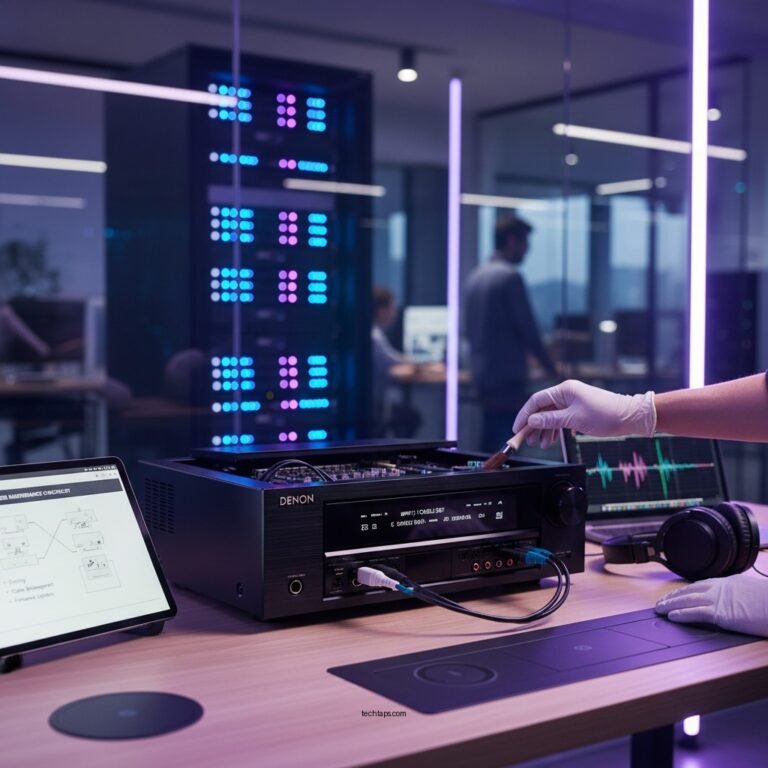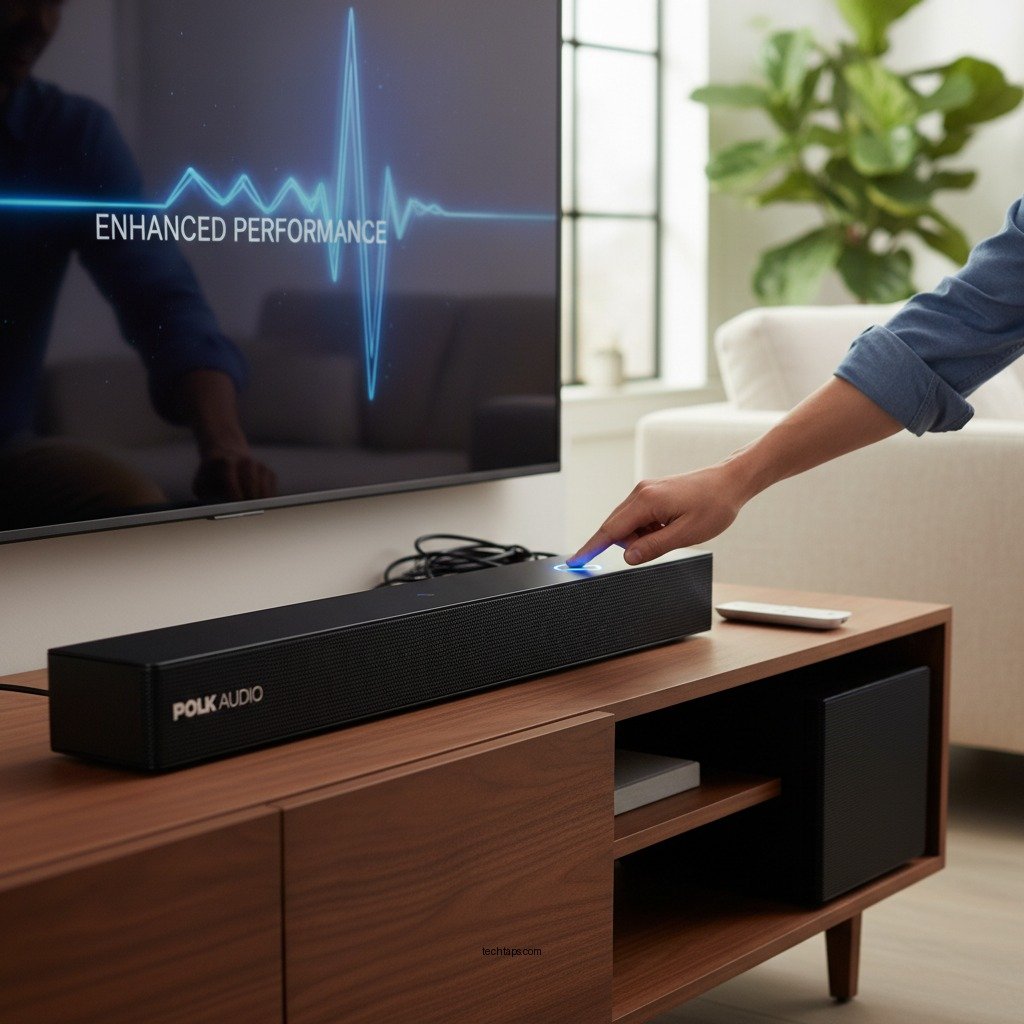

Resetting your Polk Audio sound system can significantly improve its performance and resolve various audio issues. This guide will provide you with a detailed, step-by-step process to effectively reset your system, ensuring that you achieve the best audio experience possible from your Polk equipment. By following these instructions, you can tackle common problems such as connectivity issues and audio distortion, ultimately enhancing your overall listening experience.
Understanding the Need for a Reset
There are several indicators that your Polk Audio sound system may need a reset. Common issues include connectivity problems, such as difficulty pairing with Bluetooth devices, or audio distortion that can manifest as muffled sounds or unexpected changes in volume. Additionally, if you notice that your system is not responding to commands or settings adjustments, a reset can often bring your device back to life.
The benefits of resetting your sound system extend beyond merely resolving issues. A factory reset restores all settings to their original state, allowing you to start fresh. This can lead to improved sound quality, as any misconfigurations or corrupted settings are cleared. Furthermore, a reset can help eliminate glitches that may have developed over time, providing a more seamless user experience.
Steps to Reset Your Polk Audio Sound System
To perform a factory reset on your Polk Audio sound system, follow these detailed instructions. The process may vary slightly depending on the specific model you own, so it’s essential to consult your user manual for model-specific guidance. Here are general steps applicable to many Polk Audio models:
1. Power Off the Device: Begin by turning off your Polk Audio sound system.
2. Locate the Reset Button: Many models have a physical reset button, often found on the back or bottom of the unit. If your model does not have a dedicated button, you may need to use a combination of existing buttons on the remote or the device itself.
3. Press and Hold the Reset Button: If there is a reset button, press and hold it for about 10-15 seconds until you see an indicator light flash or hear a sound signaling that the reset is successful.
4. Alternative Method: For models without a reset button, try holding down the power button and the volume down button simultaneously for about 10 seconds.
5. Reconnect Your Devices: After the reset, you will need to reconnect any Bluetooth devices or reconfigure your settings according to your preferences.
Before resetting, ensure that you back up any personalized settings or configurations, as a factory reset will erase all customizations.
Troubleshooting After the Reset
Even after performing a reset, some users may still encounter issues. Common problems include persistent connectivity issues or the system failing to recognize input sources. If you run into these situations, consider the following troubleshooting steps:
– Reconnect Devices: Make sure that all devices are properly paired and connected. Sometimes, removing the device from your Bluetooth settings and re-adding it can resolve connectivity issues.
– Check Cables and Connections: Ensure that all cables, including power and audio connections, are secure and undamaged.
– Adjust Sound Settings: After a reset, you may need to fine-tune your sound settings for optimal performance. Experiment with equalizer settings and other audio options to find what sounds best for your environment.
To optimize sound settings after a reset, consider utilizing the built-in sound modes or presets that may be available in your model. This can significantly enhance audio performance, particularly when adjusting for various types of media like movies or music.
Top 7 Polk Audio Sound System Models (2024)
| # | Model | Bluetooth | Wi-Fi | Sound Quality |
|---|---|---|---|---|
| 1 | Polk Audio Command Bar | Yes | Yes | ★★★★☆ |
| 2 | Polk Audio MagniFi Mini | Yes | No | ★★★★★ |
| 3 | Polk Audio Signa S3 | Yes | Yes | ★★★★☆ |
| 4 | Polk Audio T15 | No | No | ★★★★☆ |
| 5 | Polk Audio React | Yes | Yes | ★★★★★ |
| 6 | Polk Audio Atrium 4 | No | No | ★★★☆☆ |
| 7 | Polk Audio Legend L800 | Yes | Yes | ★★★★★ |
Maintaining Your Sound System for Longevity
Routine maintenance is crucial for ensuring that your Polk Audio sound system operates efficiently over time. Regularly check for software updates, as manufacturers often release updates that can improve performance and fix bugs. Keeping your system clean is also essential; dust and dirt can accumulate in the vents and speakers, potentially affecting sound quality. Use a soft cloth and avoid any harsh cleaning agents.
When it comes to storing your equipment, ensure that it is kept in a dry, cool place away from direct sunlight or extreme temperatures. Excessive heat can damage electronic components, while humidity can cause corrosion and deterioration.
Additional Resources and Support
For more in-depth assistance, you can visit Polk Audio’s official support page, where you’ll find user manuals, FAQs, and troubleshooting guides tailored to specific models. Engaging with community forums or groups dedicated to Polk Audio users can also be valuable. These platforms often feature shared tips, experiences, and solutions from fellow enthusiasts who may have faced similar challenges.
Upgrading Your Polk Audio Experience
As you continue to enjoy your Polk Audio sound system, consider potential upgrades to further enhance performance. For example, upgrading speaker cables or adding a subwoofer can significantly improve sound depth and clarity. Additionally, using high-quality audio sources, such as lossless formats, can elevate your listening experience.
When looking for compatible accessories, consider investing in surge protectors to safeguard your equipment against power surges, and acoustic panels to optimize sound quality within your listening environment.
By following these steps, you can effectively reset your Polk Audio sound system and optimize its performance. Remember to maintain your equipment regularly and consider enhancements to maximize your audio experience. If you encounter any persistent issues, don’t hesitate to reach out to Polk Audio support or explore additional resources for further improvement.
Frequently Asked Questions
How do I perform a factory reset on my Polk Audio sound system?
To perform a factory reset on your Polk Audio sound system, first power off the unit. Then, while holding down the “Volume Up” and “Volume Down” buttons simultaneously, turn the power back on. Keep holding the buttons until you see the LED indicator flash, confirming that the reset has been successful.
Why is it necessary to reset my Polk Audio sound system?
Resetting your Polk Audio sound system can resolve various performance issues, such as connectivity problems, sound distortion, or unexpected behavior. A reset clears any stored settings or configurations that may have become corrupted, restoring the system to its original factory state and enhancing overall performance.
What are the signs that indicate I need to reset my Polk Audio sound system?
You may need to reset your Polk Audio sound system if you experience persistent audio dropouts, irregular volume levels, or if the system fails to connect to Bluetooth devices. Additionally, if you’re encountering issues with the remote control or if the system isn’t responding to commands, a reset could help restore proper functionality.
Which settings are lost when I reset my Polk Audio sound system?
When you reset your Polk Audio sound system, all customized settings such as equalizer adjustments, Bluetooth pairings, and saved presets will be erased. It’s advisable to note down your preferred settings before performing a reset so you can easily reconfigure them afterward for optimal sound performance.
What should I do if resetting my Polk Audio sound system doesn’t improve performance?
If resetting your Polk Audio sound system does not enhance performance, you may want to check for firmware updates or ensure that all connections and cables are secure. Additionally, consider consulting the user manual for troubleshooting tips, or reach out to Polk Audio customer support for further assistance in diagnosing any persistent issues.
References
- Polk Audio
https://en.wikipedia.org/wiki/Polk_Audio - Google Scholar Google Scholar
https://scholar.google.com/scholar?q=Polk+Audio+Sound+System+reset - Google Scholar Google Scholar
https://scholar.google.com/scholar?q=reset+audio+system+performance - https://www.bbc.com/news/technology-54600880
https://www.bbc.com/news/technology-54600880 - https://www.theguardian.com/technology/2020/sep/29/sound-system-tips
https://www.theguardian.com/technology/2020/sep/29/sound-system-tips - https://www.nytimes.com/2021/07/15/technology/polk-audio-sound-system.html
https://www.nytimes.com/2021/07/15/technology/polk-audio-sound-system.html - https://www.sciencedirect.com/topics/engineering/audio-systems
https://www.sciencedirect.com/topics/engineering/audio-systems - https://pubmed.ncbi.nlm.nih.gov/26823567/
https://pubmed.ncbi.nlm.nih.gov/26823567/ - https://www.nature.com/articles/s41598-020-68183-3
https://www.nature.com/articles/s41598-020-68183-3 - https://www.mayoclinic.org/healthy-lifestyle/consumer-health/in-depth/audio-visual-experiences/art-20417409
https://www.mayoclinic.org/healthy-lifestyle/consumer-health/in-depth/audio-visual-experiences/art-20417409