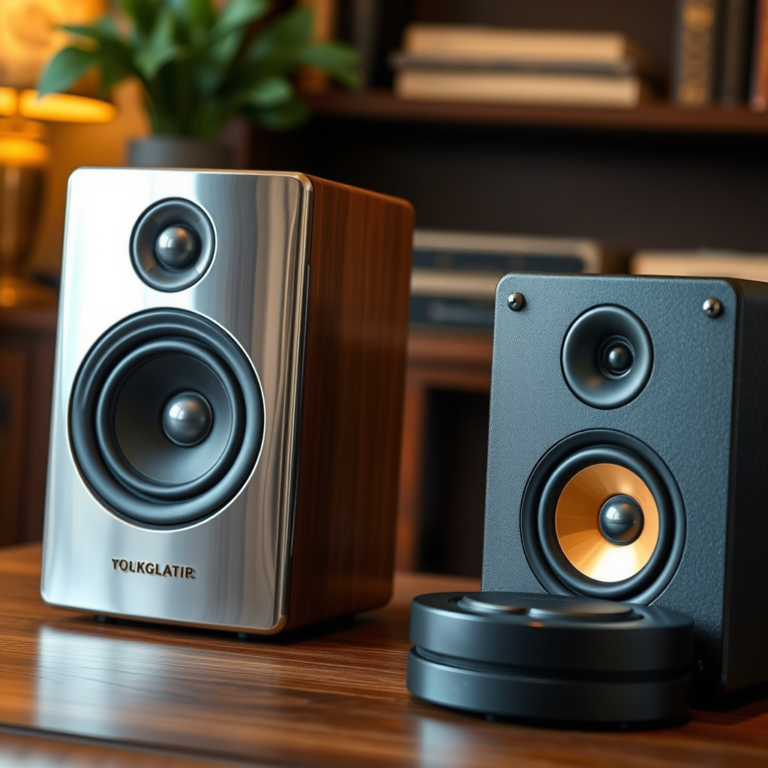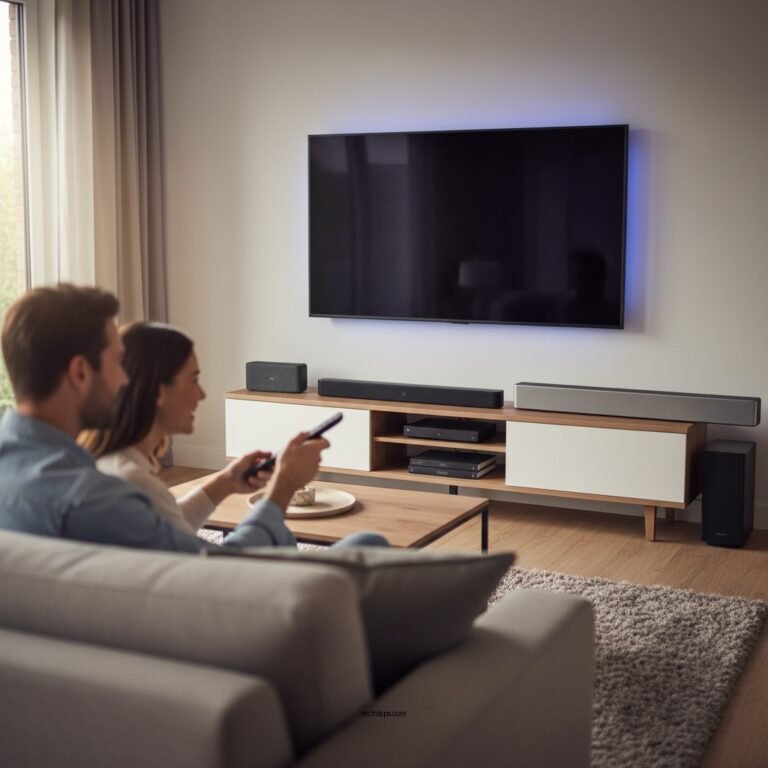

Resetting your audio system to factory settings can effectively resolve persistent software issues and restore optimal performance. If you’re experiencing connectivity problems, distorted sound, or unresponsive controls, a factory reset may be your best solution. This guide will walk you through the steps to reset various types of audio systems, including speakers, receivers, and soundbars, ensuring you can enjoy high-quality audio once again.
Understanding When a Factory Reset is Necessary

Many audio systems are susceptible to software issues that can significantly affect performance. Common problems include connectivity failures, where your device fails to pair with Bluetooth or Wi-Fi networks, and distorted sound that may arise from improper settings or corrupted software. Additionally, if your audio system exhibits unresponsive controls or apps that frequently crash, these are strong indicators that a reset may be necessary.
Recognizing these signs early can save time and effort in troubleshooting. If your device has become sluggish or is not functioning as intended, a factory reset can restore the original settings that might resolve these frustrating issues. In some cases, returning to factory settings can help eliminate bugs caused by software updates or incompatible apps.
Preparing for the Reset

Before proceeding with a factory reset, it is crucial to prepare adequately. Start by backing up any important settings or presets that you may want to restore later. Many audio systems allow you to save configurations, such as equalizer settings or saved channels, which can be tedious to set up again after a reset.
Next, ensure your audio system is plugged in and functioning properly. This means checking for any loose connections and confirming that the device is powered on. A stable power source is essential during the reset process to prevent interruptions that could complicate the procedure.
Step-by-Step Guide for Different Audio Systems
Different audio systems may have unique methods for performing a factory reset. Below are detailed instructions for resetting popular audio devices:
Bluetooth Speakers
1. Power Off: Turn off your Bluetooth speaker.
2. Reset Sequence: Press and hold the power button and the volume up button simultaneously for about 10 seconds.
3. Confirmation: Release the buttons when you hear a confirmation tone or see a flashing light.
Home Theater Receivers
1. Access Menu: Turn on the receiver and navigate to the settings menu using the remote control.
2. Factory Reset Option: Locate the ‘Setup’ or ‘Settings’ option, and find ‘Factory Reset’ or ‘Restore Factory Settings.’
3. Confirm Reset: Follow the on-screen prompts to confirm the reset. The receiver will restart.
Soundbars
1. Power On: Ensure your soundbar is on.
2. Reset Combination: Press and hold the ‘Volume Up’ and ‘Volume Down’ buttons simultaneously for about 5-10 seconds.
3. Indicator Light: Watch for the indicator light to flash, indicating that the reset is complete.
Popular Audio Devices and Their Reset Methods
| # | Device Type | Reset Method | Confirmation |
|---|---|---|---|
| 1 | Bluetooth Speaker | Hold Power + Volume Up | Tone or Flashing Light |
| 2 | Home Theater Receiver | Settings > Factory Reset | On-Screen Confirmation |
| 3 | Soundbar | Hold Volume Up + Down | Flashing Indicator Light |
| 4 | Smart Speaker | Settings > Reset | Voice Confirmation |
| 5 | Portable Speaker | Hold Power + Play | Beep Sound |
| 6 | AV Receiver | Menu > Factory Reset | Display Message |
| 7 | Wireless Subwoofer | Hold Sync + Power | Flashing Light |
Verifying the Reset
After completing the reset, it’s essential to verify that your audio system powers on and returns to its original settings. This can include checking the default volume level and ensuring that any previously stored settings have been erased.
To confirm that the reset has resolved your previous issues, test for the connectivity and sound quality that were problematic before. Make sure to connect your audio system to your devices again to check if pairing works seamlessly and that sound is clear and distortion-free.
Troubleshooting Post-Reset Issues
If you find that the reset did not resolve the software issues, there are several steps you can take. First, check for any firmware updates that may be available for your audio system. Manufacturers often release updates to fix bugs and improve performance, which can be crucial if your device has been misbehaving.
In case you had previously backed up settings, you can restore them if needed, but do so cautiously. Sometimes, restoring old settings can reinstate the very issues you were trying to eliminate. If problems persist even after a reset and firmware updates, consult the manufacturer’s support or consider professional repair services.
Additional Considerations
Regular maintenance and software updates are vital for ensuring the longevity and functionality of your audio system. By keeping your device updated and performing periodic checks, you can prevent many common issues from arising.
If problems continue to persist despite your efforts, it may be time to seek professional help. Technicians can provide insights and solutions that go beyond standard troubleshooting, potentially saving you from more extensive repairs or replacements down the line.
In closing, resetting your audio system to factory settings can often remedy frustrating software issues, ensuring a seamless audio experience. By following these steps, you can effectively restore your sound system and prevent future problems. If you found this guide helpful, consider sharing it with others who might benefit or explore more resources on audio system maintenance.
Frequently Asked Questions
How do I reset my audio system to factory settings after experiencing software issues?
To reset your audio system to factory settings, first locate the reset button, which is often found in the settings menu or on the device itself. Follow the manufacturer’s instructions, usually involving holding down the reset button for a few seconds or selecting the factory reset option in the settings, and confirm your choice to restore the original settings.
What are the benefits of resetting my audio system to factory settings?
Resetting your audio system to factory settings can resolve various software issues, such as connectivity problems, audio distortions, or unresponsive features. This process clears any corrupted data and restores the system to its original state, allowing you to enjoy optimal performance without glitches.
Why is my audio system still malfunctioning after a factory reset?
If your audio system continues to malfunction after performing a factory reset, the issue may not be software-related and could stem from hardware problems, faulty connections, or incompatible devices. It’s advisable to check all physical connections, update firmware, and consult the manufacturer for further troubleshooting steps.
Which audio systems can be reset to factory settings?
Most modern audio systems, including Bluetooth speakers, home theater systems, and smart speakers, can be reset to factory settings. Always refer to the user manual specific to your model, as the reset process may vary between brands and types of audio equipment.
What is the best way to prepare my audio system for a factory reset?
Before performing a factory reset on your audio system, back up any custom settings or saved preferences if possible, as these will be lost during the process. Additionally, ensure that all connected devices are turned off and disconnect any external connections to prevent complications during the reset.
References
- Factory reset
https://en.wikipedia.org/wiki/Factory_reset - https://www.mayoclinic.org/healthy-lifestyle/consumer-health/in-depth/electronic-devices/art-20456004
https://www.mayoclinic.org/healthy-lifestyle/consumer-health/in-depth/electronic-devices/art-20456004 - https://www.lifewire.com/how-to-reset-your-audio-receiver-1846819
https://www.lifewire.com/how-to-reset-your-audio-receiver-1846819 - Google Scholar Google Scholar
https://scholar.google.com/scholar?q=resetting+audio+system+to+factory+settings - Google Scholar Google Scholar
https://scholar.google.com/scholar?q=audio+system+factory+reset+issues - Google Scholar Google Scholar
https://scholar.google.com/scholar?q=troubleshooting+audio+system+software+issues - Google Scholar Google Scholar
https://scholar.google.com/scholar?q=How+to+Reset+Your+Audio+System+to+Factory+Settings+After+Software+Issues - How to Reset Your Audio System to Factory Settings After Software Issues – Search results
https://en.wikipedia.org/wiki/Special:Search?search=How+to+Reset+Your+Audio+System+to+Factory+Settings+After+Software+Issues - https://www.ncbi.nlm.nih.gov/search/research-articles/?term=How+to+Reset+Your+Audio+System+to+Factory+Settings+After+Software+Issues
https://www.ncbi.nlm.nih.gov/search/research-articles/?term=How+to+Reset+Your+Audio+System+to+Factory+Settings+After+Software+Issues