
If you’re experiencing sound dropouts in your Bluetooth speaker, the key is to check your device’s connection and settings first. Often, these interruptions can be resolved by ensuring your speaker is fully charged, updating your device’s software, or reducing interference from other devices. In this article, you’ll learn step-by-step strategies to identify and fix the issues causing sound dropouts.
Check Bluetooth Connection
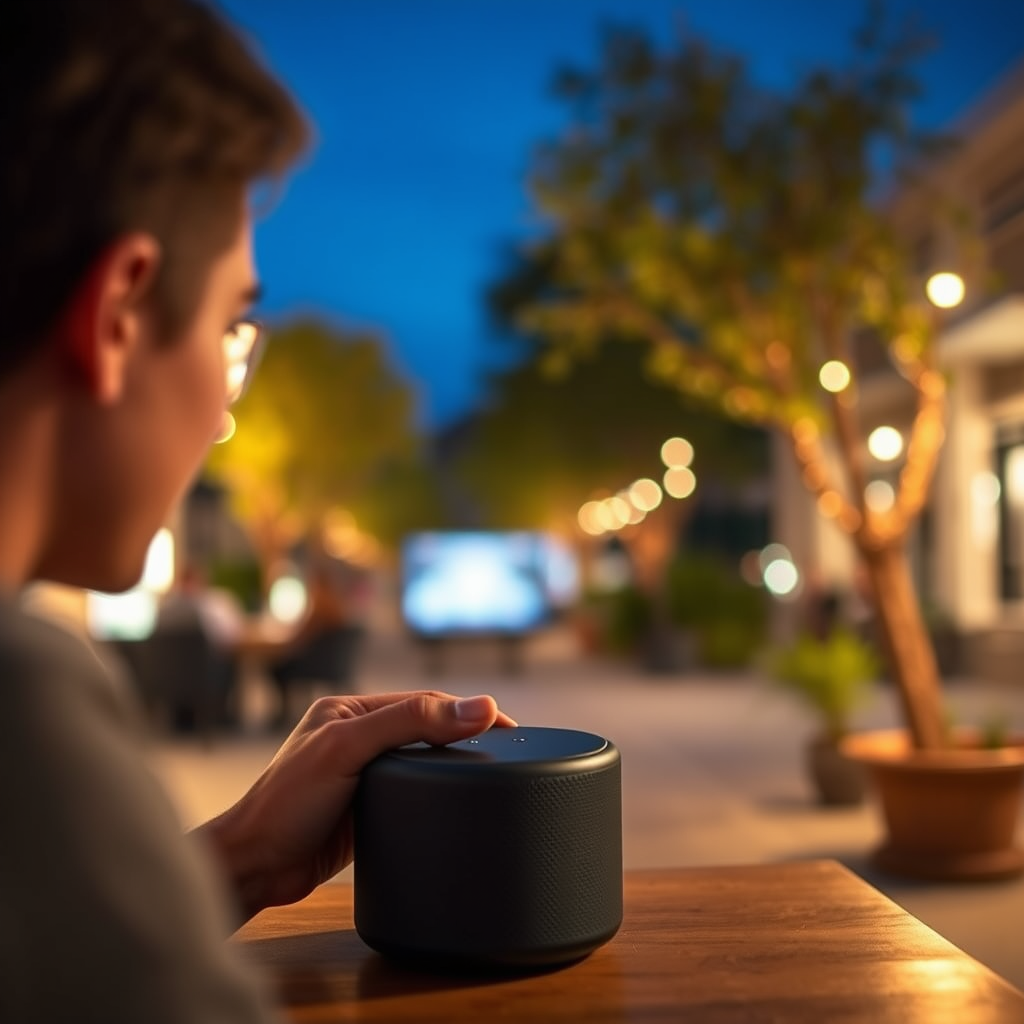
One of the most common reasons for sound dropouts is an unstable Bluetooth connection. Ensure that your Bluetooth speaker is paired correctly with your device. Start by checking the Bluetooth settings on your smartphone, tablet, or computer to confirm that the speaker is connected. If the connection appears to be intact but issues persist, try disconnecting and reconnecting the speaker. This simple reset can often resolve intermittent connectivity problems.
Additionally, you should check for multiple paired devices. If your Bluetooth speaker is connected to more than one device, it may struggle to maintain a stable connection, leading to dropouts. Disconnect any unnecessary devices and see if that resolves your issue.
Update Firmware and Software
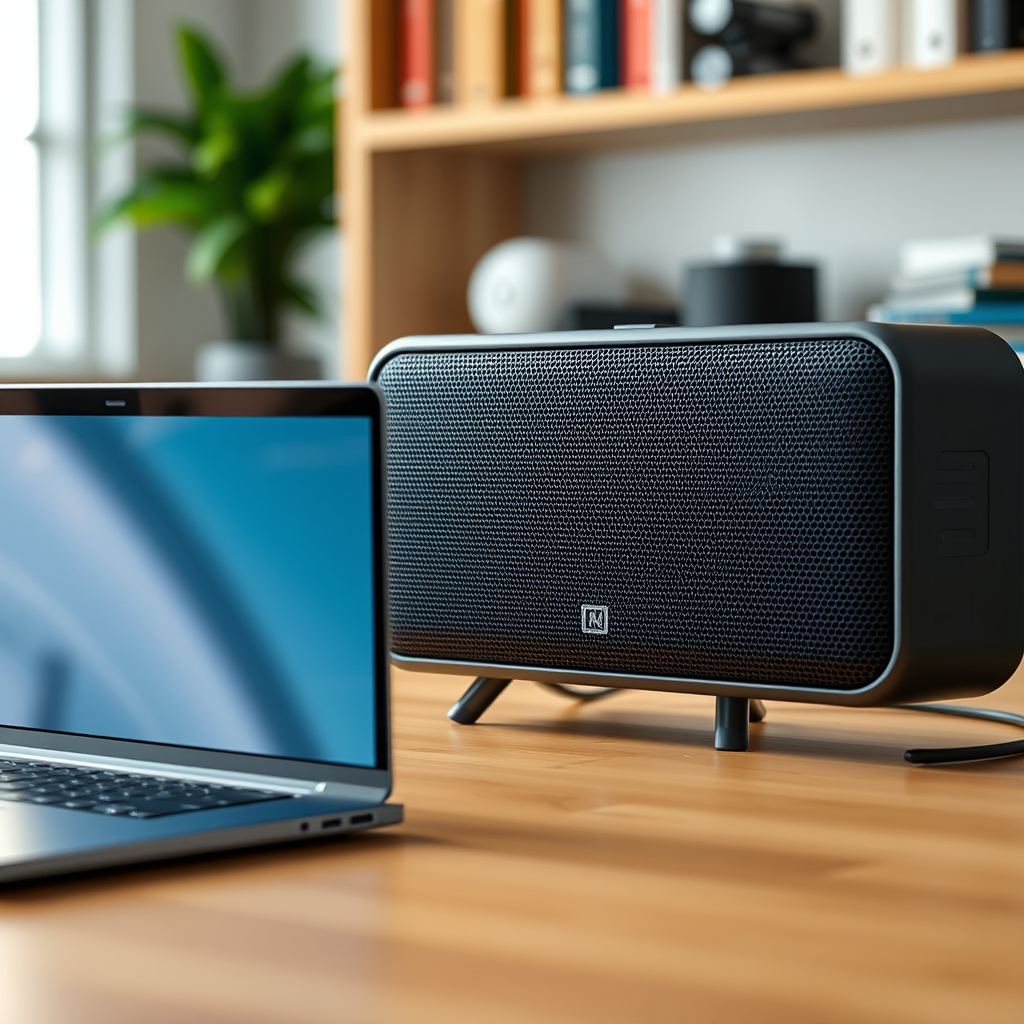
Keeping your devices updated is crucial for optimal performance and functionality. Check for firmware updates for your Bluetooth speaker by visiting the manufacturer’s website or using their app if available. Many Bluetooth speakers have dedicated applications that make it easy to manage updates.
In addition to your speaker, ensure that your smartphone or computer has the latest operating system version. Software updates often include improvements in Bluetooth connectivity and performance, which can help mitigate sound dropouts. Regularly updating your devices is a best practice that not only enhances performance but also increases security.
Reduce Interference
Bluetooth technology operates on the 2.4 GHz frequency, which is also used by many other devices, including Wi-Fi routers, microwaves, and cordless phones. To minimize interference, keep your Bluetooth speaker away from other electronic devices. Ideally, there should be a clear line of sight between your speaker and the audio source.Limiting the distance between your Bluetooth speaker and the audio source is also essential. Bluetooth connections can degrade over longer distances, typically beyond 30 feet. Reducing this distance can significantly improve sound stability.
Top Bluetooth Speakers by Features (2024)
| # | Speaker Model | Battery Life | Water Resistance | Bluetooth Version | Price |
|---|---|---|---|---|---|
| 1 | JBL Charge 5 | 20 hours | IP67 | 5.1 | $179.95 |
| 2 | Bose SoundLink Flex | 12 hours | IP67 | 5.1 | $149.00 |
| 3 | Sony SRS-XB43 | 24 hours | IP67 | 5.0 | $249.99 |
| 4 | Ultimate Ears MEGABOOM 3 | 20 hours | IP67 | 5.0 | $199.99 |
| 5 | Anker Soundcore Motion+ | 15 hours | IPX7 | 5.0 | $99.99 |
| 6 | Google Nest Audio | 10 hours | N/A | 5.0 | $99.99 |
| 7 | Tribit StormBox Pro | 20 hours | IP67 | 5.0 | $139.99 |
Inspect Battery Levels
Battery levels can dramatically affect the performance of Bluetooth speakers. Verify that your Bluetooth speaker is adequately charged before using it. Many speakers provide a battery status indicator to help you monitor power levels. If your speaker is not fully charged, it may not perform optimally, leading to sound dropouts.
If you suspect charging issues, consider using a different power source or charging cable. Faulty cables or incompatible chargers can prevent your speaker from charging correctly. If you find that your speaker loses charge rapidly even when fully charged, it may be time to replace the battery or consult the manufacturer for support.
Reset Your Bluetooth Speaker
If the sound dropouts persist after checking all other factors, performing a factory reset on your speaker can often resolve deeper software issues. A reset will restore the device to its original settings, erasing any stored data or configurations that could be causing problems. Each Bluetooth speaker has a different method for resetting. Consult the user manual for specific instructions.
After resetting, you will need to pair your speaker with your devices again. This is an excellent opportunity to clear out any old connections that may have been causing interference.
Test with Different Devices
To determine if the issue lies with your Bluetooth speaker or the original device, try pairing your speaker with a different device. This could be another smartphone, tablet, or computer. If the sound dropouts continue, the problem likely resides with the speaker itself. However, if the speaker works flawlessly with another device, the issue may be with the original device’s hardware or software.
Testing with different devices can also help you identify whether the problem is related to specific applications or settings on your primary device. For example, if you experience sound dropouts primarily while using a particular app, that app may be the source of the issue.
Consider Environmental Factors
Environmental factors can play a significant role in the performance of Bluetooth speakers. Be aware of physical obstructions that may disrupt the Bluetooth signal, such as walls, furniture, or other large objects. Signals can weaken significantly when blocked by solid barriers.
Testing the speaker in different locations can help you determine the best setup. For example, placing the speaker in an open area with minimal obstructions can improve sound quality and connectivity. Additionally, consider the layout of your space and whether certain areas are prone to interference from Wi-Fi routers or other electronic devices.
📈 MANDATORY BAR CHART
Bluetooth Speaker Connection Stability (Signal Strength)
Summarizing the troubleshooting steps can help you regain uninterrupted audio from your Bluetooth speaker. Start with the basics like checking connections and battery levels, and then move on to updates and potential interference. If problems persist, consider resetting your speaker or testing with other devices. For further assistance, consult the manufacturer’s support resources or forums. By following these strategies, you can enhance your Bluetooth speaker experience and ensure that your music plays smoothly without interruptions.
Frequently Asked Questions
What are the common causes of sound dropouts in my Bluetooth speaker?
Common causes of sound dropouts in Bluetooth speakers include interference from other wireless devices, a weak Bluetooth signal due to distance or obstacles, low battery levels, and outdated firmware. Additionally, issues with the audio source device, such as a poor connection or incompatible codecs, can also lead to interruptions in sound.
How can I fix sound dropouts in my Bluetooth speaker?
To fix sound dropouts, first ensure that your Bluetooth speaker is fully charged and within a reasonable distance from the audio source. Next, try resetting the speaker and re-pairing it with your device. Additionally, check for any available firmware updates for both the speaker and the audio source, as these can often resolve connectivity issues.
Why does my Bluetooth speaker keep disconnecting from my device?
Your Bluetooth speaker may keep disconnecting due to a weak Bluetooth connection, interference from other devices, or the speaker being out of range. It can also happen if the audio source device is set to a power-saving mode, which may limit Bluetooth functionality. Make sure both devices are updated and that they are within proper range for optimal performance.
What is the best way to prevent sound dropouts in Bluetooth speakers?
To prevent sound dropouts in Bluetooth speakers, maintain a clear line of sight between the speaker and your audio source, and avoid using the speaker in areas with heavy wireless traffic. Additionally, keeping both devices updated and ensuring your speaker is charged can significantly enhance connectivity and reduce the likelihood of interruptions.
Which settings should I check if my Bluetooth speaker has audio issues?
If your Bluetooth speaker has audio issues, check the Bluetooth settings on your device to ensure it is properly connected and not paired with multiple devices simultaneously. Also, verify the audio quality settings, as some devices allow you to adjust codec preferences that can affect sound quality. Lastly, ensure that the volume levels are appropriately set on both the speaker and the source device.
References
- Bluetooth
https://en.wikipedia.org/wiki/Bluetooth - https://www.ncbi.nlm.nih.gov/pmc/articles/PMC6460525/
https://www.ncbi.nlm.nih.gov/pmc/articles/PMC6460525/ - https://www.sciencedirect.com/science/article/abs/pii/S0885230817301351
https://www.sciencedirect.com/science/article/abs/pii/S0885230817301351 - https://www.mayoclinic.org/healthy-lifestyle/consumer-health/in-depth/bluetooth-technology/art-20505109
https://www.mayoclinic.org/healthy-lifestyle/consumer-health/in-depth/bluetooth-technology/art-20505109 - https://www.hindawi.com/journals/jece/2020/8881970/
https://www.hindawi.com/journals/jece/2020/8881970/ - https://www.nature.com/articles/s41598-018-38053-1
https://www.nature.com/articles/s41598-018-38053-1 - https://www.reuters.com/technology/how-bluetooth-works-2021-04-23/
https://www.reuters.com/technology/how-bluetooth-works-2021-04-23/ - Google Scholar Google Scholar
https://scholar.google.com/scholar?q=Bluetooth+speaker+sound+dropouts - Google Scholar Google Scholar
https://scholar.google.com/scholar?q=Bluetooth+audio+troubleshooting - Google Scholar Google Scholar
https://scholar.google.com/scholar?q=Bluetooth+connectivity+issues+solutions