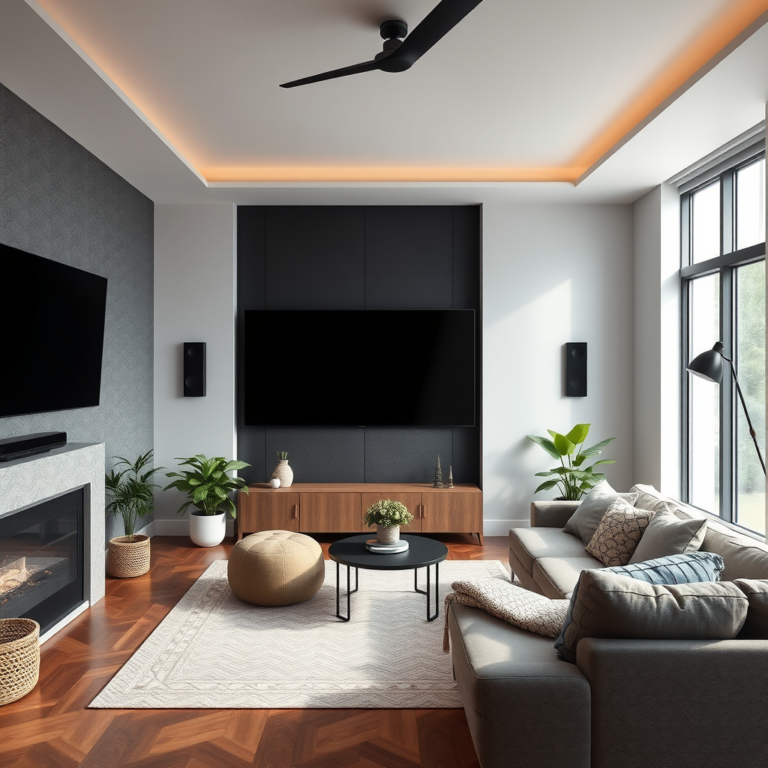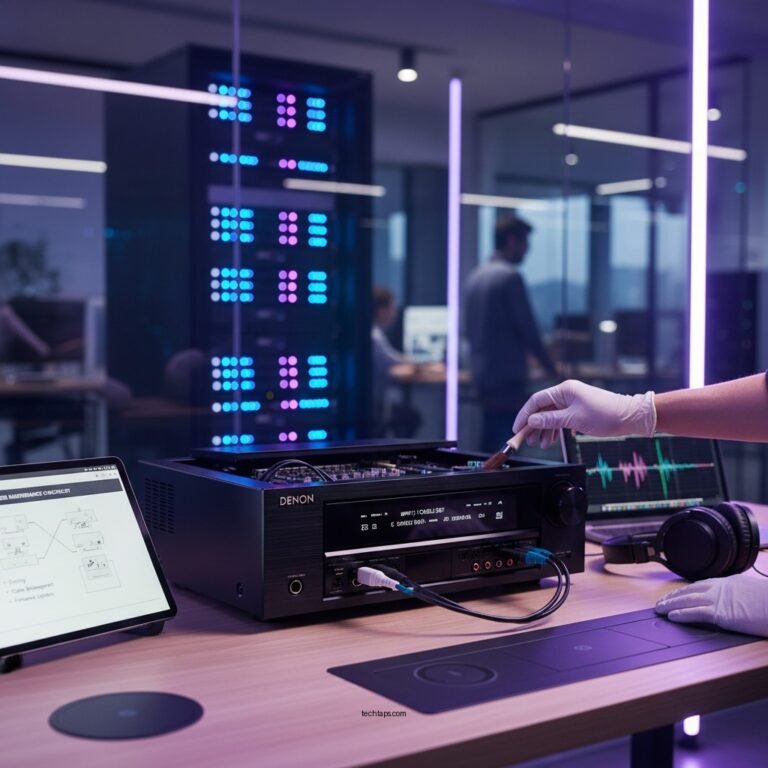

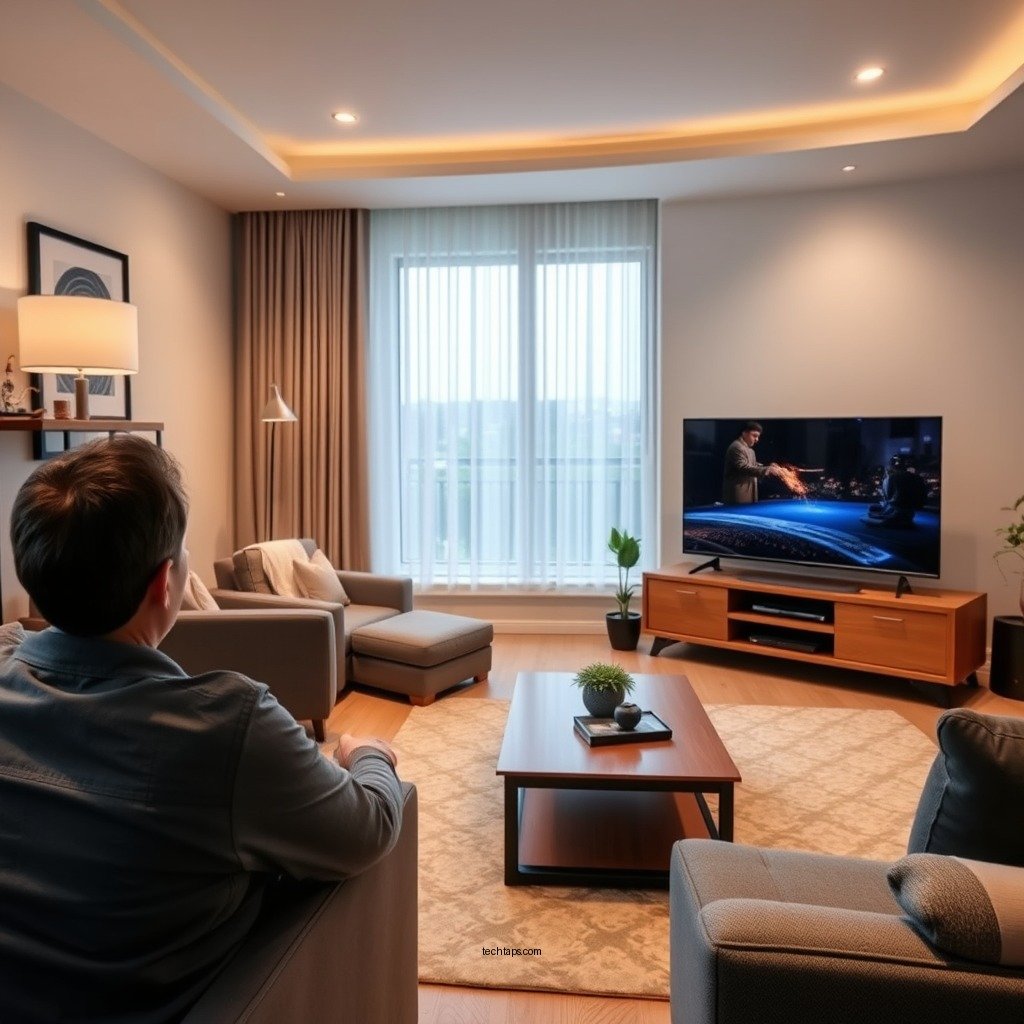
If you’re experiencing no audio from your Samsung home theater via HDMI, the issue is likely due to incorrect settings or connectivity problems. This troubleshooting guide will help you identify and resolve common issues to restore sound quickly. Whether you’re using your home theater for movies, gaming, or music, ensuring audio clarity is essential for an immersive experience. Following the steps outlined below will enable you to diagnose and fix the problem efficiently.
Check HDMI Connections
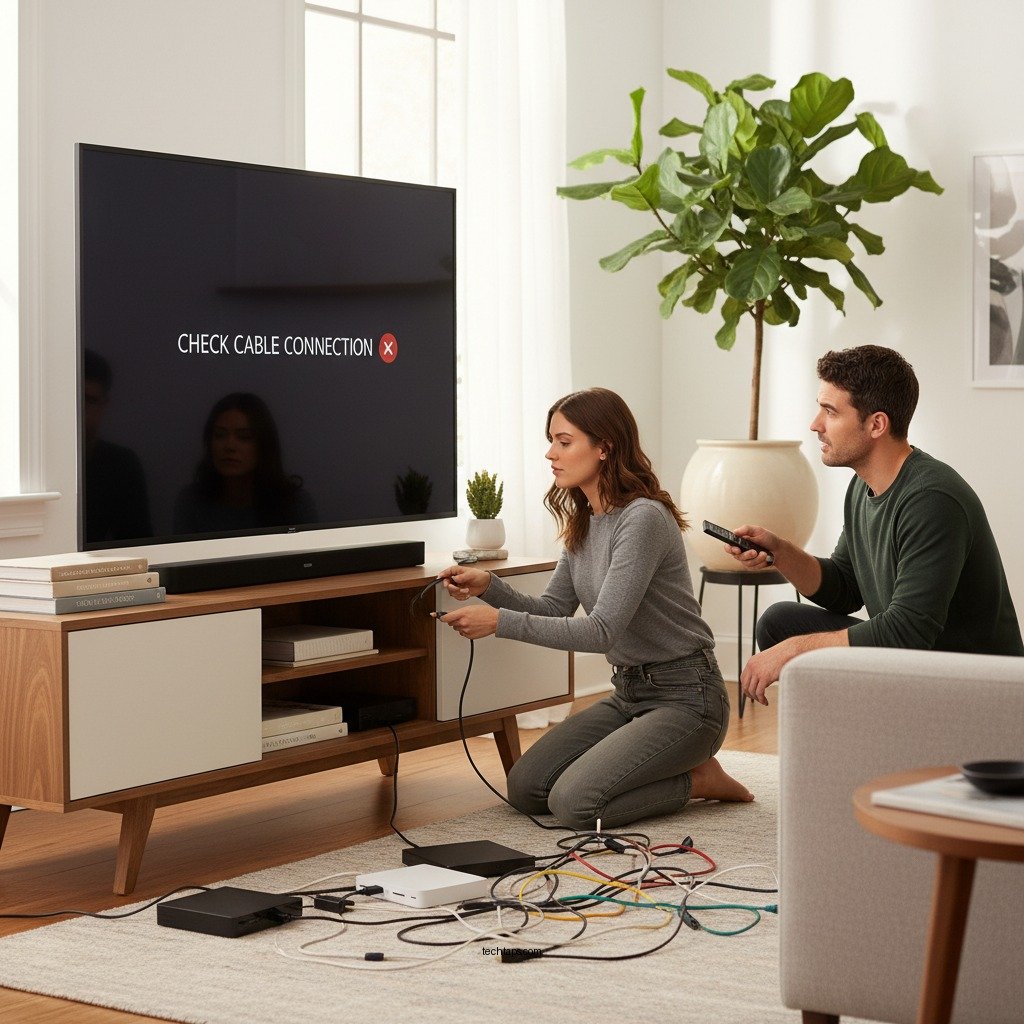
The first step in troubleshooting audio issues is to ensure that all HDMI connections are secure. Begin by inspecting both ends of your HDMI cables—one connected to the home theater and the other to the source device, such as a TV or Blu-ray player. Loose connections can lead to audio dropout or complete silence.
Moreover, examine the cables for any visible damage, such as frayed wires or bent connectors. If the cables appear compromised, replacing them with high-quality HDMI cables can often resolve the issue. Remember that not all HDMI cables are created equal; using cables that support higher bandwidths (such as HDMI 2.1) can improve audio and video quality.
Verify Audio Output Settings
After confirming that the HDMI connections are secure, the next step is to check the audio output settings on your source device. Access the audio settings on your TV or streaming device and ensure that the output is set to the Samsung home theater system.
If your home theater supports HDMI ARC (Audio Return Channel), verify that the correct HDMI ARC port is selected. This allows audio to flow back from the TV to the home theater system. In some cases, disabling additional audio processing features, such as Dolby Atmos or DTS:X, can also help troubleshoot compatibility issues.
Update Firmware
Keeping your devices up to date is crucial for optimal performance. Regularly check for firmware updates for both your Samsung home theater and any connected devices. Firmware updates can fix bugs, enhance compatibility, and improve audio performance.
To update the firmware, navigate to the settings menu of your home theater. Look for a “Software Update” or “Firmware Update” option and follow the on-screen instructions. Ensure that your devices are connected to the internet during this process to facilitate smooth updates.
Change Audio Format
Sometimes, the problem may lie in the audio format being transmitted. Different devices utilize various audio formats, such as PCM (Pulse Code Modulation) and Bitstream. Access your device’s audio settings and experiment with different formats to see if that resolves the audio issue.
It’s important to note that not all formats are supported by every home theater system. Ensuring that the audio format is compatible with both the source device and the home theater can be key to restoring sound.
Test with Different Devices
To isolate the issue, try connecting a different device to your Samsung home theater. This will help determine if the problem resides within the home theater or the original source device. For example, if you were using a gaming console, try connecting a Blu-ray player or a streaming device instead.
Additionally, use various HDMI ports on the home theater to rule out any port-specific issues. If audio works with one device but not another, the problem is likely tied to the original source device’s settings or outputs.
Common HDMI Audio Issues and Solutions
| # | Issue | Possible Cause | Solution |
|---|---|---|---|
| 1 | No Sound | Loose HDMI connection | Check and secure all HDMI cables |
| 2 | Audio Delay | Audio settings mismatch | Adjust audio output settings |
| 3 | Intermittent Sound | Faulty HDMI cable | Replace with a high-quality HDMI cable |
| 4 | Static Noise | Audio format incompatibility | Change audio format settings |
| 5 | No HDMI Signal | Incorrect input selection | Select the correct HDMI input |
| 6 | Volume Issues | Muted output | Unmute the audio output |
| 7 | No Surround Sound | Incorrect surround settings | Adjust surround sound settings |
Perform a Factory Reset
If all else fails, performing a factory reset on your Samsung home theater system can be an effective last resort. This action will restore the device to its original settings and may resolve persistent audio issues. However, it’s crucial to back up any essential settings, as a factory reset will erase all custom configurations.
To perform a factory reset, navigate to the settings menu of your home theater system and look for an option labeled “Reset” or “Factory Reset.” Follow the prompts to complete the process. After the reset, reconfigure your settings and test the audio output.
Seek Professional Help
If the troubleshooting steps outlined above do not resolve the audio issue, it may be time to seek professional assistance. Contacting Samsung support or consulting a qualified technician can provide insights that go beyond standard troubleshooting.
When reaching out for help, document any errors or symptoms you have encountered. Providing detailed information can expedite the diagnostic process and lead to a quicker resolution.
Restoring audio to your Samsung home theater system can often be resolved with some simple troubleshooting steps. By checking connections, verifying settings, and experimenting with different devices, you can typically find a solution. If issues persist, don’t hesitate to reach out for professional support to ensure your home theater system functions perfectly. With the right approach, you can enjoy high-quality sound and an immersive viewing experience once again.
Frequently Asked Questions
What should I check first if my Samsung Home Theater has no audio from HDMI?
If your Samsung Home Theater is not producing audio from HDMI, the first step is to ensure that the HDMI cable is properly connected to both your home theater system and the source device, such as a TV or Blu-ray player. Additionally, check that the input source on your home theater matches the HDMI port you are using, and confirm that your TV settings are configured to output audio through the HDMI connection.
How can I fix audio delays when using HDMI with my Samsung Home Theater?
To fix audio delays when using HDMI, start by checking the audio sync settings on your Samsung Home Theater. Many systems have a feature that allows you to adjust the audio delay. If issues persist, ensure that your firmware is up to date, as updates often include fixes for audio sync problems.
Why is my Samsung Home Theater not detecting the HDMI device?
If your Samsung Home Theater is not detecting the HDMI device, it may be due to an incompatible HDMI version or settings. Ensure that both devices support the same HDMI standard, and try connecting a different HDMI cable or port. Additionally, reboot both the home theater and the connected device to refresh the connection.
What is the best way to troubleshoot Samsung Home Theater audio issues from HDMI?
The best way to troubleshoot audio issues from HDMI on your Samsung Home Theater involves a systematic approach: start by checking all cable connections and ensuring they are secure. Next, verify that the home theater is set to the correct HDMI input and that the source device’s audio settings are configured to output through HDMI. If problems continue, try testing with a different HDMI cable or device to isolate the issue.
Which settings should I adjust if my Samsung Home Theater HDMI audio is not working?
If HDMI audio is not working on your Samsung Home Theater, check the audio output settings on both the home theater and the connected device. Ensure that the audio format is compatible, such as PCM or Bitstream, and confirm that the audio output is set to HDMI. Additionally, explore any advanced settings for HDMI audio settings in your home theater system’s menu to ensure they are correctly configured.
References
- Support Home | Official Samsung Support US
https://www.samsung.com/us/support/ - https://www.scholar.google.com/scholar?q=Samsung+Home+Theater+No+Audio+from+HDMI Google Scholar
https://www.scholar.google.com/scholar?q=Samsung+Home+Theater+No+Audio+from+HDMI - https://www.scholar.google.com/scholar?q=HDMI+audio+troubleshooting Google Scholar
https://www.scholar.google.com/scholar?q=HDMI+audio+troubleshooting - https://www.scholar.google.com/scholar?q=Samsung+HDMI+issues+solutions Google Scholar
https://www.scholar.google.com/scholar?q=Samsung+HDMI+issues+solutions - Google Scholar Google Scholar
https://scholar.google.com/scholar?q=Samsung+Home+Theater+No+Audio+from+HDMI?+Troubleshooting+Guide - Samsung Home Theater No Audio from HDMI? Troubleshooting Guide – Search results
https://en.wikipedia.org/wiki/Special:Search?search=Samsung+Home+Theater+No+Audio+from+HDMI?+Troubleshooting+Guide - https://www.ncbi.nlm.nih.gov/search/research-articles/?term=Samsung+Home+Theater+No+Audio+from+HDMI?+Troubleshooting+Guide
https://www.ncbi.nlm.nih.gov/search/research-articles/?term=Samsung+Home+Theater+No+Audio+from+HDMI?+Troubleshooting+Guide