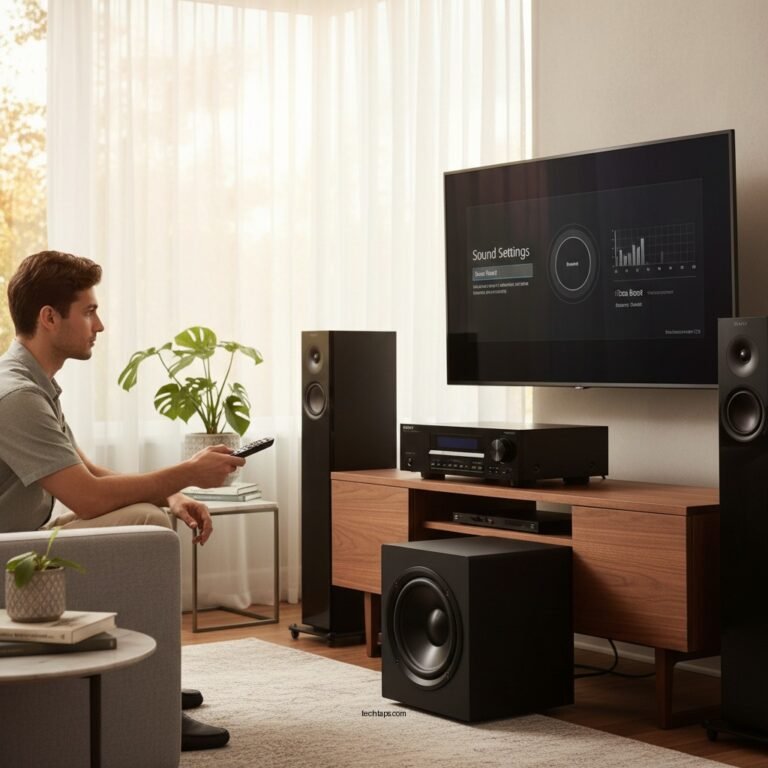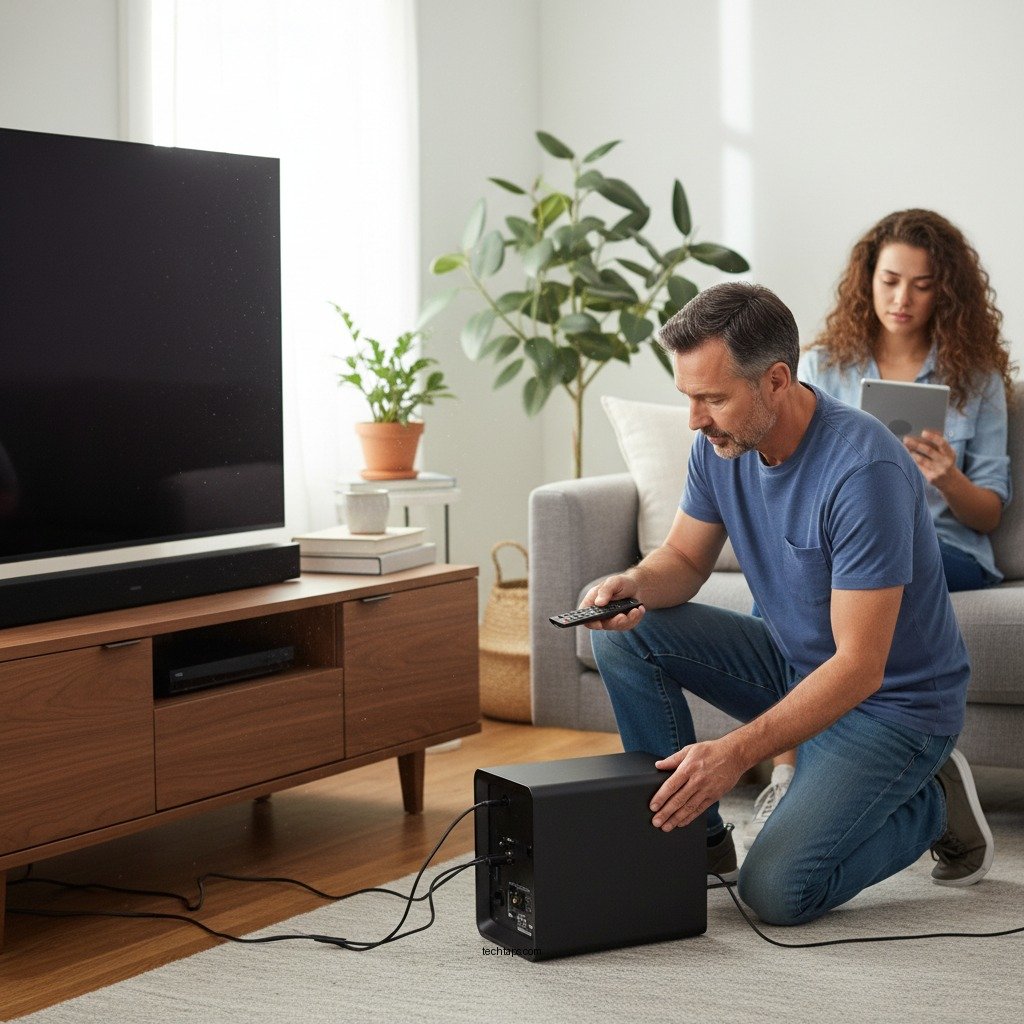

If your Samsung subwoofer isn’t working, the first step is to check the power connections and ensure it is properly paired with your audio system. Troubleshooting audio equipment can often seem daunting, but by following a systematic approach, you can quickly identify and resolve the issue. This guide will walk you through essential troubleshooting steps to help you get your Samsung subwoofer back to optimal performance.
Check Power Supply
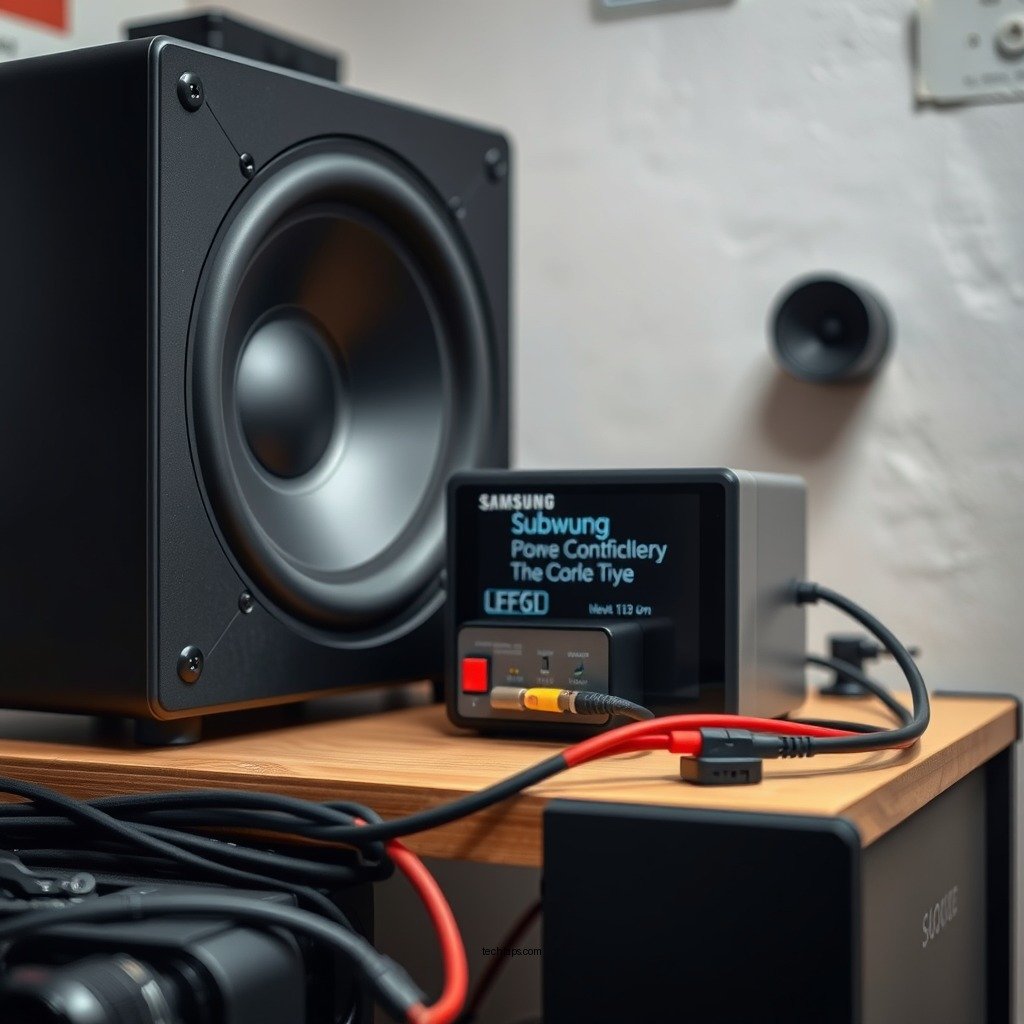
The first and most crucial step in troubleshooting a non-functioning subwoofer is to check its power supply. Start by ensuring that the subwoofer is plugged into a working outlet. You can do this by plugging another device into the same outlet to verify that it is providing power. If your subwoofer has a power switch, check to make sure it is turned on.
Additionally, inspect the power cord for any visible damage or fraying, as this could lead to power issues. If the power supply seems to be functioning correctly but the subwoofer still doesn’t power on, consider trying a different power outlet or using a different power cable if available.
Verify Bluetooth Connection
If your subwoofer is connected via Bluetooth, the next step is to verify the Bluetooth connection. Confirm that the subwoofer is properly paired with your audio device. This typically involves going to the Bluetooth settings on your device and checking the list of paired devices. If you see your subwoofer listed but it still isn’t working, try forgetting the device and re-pairing it.
To re-pair, turn off both the subwoofer and your audio device, then turn them back on. Activate the pairing mode on your subwoofer (usually by pressing a dedicated button) and select it from the Bluetooth menu on your audio device.
Inspect Audio Settings
Sometimes, the issue may lie within the audio settings of the device connected to your subwoofer. Check the audio output settings to ensure they are configured correctly. Make sure the output is set to the device you are using, and look for any specific settings related to the subwoofer in your audio menu.
For instance, many devices allow users to adjust the bass levels or enable/disable the subwoofer. Ensure that the subwoofer is enabled and that the bass settings are adjusted to an adequate level. If your audio system has a dedicated subwoofer output, make sure it is correctly connected to the subwoofer’s input.
Test with Different Devices
If the subwoofer is still not operational after checking the power and Bluetooth connection, try connecting it to a different audio device. This can help you rule out issues with the original source. If your subwoofer supports wired connections, use an audio cable to connect it directly to the new device. This step is particularly useful to eliminate any potential Bluetooth connectivity problems.
When testing with a different device, ensure that the audio output settings on this new device are also correctly configured to recognize and utilize the subwoofer.
Update Firmware
Outdated firmware can sometimes lead to functionality issues with electronic devices, including subwoofers. Check if there are firmware updates available for your Samsung subwoofer model. You can usually find this information on the Samsung website or within the Samsung SmartThings app if your subwoofer is compatible.
To update your firmware, follow the instructions provided on the website or app. Keeping your device updated can resolve existing bugs and improve overall performance, enhancing your listening experience.
Perform a Factory Reset
If all troubleshooting steps fail, performing a factory reset on the subwoofer may be necessary. This action restores the device to its default settings and can resolve persistent issues. Refer to the manufacturer’s instructions for the specific method to execute a reset, as it can vary by model.
Generally, the reset process involves holding down specific buttons for a set period. After the reset is completed, you will need to reconfigure your settings and re-pair the subwoofer with your audio devices.
Seek Professional Help
If the subwoofer still doesn’t work after trying all troubleshooting steps, it may be time to seek professional assistance. Consider contacting Samsung support for guidance. Their support team can provide specific troubleshooting advice based on your model and issue. Additionally, if the subwoofer is still under warranty, you may explore repair or replacement options.
Professional technicians can also help diagnose more complex issues that may not be resolved through basic troubleshooting. It’s important to address such issues promptly to avoid further damage to your audio equipment.
Common Samsung Subwoofer Issues and Solutions
| # | Issue | Possible Cause | Suggested Solution |
|---|---|---|---|
| 1 | No Sound | Power issue or incorrect settings | Check power connections and settings |
| 2 | Intermittent Sound | Weak connection or interference | Re-pair Bluetooth and check surroundings |
| 3 | Distorted Sound | Incorrect audio settings | Adjust bass and speaker settings |
| 4 | Bluetooth Connection Issues | Device not paired | Forget device and re-pair |
| 5 | Subwoofer Won’t Connect | Firmware issue | Update firmware via app |
| 6 | Delayed Sound | Audio sync settings | Adjust audio sync in settings |
| 7 | Subwoofer Not Powering On | Faulty power supply | Test with another outlet or cable |
Summarizing key points will help you diagnose why your Samsung subwoofer isn’t working effectively. Start with the basics like power and connections, then move on to settings and updates. If issues persist, don’t hesitate to reach out for professional assistance. By following these troubleshooting steps, you can ensure a smoother audio experience and make the most of your Samsung subwoofer.
Frequently Asked Questions
What should I do if my Samsung subwoofer is not producing any sound?
If your Samsung subwoofer is not producing sound, first check the power connection to ensure it is plugged in and turned on. Next, verify that the subwoofer is properly paired with the sound system or TV, and check the audio settings to make sure the subwoofer volume is turned up. If the issue persists, try resetting the subwoofer by unplugging it for a few minutes and then reconnecting it.
How do I reset my Samsung subwoofer to fix connectivity issues?
To reset your Samsung subwoofer, first, unplug it from the power source and wait for about 10 seconds. Then, press and hold the “Pairing” or “Connect” button on the subwoofer while plugging it back in. Continue to hold the button for a few seconds until the indicator light flashes, indicating that the reset is successful and the subwoofer is in pairing mode.
Why is my Samsung subwoofer making a buzzing noise?
A buzzing noise from your Samsung subwoofer can be caused by several factors, including interference from other electronic devices, loose connections, or an issue with the audio source. To troubleshoot, ensure that all connections are secure, move any potential interference sources away from the subwoofer, and check if the buzzing persists with different audio sources.
Which Samsung soundbars are compatible with my subwoofer?
Compatibility between Samsung soundbars and subwoofers typically depends on the model. Generally, Samsung subwoofers are designed to work best with their own soundbars, so it’s recommended to check the product specifications for your specific soundbar model. The Samsung support website provides a compatibility list to help you determine which subwoofers will work optimally with your soundbar.
What are the best troubleshooting steps for a Samsung wireless subwoofer that won’t connect?
For a Samsung wireless subwoofer that won’t connect, start by ensuring both the subwoofer and the soundbar or TV are powered on and within range. Then, check the pairing mode on the subwoofer and soundbar, and use the remote to reinitiate the pairing process. If the connection still fails, consider moving the devices closer together or resetting both units to resolve any temporary issues.
References
- https://www.bbc.com/news/technology-49328723
https://www.bbc.com/news/technology-49328723 - https://www.crutchfield.com/S-2bFqXgX2fG/learn/how-to-troubleshoot-your-subwoofer.html
https://www.crutchfield.com/S-2bFqXgX2fG/learn/how-to-troubleshoot-your-subwoofer.html - https://www.reddit.com/r/hometheater/comments/5t7z8r/how_to_troubleshoot_a_subwoofer/
https://www.reddit.com/r/hometheater/comments/5t7z8r/how_to_troubleshoot_a_subwoofer/ - Google Scholar Google Scholar
https://scholar.google.com/scholar?q=Samsung+Subwoofer+Not+Working - Google Scholar Google Scholar
https://scholar.google.com/scholar?q=troubleshooting+subwoofer+issues - Google Scholar Google Scholar
https://scholar.google.com/scholar?q=sound+system+troubleshooting+steps - Google Scholar Google Scholar
https://scholar.google.com/scholar?q=Samsung+Subwoofer+Not+Working?+Troubleshooting+Steps - Samsung Subwoofer Not Working? Troubleshooting Steps – Search results
https://en.wikipedia.org/wiki/Special:Search?search=Samsung+Subwoofer+Not+Working?+Troubleshooting+Steps - https://www.ncbi.nlm.nih.gov/search/research-articles/?term=Samsung+Subwoofer+Not+Working?+Troubleshooting+Steps
https://www.ncbi.nlm.nih.gov/search/research-articles/?term=Samsung+Subwoofer+Not+Working?+Troubleshooting+Steps