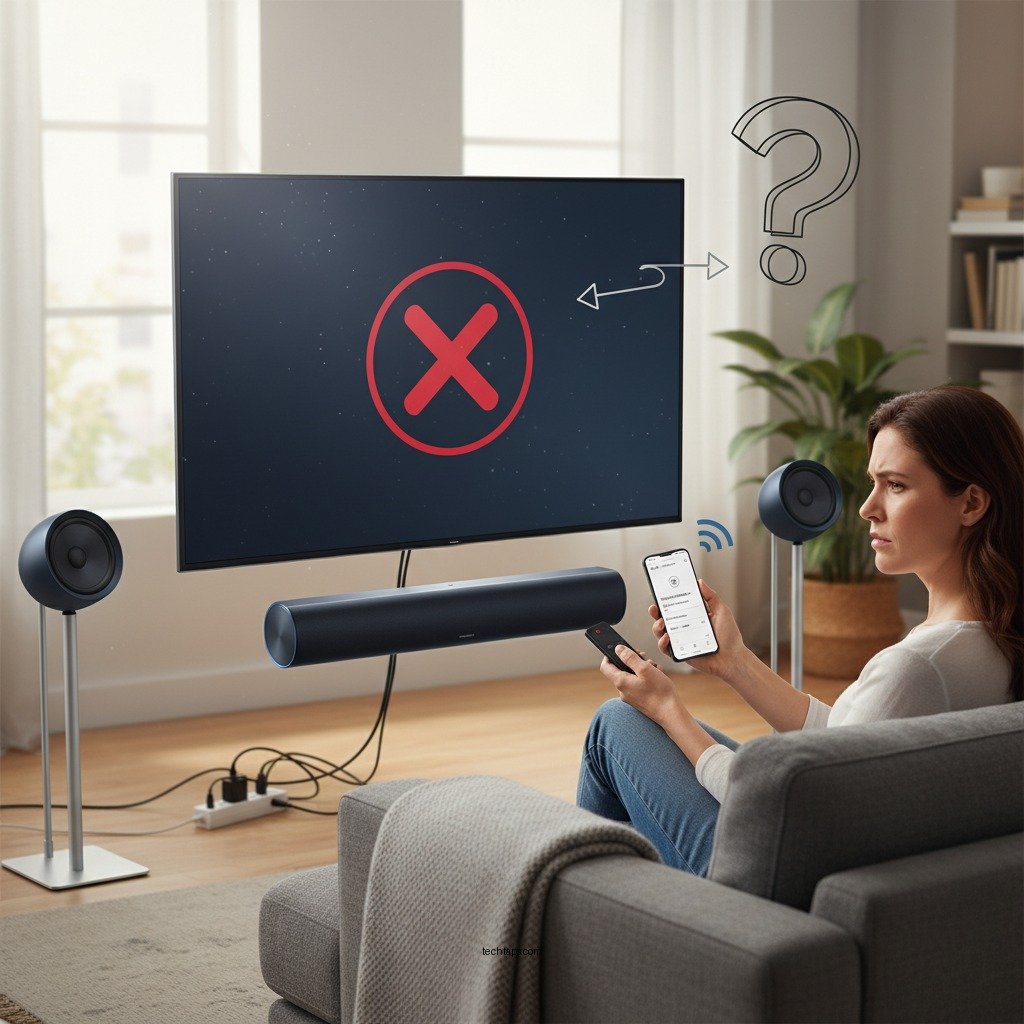

If your Samsung wireless speakers are not connecting, there are several practical solutions you can implement to resolve the issue quickly. Understanding the common reasons behind connectivity problems is crucial, as it enables you to troubleshoot effectively and restore your audio experience. In this article, we will delve into the potential causes of connection failures and provide a comprehensive guide to help you reconnect your Samsung wireless speakers seamlessly.
Check Bluetooth Connectivity
The first step in troubleshooting your Samsung wireless speakers is to verify that Bluetooth connectivity is functioning properly. Start by ensuring that Bluetooth is enabled on both your audio source device (such as your smartphone or tablet) and the speaker itself. This may seem basic, but it is often overlooked.
Next, consider the distance between your device and the speaker. Bluetooth connections can be sensitive to distance and obstacles. To eliminate any interference, try moving your device closer to the speaker. Ideally, they should be within a few feet of each other for the best connection. If you are still experiencing issues, check to see if other Bluetooth devices are connected, as this could interfere with the pairing process.
Restart Your Devices
Sometimes, a simple restart can resolve many connectivity issues. Begin by turning off both your Samsung wireless speaker and the device you are trying to connect. Wait for a few seconds to allow the devices to power down completely. Then, turn them back on. This process refreshes the connection and can resolve temporary glitches that may be preventing your devices from pairing.
In some cases, performing a restart may also clear up any minor software bugs that could be affecting the Bluetooth functionality. After powering the devices back on, attempt to reconnect and see if the problem persists.
Update Firmware
Outdated firmware can be a significant factor in connectivity problems. Manufacturers, including Samsung, frequently release updates that enhance performance and fix known issues. To check if your Samsung wireless speaker requires a firmware update, you can either use the Samsung SmartThings app or visit the Samsung official website.
To perform the update via the app, ensure your speaker is powered on and connected to Wi-Fi. Open the SmartThings app, navigate to your speaker, and look for any available updates. Follow the prompts to install the update. Keeping your devices updated ensures compatibility and may improve the overall performance of your speakers.
Clear Bluetooth Cache
If your device continues to have trouble recognizing your Samsung wireless speaker, consider clearing the Bluetooth cache. On your mobile device, navigate to the Bluetooth settings, locate your speaker in the paired devices list, and select the option to “Forget” or “Remove” the speaker. This action clears any cached connection data that might be causing issues.
After forgetting the device, attempt to re-pair the speaker by placing it in pairing mode, and then search for it again in your Bluetooth settings. This fresh connection can often resolve ongoing connectivity problems.
Check for Interference
Bluetooth connectivity can be affected by various forms of interference. Common sources include other Bluetooth devices, Wi-Fi routers, microwaves, and even physical barriers like walls and furniture. To troubleshoot, first, remove any potential sources of interference around your speaker and device.
If possible, try relocating to a different area where there are fewer electronic devices nearby. This can significantly improve your chances of establishing a stable connection. Testing the connection in different environments helps identify if interference is the root cause of the issue.
Reset Your Speaker
If all else fails, performing a factory reset on your Samsung wireless speaker may be necessary. This step should be considered a last resort, as it will erase all settings and preferences. To reset your speaker, consult the manufacturer’s instructions for the specific model you own, as the process can vary from one model to another.
Typically, a reset involves holding down a combination of buttons for a set duration. After resetting, you’ll need to go through the initial setup process again, including connecting to your device via Bluetooth.
Use the Samsung App
For additional support, consider downloading the Samsung SmartThings app if you haven’t already. This app provides a wealth of features that enhance the functionality of your Samsung wireless speakers and can be invaluable for troubleshooting connectivity issues.
The SmartThings app allows you to manage your devices, check for firmware updates, adjust speaker settings, and even troubleshoot connection problems step by step. Utilizing the app can streamline your experience and improve your overall satisfaction with your Samsung audio products.
Top Samsung Wireless Speakers (2024)
| # | Model | Bluetooth Version | Battery Life | Water Resistance |
|---|---|---|---|---|
| 1 | Galaxy Buds Pro | Bluetooth 5.0 | 28 hours | IPX7 |
| 2 | Sound Tower MX-T70 | Bluetooth 4.2 | 15 hours | IPX5 |
| 3 | Soundbar Q950A | Bluetooth 5.0 | 20 hours | IP55 |
| 4 | Portable Bluetooth Speaker | Bluetooth 4.0 | 12 hours | None |
| 5 | Galaxy Buds Live | Bluetooth 5.0 | 29 hours | IPX2 |
| 6 | Samsung Level Box Slim | Bluetooth 4.1 | 30 hours | IPX7 |
| 7 | Samsung Sound+ Soundbar | Bluetooth 4.2 | 12 hours | IP55 |
Getting your Samsung wireless speakers connected again may take some trial and error, but following these steps should help you troubleshoot the issue effectively. By checking Bluetooth connectivity, restarting devices, updating firmware, clearing Bluetooth cache, checking for interference, resetting your speaker, and utilizing the Samsung SmartThings app, you can enhance your chances of a successful connection. If the problem persists, do not hesitate to reach out to Samsung support for further assistance or to explore any potential hardware issues. Your audio experience should be seamless, and with these strategies, you can reclaim that enjoyment.
Frequently Asked Questions
Why won’t my Samsung wireless speakers connect to my device?
There could be several reasons why your Samsung wireless speakers won’t connect. Common issues include Bluetooth being disabled on your device, the speakers being out of range, or the speakers having an existing connection to another device. Ensure your speakers are in pairing mode and that no other devices are connected, then try reconnecting.
How can I reset my Samsung wireless speakers to fix connection issues?
To reset your Samsung wireless speakers, locate the reset button, which is typically found on the back or bottom of the device. Press and hold the reset button for about 10 seconds until you see a light indicator change. This process will clear any existing connections and allow you to reconnect to your device easily.
What should I do if my Samsung wireless speakers are connected but not producing sound?
If your Samsung wireless speakers are connected but not producing sound, first check the volume levels on both your speakers and the connected device. Additionally, ensure that the correct audio output is selected on your device. You might also want to disconnect and reconnect the Bluetooth connection to refresh the audio stream.
Which devices are compatible with Samsung wireless speakers?
Samsung wireless speakers are generally compatible with any Bluetooth-enabled device, including smartphones, tablets, laptops, and desktops. However, for optimal performance, it is recommended to use them with Samsung devices as they are designed to work seamlessly with the Samsung ecosystem, including features like SmartThings.
What are the best troubleshooting steps for Samsung wireless speakers that won’t connect?
The best troubleshooting steps for Samsung wireless speakers that won’t connect include ensuring the speakers are fully charged, resetting the speakers, and forgetting the speaker connection on your device before attempting to reconnect. Additionally, check for any software updates on your device and speakers, as outdated firmware can cause connection issues.
References
- Support Home | Official Samsung Support US
https://www.samsung.com/us/support/ - https://support.samsung.com/global/support/contact
https://support.samsung.com/global/support/contact - https://www.lifewire.com/fix-bluetooth-issues-2466224
https://www.lifewire.com/fix-bluetooth-issues-2466224 - Google Scholar Google Scholar
https://scholar.google.com/scholar?q=Samsung+Wireless+Speakers+Not+Connecting - Google Scholar Google Scholar
https://scholar.google.com/scholar?q=Bluetooth+speaker+connection+issues - Google Scholar Google Scholar
https://scholar.google.com/scholar?q=troubleshooting+wireless+speakers - Google Scholar Google Scholar
https://scholar.google.com/scholar?q=Samsung+Wireless+Speakers+Not+Connecting?+Try+These+Fixes - Samsung Wireless Speakers Not Connecting? Try These Fixes – Search results
https://en.wikipedia.org/wiki/Special:Search?search=Samsung+Wireless+Speakers+Not+Connecting?+Try+These+Fixes - https://www.ncbi.nlm.nih.gov/search/research-articles/?term=Samsung+Wireless+Speakers+Not+Connecting?+Try+These+Fixes
https://www.ncbi.nlm.nih.gov/search/research-articles/?term=Samsung+Wireless+Speakers+Not+Connecting?+Try+These+Fixes