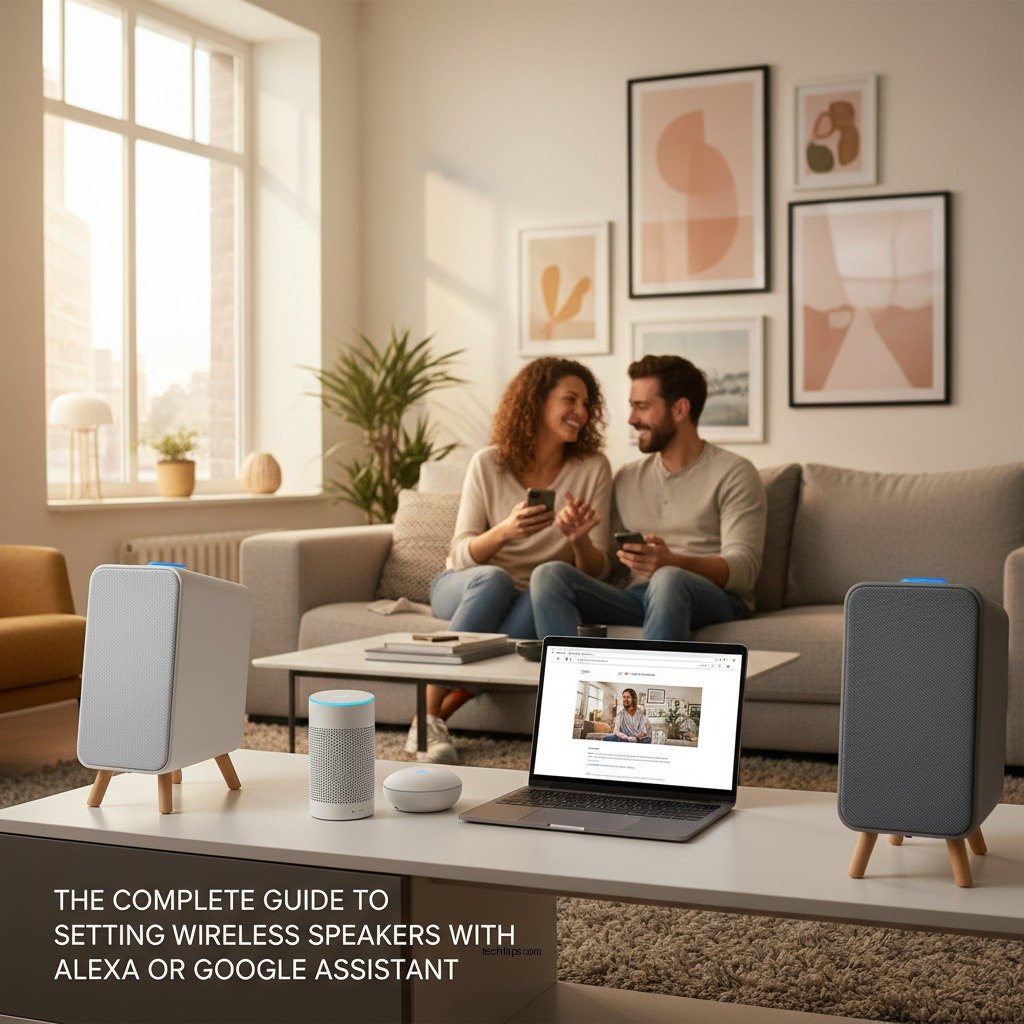

Setting up wireless speakers with Alexa or Google Assistant is straightforward and can significantly enhance your audio experience. By following this comprehensive guide, you will learn how to seamlessly connect your speakers, optimize settings, and effortlessly control your music with voice commands. With the right setup, you can transform your home into a smart audio environment that caters to your preferences and lifestyle.
Understanding Wireless Speakers
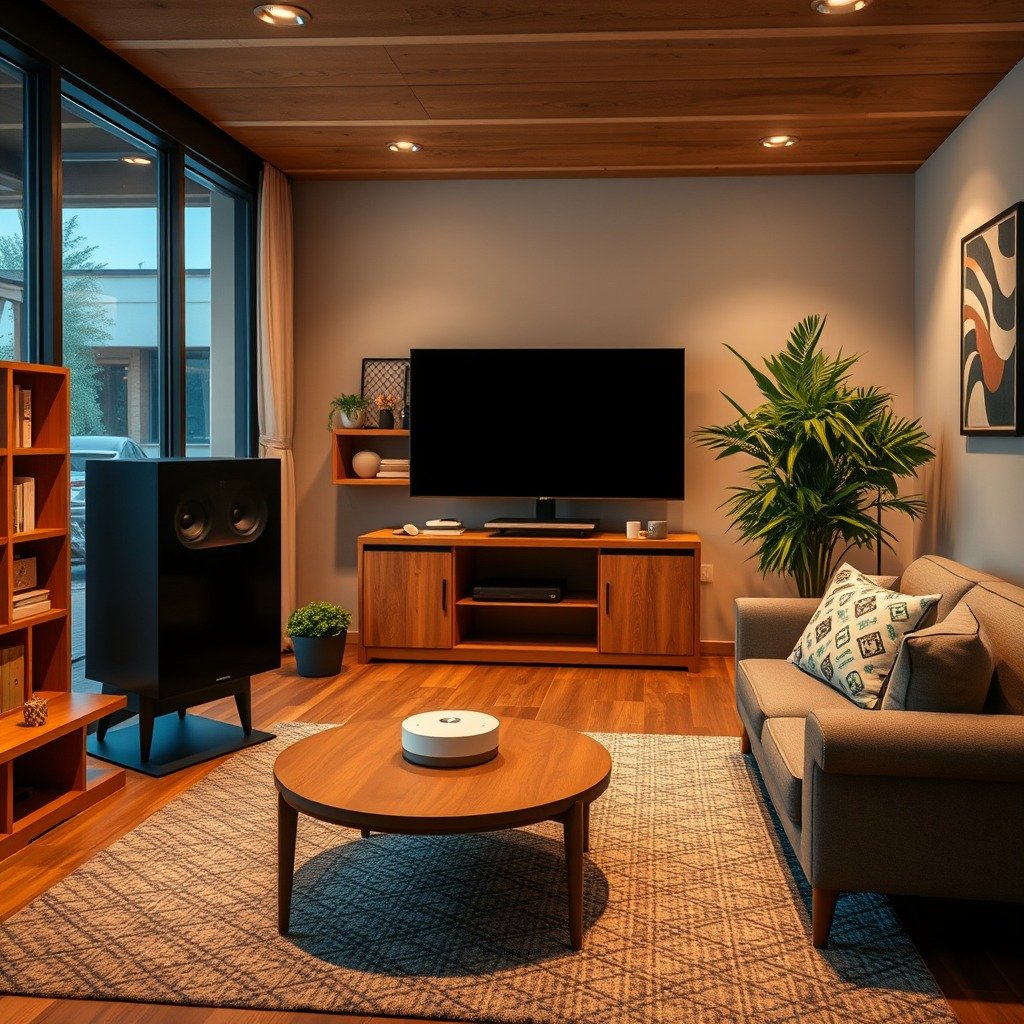
Wireless speakers come in two primary types: Bluetooth and Wi-Fi. Bluetooth speakers are portable and connect directly to your devices, making them suitable for on-the-go use. In contrast, Wi-Fi speakers connect to your home network, allowing multiple devices to access them simultaneously and often providing better sound quality and range.
Using wireless speakers with smart assistants like Alexa or Google Assistant offers several benefits. Firstly, they allow for hands-free control of music playback, volume adjustments, and playlist management, making your listening experience more convenient. Additionally, they can integrate with other smart home devices, enabling you to create a cohesive smart environment for lighting, temperature control, and home security.
Preparing Your Speakers
Before diving into the setup process, start by unboxing your wireless speakers and checking for essential components. Ensure that the package includes the speaker itself, a power adapter (if applicable), and any necessary cables. Some models may also come with remote controls or quick start guides, which can be helpful in the setup process.
Once you have verified that all components are present, ensure that your speakers are charged (if they are battery-operated) or plugged into a power source. This step is crucial for a smooth setup experience, as a low battery can lead to connectivity issues.
Connecting to Wi-Fi
To connect your wireless speakers to your home Wi-Fi network, follow these steps:
1. Download the App: For most wireless speakers, you will need to download the corresponding app (e.g., Amazon Alexa app for Alexa-compatible speakers or the Google Home app for Google Assistant speakers) on your smartphone or tablet.
2. Create an Account: If you don’t already have an account, create one within the app. This account will allow you to manage your devices easily.
3. Add a New Device: Open the app and select the option to add a new device. Follow the on-screen instructions to put your speaker into pairing mode. This usually involves pressing a specific button on the speaker until the indicator light flashes.
4. Connect to Wi-Fi: Once your speaker is in pairing mode, the app will prompt you to select your home Wi-Fi network. Enter your Wi-Fi password if prompted, and wait for the app to confirm the connection.
5. Test the Connection: After successfully connecting, play a test audio clip to ensure that your speaker is functioning correctly.
Troubleshooting Common Connectivity Issues
If you encounter issues during the Wi-Fi connection process, consider the following troubleshooting tips:
– Check Wi-Fi Signal: Ensure that your speaker is within range of your Wi-Fi router. Weak signals can lead to connectivity problems.
– Restart Devices: Restart both your speaker and your router. This can resolve many temporary connectivity issues.
– Update Firmware: Check for any firmware updates for your speaker through the app, as manufacturers often release updates to improve compatibility and performance.
Comparison of Top Wireless Speakers for Smart Assistants (2024)
| # | Speaker Model | Type | Voice Assistant | Battery Life |
|---|---|---|---|---|
| 1 | Amazon Echo Studio | Wi-Fi | Alexa | Up to 15 hours |
| 2 | Sonos One | Wi-Fi | Alexa, Google Assistant | N/A (Plugged) |
| 3 | Google Nest Audio | Wi-Fi | Google Assistant | N/A (Plugged) |
| 4 | JBL Link Portable | Bluetooth/Wi-Fi | Google Assistant | Up to 5 hours |
| 5 | Bose Home Speaker 500 | Wi-Fi | Alexa, Google Assistant | N/A (Plugged) |
| 6 | Ultimate Ears Megablast | Bluetooth/Wi-Fi | Alexa | Up to 20 hours |
| 7 | Anker Soundcore 3 | Bluetooth | N/A | Up to 24 hours |
Setting Up Alexa or Google Assistant
To enable voice assistant features on your wireless speakers, you will need to follow specific setup instructions based on the platform you are using:
1. For Alexa:
– Open the Amazon Alexa app and navigate to the “Devices” tab.
– Tap on the “+” icon to add a new device and select “Speaker.”
– Follow the prompts to link your speaker by selecting it from the list and confirming the connection.
2. For Google Assistant:
– Open the Google Home app and tap on the “+” icon.
– Select “Set up device” and choose “New devices.”
– Follow the prompts to select your speaker and connect it to your Google account.
Once linked, you can begin using voice commands to control your speaker. For example, you can ask, “Alexa, play my favorite playlist,” or “Hey Google, increase the volume.”
Configuring Audio Settings
To achieve optimal sound quality from your wireless speakers, you may want to adjust the equalizer settings based on your personal preference and the type of music you enjoy. Most apps associated with your speakers will have an equalizer feature that allows you to tweak bass, midrange, and treble levels.
Additionally, creating speaker groups is an excellent way to set up multi-room audio. Here’s how to do it:
1. Using the Alexa App:
– Go to the “Devices” tab and tap on “Plus.”
– Select “Set Up Multi-Room Music” and choose the speakers you want to include in the group.
– Name your group and save the settings.
2. Using the Google Home App:
– Open the app and tap on “Add.”
– Select “Create Speaker Group,” choose the speakers you want to include, and name the group.
This feature allows you to play music throughout your home simultaneously, creating an immersive audio experience.
Voice Commands and Usage Tips
To make the most of your wireless speakers, familiarize yourself with essential voice commands. Here are some useful commands for both Alexa and Google Assistant:
For Alexa:
– “Alexa, play [song/artist/genre].”
– “Alexa, pause.”
– “Alexa, set volume to 5.”
– “Alexa, what’s playing?”
For Google Assistant:
– “Hey Google, play [song/artist/genre].”
– “Hey Google, pause.”
– “Hey Google, set the volume to 50%.”
– “Hey Google, what’s my next appointment?”
Additionally, consider integrating your speakers into smart home routines. For instance, you can create a morning routine that plays your favorite news station, adjusts the thermostat, and turns on the lights when you say, “Good morning!”
Troubleshooting Common Issues
Despite the generally straightforward setup process, you may encounter some common issues with your wireless speakers. Here are solutions to potential problems:
– Connectivity Problems: If your speaker won’t connect to Wi-Fi, ensure that your router is functioning properly and that your speaker is within range. Restarting both devices can often resolve these issues.
– Unresponsive Speakers: If your speaker does not respond to voice commands, check if it is powered on and connected to the internet. Additionally, ensure you are using the correct wake word.
– Resetting Your Speakers: If issues persist, you may need to reset your speaker to factory settings. This usually involves pressing and holding a specific button combination on the speaker itself. Consult the user manual for detailed instructions.
By following these troubleshooting tips, you can quickly resolve most issues that may arise during setup or daily use.
Summarizing the steps to set up your wireless speakers with Alexa or Google Assistant can enhance your home audio experience significantly. By following this guide, you’ll be able to enjoy seamless music playback and voice control in no time. Ready to start? Gather your equipment and dive into the setup process!
Frequently Asked Questions
How do I connect my wireless speakers to Alexa or Google Assistant?
To connect your wireless speakers to Alexa or Google Assistant, first ensure that your speakers are in pairing mode. Open the Alexa app or Google Home app on your smartphone, navigate to the “Devices” section, and select “Add Device.” Follow the prompts to choose your wireless speakers and complete the pairing process, allowing you to use voice commands for playback.
What types of wireless speakers are compatible with Alexa and Google Assistant?
Most modern wireless speakers are compatible with Alexa and Google Assistant, including brands like Sonos, Bose, and JBL. Look for speakers that specifically mention compatibility with either voice assistant or are labeled as “smart speakers” to ensure seamless integration with your home automation setup.
Why is my wireless speaker not responding to Alexa or Google Assistant commands?
If your wireless speaker isn’t responding to voice commands, check if it is connected to the same Wi-Fi network as your Alexa or Google Assistant device. Additionally, ensure that the speaker is powered on and not muted. Restarting both the speaker and the voice assistant device can also help resolve connectivity issues.
What is the best way to set up multi-room audio with Alexa or Google Assistant and wireless speakers?
To set up multi-room audio, group your wireless speakers in the Alexa or Google Home app. For Alexa, go to “Devices,” select “Plus,” and choose “Set Up Multi-Room Audio,” then follow the prompts to create a group. For Google Assistant, tap on “Add” in the Google Home app, select “Create Speaker Group,” and choose your desired speakers to enjoy synchronized audio throughout your home.
Which wireless speakers offer the best sound quality when used with Alexa or Google Assistant?
For exceptional sound quality with Alexa or Google Assistant, consider speakers like the Sonos One, Bose Home Speaker 500, or the Apple HomePod mini. These speakers are known for their impressive audio performance and seamless integration with voice assistants, making them ideal for music lovers and smart home enthusiasts alike.
References
- Amazon Alexa
https://en.wikipedia.org/wiki/Amazon_Alexa - Google Assistant
https://en.wikipedia.org/wiki/Google_Assistant - https://scholar.google.com/scholar?q=Wireless+Speakers+with+Alexa+or+Google+Assistant Google Scholar
https://scholar.google.com/scholar?q=Wireless+Speakers+with+Alexa+or+Google+Assistant - https://www.nature.com/articles/s41598-020-75749-0
https://www.nature.com/articles/s41598-020-75749-0 - https://www.sciencedirect.com/science/article/pii/S2352914820301804
https://www.sciencedirect.com/science/article/pii/S2352914820301804 - https://pubmed.ncbi.nlm.nih.gov/32597352/
https://pubmed.ncbi.nlm.nih.gov/32597352/ - https://www.bbc.com/news/technology-55353206
https://www.bbc.com/news/technology-55353206 - https://www.theguardian.com/technology/2021/jan/29/alexa-google-assistant-voice-commands
https://www.theguardian.com/technology/2021/jan/29/alexa-google-assistant-voice-commands - https://www.cdc.gov/niosh/topics/voice/index.html
https://www.cdc.gov/niosh/topics/voice/index.html - Google Scholar Google Scholar
https://scholar.google.com/scholar?q=Setting+Up+Wireless+Speakers+with+Smart+Assistants