
If your LG home theater rear speakers are not working, don’t worry—there are several troubleshooting steps you can take to resolve the issue. This guide will walk you through the common causes and solutions to get your audio system back up and running in no time. By following these steps, you can quickly identify the problem and restore immersive sound to your home theater experience.
Check Connections and Wiring
The first step in diagnosing issues with your LG home theater rear speakers is to examine all connections and wiring. Loose or damaged connections can lead to a complete loss of sound from your rear speakers.
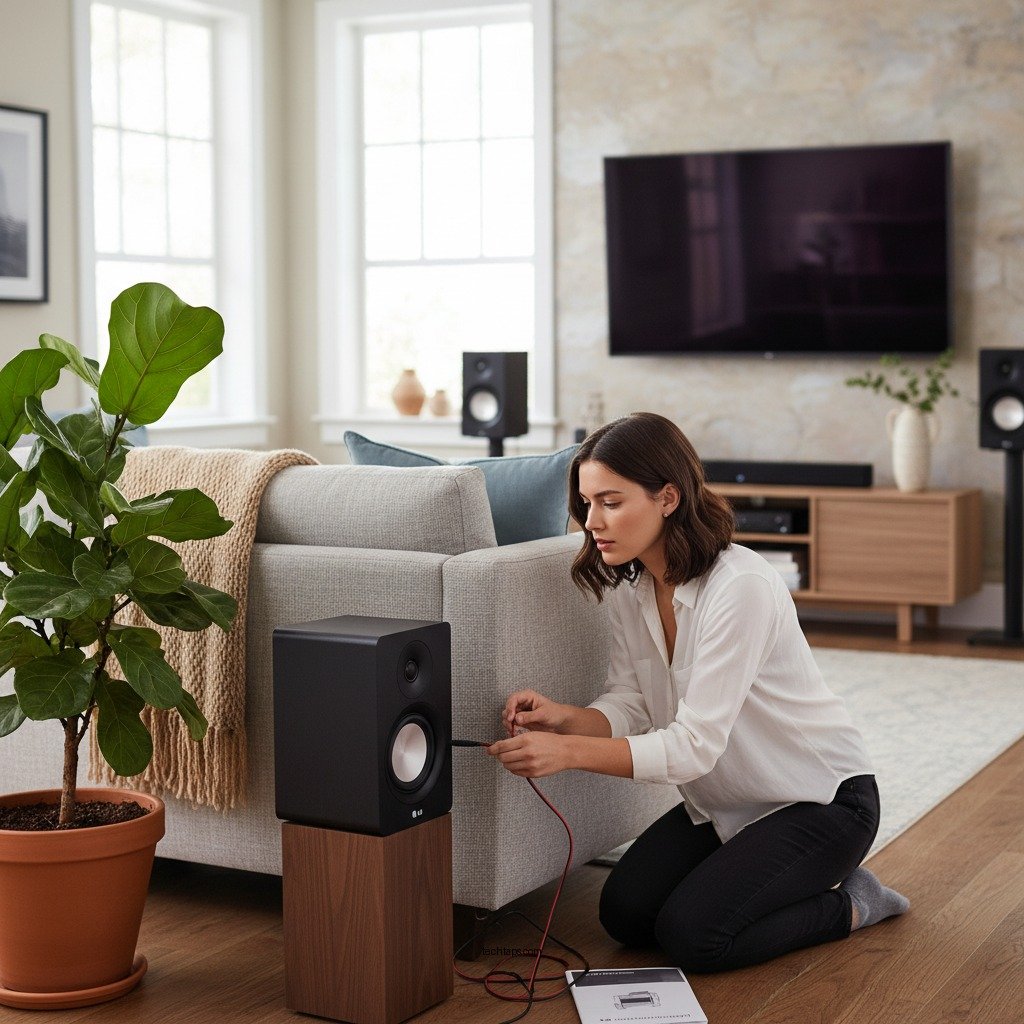
– Ensure all cables are securely connected: Begin by checking the connections at both the rear speakers and the main unit. Ensure that the speaker wires and audio cables are plugged in correctly and tightly. A slight disconnection can easily lead to sound issues.
– Inspect the wiring for damage: Look for any visible signs of damage, such as frayed wires or bent connectors. If you find any issues, consider replacing the cables, as damaged wiring can significantly affect audio performance. It’s advisable to use high-quality speaker wire to ensure optimal signal transfer.
Verify Speaker Settings
After confirming that the connections are in order, the next step is to verify the audio settings on your LG home theater system.
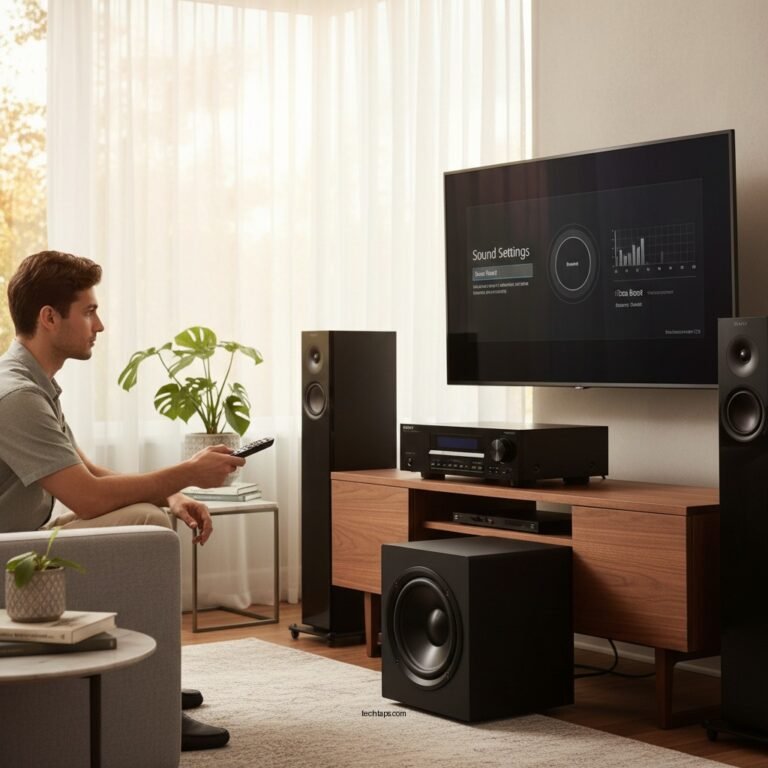
– Access the audio settings: Use your remote control to navigate to the audio settings menu. Check that the rear speakers are enabled in the settings. Some systems may have an option to assign or activate the speakers, which needs to be correctly configured.
– Adjust balance and volume settings: Ensure that the volume for the rear speakers is not muted or set too low. Adjust the balance settings to make sure the sound is appropriately distributed across all speakers. If the rear speakers are set to a lower volume compared to the front speakers, it may result in minimal audio output.
Test with Different Audio Sources
Sometimes, the issue might not originate from the home theater system itself but rather from the audio source.
– Play various audio sources: Try playing audio from different sources such as your TV, Blu-ray player, or streaming services. This will help determine if the problem is specific to one input. If the rear speakers work with some sources but not others, the issue may lie with the audio settings of that particular source.
– Check surround sound settings: Certain audio formats require specific surround sound settings to be activated. Ensure that the surround sound mode is correctly set for the type of content you are playing. Many movies and games are designed to utilize all speakers, so enabling the right mode can make a significant difference.
Common Issues and Solutions for LG Home Theater Rear Speakers
| # | Issue | Possible Cause | Solution |
|---|---|---|---|
| 1 | No sound from rear speakers | Loose connections | Check and secure all connections |
| 2 | Sound is too low | Volume settings | Adjust speaker volume and balance settings |
| 3 | Intermittent sound | Damaged cables | Inspect and replace damaged cables |
| 4 | Rear speakers not recognized | Incorrect settings | Check audio settings for speaker activation |
| 5 | Audio source issue | Wrong audio format | Verify surround sound settings |
| 6 | Lack of surround sound | Incorrect input mode | Change to the appropriate audio mode |
| 7 | Overall system malfunction | Firmware issues | Update firmware or perform a reset |
Update Firmware
Keeping your home theater system updated is crucial for optimal performance. Firmware updates often include enhancements and fixes for known issues.
– Check for available updates: Visit the LG support website or use the built-in function on your home theater system to check if a firmware update is available. Regular updates can help resolve bugs that may be impacting your rear speakers.
– Follow installation instructions: If an update is available, follow the manufacturer’s instructions carefully to install it. This typically involves downloading the update to a USB drive and applying it through the system’s settings menu. Ensure your device is powered on during this process to prevent any interruptions.
Perform a Factory Reset
If all else fails, performing a factory reset is a reliable way to restore your home theater system to its original settings.
– Restore default settings: A factory reset can resolve persistent issues by eliminating all customized settings and returning the system to its default configuration. This step can be particularly useful if incorrect settings are causing conflicts.
– Backup configurations: Before performing a factory reset, take note of any custom settings you may want to restore later. Keep in mind that you will need to reconfigure your system from scratch, which can include reconnecting devices and adjusting audio settings.
Consult the User Manual
Your user manual is a valuable resource when troubleshooting issues with your LG home theater system.
– Review specific troubleshooting tips: The manual often contains troubleshooting guidelines tailored to your specific model. Check for any troubleshooting sections that detail common problems and their solutions.
– Manufacturer-specific advice: Look for any error codes or indicators that are relevant to rear speaker functionality. Understanding these codes can provide insight into the nature of the issue and how to resolve it.
Contact Customer Support
If you’ve followed all the troubleshooting steps and your rear speakers are still not functioning, it may be time to seek professional assistance.
– Reach out to LG customer support: Provide them with a detailed description of the issue along with the troubleshooting steps you have already taken. This information will help them assist you more effectively.
– Consider warranty options: If your system is still under warranty, inquire about repair or replacement options. Customer support can guide you through the next steps, which may include sending in your unit for repairs or receiving a replacement.
Getting your LG home theater rear speakers to work again may require a bit of patience and troubleshooting. By following the steps outlined above, you can identify and resolve the issue effectively. If problems persist, don’t hesitate to seek professional help or contact LG for support. Enjoy your home theater experience!
Frequently Asked Questions
Why are my LG home theater rear speakers not working?
If your LG home theater rear speakers are not functioning, it could be due to various reasons such as loose connections, incorrect settings, or compatibility issues. First, check all speaker connections to ensure they are secure. Additionally, verify the audio settings on your receiver to confirm that the rear speakers are enabled.
How can I troubleshoot my LG home theater rear speakers?
To troubleshoot your LG home theater rear speakers, start by checking the speaker wires for any damage or loose connections. Next, access the audio settings on your home theater system and ensure that the rear speaker output is activated. If problems persist, consider resetting the system to its factory settings and reconfiguring.
What settings should I check if my LG home theater rear speakers are silent?
If your LG home theater rear speakers are silent, check the speaker configuration settings in the audio setup menu. Ensure that the rear speakers are set to the correct size (small or large) and that the volume levels for each speaker are appropriately adjusted. Also, confirm that the surround sound mode is activated.
Which common issues might cause LG home theater rear speakers not to work?
Common issues that may cause LG home theater rear speakers to malfunction include incorrect wiring, outdated firmware, or a malfunctioning receiver. Additionally, if the audio source is not set to output surround sound, the rear speakers may not receive the audio signal. Ensuring all components are updated and correctly configured is essential.
What is the best way to reset my LG home theater system for speaker issues?
The best way to reset your LG home theater system is to locate the reset option in the system settings menu. This process typically involves navigating to the “General” or “System” settings and selecting “Factory Reset.” After resetting, you’ll need to reconfigure the audio settings, which can help resolve issues with the rear speakers not working.
References
- Home cinema
https://en.wikipedia.org/wiki/Home_theater - Product Support: Help Library | LG USA Support
https://www.lg.com/us/support/help-library/home-theater-not-working-CT10000021-20150134529900 - https://pubmed.ncbi.nlm.nih.gov/27802298/
https://pubmed.ncbi.nlm.nih.gov/27802298/ - https://www.sciencedirect.com/topics/engineering/audio-engineering
https://www.sciencedirect.com/topics/engineering/audio-engineering - https://www.bbc.com/news/technology-48284502
https://www.bbc.com/news/technology-48284502 - Google Scholar Google Scholar
https://scholar.google.com/scholar?q=LG+Home+Theater+Rear+Speakers+Troubleshooting - Google Scholar Google Scholar
https://scholar.google.com/scholar?q=home+theater+speaker+issues - Google Scholar Google Scholar
https://scholar.google.com/scholar?q=audio+equipment+troubleshooting - https://www.cdc.gov/niosh/topics/noise/default.html
https://www.cdc.gov/niosh/topics/noise/default.html - Google Scholar Google Scholar
https://scholar.google.com/scholar?q=LG+Home+Theater+Rear+Speakers+Not+Working?+Troubleshooting+Steps