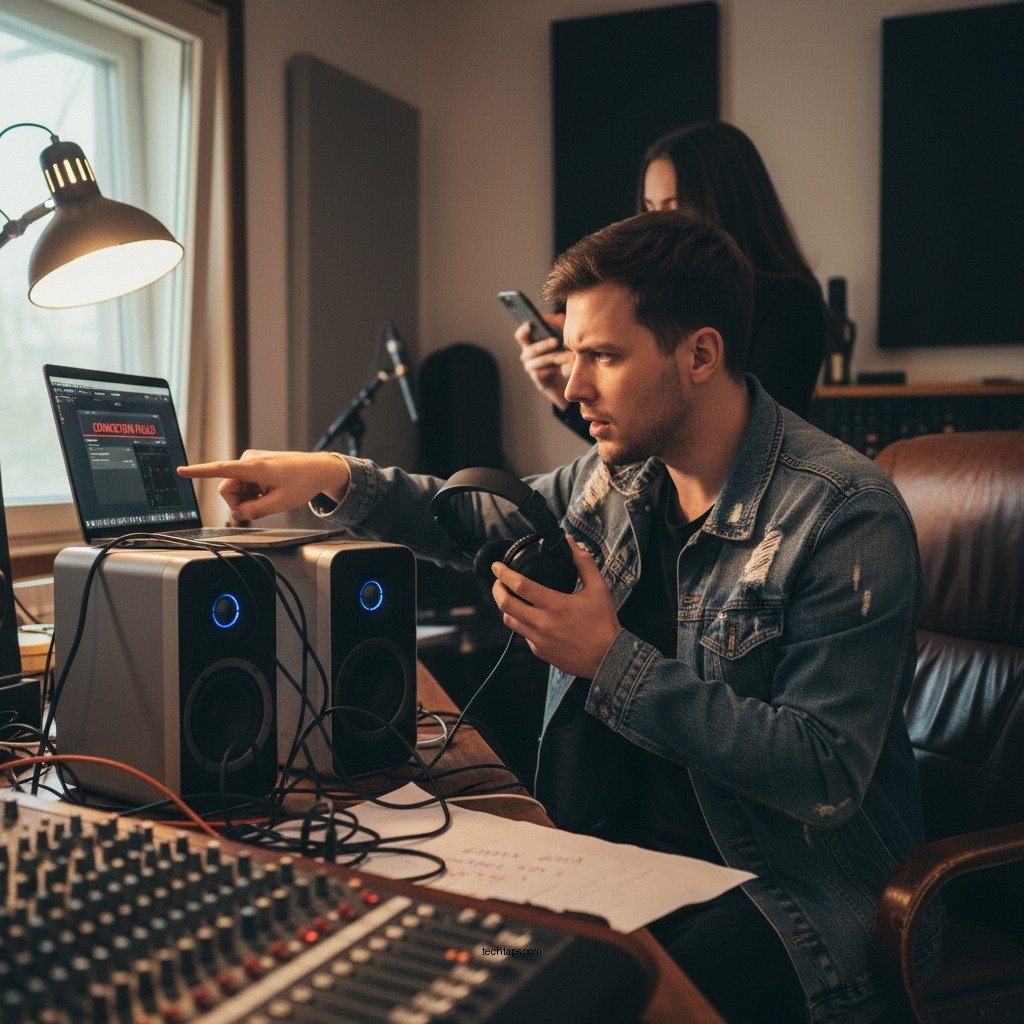

When your wireless speaker connection fails, the first step is to identify the problem and apply appropriate solutions. Common connectivity issues can often be resolved with simple troubleshooting steps, ensuring your audio experience is seamless and enjoyable. This article will guide you through effective methods to diagnose and resolve connectivity problems, allowing you to get back to enjoying your favorite music.
Understanding Wireless Speaker Connectivity
Wireless speakers utilize two primary technologies for connectivity: Bluetooth and Wi-Fi. Understanding which technology your speaker uses is crucial in addressing connection issues. Bluetooth is typically favored for its ease of use and compatibility with various devices, while Wi-Fi allows for superior audio quality and range, particularly in multi-room setups.
To maintain a stable connection, ensure that your wireless speaker and the device you’re connecting to are within the recommended range. Most Bluetooth speakers have a range of approximately 30 feet, while Wi-Fi speakers can operate over a greater distance, depending on network strength and interference. Always keep in mind that obstacles such as walls and electronic devices can negatively affect signal strength.
Common Connection Problems
Multiple factors can contribute to wireless speaker connectivity problems. One of the most frequent culprits is interference from other electronic devices. Common household items like microwaves, routers, and even other Bluetooth devices can disrupt the signal, leading to dropped connections or poor audio quality. Identifying these sources of interference and minimizing their presence can significantly improve your speaker’s performance.
Another common issue is outdated firmware. Both your wireless speaker and the device you are connecting to may require updates to ensure compatibility. Manufacturers frequently release updates to address bugs and enhance performance, so regularly checking for and installing firmware updates is essential for optimal functionality.
Steps to Reconnect Your Speaker
If you experience connectivity issues with your wireless speaker, the first course of action should be to restart both the speaker and the device you are trying to connect to. This simple step often resolves minor glitches and can restore the connection.
If restarting does not fix the problem, consider removing the speaker from your device’s Bluetooth or Wi-Fi settings and then re-pairing it. This process establishes a fresh connection and can help eliminate persistent, underlying issues. To do this, go to your device’s settings, find the list of paired devices, select your speaker, and choose to forget it. Afterward, initiate pairing mode on your speaker and attempt to reconnect.
Top 7 Wireless Speakers by Features (2024)
| # | Speaker Model | Bluetooth Range | Battery Life | Sound Quality |
|---|---|---|---|---|
| 1 | JBL Charge 5 | 30 ft | 20 hours | ★★★★☆ |
| 2 | Bose SoundLink Revolve+ | 33 ft | 17 hours | ★★★★★ |
| 3 | Sony SRS-XB43 | 100 ft | 24 hours | ★★★★☆ |
| 4 | Ultimate Ears MEGABOOM 3 | 100 ft | 20 hours | ★★★★☆ |
| 5 | Anker Soundcore Motion+ | 66 ft | 15 hours | ★★★★☆ |
| 6 | Bang & Olufsen Beoplay P2 | 30 ft | 10 hours | ★★★☆☆ |
| 7 | Bose SoundLink Mini II | 30 ft | 12 hours | ★★★★☆ |
Diagnosing Sound Issues
Sometimes, you may find that your wireless speaker is connected but the sound quality is unsatisfactory. In these cases, begin by checking the volume levels on both the speaker and the connected device. Sometimes, the volume may be muted or set too low, leading to an impression of poor sound quality.
Additionally, verify that your speaker is not connected to another device. Many wireless speakers can remember multiple paired devices, which can lead to confusion regarding audio output. Disconnecting from any previously linked devices can resolve these sound issues and ensure that audio is directed to the correct speaker.
Resetting Your Wireless Speaker
If persistent connection or sound issues occur, it may be time to reset your wireless speaker. Each model is different, so consult your speaker’s manual for specific instructions on how to perform a factory reset. This process typically involves holding down certain buttons for a specified duration, effectively restoring the speaker to its original settings.
Resetting can resolve a range of issues, including unresponsive buttons or persistent connectivity problems. Once the speaker is reset, you will need to go through the pairing process again, but this often eliminates the underlying issues that were causing difficulties.
When to Seek Professional Help
If you have diligently followed all troubleshooting steps and your wireless speaker still refuses to connect or produce sound, it may be indicative of a hardware issue. In such cases, it is advisable to contact customer support for your specific speaker brand. Many manufacturers offer warranties and support services, which can assist with repairs or replacements.
Additionally, professional technicians can provide insights into more complex issues that may not be immediately apparent. If your speaker is relatively new, checking the warranty status can save you time and money in the long run.
By following these troubleshooting steps, you should be able to resolve most common wireless speaker connection issues. If problems persist, consider reaching out to customer support for your specific device. Don’t let connectivity issues hinder your enjoyment of music; take action now to fix them!
Frequently Asked Questions
What are the common reasons my wireless speaker won’t connect to my device?
Common reasons for a wireless speaker not connecting include Bluetooth pairing issues, low battery levels, or interference from other devices. Ensure that your speaker is in pairing mode, check if it’s charged, and move away from potential interference sources like microwaves or Wi-Fi routers.
How can I fix audio lag when using my wireless speaker?
Audio lag can often be resolved by ensuring that both your device and wireless speaker are updated to the latest firmware. Additionally, try using a wired connection if possible, as this can eliminate latency issues, or reduce the distance between the speaker and your device to improve the connection stability.
Why does my wireless speaker keep disconnecting during use?
Frequent disconnections can be caused by several factors, including low battery, poor Bluetooth range, or interference from other wireless devices. Make sure your speaker is fully charged, keep it within range of your device, and try to minimize the number of active Bluetooth connections nearby.
What is the best way to reset my wireless speaker for troubleshooting?
To reset your wireless speaker, locate the reset button, which is typically found on the bottom or back of the device, or refer to the user manual for specific instructions. A reset usually involves holding down the power button or a dedicated reset button for several seconds, allowing you to clear any previous connections and start fresh.
Which devices are compatible with my wireless speaker?
Most wireless speakers are compatible with a wide range of devices, including smartphones, tablets, and computers that support Bluetooth technology. However, it’s important to check the specifications of your speaker and ensure that your device’s operating system meets the required version for seamless connectivity.
References
- Wireless speaker
https://en.wikipedia.org/wiki/Wireless_speaker - https://www.lifewire.com/wireless-speaker-troubleshooting-1845195
https://www.lifewire.com/wireless-speaker-troubleshooting-1845195 - Google Scholar Google Scholar
https://scholar.google.com/scholar?q=Wireless+speaker+connection+troubleshooting - Google Scholar Google Scholar
https://scholar.google.com/scholar?q=Bluetooth+speaker+common+problems+and+fixes - Google Scholar Google Scholar
https://scholar.google.com/scholar?q=Wireless+speaker+connectivity+issues+solutions - Google Scholar Google Scholar
https://scholar.google.com/scholar?q=Troubleshooting+Your+Wireless+Speaker+Connection:+Common+Problems+and+Fixes - Troubleshooting Your Wireless Speaker Connection: Common Problems and Fixes – Search results
https://en.wikipedia.org/wiki/Special:Search?search=Troubleshooting+Your+Wireless+Speaker+Connection:+Common+Problems+and+Fixes - https://www.ncbi.nlm.nih.gov/search/research-articles/?term=Troubleshooting+Your+Wireless+Speaker+Connection:+Common+Problems+and+Fixes
https://www.ncbi.nlm.nih.gov/search/research-articles/?term=Troubleshooting+Your+Wireless+Speaker+Connection:+Common+Problems+and+Fixes