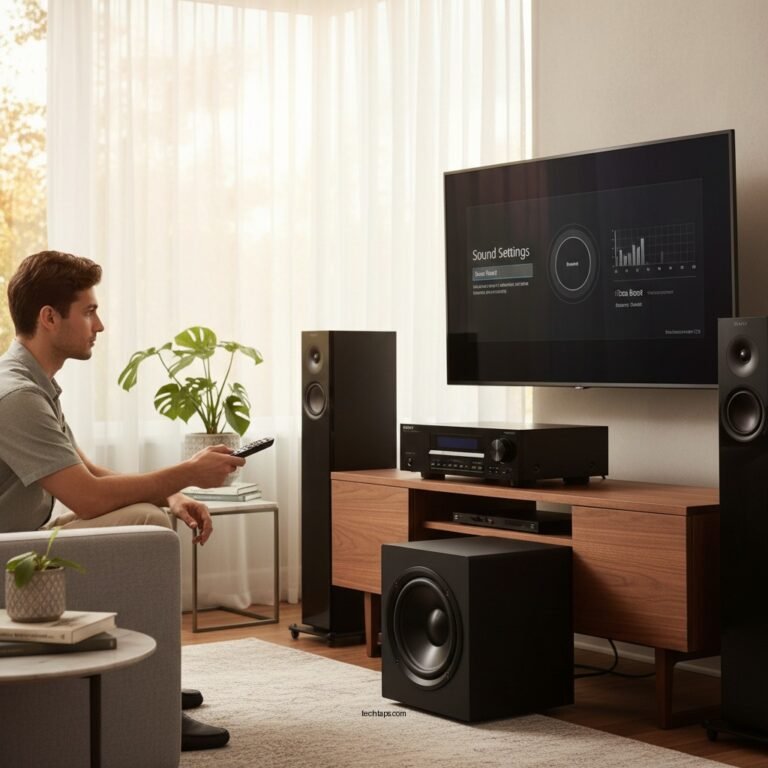

Experiencing static in your wireless audio system can be frustrating, but it often stems from interference or connection issues. Common causes include interference from other devices and weak signal strength. This article will help you identify these issues and guide you through effective solutions to restore clear sound.
Common Causes of Static in Wireless Audio Systems
Static in a wireless audio system can usually be traced back to two primary causes: interference from other devices and weak signal strength. Understanding these can help you troubleshoot effectively.
– Interference from Other Devices: Wireless audio systems operate on various frequency bands, typically 2.4 GHz and 5 GHz. These bands overlap with numerous everyday devices such as microwaves, Wi-Fi routers, Bluetooth devices, and even cordless phones. When these devices operate simultaneously, they can create a disruptive noise, leading to static in your audio output. For example, if you notice that static occurs when a microwave is running, you may be experiencing interference.
– Weak Signal Strength: The distance between your audio source and receiver, along with physical barriers like walls or furniture, can weaken the wireless signal. The farther the receiver is from the transmitter, the greater the chance of signal degradation. For instance, if your audio system is located in a different room from the device it is connected to, this could lead to static issues.
Troubleshooting Your Wireless Audio System
When faced with static, a systematic approach to troubleshooting can help resolve the issue. Here are some steps to follow:
– Check Connections: Start by ensuring that all cables and connections are secure and free from damage. Loose or damaged cables can significantly affect audio quality. Inspect power cables, input/output connections, and any intermediary devices to ensure they are functioning correctly.
– Reset Your Devices: Sometimes, a simple reset can clear temporary glitches. Power cycling your audio system, including both the receiver and source device, can refresh the system and help eliminate static. Unplugging the devices for a few moments before restarting can often resolve connectivity issues.
Adjusting Your Wireless Settings
Fine-tuning your wireless settings can also mitigate static problems. Here are a couple of effective strategies:
– Change Frequency Channels: Many wireless audio systems allow users to switch between frequency channels. If you suspect interference, try changing to a less congested channel. Most modern systems come with an automatic frequency selection feature, but manual adjustment can often yield better results, especially in areas with heavy electronic traffic.
– Update Firmware: Keeping your devices updated is crucial for optimal performance. Manufacturers frequently release firmware updates to address known issues, improve performance, and enhance compatibility. Check the manufacturer’s website or your device settings for available updates.
Top Wireless Audio Systems by Features (2023)
| # | System | Channel Switching | Firmware Update | Signal Range |
|---|---|---|---|---|
| 1 | Sonos One | Yes | Yes | 100 ft |
| 2 | Bose SoundLink | Yes | Yes | 75 ft |
| 3 | JBL Charge 5 | Yes | Yes | 100 ft |
| 4 | Ultimate Ears Wonderboom | Yes | Yes | 100 ft |
| 5 | Anker Soundcore | Yes | Yes | 66 ft |
| 6 | Sony SRS-XB43 | Yes | Yes | 100 ft |
Positioning Your Audio Equipment
The physical placement of your audio equipment greatly affects signal quality. Here are some tips to optimize your setup:
– Optimal Placement: Position your receiver and transmitter as close together as possible. Reducing the distance can significantly enhance signal quality. If your audio system is in a different room, consider relocating it closer to the source device, or use a wireless range extender.
– Avoid Physical Obstructions: Ensure that there are no walls, furniture, or other obstructions blocking the signal path. Even decorative items can interfere with the signal. For example, placing the receiver on a shelf free of clutter can improve the clarity of the audio.
Signal Strength vs. Distance (ft)
Using Quality Equipment
Investing in high-quality audio equipment can drastically reduce the chances of experiencing static. Here are some considerations:
– Invest in Better Hardware: Older or lower-quality equipment may be more susceptible to static. Upgrading to a modern wireless audio system that supports higher bandwidth can improve sound quality and reliability. For instance, systems that utilize Bluetooth 5.0 or Wi-Fi 6 tend to have better performance compared to older versions.
– Consider Antenna Upgrades: If your system allows for antenna replacement or extension, this can enhance the range and clarity of your audio. A stronger antenna can improve signal reception and minimize interruptions. Aftermarket antennas are often available for popular audio systems and can provide a significant boost in performance.
When to Seek Professional Help
If you’ve tried the above solutions and still face persistent static, it may be time to seek professional assistance. Here’s when and where to look:
– Persistent Issues: If static continues despite your efforts, it may indicate a deeper problem, such as hardware malfunction or compatibility issues. In such cases, professional diagnostics from an audio technician can identify and resolve the underlying issues.
– Service Options: Look for warranty services or local repair shops specializing in audio equipment. Many manufacturers offer support services that can provide repair or replacement options if your unit is still under warranty.
Your wireless audio system should deliver a clear and enjoyable listening experience. By identifying the causes of static and implementing the solutions outlined, you can enjoy uninterrupted audio. If these steps do not resolve your issue, consider consulting with a professional to explore further options.
Frequently Asked Questions
Why is there static in my wireless audio system?
Static in your wireless audio system can be caused by various factors, including interference from other electronic devices, poor signal strength, or issues with the audio source. Common culprits are Wi-Fi networks, microwaves, and Bluetooth devices that operate on similar frequencies. Identifying the source of the interference is crucial for eliminating the static.
How can I reduce static in my wireless speakers?
To reduce static in your wireless speakers, start by ensuring a clear line of sight between the audio source and the speakers, as obstructions can weaken the signal. Additionally, try changing the location of your wireless audio system to a less congested area, or switch to a less crowded frequency channel if your system allows it. Reducing the distance between the transmitter and receiver can also help improve the connection.
What are the best practices for setting up a wireless audio system to avoid static?
To avoid static in your wireless audio system, position the transmitter and receiver as close together as possible, and away from potential interference sources like Wi-Fi routers and microwaves. Ensure that all devices are updated with the latest firmware, and consider using a dedicated wireless network for audio devices to minimize congestion. Lastly, regularly check the batteries or power sources to maintain optimal performance.
Which devices can cause interference in my wireless audio system?
Several devices can cause interference in your wireless audio system, including Wi-Fi routers, Bluetooth devices, cordless phones, and microwaves. Even other wireless audio systems operating on the same frequency can lead to static or dropouts. To minimize this interference, try to keep your audio system away from these devices and switch to a different frequency channel if possible.
How do I troubleshoot static issues in my Bluetooth audio system?
To troubleshoot static issues in your Bluetooth audio system, start by disconnecting and then reconnecting your audio source to refresh the connection. Check the distance between your Bluetooth device and the speakers, as excessive distance can lead to static. Additionally, turning off other Bluetooth devices nearby can help reduce interference, and resetting your Bluetooth settings may also resolve the issue.
References
- Wireless
https://en.wikipedia.org/wiki/Wireless_audio - https://www.sciencedirect.com/topics/engineering/wireless-audio
https://www.sciencedirect.com/topics/engineering/wireless-audio - https://www.ncbi.nlm.nih.gov/pmc/articles/PMC7327112/
https://www.ncbi.nlm.nih.gov/pmc/articles/PMC7327112/ - https://www.nature.com/articles/s41598-020-67300-1
https://www.nature.com/articles/s41598-020-67300-1 - Tendinitis pain: Should I apply ice or heat? – Mayo Clinic
https://www.mayoclinic.org/healthy-lifestyle/adult-health/expert-answers/wireless-audio/faq-20057872 - Google Scholar Google Scholar
https://scholar.google.com/scholar?q=wireless+audio+static+interference - Google Scholar Google Scholar
https://scholar.google.com/scholar?q=fixing+static+in+wireless+audio+systems - Google Scholar Google Scholar
https://scholar.google.com/scholar?q=wireless+audio+system+troubleshooting - https://www.bbc.com/news/technology-56248667
https://www.bbc.com/news/technology-56248667 - https://www.theguardian.com/technology/2021/mar/10/wireless-audio-interference-solutions
https://www.theguardian.com/technology/2021/mar/10/wireless-audio-interference-solutions