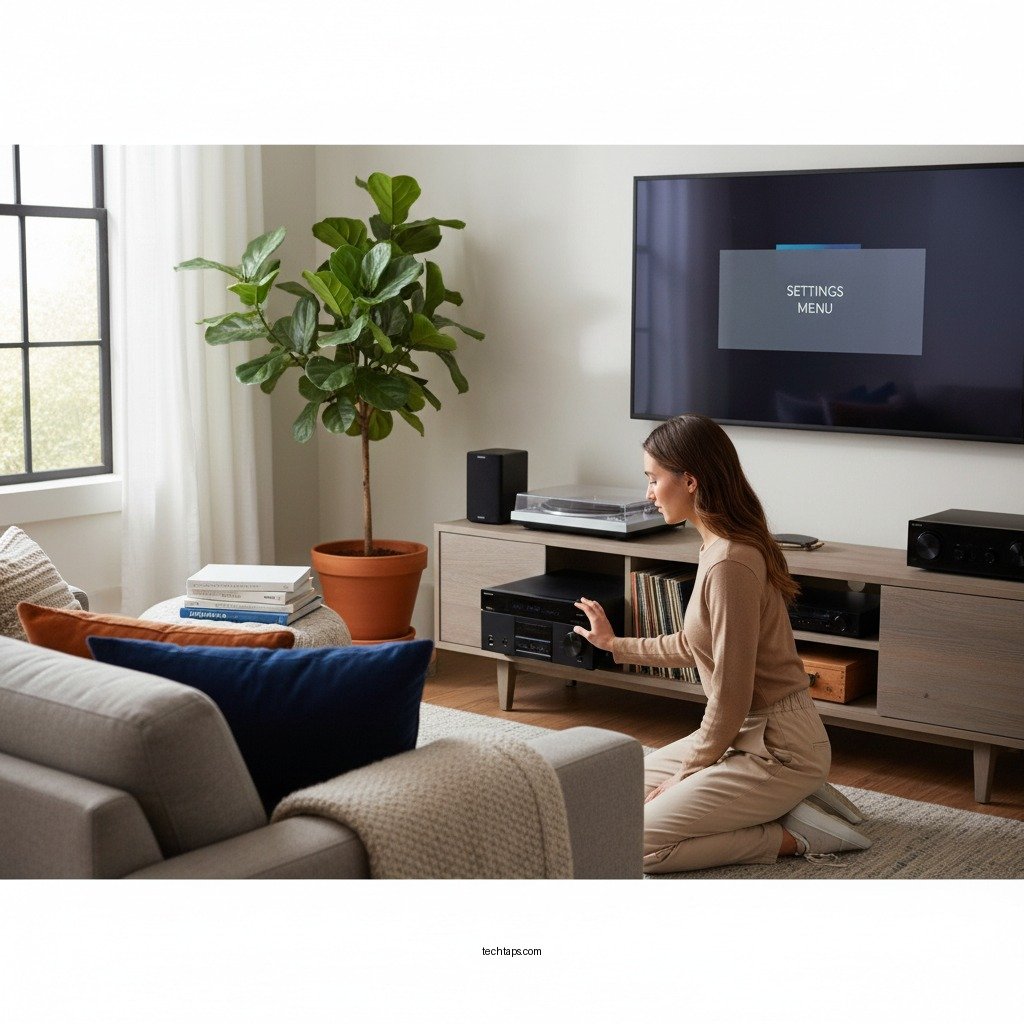

Resetting your Denon home theater system is a straightforward process that can help resolve a variety of audio and connectivity issues. Whether you’re experiencing glitches, sound problems, or trouble connecting to devices, restoring your system to its factory settings can significantly enhance performance. This guide will walk you through the necessary steps to effectively reset your Denon home theater system, ensuring a seamless audio experience.
Understanding the Need to Reset
There are several common issues that may necessitate a reset of your Denon home theater system. These can include audio dropouts, distortion in sound quality, difficulties in connecting to streaming services, or problems with HDMI connections. While these issues can often be resolved through troubleshooting, a reset can sometimes be the most efficient solution.
It’s important to differentiate between a soft reset and a factory reset. A soft reset typically involves a simple power cycle—turning the device off and then back on again—which can resolve minor glitches. In contrast, a factory reset restores the system to its original settings, erasing all custom configurations. This is suitable for more persistent issues or when you intend to sell or give away the device.
Preparing for the Reset
Before proceeding with a reset, ensure that all devices connected to your Denon home theater system are turned off and unplugged. This precaution helps prevent any potential electrical issues or data corruption. Additionally, it is wise to back up any custom settings or configurations you may have made. Denon systems often allow users to save presets for audio settings, speaker configurations, and network connections, which can save you time during reconfiguration.
Steps for Soft Reset
Performing a soft reset on your Denon home theater system is a simple yet effective process. To execute a soft reset, follow these steps:
1. Power off the Receiver: Disconnect it from the power outlet.
2. Wait for a Minute: This allows the system to fully discharge and reset the internal memory.
3. Reconnect the Power: Plug the receiver back into the outlet and turn it on.
For certain Denon models, you may also reset by using specific button combinations. For example, on the Denon AVR-S750H, you can perform a soft reset by holding down the “Power” and “Input” buttons simultaneously for a few seconds until the display briefly turns off and then back on.
Steps for Factory Reset
To perform a factory reset, follow this step-by-step process accessible through the system menu:
1. Turn on Your Receiver: Ensure it is fully powered.
2. Access the Setup Menu: Using your remote, press the “Setup” button.
3. Navigate to the ‘System Setup’: Use the arrow keys to scroll to ‘General’ and then select ‘Factory Reset.’
4. Confirm Your Selection: You may be prompted to confirm the reset. Select ‘Yes.’
5. Wait for the Reset to Complete: Your system will reboot, restoring all settings to their defaults.
For visual assistance, refer to the user manual specific to your Denon model, as the menu navigation may vary slightly between receivers.
Denon Home Theater System Models Comparison
| # | Model | Channels | Power (watts) | HDMI Inputs | Wi-Fi | Bluetooth |
|---|---|---|---|---|---|---|
| 1 | Denon AVR-S750H | 7.2 | 75 | 6 | Yes | Yes |
| 2 | Denon AVR-X3700H | 9.2 | 105 | 8 | Yes | Yes |
| 3 | Denon AVR-X6700H | 11.2 | 140 | 8 | Yes | Yes |
| 4 | Denon AVR-S960H | 7.2 | 100 | 6 | Yes | Yes |
| 5 | Denon AVR-S920W | 7.2 | 90 | 5 | Yes | Yes |
| 6 | Denon AVR-X8500H | 13.2 | 150 | 8 | Yes | Yes |
| 7 | Denon AVR-X1300W | 7.2 | 80 | 5 | Yes | Yes |
Troubleshooting Post-Reset Issues
After resetting your Denon home theater system, you may encounter some issues that require additional troubleshooting. One common problem is the need to reconfigure audio settings, which may default to standard configurations that do not suit your setup. Make sure to check and adjust the speaker levels, subwoofer settings, and surround sound formats to match your preferences.
Another potential issue is reconnecting your devices, such as streaming services, gaming consoles, or Blu-ray players. Ensure that HDMI connections are secure and that any network settings are correctly inputted. If your devices fail to connect, you might want to check for firmware updates for both your Denon receiver and the connected devices.
Reconfiguring Your System
Once you have successfully reset your Denon home theater system, reconfiguring it is essential to restore your optimal audio experience. Start by navigating through the setup menu to input your audio settings, including surround sound options, speaker configurations, and any specific preferences you had before the reset.
Next, reconnect to your home Wi-Fi and any Bluetooth devices. For Wi-Fi connections, you may need to enter your network password again. Testing each component after reconfiguration ensures that everything functions correctly. Play a variety of content to confirm that audio and video quality meet your expectations.
When to Seek Professional Help
While resetting your Denon home theater system can resolve many issues, there may be situations where a reset does not fix the problem. If you continue to experience persistent audio issues, random shutdowns, or connectivity problems, it may be time to seek professional help.
In such cases, contacting Denon customer support or a certified technician can provide you with the necessary guidance and solutions. Denon customer service can be reached through their official website or customer support hotline, where trained representatives can assist you with more complex issues.
In summary, resetting your Denon home theater system can quickly resolve a variety of issues and restore optimal performance. By following the outlined steps for both soft and factory resets, you can enhance your home theater experience. If problems persist despite these efforts, do not hesitate to reach out for professional assistance. Enjoy your enhanced audio experience!
Frequently Asked Questions
How do I perform a factory reset on my Denon home theater system?
To perform a factory reset on your Denon home theater system, first, ensure the device is powered off. Then, press and hold the ‘Power’ and ‘Stereo’ buttons simultaneously until the display shows ‘Initialized.’ This process will restore the original factory settings, erasing any customized configurations.
Why would I need to reset my Denon home theater system?
You might need to reset your Denon home theater system if you are experiencing persistent audio issues, connectivity problems, or if you want to clear all settings before selling the device. A factory reset can also resolve glitches or performance issues that standard troubleshooting methods cannot fix.
What should I do if my Denon home theater system won’t reset?
If your Denon home theater system won’t reset, first check to ensure you are following the correct reset procedure for your specific model. If the reset is still unsuccessful, try unplugging the system for a few minutes before attempting the reset again. If issues persist, consult the user manual or contact Denon customer support for further assistance.
Which Denon home theater models allow for a reset?
Most Denon home theater models, including the AVR series and various soundbars, allow for a reset. Models such as the Denon AVR-X series and Denon HEOS systems typically feature reset options. For the best guidance, refer to your model’s user manual to confirm the reset process specific to your device.
What are the best practices to follow after resetting my Denon home theater system?
After resetting your Denon home theater system, it’s advisable to reconfigure your settings, including speaker calibration and input preferences, to optimize performance. Additionally, ensure you update the firmware to the latest version for improved functionality and features. Finally, reconnect your devices and test the system to verify everything is working correctly.
References
- https://www.denon.com/en-us/support/faq/how-do-i-reset-my-denon-receiver
https://www.denon.com/en-us/support/faq/how-do-i-reset-my-denon-receiver - https://www.audioholics.com/reviews/denon-avr-s960h
https://www.audioholics.com/reviews/denon-avr-s960h - https://www.denon.com/en-us/support/faq/faq-receiver-reset
https://www.denon.com/en-us/support/faq/faq-receiver-reset - Google Scholar Google Scholar
https://scholar.google.com/scholar?q=How+to+Reset+a+Denon+Home+Theater+System - Google Scholar Google Scholar
https://scholar.google.com/scholar?q=Denon+AVR+reset+instructions - Google Scholar Google Scholar
https://scholar.google.com/scholar?q=Denon+home+theater+system+troubleshooting - https://www.soundandvision.com/content/how-reset-your-denon-avr-receiver
https://www.soundandvision.com/content/how-reset-your-denon-avr-receiver - How to Reset a Denon Home Theater System – Search results
https://en.wikipedia.org/wiki/Special:Search?search=How+to+Reset+a+Denon+Home+Theater+System - https://www.ncbi.nlm.nih.gov/search/research-articles/?term=How+to+Reset+a+Denon+Home+Theater+System
https://www.ncbi.nlm.nih.gov/search/research-articles/?term=How+to+Reset+a+Denon+Home+Theater+System