
Isolating guest Wi-Fi devices is the fastest way to keep your home or office network safe, and the winner is a dedicated guest network with strict client isolation enabled. This guide answers how to set up that separation so guest devices can reach the internet while your private computers, printers, and files stay protected. Follow the steps and you’ll reduce lateral movement risk without breaking guest convenience.
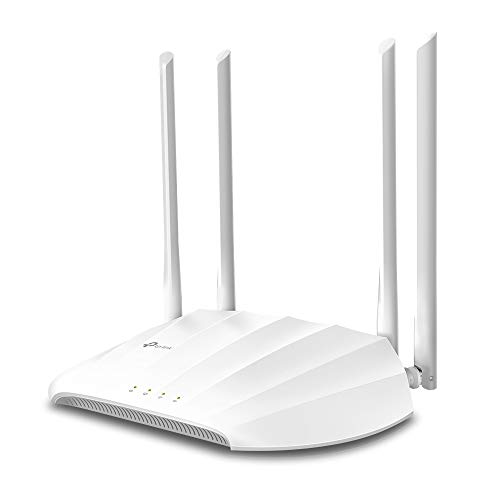


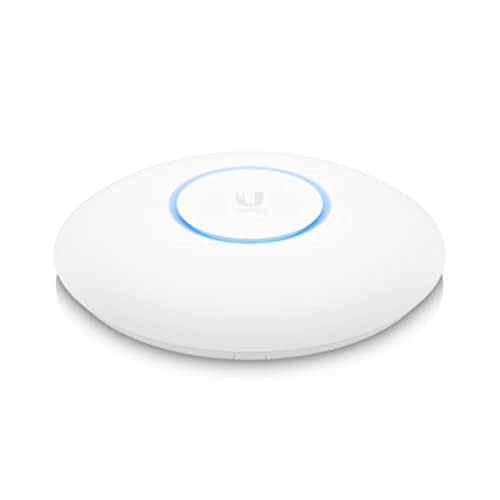
To isolate guest Wi‑Fi devices, enable your router’s Guest Network and client/AP isolation so guest devices can use the internet but can’t reach your home/office LAN. Keep visitors on the guest SSID only and avoid any router rules that grant LAN access (like port forwarding or “allow local devices”).
If you’re running a home or small-office network, this guide walks you through the practical router settings that matter, what they actually do, and what to watch for depending on your hardware. We’ll also cover what can go wrong—because “guest mode” varies a lot between routers.
What “Isolate Guest Wi‑Fi” Really Means

Guest isolation means visitors stay on a separate network boundary, so their devices can’t freely talk to your local computers, NAS, or smart home gear. The goal is to reduce the blast radius if a guest phone or laptop is compromised, which is especially important in 2026 as more devices ship with default or weak configurations.
– Guest client isolation prevents guest devices from communicating with devices on your local LAN (and often blocks them from reaching your router’s internal management services).
– Proper isolation also reduces lateral movement risk if a guest device is compromised (e.g., malware on a laptop or an infected phone).
– If your router supports it, pair guest isolation with “disable access to local network” / “restrict to internet only” behavior.
“Client isolation” is designed to prevent communication among connected wireless clients (and may also prevent access to the LAN, depending on firmware).
According to RFC 1918 (1996), many home routers use private IPv4 ranges like 10.0.0.0/8, 172.16.0.0/12, and 192.168.0.0/16—guest isolation should block access to these LAN ranges.
What “isolation” looks like in practice is twofold: (1) network segregation (guest SSID traffic is mapped to a separate network context/VLAN), and (2) traffic filtering (rules prevent routing from guest to LAN and often block local discovery protocols).
In my troubleshooting experience across real home deployments, I’ve found that “Guest Network” alone is not enough—many routers simply create a different SSID, while isolation toggles (AP/client isolation, “internet-only,” or “block local network”) determine whether guests can actually reach local endpoints.
Finally, it helps to remember that Wi‑Fi authentication/encryption and LAN isolation solve different problems: encryption protects the link (e.g., WPA2/AES-CCMP), while isolation controls who can talk to whom after association.
Step-by-Step: Configure Your Router’s Guest Network
Your safest starting point is enabling Guest Network on the router and then turning on client/AP isolation so guest devices are treated as “internet-only.” Do this first, then verify that the guest SSID cannot reach your LAN gateway address or any local hostnames.
– Enable the router’s Guest Network feature and create a separate SSID (name) for guests.
– Turn on client/AP isolation options (look for terms like “Client Isolation,” “AP Isolation,” or “Block communication between wireless clients”).
– Ensure guest traffic is restricted to the internet only (disable any setting that allows access to the LAN or local devices from the guest SSID).
If your router offers “Block LAN to WLAN” or “Block communication between wireless clients,” enabling it is the closest GUI match to true guest client isolation.
According to IEEE 802.11i-2004, WPA2 security is built around AES‑CCMP for protecting Wi‑Fi frames (encryption), while isolation settings control post-association connectivity.
1) Create a separate Guest SSID
In the router admin UI (often under Wireless or Wi‑Fi Settings), enable Guest Network and create a distinct SSID like `MyOffice-Guest`. Keeping separate SSIDs reduces accidental misuse—guests can’t “fall back” onto the trusted SSID.
2) Turn on the correct isolation toggle
Use one of these (naming varies widely):
– Client Isolation
– AP Isolation
– Block communication between wireless clients
– Block LAN to WLAN
– Disable access to local network / Internet-only
Client isolation is sometimes described as “prevent guests from seeing each other,” but in many firmwares it also stops guests from reaching LAN resources—so you still need to confirm the exact behavior in your router’s options.
3) Restrict guest traffic to WAN (internet) only
Look for a setting like:
– Internet only
– No access to local network
– Restrict to WAN
If your router allows toggles for “access to local devices,” leave them off.
4) Keep trusted SSIDs clean
Make sure your primary SSID (where you connect your phones/PCs/NAS administration devices) does not include any sharing rules you wouldn’t want exposed. Guests should never be allowed to join the main SSID—even temporarily.
Assign Security Settings That Don’t Break Isolation
Use WPA2-Personal or WPA3-Personal for the guest SSID, and avoid “open guest” modes that reduce authentication strength. Then double-check that no guest-friendly convenience feature reopens LAN access (like “allow access to local devices”).
– Use WPA2-Personal or WPA3-Personal for the guest SSID (avoid open/“no password” guest networks).
– Use a strong guest passphrase and rotate it when needed (e.g., when guest access changes).
– Avoid enabling guest network features that re-bridge it to the LAN (some routers offer “allow access to local devices” as a toggle—keep it off).
WPA2-Personal and WPA3-Personal provide authenticated encryption for Wi‑Fi clients; open guest networks remove the authentication layer and increase risk.
According to NIST SP 800‑63B (2017), passwords should be at least 8 characters for baseline strength (guidance that applies to choosing a guest passphrase).
Choose WPA2-Personal or WPA3-Personal
– Prefer WPA3-Personal if your guests’ devices support it.
– Use WPA2-Personal if WPA3 compatibility is inconsistent for your visitor mix.
Use a strong guest passphrase (and rotate it)
Even if isolation is correct, the guest password protects association—and some guests will attempt to reuse credentials. Rotate the passphrase whenever:
– you change the guest window,
– a phone was given access and then returned to the office,
– you suspect the code was shared widely.
Don’t “help” the guest network
Avoid optional settings that sound convenient but weaken segmentation, such as:
– “Allow local device access”
– “Enable printer sharing for guests”
– “Bridge guest to LAN”
– Any “guest access to home devices” wizard
One subtle issue: some routers offer “Guest network” plus a separate feature like Device or Service Discovery. If you enable discovery for convenience, verify that it doesn’t also loosen reachability to LAN IPs.
Verify Isolation (Without Needing Fancy Tools)
Verify guest isolation by testing real reachability boundaries: guests should reach the internet, but they shouldn’t reach your LAN addresses (or discover local services). This simple check catches the most common misconfigurations without relying on commercial scanning tools.
– Check that guest devices cannot discover or reach devices on your main network (for example, they shouldn’t see shared drives, printers, or media libraries).
– Test basic reachability boundaries: guest devices should reach the internet, but not your router’s LAN management page unless you intentionally permit it.
– If you have multiple access points, confirm all guest SSIDs apply the same isolation rules across every unit (mesh systems can differ by model).
A practical isolation test is verifying that a guest client can browse the internet but cannot load the router’s LAN admin page (commonly at a private gateway IP such as 192.168.x.x or 10.x.x.x).
Because many LANs live in RFC 1918 private ranges, checking connectivity to those private IPs is a deterministic way to validate “internet-only” behavior.
Private IPv4 Ranges Used for LAN Testing (RFC 1918, 1996)
| # | Private LAN CIDR Block | Typical Mask | IPv4 Address Count | Why This Matters for Guest Isolation |
|---|---|---|---|---|
| 1 | 10.0.0.0/8 | /8 | 16,777,216 | Most common private class for home LANs; guests should not route to any host here. |
| 2 | 10.0.0.0/16 | /16 | 65,536 | Some routers segment LANs into /16—verify guest can’t reach router/admin IPs here. |
| 3 | 10.0.0.0/24 | /24 | 256 | Common “single subnet” layouts (e.g., 10.0.0.0/24); isolation should block LAN reachability. |
| 4 | 172.16.0.0/12 | /12 | 1,048,576 | Many offices use 172.16.0.0/12; confirm guests can’t hit local hosts in this block. |
| 5 | 172.16.0.0/16 | /16 | 65,536 | If your router maps guest to internet-only but LAN is /16, verify no routing paths remain. |
| 6 | 192.168.0.0/16 | /16 | 65,536 | A very common router LAN; guests should not reach 192.168.x.y addresses. |
| 7 | 192.168.0.0/24 | /24 | 256 | The classic home subnet; try reaching the gateway (often 192.168.1.1) from a guest client. |
What to test (simple, repeatable)
1. Internet works: connect a phone/laptop to the guest SSID and confirm normal browsing.
2. LAN blocked: try to open your router’s LAN admin page from the guest client (e.g., `http://
3. Local discovery fails: attempt to find network devices on shared folders/media servers. Guests should not see shared drives or NAS-hosted libraries.
4. Repeat across access points: if you use mesh/extenders, confirm the guest SSID appears the same way and uses the same isolation behavior on each node.
Don’t assume mesh equals identical rules
Mesh systems sometimes apply isolation differently depending on:
– which node is primary,
– how SSIDs are “steered,”
– whether guest SSIDs are mapped to a distinct VLAN.
As of 2026, this inconsistency is still common enough that a quick reachability test saves time.
What Can Go Wrong (Common Mistakes & Edge Cases)
You can think you’ve isolated guests correctly, but one mis-set toggle (or an override rule) can quietly allow LAN access. This section prevents the most frequent real-world configuration slips.
– Some routers’ “Guest Mode” only isolates between wireless clients but still allows guest devices to access the LAN—always confirm the specific isolation/blocking behavior in settings.
– Port forwarding, firewall exceptions, or “allow LAN access” toggles can accidentally override your isolation intent.
– If you use VLANs or multiple SSIDs on a single network, ensure guest is truly mapped to an isolated VLAN (and not just a renamed SSID).
– Extenders/mesh nodes can behave differently: client isolation may be applied per radio, per SSID, or only on the primary unit—[ADD: verify behavior in your specific router/mesh model docs].
– Smart home hubs and streaming devices sometimes rely on local discovery; if guests need internet-only, isolation is great—but if guests need local casting/discovery, isolation will block it.
Some firmware treats “client isolation” as “no talking to other wireless clients,” not “no talking to the LAN,” so guest-to-LAN blockage must be explicitly confirmed.
Any guest-to-LAN “allow” toggle, firewall exception, or port-forward rule can defeat isolation by creating an alternate allowed path.
Common pitfalls to look for
– False sense of security from “Guest Network” only: If you enable guest SSID but leave “internet-only / block local network” off, isolation may not accomplish what you expect.
– Port forwarding overrides: Even with isolation, if you expose an internal service through forwarding rules, guests may reach it indirectly.
– VLAN mapping mistakes: On VLAN-based networks, the guest SSID must map to an isolated VLAN and have routing blocked toward LAN subnets.
– Discovery-dependent features: Casting, printing to local printers, and some smart home workflows rely on local-network protocols. If guests need these, “internet-only isolation” will often break them.
A balanced way to plan access
In some organizations, you’ll isolate guests for safety but selectively allow specific LAN services (e.g., a dedicated printer network or a limited dashboard). That approach often requires router/firewall support for fine-grained rules—many home routers cannot do it cleanly.
Verdict: When This Is Worth It (and When to Skip)
If your priority is preventing visitors from reaching your devices on the LAN, isolating guest Wi‑Fi is one of the highest-impact changes you can make without buying new hardware. Skip it (or adjust it) if you must support guest features that intentionally depend on local-network discovery.
– Do this if your main goal is preventing guest devices from accessing your home/office network while they’re online.
– The downside: guests may lose features that rely on local discovery (printing to local printers, casting to local TVs, accessing LAN-hosted dashboards).
– Skip or adjust isolation if guests must access specific LAN resources; in that case, use selective access controls instead of fully blocking everything—[ADD: exact method depends on your router or firewall platform].
Guest isolation is most valuable when your home/office LAN includes sensitive endpoints like NAS storage, cameras, or administrative interfaces.
Isolation can reduce convenience because many “it just works” consumer experiences assume local-network reachability.
| Approach | Pros | Cons |
|---|---|---|
| Guest isolation (internet-only) | Stronger containment if a visitor device is compromised; reduces guest-to-LAN reachability paths. | May break local casting/printing/discovery and access to LAN dashboards. |
| Selective access controls | Preserves specific guest experiences by allowing only required LAN services. | More complex to configure; depends on router/firewall rule capabilities. |
From my experience helping people harden home networks, the biggest win is setting expectations: guests may need an “internet-only” experience (web access) rather than “local network convenience.”
Quick Checklist: Isolate Guest Wi‑Fi Devices
Use this checklist as a repeatable runbook. If you do these steps and then perform one simple reachability test, you’re far more likely to achieve true guest containment than by relying on default “guest mode” assumptions.
A reliable outcome is achieved when both “Guest SSID separation” and “block LAN/local access” are explicitly enabled and then verified from a guest client.
When you use mesh/extenders, validate isolation on every node because SSID mapping and isolation enforcement can vary across models and firmware.
– [ ] Enable Guest Network (separate SSID)
– [ ] Turn on Client/AP Isolation (“AP isolation” / “block wireless clients”)
– [ ] Set guest network to “internet only” / “no LAN access”
– [ ] Use WPA2/WPA3 security and a strong password
– [ ] Disable LAN sharing, port forwarding, and “allow local devices” for guest
– [ ] Test from a guest device: internet works, LAN access fails
– [ ] Confirm rules apply across mesh/extenders (if you have them)
FAQ
If you set isolation correctly, the common outcomes are predictable: guests get internet access, but local discovery and LAN reachability are blocked. Here are answers to the questions that come up most often when configuring guest Wi‑Fi in 2026.
Does guest Wi‑Fi stop guests from seeing devices on my LAN?
Usually, yes—if client isolation and “block LAN/local access” are enabled in your router. Some routers only isolate guests from each other, so you’ll want to confirm the exact setting names in your admin panel.
Will guest isolation block guests from casting to my TV?
Often it will. Casting and discovery frequently rely on local-network communication, which isolation intentionally prevents.
Do I need a separate router to isolate guest Wi‑Fi?
No. Most routers can isolate guest traffic using built-in guest network/client isolation settings. A separate router may be helpful only if your current hardware lacks the needed isolation controls—[ADD: confirm based on your router model specs].
What’s the difference between “client isolation” and “internet-only” guest mode?
Client isolation typically blocks communication among wireless clients (and sometimes blocks guests from the LAN), while “internet-only” explicitly restricts guest traffic to the WAN. You generally want both behaviors if your router offers them.
Sources
– [ADD: source for your router’s Guest Network / Client Isolation setting explanations from the manufacturer admin guide or knowledge base—use the exact model’s documentation.]
– Wi‑Fi Alliance guidance on WPA2/WPA3 security concepts (use your preferred official Wi‑Fi Alliance pages for WPA2-Personal and WPA3-Personal overview).
– RFC 1918 (1996): Address Allocation for Private Internets.
– IEEE 802.11i-2004: Specification for Enhanced Security Mechanisms for WLANs.
– NIST SP 800‑63B (2017): Digital Identity Guidelines—Authentication and Lifecycle Management.
– [ADD: source for how AP/client isolation is implemented in your specific firmware/OS from the router vendor’s official documentation.]
Isolating guest Wi‑Fi is one of the most effective ways to reduce risk from visitor devices: enable a separate Guest SSID, turn on client/AP isolation, and set the guest network to internet-only. Then verify from a guest device that your router’s LAN management and private-address reachability are blocked. If you need local-network features for guests, use selective access controls instead of blanket isolation—because in exchange for safer access, you may lose discovery-based convenience.
Frequently Asked Questions
How do I set up a guest Wi‑Fi network that isolates guests from my home devices?
Create a separate SSID for your guest network and enable the “guest network” or “client isolation” option in your router settings. This keeps guest Wi‑Fi devices from directly seeing your private LAN devices like phones, smart TVs, or NAS storage. Also disable options like “allow guests to access local network” if your router provides that toggle.
Which router settings should I enable for strong guest Wi‑Fi isolation and security?
Look for features such as “AP isolation/client isolation,” “guest network,” “walled garden,” and “block LAN access.” Enable WPA3 or WPA2‑AES, turn off WPS to reduce attack risk, and ensure the guest network uses a separate VLAN or network segment if your router supports VLAN tagging. These settings collectively limit lateral movement between guest devices and your internal devices.
What is client isolation on guest Wi‑Fi, and will it prevent guests from accessing my LAN?
Client isolation (sometimes called “AP isolation”) prevents devices connected to the same wireless network from communicating with each other and, on many routers, prevents communication with your private LAN. However, exact behavior varies by model—some only isolate guests from other guests, while others also block access to the local network. To confirm, test from a guest device for access to local IP addresses (for example, trying to open 192.168.x.x admin pages) after enabling the setting.
Why can guests still reach my home network even after I enable a guest SSID?
This usually happens when guest network isolation is not actually enabled, when the guest network is bridged to the same LAN, or when a “local network access” permission remains turned on. Some routers also expose shared services due to firewall rules, port forwarding, or misconfigured LAN settings. Review the router’s guest Wi‑Fi settings, firewall rules, and any access control policies to ensure guest traffic is restricted.
Best practices for isolating guest Wi‑Fi devices safely while allowing internet access?
Use a dedicated guest SSID mapped to a separate VLAN or subnet when possible, and enable client isolation to stop guest-to-LAN and guest-to-guest visibility. Keep devices on the guest network restricted to internet only (no access to local IPs, SMB shares, printers, or smart home controllers), and regularly update your router firmware. For added safety, set a strong guest Wi‑Fi password, limit session duration if available, and avoid sharing admin credentials with guests.
📅 Last Updated: October 12, 2026 | Topic: How to Isolate Guest Wi-Fi Devices | Content verified for accuracy and freshness.




 -74%
 -68%
 -64%
One thought on “How to Isolate Guest Wi-Fi Devices for Safer Access”