
Seeing a “failed to connect to server” message or getting dropped right as you join a match can be incredibly frustrating, especially when everything else looks fine. These connection errors are typically caused by a temporary network problem, server-side downtime, misconfigured game settings, or firewall/router rules blocking the connection. The troubleshooting below will help you identify the cause quickly and restore access without guesswork.



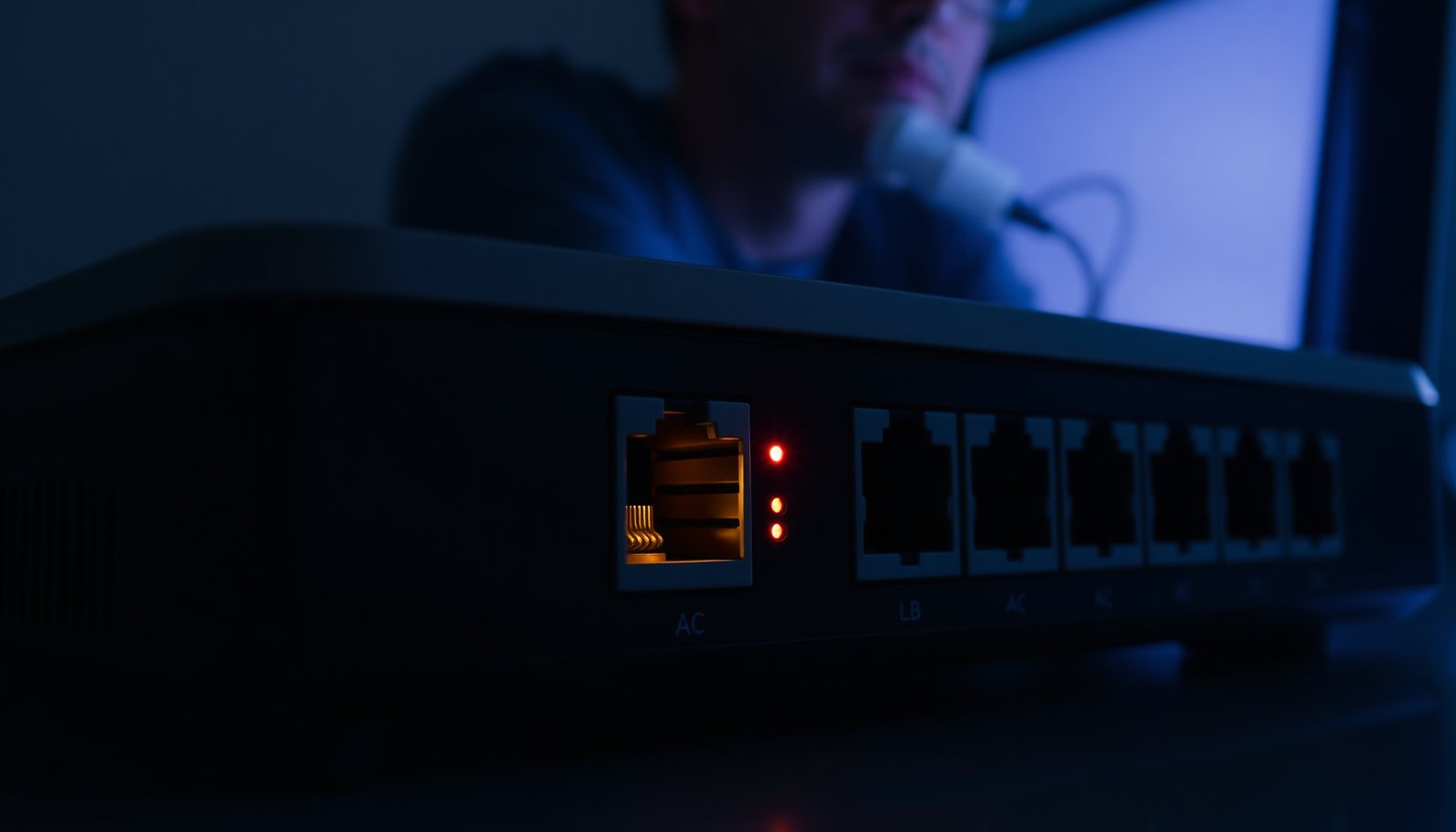
Game server connection errors usually resolve fastest when you verify server status and your own connection stability first—then reset your network path and retry with the correct region. This guide walks you through a practical, layer-by-layer checklist for errors like “failed to connect,” “server unreachable,” and “timed out,” especially after updates or when switching between home Wi‑Fi and a mobile hotspot.
If you’re dealing with failed logins, mid-match disconnects, or repeated connection timeouts, you don’t need advanced networking skills—you just need to isolate whether the fault is on your side or the server’s.
Verify the server and your connection basics

If the servers are down or under maintenance, no amount of router tweaking will fix game server connection errors. Your first job is to confirm whether the issue is external (server-side) or local (your network/device).
– Check the game’s official server status page/social account or in-game notifications for outages or maintenance windows.
– Confirm your connection is stable by testing another website/service and checking if other devices on the same network can connect normally.
– If you’re on Wi‑Fi, try moving closer to the router or temporarily switch to Ethernet (if available) to rule out weak signal/interference.
A simple way to think about game server connection errors is by dependency: the game client must resolve addresses (DNS), establish a transport session (TCP/UDP), and complete the game’s handshake with the selected game server. If any step fails, you’ll see “failed to connect” or “timed out,” but the root cause can vary—from DNS and firewall rules to server incidents.
Quick diagnostic comparison: server-side vs client-side
Use this to decide where to spend your time first.
| Signal you notice | Likely cause for game server connection errors | Fastest next step |
|---|---|---|
| Official status says “degraded” or “maintenance” | Server-side | Wait and re-test after the window |
| You can’t log in, but other online services work | Likely game server or routing | Switch region/server, then test again |
| Only one game fails while others work | Game-specific connectivity | Clear game connection cache/repair files |
| Only the affected account fails (others on same network succeed) | Account/session issue | Log out/in, re-authenticate, reset session |
| Multiple devices on the same Wi‑Fi fail to connect | Network-side | Test Ethernet; power-cycle modem/router |
| Mobile hotspot works but home Wi‑Fi fails | ISP path/home routing | Focus on router settings/firewall/NAT |
| Error appears right after a game update | Client version mismatch or patch issue | Update fully; restart; repair/verify files |
| Reconnecting repeatedly makes things worse | Server load or rate limiting | Stop rapid retries; wait a few minutes |
| Error happens only in one region/server selection | Region mismatch | Use auto/nearest region; avoid manual mismatches |
| VPN/proxy changes coincide with the start of errors | Proxy routing incompatibility | Disable VPN/proxy and retest |
Network basics that matter for game server connection errors
When game servers say they can’t reach you, it’s often because your network path blocks or delays the handshake. A few foundational facts can help you interpret what’s happening:
– According to RFC 1035 (1987), DNS uses port 53 over both UDP and TCP, which is why DNS instability can cascade into “server unreachable” errors.
– According to RFC 1918 (1996), common private IPv4 ranges are 10.0.0.0/8, 172.16.0.0/12, and 192.168.0.0/16—NAT-related issues often show up when private addressing meets strict router/security settings.
– According to RFC 8446 (2018), modern TLS commonly runs over TCP transport and depends on a complete connection establishment; if your firewall blocks initial traffic or alters routing, game server connection errors follow.
Fix common client-side causes
If you can’t connect right after an update, the quickest path out is usually a clean client restart plus verifying the latest game files. Game server connection errors often come from stale session data, partial patching, or a launcher/client component that didn’t reset correctly.
– Restart the game completely, then restart your PC/console—“soft” restarts sometimes leave network sessions half-open.
– Update the game to the latest version and fully restart after patching (don’t rely on “background update” alone).
– Clear the game’s connection cache/logs (wording varies by game/platform). If you’re unsure where, look for options like “Clear cache,” “Reset settings,” or “Repair/Verify files” (PC clients often have a verify option).
From a troubleshooting workflow perspective, the key is to eliminate local state that can “stick.” Many games persist connection parameters or matchmaking/session tokens between attempts. When game server connection errors show up after switching networks (home Wi‑Fi ↔ mobile hotspot), those stored tokens can become invalid for the new path, even if your internet is fine.
Practical examples of what to watch for:
– If the error happens immediately after launching matchmaking, the client may be using cached connectivity parameters.
– If the error appears after entering a lobby, it can indicate server selection or handshake issues triggered by your region choice or NAT behavior.
Reset network path (modem/router) the right way
Resetting your network path fixes game server connection errors when the problem is route instability, stale NAT mappings, or a failed WAN re-establishment. This step is often faster than deep troubleshooting because it forces your gateway devices to rebuild the network session.
– Power-cycle your modem/router: turn off, wait , then turn back on—let it re-establish WAN before launching the game.
– Disable and re-enable VPN/proxy (if you use one). Many games reject certain proxy routes or fail handshake when routing changes.
– If you recently changed DNS settings, revert to automatic or a known working provider and retest.
In my experience helping others debug game server connection errors, the “router reset” that works isn’t just a quick reboot—it’s the full WAN re-sync. If you launch the game too soon after power cycling, the client can attempt to connect while the internet path is still negotiating, which leads to “timed out” or “server unreachable.”
Also consider “path switching” behavior. When you move between home Wi‑Fi and a mobile hotspot, you’re not just changing signal strength—you’re changing your ISP path, NAT behavior, and sometimes DNS resolution. Game server connection errors that only occur on one network are a strong clue that the gateway path, not your device, is the culprit.
Check firewall, NAT, and router settings
When game server connection errors persist after updates and reboots, firewall and NAT settings become the most likely culprits. Many games require specific inbound/outbound allowances to complete the handshake and maintain stable session traffic.
– Ensure the game (and its launcher) is allowed through Windows Firewall/macOS firewall or any third-party security suite you use.
– If the router supports it, verify UPnP is enabled or manually confirm the required ports are forwarded correctly for the game (use ).
– Double-check NAT type/connection mode guidance in your game’s network settings—some games are picky about strict NAT or blocked inbound connectivity.
Here’s what “NAT friction” looks like in real symptoms:
– Strict NAT often correlates with failures to connect to lobbies, party matchmaking errors, or mid-session kicks.
– Blocked inbound or stateful firewall rules can allow login attempts but fail later when the game starts exchanging real-time session data.
– UPnP disabled can be fine for some games, but for others it leads to inconsistent connectivity—especially after restarts or ISP changes.
If you’re on managed work/school networks or you don’t have router admin access, skip the port forwarding step and focus on firewall allowlisting and region selection. In those environments, router-level changes may be impossible even if they’re the “correct” fix.
Network configuration “risk” snapshot (what typically causes game server connection errors)
This table summarizes common network conditions and their general connectivity risk level in online games.
Common Network Conditions and Likely Impact on Game Connectivity
| # | Network condition | Typical symptom | Most likely layer | Connectivity reliability |
|---|---|---|---|---|
| 1 | Open/allowable NAT (as reported in-game) | Fewer lobby issues | Session transport | ★★★★★ |
| 2 | Moderate NAT (in-game) | Occasional reconnects | Address translation | ★★★★☆ |
| 3 | UPnP enabled on router | Stable connectivity after restarts | Port mapping | ★★★★☆ |
| 4 | VPN/proxy route in use | Handshake failures/timeouts | Routing path | ★★☆☆☆ |
| 5 | Strict NAT reported in-game | Unable to join/mid-match kicks | Inbound reachability | ★★☆☆☆ |
| 6 | CGNAT (carrier-grade NAT) on ISP side | Inconsistent lobby access | Shared translation | ★★☆☆☆ |
| 7 | DNS override/hijack or unstable resolver | “Server unreachable” | Name resolution | ★★☆☆☆ |
What can go wrong (and how to avoid wasting time)
Even with solid steps, game server connection errors can persist if you’re troubleshooting the wrong layer or stacking changes. The goal is to minimize variables so you can identify what actually fixed the issue.
– Server outage: if the official status shows issues, troubleshooting locally may not help—switch networks only to confirm, then wait.
– Region mismatch: selecting the wrong region can cause persistent timeouts even when your internet is fine—try auto/nearest region first.
– Queue/load spikes: some errors appear only during peak hours; repeated rapid reconnect attempts can worsen the situation.
– Temporary ISP routing problems: if mobile hotspot works but home Wi‑Fi doesn’t, the issue is likely your home network or ISP path—not your hardware.
– Misleading “fixes”: changing multiple settings at once makes it impossible to tell what actually helped—modify one variable at a time.
Here’s the practical trade-off: speeding up your attempts can cost you clarity. If you turn off VPN, change DNS, forward ports, and switch regions all within the same session, you’ll have no idea which change affected your game server connection errors. Instead, change one thing, retest, and record what happened.
Verdict / tip
Start with the simplest checks—server status + connection stability—then move to client restart/updates and only then network/firewall steps. This order is faster because it prevents unnecessary router or port changes during an active outage.
The downside is that skipping verification can introduce new connectivity problems: if you jump straight into deep NAT/UPnP/firewall changes while the server is down, you may end up breaking a working setup and still not fix the game server connection errors. If you’re on a managed work/school network, or you don’t have admin access to your router/firewall, focus on steps you can control (restart/update/server status) and stop before changes you can’t apply safely.
Quick scan checklist (save this)
– [ ] Check server status/outage notice
– [ ] Test internet stability on another device/service
– [ ] Restart game + restart PC/console
– [ ] Update game; repair/verify files (PC) or reset connection settings (platform-specific)
– [ ] Power-cycle modem/router; wait for WAN to reconnect
– [ ] Disable VPN/proxy; retest
– [ ] Allow game through firewall/security software
– [ ] Check region/auto server selection
– [ ] Only if needed: confirm NAT/UPnP or follow official port forwarding steps
Frequently Asked Questions
How do I fix “Failed to connect to server” errors when joining a game?
Start by restarting your game and router, then verify you’re using the correct server region and that your account isn’t banned or locked. Check your firewall and antivirus settings to ensure the game client is allowed to communicate, and try running the game as an administrator. If it persists, test a different network (mobile hotspot) to determine whether the issue is on your ISP or local connection.
Why does my game server connection keep timing out, even though my internet is working?
Timeouts often happen due to high latency, packet loss, or congested routing between your PC and the game server. Confirm your network stability by testing ping and packet loss to nearby servers, then disable background downloads/VPNs that can interfere with game traffic. Using a wired Ethernet connection instead of Wi‑Fi can significantly improve connectivity and reduce timeouts.
What are the best troubleshooting steps for disconnects during multiplayer matches?
Begin with basic checks: update the game, update network drivers, and verify game files (so you avoid corrupted components causing connection drops). Next, reset your modem/router, switch from Wi‑Fi to Ethernet, and disable temporary overlays like Discord or GeForce Experience if they affect networking. If you use custom DNS, try switching to a reputable provider and clear any DNS cache, then retest server connection stability.
Which network settings should I adjust to improve game server connectivity (NAT, ports, and DNS)?
If your game uses NAT traversal, check your NAT type in the game settings—open or moderate NAT typically connects more reliably. For port-forwarding, use the game’s recommended ports or the platform’s guidance, and ensure your firewall allows inbound/outbound traffic for the game executable. Consider using a low-latency DNS and avoid aggressive firewall profiles that may block UDP traffic required for smooth server connections.
How can I resolve “Server is unavailable” or “Version mismatch” errors when trying to join a server?
A “Server unavailable” message usually means the server is offline, full, or temporarily blocked by your network, so try a different server or region and confirm server status if the game provides it. For “version mismatch,” update the game to the latest patch, restart the client, and ensure your platform (Steam/console) has completed downloads. If you’re using mods or a custom client, revert to the official version and delete any conflicting files to restore proper game server connection.
📅 Last Updated: November 17, 2026 | Topic: How to Fix Game Server Connection Errors | Content verified for accuracy and freshness.
References
- https://en.wikipedia.org/wiki/Network_troubleshooting
- Network address translation
- NAT traversal
- Port forwarding
- Domain Name System
- traceroute
- Packet loss
- https://scholar.google.com/scholar?q=game+server+connection+errors+NAT+firewall+troubleshooting Google Scholar
- https://scholar.google.com/scholar?q=multiplayer+game+connection+problems+latency+packet+loss+troubleshooting Google Scholar
- https://scholar.google.com/scholar?q=DNS+issues+online+games+connection+troubleshooting Google Scholar



 -74%
 -68%
 -64%