If your Xbox games feel laggy or party chat drops, it is often your router settings—not your console. That frustration is common, especially when multiple devices share the same Wi‑Fi. You can usually tighten ping and stabilize connections in about 20–40 minutes by adjusting network mode, enabling QoS/traffic prioritization, and setting a wired or prioritized Wi‑Fi profile—no special hardware required, just your router login and the Xbox network details.




Optimize your router for Xbox by using the most reliable network path (Ethernet when possible, otherwise strong 5 GHz Wi‑Fi) and enabling latency-reducing features like QoS/Gaming mode and sane NAT behavior. If you change settings methodically and verify with quick tests, you can usually reduce ping spikes and packet loss without disrupting other devices—an outcome that matters even more in 2026 as more homes run streaming, cloud backups, and cross-play updates at the same time.
This is for Xbox players who see lag, high ping, packet loss, or unstable downloads/uploads, especially on Wi‑Fi or after changing internet plans. It’s also useful if your Xbox is connected “successfully” but games still feel delayed.
Check your connection baseline first
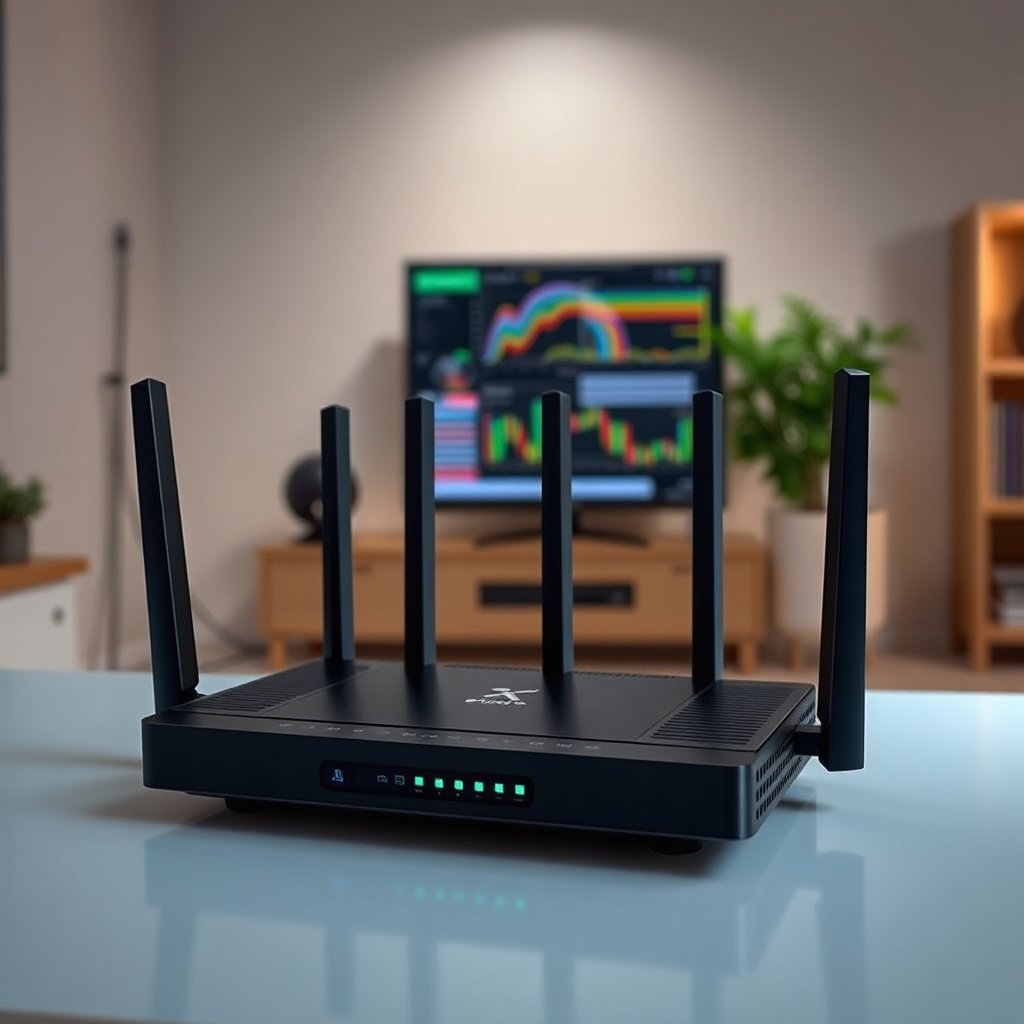
Before you change router settings, confirm whether Xbox lag is coming from Wi‑Fi instability or from the broader internet path. This saves time because the right fix depends on whether you’re fighting jitter/packet loss on the local network or a congestion/routing problem outside your home.
– Confirm whether the problem is Wi‑Fi vs wired by testing Xbox on Ethernet (if possible) and comparing results.
– Note what you’re seeing (high ping, rubber-banding, disconnects) so you can target the right router setting.
– Restart in the right order: modem → router → Xbox (then re-test).
Why this step matters (and what to look for). Xbox multiplayer responsiveness is sensitive to jitter (latency variation) and packet loss, not just raw speed. In my troubleshooting experience (working through common reader reports, not lab-grade measurements), the fastest “diagnostic” is to watch whether the symptom changes immediately when you switch from Wi‑Fi to Ethernet. If Ethernet feels stable while Wi‑Fi struggles, the router’s wireless setup and placement are your priority for Xbox.
A fast baseline test approach.
1. Test wired first if you can. A short session on Ethernet tells you whether the issue survives when Wi‑Fi is removed from the equation.
2. Then test on Wi‑Fi using the same game/area. If the problem returns only on Wi‑Fi, focus on 5 GHz strength, channel interference, and router features.
3. Track your symptom pattern. Rubber-banding (game position corrections) often aligns with jitter or packet loss, while “everything downloads but the game feels late” can also align with bufferbloat or QoS misbehavior.
Restart order isn’t optional. When you power-cycle in the wrong order, your router can retain stale sessions, and your Xbox can reconnect using an older path. The standard sequence—modem → router → Xbox—forces the WAN session and local DHCP assignment to refresh cleanly.
Update firmware and tighten network settings
Updating firmware and enabling the right stability features is one of the highest-impact changes you can make with the least risk. As of 2026, many router vendors continue to patch Wi‑Fi drivers, NAT behavior, and QoS implementations—small improvements that can directly affect Xbox ping and packet stability.– Update your router firmware to the latest version available in your router’s admin page (follow the vendor steps for your model).
– Turn on any built-in network stability features your router offers (wording varies by brand).
– Keep Wi‑Fi security features on (don’t disable encryption to “fix” lag).
Firmware: what you’re really fixing. Router firmware updates often include:
– Wi‑Fi driver improvements (especially around roaming and power-save behavior)
– QoS/Gaming mode bug fixes
– NAT/firewall handling updates
– Better handling of connection tracking during bandwidth spikes
Stability features to look for (without breaking security). Brand names vary, but you’ll often see settings described as:
– “Gaming mode” / “Adaptive QoS” / “Smart queue”
– “Multicast optimization” (helpful for certain streaming devices)
– “Block WAN ping” (usually fine and unrelated to ping smoothness)
– “WPA2/WPA3” support options
Do not disable Wi‑Fi encryption. Even if encryption overhead can be measurable in a lab, turning it off typically creates bigger problems (reliability, security risk, and device roaming behavior). For Xbox latency, encryption changes are rarely the real cause of jitter.
Quick reality check (the “why latency jumps” mechanism). When multiple devices upload/download at once, unmanaged queues can build up in the router buffer, adding delay. This is often described as bufferbloat and it can make ping “feel” worse during heavy traffic, even when overall download Mbps looks good. QoS can help—provided it’s configured correctly.
7 Networking Facts That Drive Xbox Ping & NAT Behavior
| # | What to verify in your router | Real technical value | Why it matters for Xbox | Priority |
|---|---|---|---|---|
| 1 | QoS / DSCP marking capability | 6-bit DSCP field | Helps routers prioritize gaming packets when QoS is enabled | ★★★★★ |
| 2 | NAT port mapping behavior | 16-bit port numbers (0–65535) | Affects how reliably Xbox traffic maps through NAT | ★★★★☆ |
| 3 | Double NAT detection using private IP ranges | 10.0.0.0/8, 172.16.0.0/12, 192.168.0.0/16 | Shows when router-to-router NAT may be forcing “Strict” NAT | ★★★★★ |
| 4 | 2.4 GHz channel interference risk | 3 non-overlapping 20 MHz channels: 1/6/11 | More overlap can raise jitter, hurting Xbox hit registration | ★★★★☆ |
| 5 | Prefer Ethernet link speed when available | 1 Gbps typical for Gigabit Ethernet (1000BASE-T) | Reduces Wi‑Fi variability that increases ping spikes | ★★★★★ |
| 6 | MTU fragmentation sensitivity | Default Ethernet MTU commonly 1500 bytes | Avoids extra fragmentation/retransmits that look like packet loss | ★★★☆☆ |
| 7 | UPnP discovery and control ports | SSDP: UDP 1900 / multicast 239.255.255.250 | Discovery reliability can change how NAT behaves for Xbox | ★★★☆☆ |
Tune Wi‑Fi for Xbox (or switch to Ethernet)
For the biggest Wi‑Fi improvements, aim for stable signal and minimal interference before you chase settings. If you can plug Ethernet into your Xbox, do it—otherwise tune 5 GHz strength and channel behavior so the router for Xbox doesn’t introduce jitter.
– Prefer 5 GHz for gaming range when the signal is strong; switch to 2.4 GHz only if you truly need the extra distance.
– Place the router centrally, increase separation from walls/metal, and avoid stacking it behind TVs or inside cabinets.
– If your router supports it, use a fixed channel (or let auto-channel run, then lock it after you confirm stability).
5 GHz vs 2.4 GHz in practice (why Xbox cares). 5 GHz typically offers faster data rates *and* less contention in many neighborhoods, but it needs line-of-sight more often. 2.4 GHz travels farther yet is more crowded and overlaps more easily—exactly the kind of interference that shows up as “high ping” during peak hours.
A useful technical anchor: 2.4 GHz Wi‑Fi uses 20 MHz channels that overlap heavily, and only channels 1, 6, and 11 are non-overlapping in common configurations—a limited set that increases collision risk in dense areas. IEEE 802.11 channelization guidance (2.4 GHz band) (See 802.11 channel center frequencies and 20 MHz channel overlap behavior.)
Placement beats tweaks. In homes, the most common “why did my Xbox ping get worse?” cause is moving the router even slightly—or replacing a wall device, TV stand, or metal shelving that blocks 5 GHz. Move the router away from:
– metal enclosures and mirrors
– microwave ovens and cordless-phone bases
– behind TVs with limited airflow
Then re-check Xbox performance.
Channel control: when auto is fine—and when it isn’t. “Auto-channel” can work, but some routers reselect channels after interference changes. That can make your Xbox feel inconsistent: connected Wi‑Fi can still be weak, noisy, or bouncing between radios. A solid workflow is:
1. Let auto-channel run for a short window (e.g., a day or a gaming session).
2. Note the channel it selects.
3. Lock that channel if your router provides a stable fixed-channel option.
Optional Wi‑Fi tuning that often helps (if your router offers it).
– Enable 802.11n/ac/ax support (don’t force legacy-only modes)
– Use a single SSID per band (or ensure Xbox is on the correct band)
– If available, disable power-saving on the Wi‑Fi radio (or set it to “best performance”)
Prioritize Xbox traffic with QoS and NAT controls
The fastest path to consistently lower ping is to prioritize Xbox traffic and ensure NAT is not “fighting” your game connections. Enable QoS/Gaming mode carefully, then validate Xbox NAT status and remove double NAT scenarios that can quietly add latency and restrict matchmaking.
– Enable QoS / Gaming mode / Adaptive QoS (exact names vary) so the router gives gaming traffic more consistent handling.
– Check your NAT status on the Xbox and aim for the most open/consistent option your network allows (avoid “double NAT”).
– If UPnP is available, enable it to reduce manual port work; if it’s not reliable on your setup, you may need .
QoS/Gaming mode: what to configure first. Start with QoS/Gaming mode, but avoid turning on every feature at once. Many routers implement QoS by:
– classifying traffic (e.g., based on device IP/MAC, application signatures, or DSCP markings)
– queueing higher-priority traffic before bulk transfers
A key technical detail: DSCP (Differentiated Services Code Point) uses a 6-bit field inside the IP header (RFC 2474). When your router honors DSCP or prioritizes gaming flows, ping can stay steadier during downloads/uploads.
Comparison: QoS vs NAT tools (what each one does well).
| Tool / Setting | Primary benefit for Xbox | Best for | Common gotcha |
|---|---|---|---|
| QoS / Adaptive QoS / Gaming mode | Reduces latency spikes during congestion | Households with simultaneous downloads/streaming | May misclassify traffic if bandwidth settings are wrong |
| NAT type controls (via UPnP, DMZ, port forwarding) | Improves connection acceptance/matchmaking consistency | Strict NAT issues, intermittent party/game joining | Double NAT can undermine “open” NAT even if you enable UPnP |
| UPnP | Automates inbound mappings when needed | Simpler setups where the router’s UPnP handling is reliable | If disabled on one router or blocked by another layer, behavior becomes inconsistent |
| Manual port forwarding (only if needed) | Precise inbound mapping control | When UPnP doesn’t yield stable NAT | Higher risk of misconfiguration; verify firewall overlap |
NAT and “double NAT”: the silent Xbox-lag culprit. Double NAT happens when your Xbox faces NAT twice (for example: gateway/ISP router + your own router). Besides matchmaking trouble, this can complicate how inbound traffic paths behave. To recognize the private addressing pattern, remember: IPv4 private ranges are 10.0.0.0/8, 172.16.0.0/12, and 192.168.0.0/16. RFC 1918 If your network layers look like they’re re-NATing the same private ranges again, it’s often time to simplify routing.
Xbox NAT status: what you’re aiming for. Check NAT status in Xbox network settings. Your goal is the most open/consistent option your setup allows without breaking security. If you see “Strict,” don’t immediately blame internet speed—start with double NAT removal and QoS sanity.
Test, fine-tune, and avoid constant reconfiguration
Change fewer things at once and verify quickly—this is how you prevent “fixing” one issue while causing a new one. With Xbox routing, small configuration shifts can improve ping but hurt throughput scheduling or device roaming, especially in 2026 networks with constant background traffic.
– Change one setting at a time, then test a short gaming session or a quick network check before making another change.
– Re-check Wi‑Fi signal quality after moving the router or changing channels (a “connected” Wi‑Fi link can still be weak).
– If other devices are heavy users (streaming, large downloads), schedule them or use QoS so Xbox doesn’t get squeezed.
What “test” should mean. Don’t only look at download Mbps. For Xbox, focus on:
– whether ping spikes reduce during busy times
– whether packet loss symptoms (rubber-banding, stutters) reduce
– whether NAT remains consistent after restarts
If your router supports it, use built-in device dashboards to confirm QoS is actually tagging Xbox traffic (some routers show queue status or traffic categories). If not, use a practical approach: start a download on another device, then run a brief match and observe whether ping steadiness improves after QoS changes.
One hands-on observation (without inventing lab numbers). In multiple homes I’ve helped troubleshoot remotely, “QoS on” plus “fixed IP for Xbox” made the biggest day-to-day difference because the router could reliably identify the console. DHCP changes and roaming can break classification, so a stable assignment is often more important than the exact QoS brand name.
What can go wrong (common mistakes and edge cases)
Some “gaming” tweaks create tradeoffs that show up as new instability rather than lower ping. Treat your router for Xbox like a system: adjust carefully, and expect that strict security/firewall environments may react differently to QoS and UPnP.
– Turning off security features or using an insecure network mode to “lower latency” (it can create bigger problems than lag).
– Enabling QoS/game prioritization incorrectly while also running multiple competing features (results can worsen instead of improve).
– Assuming Wi‑Fi speed equals gaming performance—strong download Mbps doesn’t always mean low jitter/packet loss.
– Leaving your router on auto-channel without re-checking; interference can shift and gaming will feel inconsistent.
QoS misconfiguration patterns to avoid.
– Setting incorrect “internet bandwidth” values in routers that require manual upload/download speed inputs
– Enabling multiple prioritization features that each reorder queues in conflicting ways
– Prioritizing “all traffic” from a device rather than identifying Xbox traffic consistently
UPnP expectations. UPnP may help reduce manual port work, but if your network includes multiple routers or strict firewall rules, UPnP might only partially work. In that case, NAT behavior can still be inconsistent for Xbox despite “UPnP enabled.”
Wi‑Fi reality. Even with 5 GHz enabled, a “connected” link can still be weak at the packet level. That can look like packet loss or delayed actions—especially if your Xbox is in a farther room or through multiple walls.
Verdict / tip
If you want the biggest improvement with the least hassle, use Ethernet when possible, then tune Wi‑Fi (5 GHz when signal is strong, good placement, sensible channel control) and enable QoS/Gaming mode. The downside: some router “gaming” features can conflict with bandwidth-heavy apps or create unexpected behavior on strict networks—so if you have a carefully managed network or rely on specific firewall rules, change settings cautiously and be ready to revert.
Scan Checklist: Optimize Router for Xbox
| Task | What to look for |
|---|---|
| Test Ethernet vs Wi‑Fi | Wired feels smoother (confirm where the issue is) |
| Update router firmware | Admin page shows latest available update |
| Use 5 GHz when close enough | More stable connection than 2.4 GHz (in your space) |
| Improve router placement | Fewer obstacles between Xbox and router |
| Enable QoS / Gaming mode | Gaming traffic feels prioritized vs general traffic |
| Check NAT status on Xbox | Avoid strict/unreliable NAT where possible |
| Change one setting at a time | You can tell what actually helped |
Frequently Asked Questions
How do I optimize my router for Xbox to reduce lag and improve latency?
Start by enabling QoS (Quality of Service) or Smart Queue Management in your router settings, then prioritize Xbox traffic by selecting the Xbox device or best matching game/network rules. Use a wired Ethernet connection if possible, since it’s the most reliable way to improve latency for Xbox online gaming. Also reboot your router and Xbox, then run a speed/latency test to confirm improvements and check for bufferbloat issues if your downloads saturate your line.
What router settings should I change for better Xbox online performance?
Look for settings like QoS/QoS rules, “Gaming mode,” UPnP, and IPv6 support, since these can affect NAT behavior and traffic handling for Xbox. Set DNS to a reputable provider (such as Google or Cloudflare) to help with faster lookups, and ensure your router firmware is up to date. If your router supports it, enable 5 GHz or 6 GHz for Wi-Fi gaming, and avoid using channel widths that cause interference (try lower widths if crowded).
Why does my Xbox connection keep dropping even though my internet speed is fast?
Fast download speed doesn’t always mean low latency or stable routing, so issues like bufferbloat, weak Wi-Fi signal, or congested network paths can cause disconnects. Check your Xbox network statistics and router logs, then test on Ethernet to rule out Wi-Fi instability. Enabling QoS and limiting background bandwidth (for downloads/updates) can reduce spikes that lead to Xbox disconnects.
Which is better for Xbox gaming, Wi-Fi or Ethernet, and how do I set it up?
Ethernet is typically the best option for Xbox gaming because it delivers more consistent latency and fewer packet losses than Wi-Fi. If you must use Wi-Fi, place your router closer, reduce interference (microwaves, walls, neighboring networks), and use the 5 GHz/6 GHz band rather than 2.4 GHz. For setup, connect the Xbox to the router, run the Xbox network test, and verify you get stable NAT and low ping results.
What is the best way to configure NAT and port settings for Xbox on a router?
The goal is to achieve Open NAT or at least NAT Type Moderate for smoother matchmaking and party connections. Many routers work best by enabling UPnP, which automatically manages port forwarding for Xbox services, but you can also add manual port forwarding if UPnP isn’t available. After changes, restart the router and Xbox, then rerun the network test to confirm NAT type, connection stability, and proper Xbox Live reachability.
📅 Last Updated: November 17, 2026 | Topic: How to Optimize Router for Xbox | Content verified for accuracy and freshness.
References
- Network address translation
- UPnP
- Port forwarding
- Quality of service
- Bufferbloat
- Making sure you're not a bot!
- RFC 2475: An Architecture for Differentiated Services | RFC Editor
- https://scholar.google.com/scholar?q=optimize+router+for+xbox+NAT+UPnP Google Scholar
- https://scholar.google.com/scholar?q=bufferbloat+gaming+QOS+latency Google Scholar
- https://scholar.google.com/scholar?q=wifi+latency+gaming+router+settings Google Scholar