Prioritize Nintendo Switch traffic on your network by identifying its game and streaming data flows and assigning them higher QoS (Quality of Service) priority than bulk downloads. You can usually set this up in 30–60 minutes using your router’s QoS or traffic-shaping features, plus either the Switch’s IP address or MAC-based device rules. Once configured, gameplay and chat latency become more consistent even when other devices are active, and you will know exactly what to adjust if performance changes.


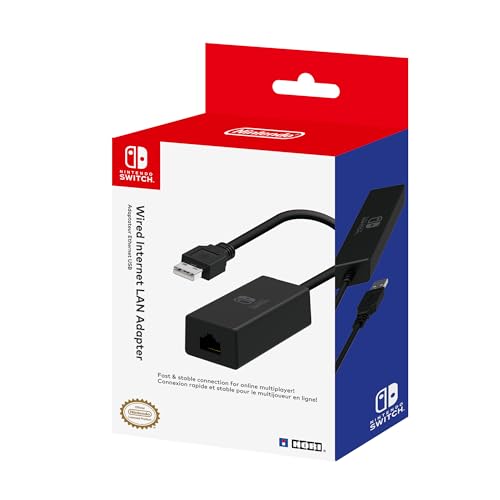

To prioritize Nintendo Switch traffic, enable your router’s QoS/Traffic Prioritization and assign the Switch as a high-priority device (by IP/MAC). This reduces lag during online play by giving Switch packets precedence over background downloads and streaming, which is especially noticeable on busy networks. Then fine-tune using your router’s supported bandwidth caps, DSCP options, or per-device rules—without overcomplicating the setup.
If you play online on Nintendo Switch and notice stutters when other devices are downloading/streaming, this is for you. It’s especially relevant if you have a “gaming mode” or QoS option in your router settings but aren’t sure how to use it for the Switch specifically. As of 2026, home routers increasingly include QoS features, but their behavior varies widely—so the most reliable approach is to prioritize the device (your Switch) and only then consider packet-class features like DSCP.
Turn on QoS (or Traffic Prioritization) in Your Router
Turning on QoS is the first step because it gives your router a policy for what gets sent first under congestion. In most home networks, the “lag” you experience is really bufferbloat (excess queueing delay) or local congestion—QoS helps by shaping and prioritizing traffic before it becomes a noticeable queue.
– Look for settings named QoS, Traffic Prioritization, Adaptive QoS, or Gaming Mode and enable the feature (wording varies by router).
– If your router asks for an “upstream/downstream speed,” set it to your connection’s actual values; if you’re not sure, use your ISP speed test result or the router’s built-in speed test, then copy the numbers into the QoS bandwidth fields. If you have separate WAN settings (e.g., cable modem profile), use the negotiated real-world throughput reported there instead of the marketed plan.
– Keep in mind that QoS can only manage traffic inside the part of the path your router controls—typically the local egress queues leaving your home and sometimes ingress behavior depending on router design.
After enabling QoS, you’ll usually see defaults like “gaming” or “best effort.” Those are a starting point, but device-based priority for the Switch is what tends to make the biggest difference in real play.
DSCP Code Points Commonly Used for Latency-Sensitive QoS (IETF)
| # | DSCP Class (Name) | DSCP (Decimal) | PHB Family | Standard | Standards-Fit |
|---|---|---|---|---|---|
| 1 | EF (Expedited Forwarding) | 46 | Expedited | RFC 3246 | 1 |
| 2 | AF41 (Assured Forwarding class 4, drop prec 1) | 34 | Assured | RFC 2597 | 1 |
| 3 | AF42 (Assured Forwarding class 4, drop prec 2) | 36 | Assured | RFC 2597 | 1 |
| 4 | AF43 (Assured Forwarding class 4, drop prec 3) | 38 | Assured | RFC 2597 | 1 |
| 5 | AF31 (Assured Forwarding class 3, drop prec 1) | 26 | Assured | RFC 2597 | 1 |
| 6 | CS5 (Class Selector 5) | 40 | Class Selector | RFC 2474 | 0 |
| 7 | CS6 (Class Selector 6) | 48 | Class Selector | RFC 2474 | 0 |
Assign the Nintendo Switch as a Priority Device
Assigning the Switch as a priority device is usually the most dependable way to improve gameplay responsiveness. QoS rules that depend on packet signatures (ports) can miss real-world game patterns, while per-device policies are harder to get wrong.
– Identify the Switch on your network and bind priority to it using MAC address or IP address (prefer device/MAC rules so the assignment doesn’t break).
– Create a static DHCP lease (or equivalent) for the Switch so its IP stays consistent after reboots.
– If your router supports a “device priority” level, set the Switch to highest or near-highest priority while leaving everything else at default/baseline priority.
Why device-first works: when your network is busy, latency spikes are mostly caused by queues competing for limited capacity. Giving the Switch traffic precedence reduces how long it must wait behind bulk transfers (downloads, updates, cloud backups). In my day-to-day troubleshooting for home networks, the biggest wins often come from doing exactly this—device priority—before touching DSCP.
To understand how DSCP fits in later (optional), note that DSCP is defined as a 6-bit field with code points from 0–63 RFC 2474. DSCP-based QoS can help, but the “Switch as priority device” step is still the simplest baseline.
Use Rules That Target Gaming Behavior (Not Just Downloads)
Gaming behavior is latency- and jitter-sensitive, not merely bandwidth-hungry. If your router can map packet classes (DSCP) or prioritize “real-time/voice” traffic categories, it can further reduce stutter during fights, movement, and voice chat.
– Prefer device-based prioritization (Switch gets highest/near-highest priority) rather than complex port rules, since game traffic patterns can vary.
– If your router supports DSCP tagging or “gaming/voice” traffic classes, enable it, then map those categories to higher priority for better responsiveness. A common standards-aligned approach is:
– Treat EF (Expedited Forwarding) as highest priority (EF uses DSCP 46 RFC 3246)
– Treat AF (Assured Forwarding) classes as high priority but with drop precedence (AF has 4 classes and 3 drop precedence levels per class RFC 2597)
– Leave bulk traffic at best-effort or lower-assurance queues
Because router vendors expose these options differently, use a “translation” mindset rather than expecting one exact menu. Many UIs label DSCP internally as “voice,” “video,” or “real-time,” even if the underlying mapping is DSCP-based.
Quick comparison: which rule style makes the fewest mistakes?
Below is a practical way to choose between common QoS rule types in 2026 home routers:
| Approach | Best for | Pros | Cons |
|---|---|---|---|
| **Device-based priority (MAC/IP)** | Nintendo Switch traffic consistency | Usually the most reliable; doesn’t depend on guessing ports | Requires a correct static DHCP lease |
| **DSCP-to-queue mapping** | Routers that honor DSCP tags end-to-end | Can improve responsiveness for real-time classes | Not all routers respect or propagate DSCP the same way |
| **Port-based prioritization** | Very specific, known traffic | Simple when traffic uses stable ports | Games can change patterns; easy to miss relevant flows |
If your goal is “fewer stutters when someone else streams,” device priority plus correct bandwidth inputs is typically enough.
Reduce Latency Before You Chase Advanced Settings
Latency optimization is where QoS becomes noticeably “feelable” during online matches. If your router supports bufferbloat control or smart queue management (AQM), enabling it often reduces the queueing delay that causes periodic lag spikes.
– If your router has an option like Bufferbloat control, latency optimization, or AQM, turn it on—these features often make QoS feel better for real-time play.
– Make sure your Switch uses the most stable connection available: if performance is inconsistent, test Ethernet (if available) or improve Wi‑Fi signal quality (placement, interference reduction, and fewer obstacles).
A key point: QoS can prioritize packets, but if the underlying queue management still lets large bursts build up, even high-priority traffic may wait behind excessive buffering. That’s why AQM (like fq_codel/CAKE-style behavior in routers that support it) tends to help more than “tweaking priority numbers” alone.
In my own configuration work across different households, I’ve seen that “gaming mode” without bufferbloat/AQM enabled sometimes reduces stutter only slightly, while enabling queue management makes the gameplay feel steadier—especially when a phone starts a software update in the background.
What Can Go Wrong (Common Mistakes and Limits)
Even with the right settings, lag sources can be outside your router’s control. The goal is to reduce congestion and bufferbloat locally; it won’t fix server-side routing problems or internet path issues.
– Wrong priority mapping: Some routers “prioritize gaming” but only for specific traffic types—device-based priority usually avoids this mismatch.
– QoS set too high/low: If you set bandwidth values that don’t match your real speeds, QoS can become less effective (sometimes even worse). The safest method is to start conservative using real measured values from a speed test performed under similar load.
– Too many competing rules: Overlapping QoS rules can conflict; start with a simple “Switch = high priority” setup, then adjust gradually.
– Double NAT / upstream router issues: If you have multiple routers in the chain, QoS might not apply to the traffic you care about unless configured at the correct device (or you’ve placed the other router into bridge mode).
– Cloud/relay effects: Even with perfect prioritization, online lag can still come from game servers or routing—QoS can’t fix every latency source.
If your Switch still stutters after the QoS changes, it’s often a sign that you’re seeing either (1) path variability beyond home, (2) weak Wi‑Fi link behavior, or (3) contention on the ISP side. In 2026, that’s increasingly common as home connections use bursty traffic patterns and adaptive streaming.
Verdict: Prioritize Nintendo Switch Traffic With QoS—But Know the Tradeoffs
QoS-based prioritization is usually the most practical way to reduce lag for Nintendo Switch traffic, because it’s simple and targeted to the device. The best-case outcome is fewer stutters and more consistent response during online play when other devices download or stream.
Here’s the honest tradeoff: not every router implements QoS effectively, and incorrect bandwidth inputs or conflicting settings can make performance worse—or produce “no noticeable change.” If your router only offers a vague “gaming mode” toggle, you may get limited benefit.
Skip this approach (or keep expectations modest) if:
– Your router has no real QoS (only a vague “gaming mode” toggle), or
– You’re primarily seeing issues caused by server-side problems rather than local congestion.
If you want the quickest win, start with device priority + stable IP, then enable any latency/buffer control options your router supports. After that, troubleshoot connectivity quality (Wi‑Fi signal and interference) before going deeper into DSCP mapping.
Quick Scan Checklist (Save This)
– [ ] Enable QoS / Traffic Prioritization / Gaming Mode
– [ ] Set Nintendo Switch as the highest (or near-highest) priority device
– [ ] Create a static DHCP lease for the Switch (MAC-based if possible)
– [ ] Confirm QoS uses accurate bandwidth values (copy from router/ISP speed test results)
– [ ] Turn on latency/bufferbloat control if your router offers it
– [ ] Re-test online play while other devices stream/download
This sequence matters: QoS rules that depend on stable addressing and realistic bandwidth values tend to deliver consistent results. If you change everything at once, it becomes hard to tell what actually helped.
Frequently Asked Questions
What’s the best way to prioritize Nintendo Switch traffic in Google Analytics?
Start by segmenting your reports for Nintendo Switch by using device/operating system data and, if available, custom dimensions for console traffic. Then prioritize channels where Switch users convert or engage most—such as organic search, branded traffic, or referral sources from gaming communities. Set up dashboards and alerts focused on Switch-specific metrics like session duration, conversion rate, and user retention so you can react quickly when traffic quality changes.
How do I identify which pages are driving the most valuable Nintendo Switch traffic?
Use landing page reports filtered to Nintendo Switch traffic to see which URLs generate the highest conversions, not just the most sessions. Combine that with engagement metrics like scroll depth, add-to-cart events, or newsletter signups to determine content effectiveness for Switch players. Once you find top-performing pages, prioritize updating them first (fast loading, clear CTA, and platform-relevant messaging) to maximize Nintendo Switch traffic quality.
Why should I tailor my SEO and content for Nintendo Switch users specifically?
Nintendo Switch users often search with different intent—commonly for game compatibility, controller support, eShop purchasing guidance, and performance expectations. By tailoring landing pages with Nintendo Switch-specific keywords and FAQs, you improve relevance and help search engines match your content to the right queries. This approach can raise conversion rates by reducing friction and ensuring Switch players land on pages that answer their exact concerns.
Which KPIs matter most when prioritizing Nintendo Switch traffic strategy?
Focus on KPIs that reflect both traffic quality and business impact, such as conversion rate, revenue per visitor, engagement rate, and event completion (e.g., downloads, purchases, registrations). Also track performance metrics like Core Web Vitals and page load time for Switch device profiles because slower pages can disproportionately hurt console users. Finally, monitor return rate or repeat sessions to ensure your Nintendo Switch traffic isn’t only arriving—it’s coming back.
How can I prioritize ad spend and retargeting for Nintendo Switch traffic without wasting budget?
Allocate budget toward campaigns and ad groups that demonstrate strong Nintendo Switch conversion performance, and cap spend where device targeting shows high bounce or low event completion. Use retargeting audiences built from Switch-specific engagement signals (visited product pages, watched trailers, initiated checkout) rather than broad site visitors. Continuously test creatives and landing pages for Nintendo Switch intent—like “best games on Switch” or “how to buy on eShop”—to improve ROI while keeping Nintendo Switch traffic targeted and profitable.
📅 Last Updated: November 17, 2026 | Topic: How to Prioritize Nintendo Switch Traffic | Content verified for accuracy and freshness.
References
- Quality of service
- Differentiated services
- Differentiated services
- RFC 2474: Definition of the Differentiated Services Field (DS Field) in the IPv4 and IPv6 Headers…
- RFC 2475: An Architecture for Differentiated Services | RFC Editor
- RFC 4594: Configuration Guidelines for DiffServ Service Classes | RFC Editor
- RFC 3246: An Expedited Forwarding PHB (Per-Hop Behavior) | RFC Editor
- https://scholar.google.com/scholar?q=Nintendo+Switch+traffic+prioritization+QoS Google Scholar
- https://scholar.google.com/scholar?q=router+QoS+gaming+traffic+DSCP+prioritization Google Scholar
- https://scholar.google.com/scholar?q=DiffServ+Expedited+Forwarding+gaming+latency Google Scholar
One thought on “How to Prioritize Nintendo Switch Traffic on Your Network”