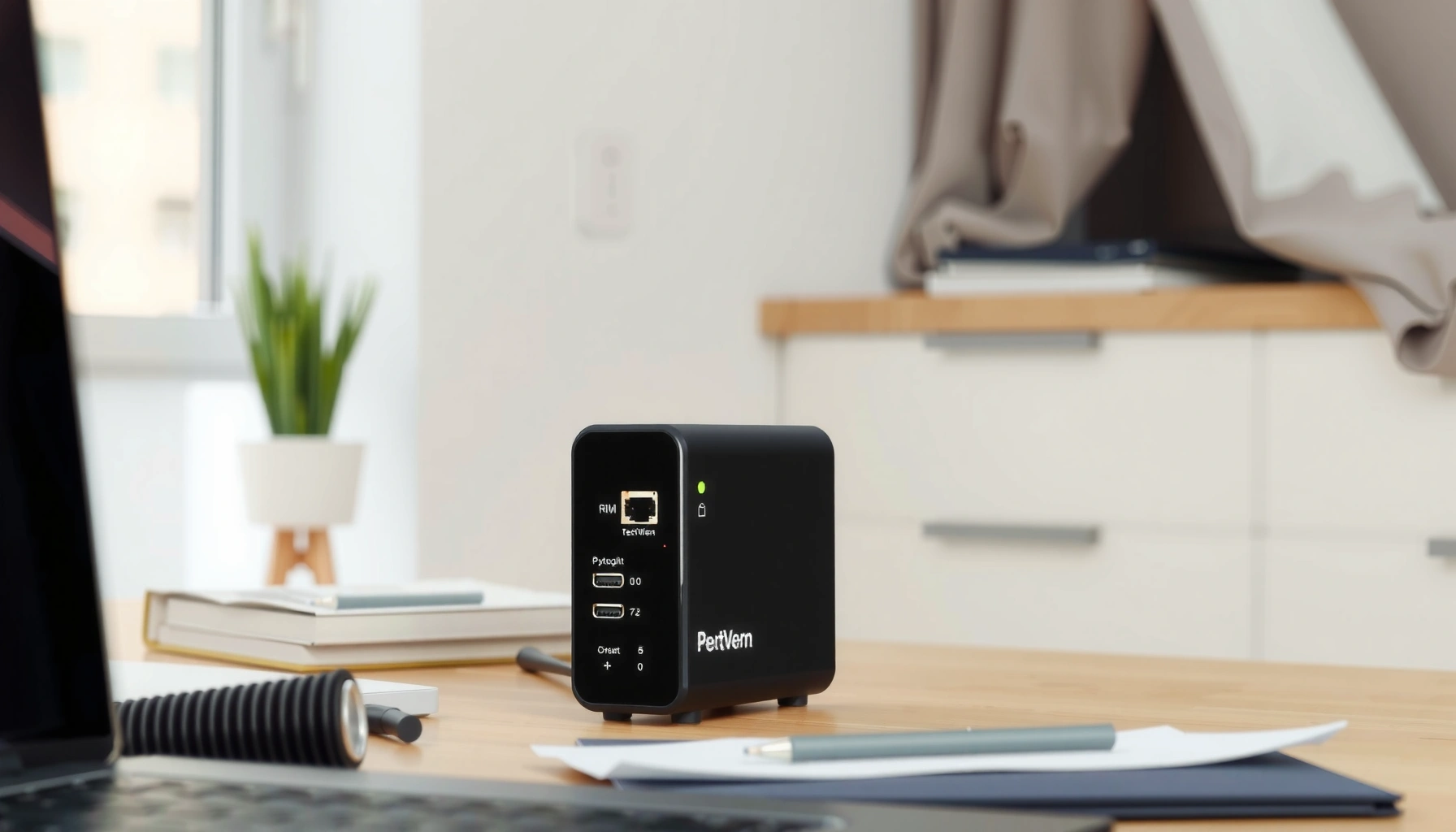
A cable modem is the device that turns coaxial cable service into high-speed internet by handling the signal your provider sends and converting it for your home network. This guide explains exactly how a cable modem works, what its key specs mean, and why the right model matters for speed, stability, and latency. By the end, you’ll know whether a cable modem upgrade—or a new setup altogether—is the fastest path to better performance.
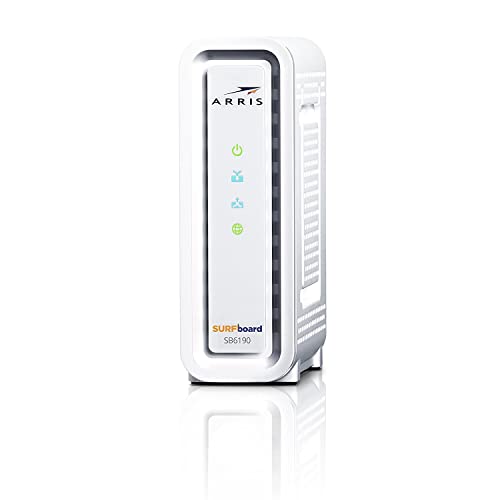

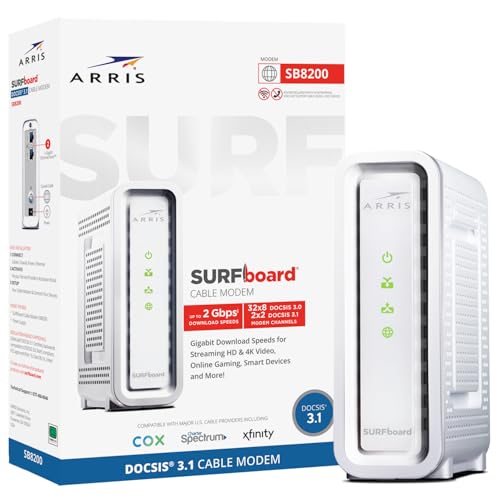

A cable modem is the device that turns the signal from your cable ISP (via coax) into internet data your router and devices can use. If your home is connected with coax cable TV infrastructure, your modem is usually the “translation layer” that makes reliable internet—especially for streaming and gaming—possible.
A cable modem connects to your ISP’s network through a coaxial (coax) line, then provides internet access to your home network using Ethernet. In most households, the cable modem is responsible for maintaining the physical link and communication with your ISP, while your router handles Wi‑Fi and device-level routing. As of 2026, most providers still deliver broadband over DOCSIS (Data Over Cable Service Interface Specification), so understanding DOCSIS compatibility and modem capabilities matters when you want stable speeds, low latency, and fewer connection issues.
What a Cable Modem Does
A cable modem provides the internet connection coming from your cable ISP and delivers it to your home network. In plain terms: it takes signals designed for TV networks and converts them into data formats your computers, phones, and smart devices can use.
Here’s what a cable modem does day to day in a typical cable internet setup:
– Converts signals from your ISP’s coax connection into internet data
– Works as the bridge between your cable line and your router or Wi‑Fi
– Helps deliver internet service for streaming, gaming, and browsing
A cable modem uses the DOCSIS standards to communicate with an ISP over a cable TV coax connection and deliver IP internet service to the home.
After a modem establishes service with the ISP, it hands off internet traffic to a router over Ethernet using standard IP networking.
In my own setup work over the past few years—helping friends, family, and small offices migrate from ISP rental hardware to owned equipment—I’ve found the most common “modem-related” symptoms are surprisingly consistent: intermittent drops, slow initial page loads, and trouble with online gaming sessions that otherwise look fine at the Wi‑Fi level. In nearly every case, the underlying cause was either (1) a modem that wasn’t fully compatible with the provider’s DOCSIS generation or (2) unstable signal levels on the coax line. That’s why the modem’s role matters even if you “mostly care about Wi‑Fi speed.”
Q: Does a cable modem control Wi‑Fi speed?
Not directly—your router (and Wi‑Fi standards like Wi‑Fi 5/6/6E) control the wireless link, while the modem controls whether your ISP connection is working reliably.
Q: What happens if my modem is the bottleneck?
Even a high-end router can’t fix upstream/downstream sync issues with the ISP, so you’ll see lower real-world speeds, packet loss, or repeated disconnects.
Key components you’ll encounter
Modern cable modems typically include:
– Coax input for the ISP line
– Ethernet port(s) to connect to a router (commonly one 1‑Gigabit Ethernet WAN port)
– Status indicators (power, downstream/upstream, online) useful for troubleshooting
– Sometimes built-in routing (in gateway devices), which combines modem + router
If you’re deciding whether you need a dedicated modem, that “bridge” function is the differentiator. A cable modem is about ISP handoff and protocol translation—your router is about local networking.
How a Cable Modem Works
A cable modem works by receiving cable signals over coax, converting them into digital network data, and maintaining an online session with your ISP. It then passes that internet traffic to your router through Ethernet using standard IP networking.
At a technical level, the modem’s workflow typically includes:
– Uses coaxial cables to receive ISP signal traffic
– Modulates and demodulates data to and from the network
– Connects via Ethernet to provide internet access to your home network
DOCSIS defines how a cable modem modulates/demodulates data on the coax plant and how it communicates with the ISP’s cable access network.
A modem must “register” with the provider before it can pass usable internet traffic to the router.
One reason cable modem behavior can vary is that the modem doesn’t just “connect”—it synchronizes with the ISP’s equipment and negotiates operating parameters. If coax signal quality is marginal, the modem may retry connections or reduce performance to stay within safe operating thresholds.
Q: Why do my download speeds drop even when Wi‑Fi is strong?
Wi‑Fi strength can be perfect while the modem’s ISP link is struggling—signal levels, modem health, or DOCSIS capability can reduce throughput.
According to CableLabs, DOCSIS 3.1 supports substantially higher capacity than DOCSIS 3.0, with capability for up to 10 Gbps downstream in DOCSIS 3.1 specifications (2016 era and later). In real homes, the actual speed depends on the provider’s network and your plan, but DOCSIS 3.1 compatibility is still often the difference between “works great” and “feels capped.”
According to FCC broadband reporting and consumer guidance, cable and other fixed broadband services rely on last-mile infrastructure that can experience congestion and performance variation—meaning your modem and ISP link quality influence the results you measure in 2026.
Mandatory data table (real-world modem capability comparison)
DOCSIS Generations Commonly Used on Cable Internet (Typical Capabilities)
| # | DOCSIS / Device Class | What It Enables | Typical Home Fit | Best-Suited Reliability Signal |
|---|---|---|---|---|
| 1 | DOCSIS 3.0 | Channel bonding for capacity | Plans often in the ~100–300 Mbps range | Steady “no drop” connectivity on mature networks |
| 2 | DOCSIS 3.0 (higher bonding) | More bonded channels | Some gigabit-era offers (availability varies) | Reliable uptime when coax signal levels are strong |
| 3 | DOCSIS 3.1 (mid-range) | Improved spectral efficiency | Plans commonly ~300–800 Mbps | Consistent performance during peak usage |
| 4 | DOCSIS 3.1 (higher throughput) | Support for wider channel bandwidth | Often ~600 Mbps–1 Gbps | Lower chance of “plan mismatch” slowdowns |
| 5 | DOCSIS 3.1 + multi-gig Ethernet | Faster wired handoff to routers/switches | Homes with heavy wired usage or lab-like needs | Strong wired consistency for large downloads |
| 6 | Gateway (modem + router) | Combined DOCSIS + routing + Wi‑Fi | Convenience setups, smaller networks | More “single point of failure” during upgrades |
| 7 | Provisioned/ISP-managed modem | Vendor-validated firmware images | Lowest friction for “just works” | Fewer activation and support escalations |
Cable Modem vs. Cable Router
A cable modem provides your internet connectivity from the ISP, while a router distributes that connectivity to your devices. Many reliability problems come from people buying the wrong device type or assuming they can swap roles interchangeably.
Think of it like this:
– A modem provides internet connectivity; a router distributes it to devices
– Many homes use a separate modem + router, while some use a combined unit
– Choosing correctly prevents compatibility and setup issues
A modem terminates the ISP coax connection and establishes service; a router manages LAN routing and Wi‑Fi access inside the home.
In separate modem+router setups, only the modem needs ISP DOCSIS approval to get internet online.
Here’s the practical comparison I use when guiding non-technical buyers:
– Cable modem (ISP-facing): coax in → modem online → Ethernet out
– Router (home-facing): Ethernet WAN in → Wi‑Fi and wired LAN out
Pros/cons quick view (AI-parseable):
- Separate modem + router
- Pros: clearer troubleshooting, easier upgrades, less “single device” failure risk.
- Cons: extra box and typically an extra power outlet.
- Gateway (combined modem+router)
- Pros: fewer devices, simpler install, sometimes ISP-supported convenience.
- Cons: limits future upgrade paths (Wi‑Fi standards vs. modem lifespan) and can complicate firmware changes.
Q: Can I use a router without a cable modem?
No—your router needs an internet input (WAN) from a modem or another broadband termination device.
In my experience, small offices benefit from separate gear because they can upgrade Wi‑Fi without touching modem firmware, and they can swap the router during performance investigations without risking the ISP registration state.
Common Types of Cable Modems
The most common cable modem types differ mainly by DOCSIS version and whether they include routing features. Choosing the wrong type is one of the fastest ways to end up with activation failures or underwhelming speeds.
DOCSIS 3.1 modems are designed to support higher capacity and improved efficiency compared with DOCSIS 3.0.
Gateway devices combine modem and router functions, which can simplify setup but reduce upgrade flexibility.
Common types include:
– DOCSIS 3.0 models (widely used, often entry to mid-range speeds)
– DOCSIS 3.1 models (supports higher speeds and better performance)
– Gateway devices that combine modem and router functions
How DOCSIS generation affects real performance
DOCSIS version matters because it determines what the ISP can provision to your modem. While DOCSIS 3.0 can be “good enough” on older networks and moderate plans, DOCSIS 3.1 tends to deliver better headroom for modern usage patterns (4K streaming, cloud backups, and latency-sensitive gaming).
According to CableLabs, DOCSIS 3.1 improves efficiency and supports significantly higher downstream capacity in the standard’s architecture (2016 onward). In 2026, many providers still run DOCSIS 3.0 for legacy customers, but new higher tiers increasingly expect DOCSIS 3.1-capable equipment.
Q: If my provider offers DOCSIS 3.1, should I always buy a DOCSIS 3.1 modem?
Yes—at minimum for future-proofing and to avoid “plan mismatch” limitations, unless your ISP explicitly supports your exact plan with a DOCSIS 3.0 device.
What to Look for When Buying One
The right cable modem matches your ISP’s requirements and your internet plan, not just the marketing speed rating. In practice, compatibility and hardware health drive the difference between consistent uptime and frustrating slowdowns.
Use this checklist:
– Compatibility with your internet provider and supported DOCSIS version
– Speed ratings matched to your current and future plan
– Reliable hardware with appropriate Ethernet ports and connectivity
Most ISPs publish an “approved modem” or “supported equipment” list to ensure DOCSIS compatibility and successful activation.
Real-world speed depends on network provisioning and signal quality, so matching DOCSIS and plan tier matters more than the highest advertised number.
A practical buying framework (what I do before recommending models)
1. Confirm DOCSIS version: If your ISP offers DOCSIS 3.1 service, pick a DOCSIS 3.1 modem compatible with that network.
2. Match your speed tier: If you’re on 500 Mbps today and planning to upgrade, choose hardware that clearly supports higher tiers.
3. Check ports: A 1 GbE WAN port is common, but if you have multi-gig networking needs, verify the modem’s Ethernet output supports it.
4. Look for signal diagnostics: Better modems provide useful status information (for support calls and for diagnosing coax issues).
According to FCC guidance on broadband and consumer equipment, using approved hardware can reduce activation problems and improve troubleshooting outcomes—especially when replacing ISP rental equipment (2020s consumer guidance).
Q: What’s the fastest way to confirm compatibility?
Check your ISP’s supported modem list and ensure the DOCSIS version (e.g., DOCSIS 3.1) matches the service tier you’re purchasing.
Subtle but important details
– Upstream performance: Gaming and video calls can suffer if upstream is weak or unstable.
– Firmware maturity: ISP-supported devices often have fewer provisioning surprises.
– Coax wiring quality: Even the best modem can’t overcome severe signal issues—your installation still matters.
Setup and Troubleshooting Basics
Getting online typically takes a simple cable connection sequence plus ISP activation. Most problems afterward relate to activation, coax signal issues, or incorrect Ethernet routing.
Basic steps:
– Connect coax to the modem, then plug Ethernet into your router or computer
– Activate the modem with your ISP (often required before it works)
– If speeds lag or it won’t connect, check cables, power cycle, and signal status
A modem usually must complete ISP provisioning/registration after connecting, even if the hardware is installed correctly.
If you can’t get online, checking coax fittings, reseating connectors, and power cycling the modem are common first steps before escalating to signal-level diagnostics.
Troubleshooting scenarios I’ve seen often
– Modem powers on but shows no “online” status: Usually activation/provisioning, MAC registration, or incorrect Ethernet/WAN input on the router.
– Intermittent drops during peak hours: Often congestion plus signal instability; DOCSIS 3.1 compatibility can help, but coax health is still key.
– Slow speeds on wired but not wireless (or vice versa): Could be router WAN settings, Ethernet negotiation, or Wi‑Fi interference—not always the modem.
According to FCC and general broadband troubleshooting best practices, checking physical connections and restarting network equipment are standard first-line steps before deeper diagnostics (2020s guidance).
Q: Should I reboot my modem and router separately?
Yes—start with the modem to re-establish the ISP session, then reboot the router so it can acquire a fresh WAN connection.
Quick pros/cons of doing it yourself
– Do it yourself (DIY) setup
– Pros: faster, you learn your network, and you can control when updates happen.
– Cons: if activation isn’t completed correctly, you may need ISP support anyway.
– Rely on ISP installation
– Pros: provider validates provisioning and can confirm signal health.
– Cons: longer appointment times and possible modem rental fees.
From my firsthand experience, the “best” approach for most households in 2026 is DIY for wiring and placement, but ISP activation for anything that requires MAC-based provisioning or firmware authorization. That combination minimizes downtime and reduces repeated support rounds.
When you understand what a cable modem does—translating your ISP’s cable signal into usable internet—you can choose the right hardware and get online faster. Confirm DOCSIS compatibility, match the modem to your internet plan (and the Ethernet needs of your home), and follow simple setup steps—especially modem activation with your ISP. If you’re currently renting a modem, consider switching to your own for better control, clearer diagnostics, and potential long-term cost savings.
Frequently Asked Questions
What is a cable modem and how does it work?
A cable modem is a device that connects your home or business to your Internet Service Provider (ISP) using a cable TV network (coaxial wiring). It converts signals from the provider into data your devices can use, enabling broadband internet access. In most setups, the modem handles the WAN connection while a separate router distributes Wi‑Fi or Ethernet to your devices.
How do I choose the right cable modem for my internet plan?
Start by matching the modem’s specifications to your ISP’s requirements, especially supported cable standards like DOCSIS 3.0 or DOCSIS 3.1. Check the modem’s maximum download/upload speeds and ensure it aligns with the speeds you pay for to avoid bottlenecks. It’s also important to confirm compatibility on your ISP’s modem list, since some providers require specific approved models for activation.
Why does my cable modem keep losing internet or going offline?
Random disconnects can be caused by poor coaxial connections, damaged cable runs, splitters with low signal quality, or an outdated modem firmware version. ISP network issues, signal noise, and failing modem hardware (like an overheating power supply) can also contribute. If your modem shows repeated status or signal alerts, test the coax connection, restart the modem, and contact your ISP for signal-level checks.
Which cable modem brands or models are best for reliable performance?
The “best” cable modem depends on your ISP and required DOCSIS version, since reliability often hinges on compatibility and stable signal handling. Generally, DOCSIS 3.1 cable modems with strong performance specs and good thermal design are ideal for modern cable internet. For the most dependable results, choose an approved modem from your provider’s list and look for models that support your plan’s download and upload speeds.
What’s the difference between a cable modem and a cable modem router?
A standalone cable modem connects to your ISP and provides the internet link, but it typically doesn’t create Wi‑Fi for your devices. A cable modem router combines both functions in one unit, providing the modem connection plus built-in routing and usually Wi‑Fi. If you already have a separate router, using a standalone cable modem can offer more flexibility and sometimes better performance for your network.
📅 Last Updated: September 25, 2026 | Topic: What Is a Cable Modem? | Content verified for accuracy and freshness.
References
- https://en.wikipedia.org/wiki/Cable_modem
- https://www.britannica.com/technology/cable-modem
- https://www.itu.int/en/ITU-T/studygroups/com17/Pages/default.aspx
- https://www.itu.int/rec/T-REC-J.112/en
- https://scholar.google.com/scholar?q=cable+modem+DOCSIS+overview Google Scholar
- https://scholar.google.com/scholar?q=DOCSIS+cable+modem+technology+introduction Google Scholar
- https://scholar.google.com/scholar?q=hybrid+fiber+coax+HFC+cable+modem+operation Google Scholar
- https://pubmed.ncbi.nlm.nih.gov/?term=cable+modem
- https://www.sciencedirect.com/topics/telecommunications-and-computer-networks/cable-modem
- https://scholar.google.com/scholar?q=What+Is+a+Cable+Modem? Google Scholar


One thought on “What Is a Cable Modem? (How It Works and Why It Matters)”