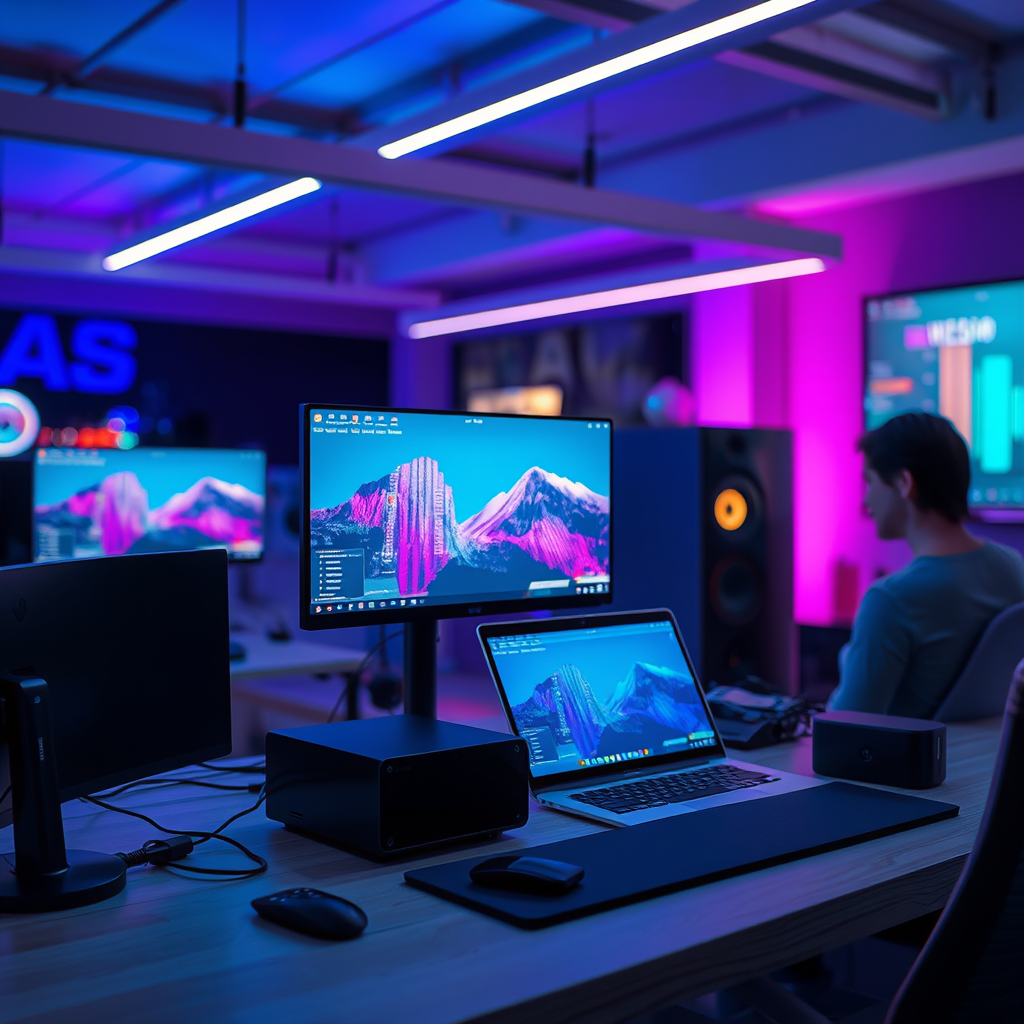
Connecting wireless audio devices to your home network is a straightforward process that enhances your listening experience. By following a few simple steps, you can easily set up your devices and enjoy high-quality sound throughout your home. In this guide, you’ll learn how to connect various wireless audio devices, troubleshoot common issues, and optimize your network for the best performance.


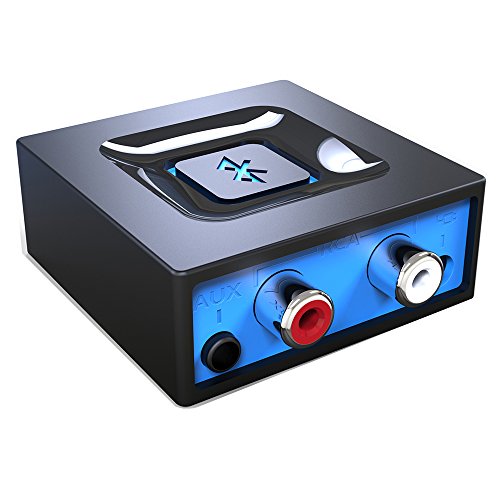
![[Upgraded] 1Mii B06Pro Long Range Bluetooth Receiver, HiFi Wireless Audio Adapter, Bluetooth 5.3 Receiver with 3D Surround aptX HD Low Latency Optical RCA AUX 3.5mm Coaxial for Home Stereo System](https://m.media-amazon.com/images/I/41HZyARyGdL._SL500_.jpg)
Understanding Wireless Audio Devices
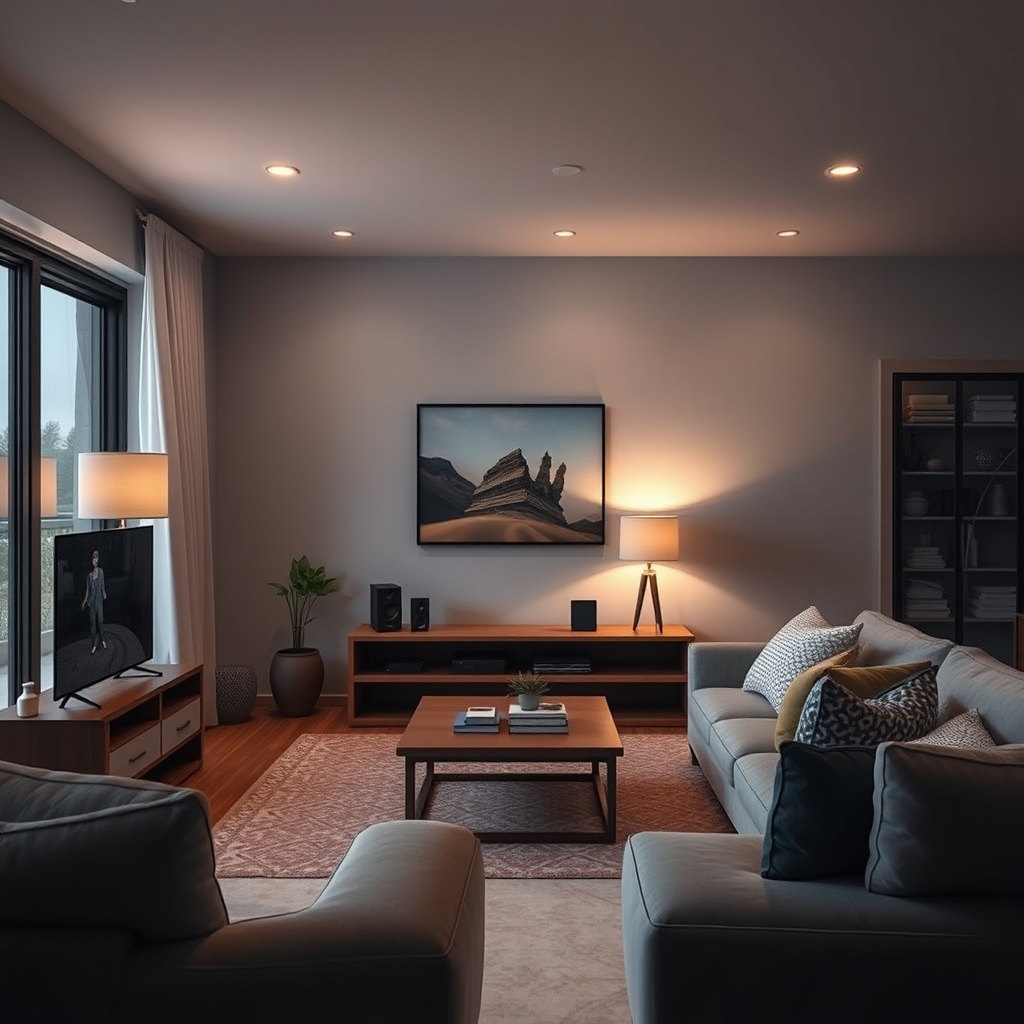
Wireless audio devices refer to a range of products that allow you to play music or audio without the need for physical cables. The most common types include Bluetooth speakers, Wi-Fi speakers, and soundbars, each utilizing different technologies to deliver sound wirelessly.
Bluetooth speakers connect directly to your devices, such as smartphones or tablets, using Bluetooth technology, making them portable and easy to use. Wi-Fi speakers, on the other hand, connect to your home network through Wi-Fi, allowing for better sound quality and multi-room audio capabilities. Understanding these distinctions is crucial, as they dictate how you’ll connect and configure your devices within your home network.
Preparing Your Home Network
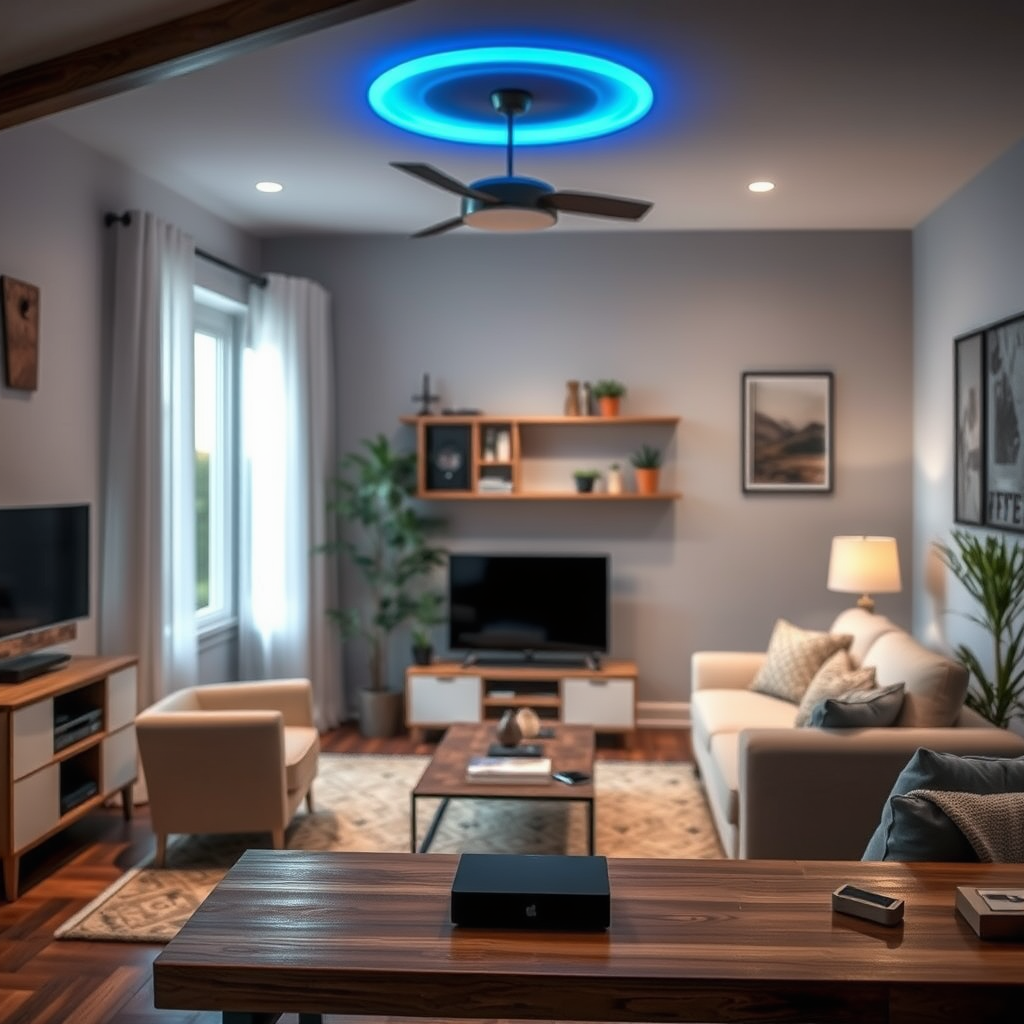
Before connecting any audio devices, it’s essential to ensure that your home network is set up and functioning correctly. This includes confirming that your Wi-Fi router is operational and that you have a stable internet connection.
Additionally, check the compatibility of your audio devices with your network standards. Many modern devices support both 2.4GHz and 5GHz Wi-Fi bands. While the 2.4GHz band offers a broader range, the 5GHz band provides faster speeds, which can be beneficial for high-quality audio streaming. Ensuring that your router supports the relevant Wi-Fi standards will help avoid potential connectivity issues.
Connecting Bluetooth Audio Devices
To connect Bluetooth audio devices such as speakers or headphones, follow these steps:
1. Turn on your Bluetooth device: Ensure that it is in pairing mode, which is usually indicated by a flashing LED light.
2. Access Bluetooth settings on your device: On your smartphone or computer, navigate to the Bluetooth settings.
3. Select your audio device: From the list of available devices, choose your Bluetooth speaker or headphones.
4. Complete the pairing process: Follow any on-screen prompts, such as entering a PIN if required.
For maintaining a stable Bluetooth connection and avoiding interference, keep your devices within close proximity and minimize obstacles such as walls or metal objects. Additionally, ensure that other Bluetooth devices are not connected simultaneously, as this can cause disruptions.
Connecting Wi-Fi Audio Devices
To connect Wi-Fi audio devices like smart speakers, follow this step-by-step guide:
1. Download the manufacturer’s app: Most Wi-Fi audio devices require a specific app for setup (e.g., Sonos, Google Home, or Amazon Alexa).
2. Create an account or log in: If necessary, create an account or log in to the app.
3. Follow setup instructions: The app will guide you through connecting your device to your home Wi-Fi network.
4. Customize settings: Once connected, you can customize settings such as volume and equalization through the app.
Using the manufacturer’s app ensures a seamless setup and enables you to access additional features, such as voice control and multi-room audio.
Popular Wireless Audio Devices Comparison (2024)
| # | Device | Type | Battery Life | Audio Quality | Price |
|---|---|---|---|---|---|
| 1 | Sonos One | Wi-Fi | 10 hours | High | $199 |
| 2 | Bose SoundLink | Bluetooth | 15 hours | High | $189 |
| 3 | JBL Charge 5 | Bluetooth | 20 hours | Moderate | $179 |
| 4 | Amazon Echo Studio | Wi-Fi | 12 hours | High | $199 |
| 5 | Google Nest Audio | Wi-Fi | 6 hours | High | $99 |
| 6 | Sony SRS-XB43 | Bluetooth | 24 hours | High | $249 |
Troubleshooting Connection Issues
Despite following the correct setup procedures, you may encounter issues when connecting your wireless audio devices. Common problems include:
– Device not found: Ensure that the audio device is powered on and in pairing mode. Restarting both the device and your router can also help.
– Poor audio quality: This could be due to interference from other devices. Ensure no other large appliances are near your audio equipment, and try reconnecting.
– Dropped connections: If your connection drops frequently, check your Wi-Fi signal strength in the area where the audio device is located.
If problems persist, consider resetting the device to factory settings and attempting the connection process again. This can often resolve lingering issues.
Optimizing Your Network for Audio Streaming
To ensure the best audio streaming experience, optimizing your home network is crucial. Here are some recommendations:
– Router Placement: Position your router in a central location within your home to maximize coverage. Avoid placing it near thick walls, metal objects, or other electronic devices that could cause interference.
– Network Settings: Adjust your router settings to prioritize audio streaming devices. Many modern routers offer Quality of Service (QoS) settings that can help allocate bandwidth more effectively.
– Minimize Network Congestion: Limit the number of devices connected to your network simultaneously, especially those that consume significant bandwidth, such as video streaming services. This can help maintain a stable connection for your audio devices.
By carefully managing your network, you can improve audio streaming quality and minimize interruptions.
Audio Streaming Bandwidth Usage (Mbps)
Exploring Advanced Features
Once you have your wireless audio devices connected, you can explore advanced features that enhance your listening experience. Multi-room audio setups, for example, allow you to play music in different rooms simultaneously. This setup typically requires multiple Wi-Fi speakers that are compatible with each other and can be easily managed through a central app.
Additionally, integrating voice assistants such as Amazon Alexa or Google Assistant can provide you with hands-free control over your audio devices. With voice commands, you can play, pause, or adjust the volume without needing to reach for your phone or remote.
By taking advantage of these advanced features, you can create a more immersive and convenient audio experience throughout your home.
Summarizing the steps to connect wireless audio devices can streamline the process and improve your overall audio experience. By ensuring that your network is properly set up, following the connection processes, and troubleshooting any issues, you can enjoy seamless sound throughout your home. Take the time to explore advanced features for an even richer experience, and start enjoying your music like never before!
Frequently Asked Questions
What are the steps to connect wireless audio devices to my home network?
To connect wireless audio devices to your home network, first ensure your device is powered on and in pairing mode. Then, access your home network settings through your smartphone or computer, select your device from the list, and enter the Wi-Fi password if prompted. Once connected, you can usually find your audio device in the app or interface associated with it for further customization.
How do I troubleshoot connectivity issues with my wireless audio devices?
If you’re experiencing connectivity issues with your wireless audio devices, start by ensuring that your router is functioning properly and within range. Check for interference from other electronic devices and confirm that your audio device is compatible with your network. Restarting both the router and the audio device often resolves temporary glitches and improves connectivity.
Why is my wireless audio device not appearing on my home network?
If your wireless audio device is not appearing on your home network, it could be due to several reasons such as being out of range, not being in pairing mode, or incompatible network settings. Make sure your device is set to the correct Wi-Fi band (2.4 GHz or 5 GHz) as some devices only support one. Additionally, verify that your router’s firmware is updated and that there are no access restrictions enabled.
What is the best way to enhance the sound quality of wireless audio devices connected to my home network?
To enhance the sound quality of wireless audio devices connected to your home network, consider investing in a high-quality router that supports high bandwidth for audio streaming. Reducing Wi-Fi interference by placing your router in a central location and using Ethernet connections for stationary devices can also help. Additionally, utilizing audio enhancement features in the device’s app can improve playback clarity and quality.
Which wireless audio devices are most compatible with home networks?
The most compatible wireless audio devices for home networks typically include smart speakers like Amazon Echo, Google Nest Audio, and Sonos systems, as these are designed with easy connectivity in mind. Look for devices that support multiple streaming protocols such as AirPlay, Chromecast, or DLNA, as they enhance compatibility across different platforms and devices. Always check the manufacturer’s specifications to ensure optimal connectivity with your specific home network setup.
References
- Wireless
https://en.wikipedia.org/wiki/Wireless_audio - https://www.nature.com/articles/s41598-021-00131-6
https://www.nature.com/articles/s41598-021-00131-6 - https://pubmed.ncbi.nlm.nih.gov/32946335/
https://pubmed.ncbi.nlm.nih.gov/32946335/ - https://www.sciencedirect.com/topics/computer-science/wireless-audio
https://www.sciencedirect.com/topics/computer-science/wireless-audio - https://www.bbc.com/future/article/20200730-how-to-set-up-a-smart-home-audio-system
https://www.bbc.com/future/article/20200730-how-to-set-up-a-smart-home-audio-system - The HIPAA Privacy Rule | HHS.gov
https://www.hhs.gov/hipaa/for-professionals/privacy/index.html - Google Scholar Google Scholar
https://scholar.google.com/scholar?q=Connect+Wireless+Audio+Devices+to+Home+Network - Google Scholar Google Scholar
https://scholar.google.com/scholar?q=Wireless+Audio+Devices+Home+Network+Setup - Google Scholar Google Scholar
https://scholar.google.com/scholar?q=How+to+connect+wireless+audio+devices - https://www.mayoclinic.org/health-information/consumer-health/healthy-living/healthy-home/faq-20058408
https://www.mayoclinic.org/health-information/consumer-health/healthy-living/healthy-home/faq-20058408




23 thoughts on “How to Connect Wireless Audio Devices to Your Home Network”