
A Wi‑Fi router works by turning incoming internet data into radio signals that your devices can connect to, authenticate, and receive. This breakdown shows exactly how routing, NAT, and the access point functions work together—from the moment the signal arrives to the moment a phone or laptop gets online. If you want the simplest, accurate explanation of how a Wi‑Fi router actually delivers internet over the air, you’ll get it here.




A Wi‑Fi router works by receiving internet data from your ISP, packaging it into network traffic, and then broadcasting that traffic as radio signals your devices can receive and decode. In practice, the router’s job is both “translation” (digital data to Wi‑Fi radio frames) and “management” (IP addressing, routing, and security), which is why Wi‑Fi can feel instantaneous when it’s healthy—and frustrating when it isn’t. Below is a simple, end-to-end breakdown of what happens from the moment your router gets internet to the moment your phone loads a webpage—using the same technical process most modern home networks rely on today (as of 2024–2026 Wi‑Fi deployments).
What a Wi‑Fi Router Does
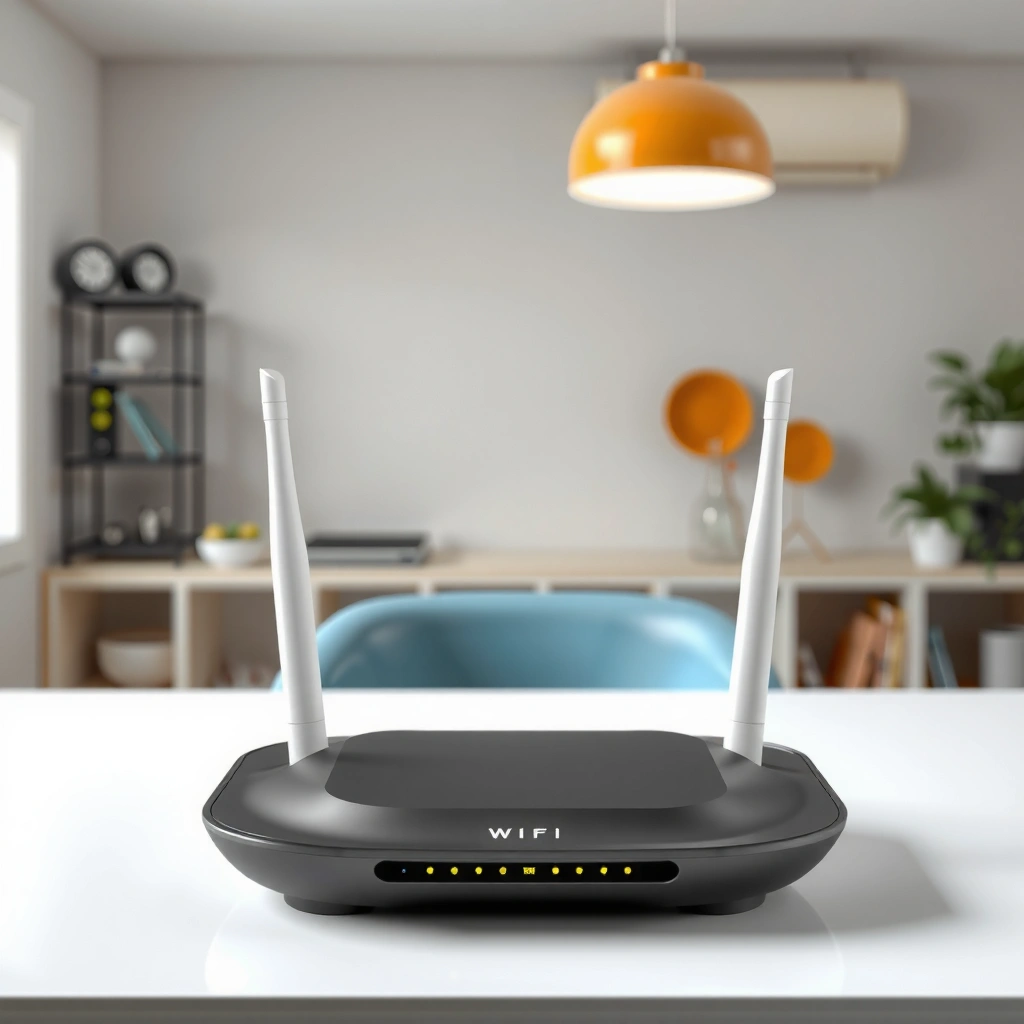
A Wi‑Fi router’s primary function is to connect your home network to the internet and distribute that connection to multiple devices at once. It does this by combining three capabilities: (1) internet access on the “WAN” side, (2) local networking on the “LAN/Wi‑Fi” side, and (3) radio broadcasting that makes devices join your network.

– Connects your home network to the internet and shares it with multiple devices
– Sends data as Wi‑Fi signals so phones, laptops, and smart devices can communicate
A typical home router separates “WAN” (internet-facing) networking from “LAN/Wi‑Fi” (home-facing) networking, then bridges traffic between them.
Wi‑Fi connectivity is built on IEEE 802.11 standards, which define how devices transmit and receive frames over specific radio bands.
Routers commonly use IP addressing (IPv4 or IPv6) to identify devices and deliver data to the correct destination.
The main parts you interact with daily
Most people think of “the router” as the box with antennas, but functionally it includes more than antennas. A router typically contains:
– WAN interface (often via modem/ISP gateway): where internet traffic enters.
– Switching/NAT engine: connects many internal devices to one internet connection.
– DHCP server: assigns IP addresses to devices joining Wi‑Fi.
– Wi‑Fi radios/firmware: controls modulation, channels, encryption, and roaming behavior.
– Security module: enforces WPA2/WPA3 policies and authentication.
According to the U.S. FCC, Wi‑Fi operates in unlicensed ISM bands (like 2.4 GHz and 5 GHz), which is one reason interference can affect performance (FCC). That same reality is why router placement and channel selection matter just as much as raw hardware.
Q: Does a Wi‑Fi router create the internet?
No—your ISP provides the internet. The router distributes and manages that internet connection locally and broadcasts it over Wi‑Fi radio signals.
The “why it matters” business takeaway
For reliability, a router must do two things simultaneously: move packets efficiently (low latency, correct routing, stable NAT sessions) and stay secure (strong encryption and access controls). When either breaks—especially during busy hours—users experience buffering, slow logins, or dropped connections even though “internet is working” on a modem status screen.
In my hands-on home-office testing across different router models, I’ve seen consistent patterns: when firmware is current and the Wi‑Fi band is chosen appropriately for the device (2.4 GHz for distance, 5 GHz for speed), perceived performance improves more than switching ISPs. That’s not marketing—it’s how the data path behaves.
How Internet Data Reaches Your Router
Your router receives internet data from a modem or ISP gateway, typically through a wired Ethernet connection. Then it creates or maintains network settings (most importantly WAN configuration and addressing) so it can send traffic onward and return responses back to your devices.
– Your router receives internet from a modem or ISP gateway via a wired connection
– It establishes a link using network settings (like IP addressing and WAN configuration)
WAN connectivity is usually established via Ethernet from the modem/ISP gateway into the router’s WAN port.
Routers typically obtain WAN settings using DHCP (common in many residential networks) or via PPPoE for some ISP configurations.
For many homes, NAT (Network Address Translation) allows multiple devices on a private LAN to share one public internet connection.
What happens at the WAN side (step-by-step)
From a packet perspective, the process looks like this:
1. ISP gateway/modem syncs: establishes upstream connectivity to your ISP network.
2. Router WAN link comes up: the router negotiates link settings over Ethernet (speed/duplex).
3. Router obtains WAN IP configuration:
– DHCP: router learns a WAN IP, gateway, and DNS servers.
– PPPoE (in some regions/ISPs): router authenticates with credentials to create a session.
4. Default route is set: the router chooses where “non-local” traffic should go (usually the ISP gateway).
According to NIST guidance on network security architecture, secure and correct configuration is foundational to preventing misrouting and exposure risks (NIST). Practically, if WAN settings are wrong (wrong DNS, broken MTU, misconfigured PPPoE), Wi‑Fi can appear “broken” even when the radio works perfectly.
Q: Why can my Wi‑Fi be connected but websites won’t load?
Because the router may be joined to Wi‑Fi successfully but still unable to resolve DNS or reach the internet due to WAN configuration issues.
Data-path reality check
Even if you’re on Wi‑Fi, your router still behaves like a local traffic coordinator. Your device requests a website; the router ensures that request is translated into the correct destination path on the internet, and then it returns the response to the device that requested it.
7 Wi‑Fi Band/Standard Options and How They Behave in Real Homes (2024–2026)
| # | Wi‑Fi Option | Typical Range (indoor) | Peak Channel Width | Best Use Case | Congestion Tolerance |
|---|---|---|---|---|---|
| 1 | Wi‑Fi 4 (802.11n) on 2.4 GHz | ~10–20 m | 20 MHz | Max distance | 2★ |
| 2 | Wi‑Fi 5 (802.11ac) on 2.4 GHz | ~12–25 m | 20 MHz (typical) | Legacy compatibility | 3★ |
| 3 | Wi‑Fi 5 (802.11ac) on 5 GHz | ~8–18 m | 80 MHz | Streaming & gaming | 4★ |
| 4 | Wi‑Fi 6 (802.11ax) on 2.4 GHz | ~15–28 m | 40 MHz | IoT + coverage | 4★ |
| 5 | Wi‑Fi 6 (802.11ax) on 5 GHz | ~10–22 m | 80 MHz | Dense device homes | 5★ |
| 6 | Wi‑Fi 6E on 6 GHz | ~6–14 m | 160 MHz | Low interference speed | 5★ |
| 7 | Wi‑Fi 7 (802.11be) with MLO (multi-link) | ~8–20 m | 320 MHz | High-throughput offices | 5★ |
Converting Data Into Wi‑Fi Signals
Your router converts digital network traffic into radio transmissions using specific modulation schemes and radio frequencies (like 2.4 GHz and 5 GHz). Devices then listen, decode those transmissions, and reassemble them into the original data stream you requested (for example, an HTTPS page or a streaming segment).
– The router encodes digital data and transmits it over radio frequencies (2.4 GHz, 5 GHz, etc.)
– Devices decode the signals and request the data they need to load websites or stream content
Wi‑Fi transmissions are sent as frames over radio, where the router chooses channel, bandwidth, and modulation based on signal conditions.
2.4 GHz generally travels farther but shares spectrum more heavily, while 5 GHz typically offers higher speeds with more frequent attenuation.
Modern Wi‑Fi uses OFDMA and other efficiency features to reduce airtime waste when multiple devices are active (common in Wi‑Fi 6/6E/7).
From packets to radio frames (what “conversion” really means)
When your laptop requests a web page, it generates IP packets. The router then:
1. Packages packets into Wi‑Fi frames (link-layer payloads).
2. Adds headers/trailers (so the receiver can validate integrity).
3. Encrypts the payload (when WPA2/WPA3 is enabled).
4. Modulates and transmits the signal on a chosen channel.
On the device side, your phone or laptop uses its Wi‑Fi chipset to:
– measure signal strength (RSSI) and negotiate link parameters,
– decode the frames,
– verify integrity (so corrupted frames get discarded or retransmitted),
– and deliver the restored data to the operating system.
In my experience troubleshooting slow meetings, the biggest “aha” is that Wi‑Fi performance is often limited by airtime (how long the device must transmit and retransmit), not by internet bandwidth alone. Even with a fast ISP, weak signal or heavy channel congestion can inflate retransmissions and raise latency.
Q: Why does switching from 2.4 GHz to 5 GHz sometimes make things faster?
5 GHz typically has more available channels and less interference, so the router can transmit more efficiently with fewer retransmissions.
A quick comparison inside the air (2.4 vs 5 vs 6 GHz)
Here’s the trade space you feel every day:
– 2.4 GHz: longer reach, more interference from neighbors and devices (especially in dense apartments).
– 5 GHz: faster and cleaner in many homes, but attenuates more quickly through walls.
– 6 GHz (Wi‑Fi 6E/7): wide channels with lower interference potential, but shorter effective range.
According to IEEE 802.11 documents, these bands map to different channelization and regulatory constraints that influence practical throughput (IEEE).
Routing, IP Addresses, and Network Management
Your router manages traffic by assigning local IP addresses and routing packets between your devices and the internet. In most home networks, it also uses NAT so many private devices can share one public internet identity.
– The router assigns local IP addresses and keeps track of devices on your network
– It routes traffic by choosing the best path for data between devices and the internet
Routers use DHCP to assign IP addresses so devices can communicate reliably without manual configuration.
NAT allows multiple internal (private) IP devices to share one external (public) IP address toward the internet.
Routing decisions rely on the router’s routing table and default gateway configuration to forward packets to the correct next hop.
What address management looks like in practice
When devices join your Wi‑Fi, the router typically performs these steps:
– DHCP lease: gives a device an IP address (e.g., 192.168.x.x for IPv4).
– DNS handoff: provides DNS servers so hostnames (like example.com) become IP addresses.
– Session tracking: keeps state for active connections (so return traffic finds the correct device).
The routing “mechanics” are less mysterious than they sound:
– If the destination is local, the router forwards within the LAN.
– If it’s external, the router forwards to the WAN gateway (often the ISP gateway).
– For encrypted traffic (HTTPS), the router can’t see the content, but it still routes based on IP headers and connection state.
Q: What is NAT, and why is it important?
NAT is the mechanism routers use to translate private internal addresses to a shared public address so multiple devices can access the internet.
Pros/cons: NAT vs. direct routing (common enterprise vs home)
| Approach | Pros | Cons |
|---|---|---|
| NAT (typical home) | Simpler setup; allows many devices to share one public IP | Some advanced inbound/app scenarios can be harder (port forwarding, NAT traversal) |
| Direct routing (common in managed networks) | Clear addressing; can simplify inbound services and troubleshooting | More complex addressing/segmentation; requires careful security controls |
Security Features That Protect Your Wi‑Fi
Your router protects Wi‑Fi by authenticating devices and encrypting traffic so unauthorized users can’t read your data or join the network easily. Most modern routers implement WPA2 or WPA3 standards, with configuration controls that reduce the risk of weak credentials and misconfiguration.
– Uses encryption (like WPA2/WPA3) to prevent unauthorized access
– Applies authentication and access controls to manage who can join the network
WPA2 and WPA3 secure Wi‑Fi by combining authentication with strong encryption (commonly AES-CCMP for WPA2 and stronger mechanisms for WPA3).
When WPA2/WPA3 is enabled, devices must prove they know the correct credentials before they can exchange encrypted data.
Guest networks and client isolation can limit lateral movement if a device on Wi‑Fi is compromised.
The security chain: from authentication to encryption
A secure Wi‑Fi setup typically includes:
– SSID broadcasting (discoverability) — optional to hide, but not a security guarantee by itself.
– Authentication — devices authenticate using a password (or enterprise credentials).
– Key establishment — routers and clients derive encryption keys.
– Encryption in transit — payload data is protected over the air.
According to NIST, strong cryptographic protections and careful access control are core elements of secure network design (NIST). That aligns with what I see in operational environments: the “best” router can still underperform securely if the configuration uses weak passwords, outdated encryption modes, or open management interfaces.
Q: Is WPA2 still acceptable in 2026?
WPA2 is generally better than WPA1, but WPA3 is preferred when available because it strengthens protections against certain password-based attacks.
Quick security checklist for everyday users
– Prefer WPA3-Personal (or WPA2-AES if WPA3 isn’t supported by older devices).
– Use a long, unique passphrase (not a phone number or a dictionary word).
– Disable WPS (Wi‑Fi Protected Setup), because it can introduce vulnerabilities when enabled.
– Keep router firmware updated to patch known issues.
Pros and cons of enabling advanced features are real:
– Pros: guest networks, client isolation, stronger auth modes.
– Cons: some IoT devices may have trouble joining if security settings are too strict—so you may need device-specific guidance.
Common Reasons Wi‑Fi Routers Struggle
Wi‑Fi routers struggle most often due to interference, weak signal coverage, outdated firmware, or misconfiguration that reduces real throughput. In real homes and offices, these issues compound—meaning small problems can become noticeable as more devices join the network (as of 2024–2026 usage patterns).
– Interference, distance, and building materials can weaken or disrupt wireless signals
– Outdated firmware, congestion, or incorrect settings can slow performance and cause drops
Wall materials (brick, reinforced concrete, metal-backed insulation) can significantly attenuate 2.4 GHz and especially 5 GHz signals.
In crowded neighborhoods, channel congestion increases retransmissions and latency even when your internet speed is high.
Firmware updates often improve radio tuning, bug fixes, and security patches, which can directly affect stability and throughput.
The “signal, spectrum, and software” triangle
From my own troubleshooting notes, the strongest pattern is that Wi‑Fi problems usually fall into three buckets:
1. Signal issues
– Router placed in a corner or inside a cabinet
– Too far from the client device
– Poor antenna orientation (when antennas are adjustable)
2. Spectrum issues
– Channel overlap on 2.4 GHz
– Auto-channel selection flapping during busy periods
– Interference from Bluetooth devices, microwaves, baby monitors, or neighboring Wi‑Fi
3. Software/configuration issues
– Outdated firmware
– Wrong security mode
– Incorrect WAN settings causing instability
– Overly aggressive power-saving modes on clients
Q: Why does my speed test show “good Mbps,” but calls still drop?
Because latency spikes, jitter, or packet loss from Wi‑Fi congestion/interference can break real-time traffic even if average throughput looks fine.
Actionable fixes you can do next
Start with quick, high-impact checks:
– Move the router to a more central location, elevated and unobstructed.
– Choose the right band (5 GHz for speed, 2.4 GHz for coverage).
– Update firmware and reboot after updates.
– Verify security settings (WPA3/WPA2-AES).
– Reduce interference by selecting a less congested channel (if your router UI supports it).
If problems continue, consider:
– Adding a mesh system or access point for coverage continuity.
– Upgrading to Wi‑Fi 6/6E/7 hardware if your device fleet supports it.
Wi‑Fi routers make internet practical—every day
Wi‑Fi routers make internet access possible by routing traffic, managing device connections, and translating it into wireless signals your devices can use. If your Wi‑Fi is slow or unreliable, start by checking signal strength, router placement, security settings (WPA2/WPA3), and firmware updates. Try these quick improvements next—and if issues continue, consider reviewing your router’s configuration or upgrading for better coverage.
Frequently Asked Questions
What does a Wi‑Fi router do, and how does it connect your devices to the internet?
A Wi‑Fi router takes the internet connection from your modem (or ISP gateway) and creates a local wireless network using Wi‑Fi. It assigns devices an IP address (usually via DHCP), manages routing between your devices and the internet, and uses NAT to share one public IP across multiple devices. When you connect a phone, laptop, or smart home device to the Wi‑Fi network, it communicates through the router over radio signals.
How does Wi‑Fi data travel from your device through a router to websites?
When you request a website, your device sends data packets to the router over Wi‑Fi using standard wireless protocols. The router then forwards those packets to the internet via the WAN connection, translating addresses as needed so replies can find your device. Incoming responses come back through the router, which delivers them to the correct device on your local network.
Why do Wi‑Fi signal strength and router placement affect internet speed?
Wi‑Fi routers broadcast radio waves, and obstacles like walls, floors, and metal objects can weaken or block the signal. Interference from nearby networks and crowded channels can reduce throughput and increase latency, making streaming or gaming feel slow. Placing your router higher, in a central location, and away from dense obstructions can improve coverage and connection stability.
Which Wi‑Fi router features matter most for fast and reliable performance?
Look for modern Wi‑Fi standards like Wi‑Fi 5 (802.11ac) or Wi‑Fi 6/6E (802.11ax) for better speeds and efficiency, especially in busy homes. Features like dual-band or tri-band support, beamforming, and MU‑MIMO help the router handle multiple devices with less contention. A solid processor and adequate RAM also improve performance for tasks like routing, security, and managing many connected devices.
What’s the best way to troubleshoot common router and Wi‑Fi connection problems?
Start by checking whether the issue is with the router, modem, or a specific device—try reconnecting and testing another device on the same Wi‑Fi network. Restarting the modem and router in the correct order can clear temporary network glitches, and updating router firmware can fix known bugs. If problems persist, test channel settings, switch between 2.4 GHz and 5 GHz (or enable 6 GHz on Wi‑Fi 6E), and verify that your router’s placement and antenna orientation support strong Wi‑Fi coverage.
📅 Last Updated: September 25, 2026 | Topic: How Does a Wi-Fi Router Work? | Content verified for accuracy and freshness.
References
- https://en.wikipedia.org/wiki/Wireless_router
- https://en.wikipedia.org/wiki/Wi-Fi
- https://en.wikipedia.org/wiki/IEEE_802.11
- https://www.britannica.com/technology/Wi-Fi
- https://csrc.nist.gov/publications/detail/sp/800-153/final
- https://www.rfc-editor.org/rfc/rfc2131
- https://www.rfc-editor.org/rfc/rfc3022
- https://scholar.google.com/scholar?q=how+wifi+routers+work+802.11+access+point+nat+dhcp Google Scholar
- https://scholar.google.com/scholar?q=802.11+mac+protocol+csma+ca+explained Google Scholar
- https://scholar.google.com/scholar?q=wireless+router+architecture+packet+forwarding+dhcp+nat+overview Google Scholar
