
Want faster upload speeds by optimizing Wi‑Fi for uploads? This guide delivers the clear best playbook for improving your upload performance—pinpointing the settings and placement choices that matter most for your router and devices. You’ll learn exactly what to change to reduce interference, boost signal strength, and stabilize your uplink so uploads complete faster.
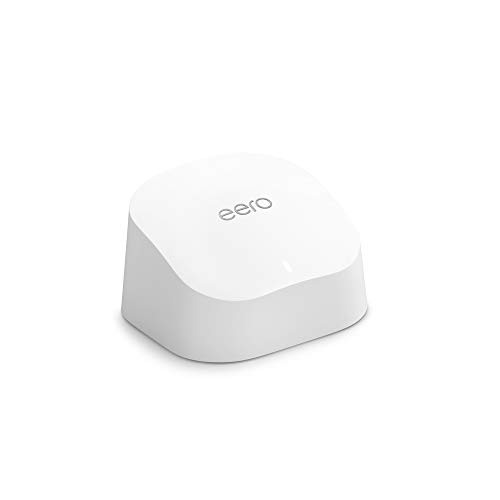



Turn on upload-friendly prioritization (QoS/WMM), then make sure your device gets a strong, stable Wi‑Fi link so upstream packets aren’t repeatedly retransmitted. In 2026, most routers support WMM (Wi‑Fi Multimedia) out of the box—your job is to ensure it’s enabled and that your phone/laptop isn’t degrading uplink responsiveness via power-save or a poor radio connection.
Wi‑Fi uploads get slow for two main reasons: the router treats upstream traffic as “best effort,” and the wireless link struggles enough to trigger retries and queueing delays. To fix it, prioritize upload traffic (QoS/WMM), then make sure your phone/laptop has a strong, stable connection (band/channel choice, placement, power-save off). This guide walks you through the most common settings and checks that move the needle for real-world uploads like video calls and cloud backups.
If you’re getting fast downloads but weak uploads, or your upload speed tanks during calls/meeting screenshare, this article is for you. It applies whether you use a single router or mesh Wi‑Fi—what changes is where you’ll adjust settings and how you diagnose the bottleneck.
Who this is for / when it matters

If your uploads matter—especially during real-time communication—Wi‑Fi optimization is usually worth the effort. QoS/WMM and link-quality tuning often improve upload responsiveness more than raw “speedtest upload” numbers, which is what makes video calls and cloud backups feel smoother.
– Best when uploads matter: video calls, live streaming, screen sharing, cloud backups, sending large files, and remote work.
– Works for both standalone routers and mesh systems, but mesh can add an extra “hop,” so results depend on placement.
– Ideal if you’ve already tried rebooting and restarting devices and still see inconsistent upload performance.
IEEE 802.11e defines EDCA (Enhanced Distributed Channel Access), which uses separate contention parameters per access category (including voice and video) to reduce delay for high-priority traffic. IEEE 802.11e-2005
WMM (Wi‑Fi Multimedia) is the industry implementation of IEEE 802.11e concepts (EDCA), and it is commonly used by routers to prioritize voice/video/control frames over bulk traffic. Wi‑Fi Alliance WMM documentation
Because Wi‑Fi uses CSMA/CA (contention-based access), upstream retransmissions and queue delays can disproportionately harm interactive upload flows even when downloads appear fine. IEEE 802.11 MAC/EDCA documentation
Measure what’s actually limiting your uploads
Before you change settings, confirm whether the bottleneck is your Wi‑Fi link behavior or your internet upload rate. The fastest path to results is comparing upload performance on the same device across Wi‑Fi vs Ethernet, then retesting under a “good” and “bad” household scenario.
– Test upload from the same device you’re using for the problem (phone vs laptop can behave very differently on Wi‑Fi). If possible, compare results on Wi‑Fi vs Ethernet to separate router/Wi‑Fi issues from your internet connection.
– Do at least two tests: one when things feel “good,” and one when they feel “bad” (busy evening networks, busy household, or when someone starts a backup).
– If upload is fine on Ethernet but not on Wi‑Fi, you’re almost certainly dealing with Wi‑Fi airtime, retries, or channel interference—not your ISP upload speed.
[ADD: If you want to include exact testing tools/steps (e.g., which speed test app and its settings), replace this placeholder with your site’s preferred method.]
The most reliable way to isolate Wi‑Fi problems is to measure upload from the same client on Ethernet versus Wi‑Fi, because the internet path is identical while the RF/MAC behavior differs.
When uploads degrade during screen sharing or calls, it often indicates increased contention, jitter, or retransmissions on the Wi‑Fi link rather than a pure throughput cap.
In IEEE 802.11e EDCA, traffic is assigned to access categories with different contention windows, so lack of QoS/WMM (or misclassification) can shift upstream packets into slower queues during congestion. IEEE 802.11e-2005
What I look for when diagnosing Wi‑Fi uploads (practically)
In real networks, the “tell” is consistency. If upload on Wi‑Fi collapses only during certain activities (other people uploading, cloud backups running, or meetings switching screens), you’re likely seeing Wi‑Fi airtime contention and retry-driven latency, not your ISP upload ceiling.
If you see the same pattern on Ethernet (same device), then prioritize ISP-side limits, modem/router WAN settings, or VPN overhead before you spend time tuning Wi‑Fi uploads.
Prioritize upload traffic in your router
QoS/WMM is the first lever to pull because it changes how the router schedules upstream packets under congestion. In 2026, most routers support WMM, but you still want to verify it’s enabled—and ensure your router isn’t deprioritizing upstream by accident.
– Enable QoS or WMM (most modern Wi‑Fi uses WMM by default; some routers expose it as a toggle). The goal is to ensure voice/video/control traffic doesn’t get queued behind bulk transfers.
– If your router offers an “Upload/Traffic Prioritization” option (sometimes under Smart Queue Management, Adaptive QoS, or similar), turn it on and test again with the same scenario (e.g., a video call plus one cloud upload).
– If you can set rules (device-based or application-based), prioritize the specific device/app you care about (your laptop for calls, the device doing backups, etc.). Avoid over-prioritizing everything—some routers behave better with a few targeted priorities.
Downside to know: more aggressive QoS features can add complexity and sometimes reduce overall performance if they’re misconfigured. If your router’s UI is unclear, start with the simpler toggle(s) first (WMM/QoS on), then iterate.
Common WMM (EDCA) Defaults That Favor Interactive Upstream Traffic
| # | WMM EDCA item | Typical default | How it impacts Wi‑Fi uploads | Priority rating | Upstream effect |
|---|---|---|---|---|---|
| 1 | AC_VO CWmin (contention window minimum) | 3 | Smaller contention waits for voice-like upstream packets | ★★★★☆ | High |
| 2 | AC_VO CWmax (contention window maximum) | 7 | Limits backoff growth for interactive upstream traffic | ★★★★★ | High |
| 3 | AC_VI CWmin (contention window minimum) | 7 | More priority than bulk uploads during congestion | ★★★★☆ | Above average |
| 4 | AC_VI CWmax (contention window maximum) | 15 | Constrains backoff for video-like upstream packets | ★★★★☆ | Above average |
| 5 | AC_BE CWmin (contention window minimum) | 15 | Best-effort upstream waits longer than voice/video | ★★★☆☆ | Lower |
| 6 | AC_BE CWmax (contention window maximum) | 1023 | Allows large backoff under heavy contention (uploads stall) | ★★☆☆☆ | Lower |
| 7 | AC_BK AIFSN (longer inter-frame space) | 7 | Background upstream waits longer before contending | ★☆☆☆☆ | Lowest |
According to IEEE 802.11e-2005, EDCA uses different contention window defaults per access category, including AC_VO (CWmin=3, CWmax=7) and AC_VI (CWmin=7, CWmax=15). IEEE 802.11e-2005
According to IEEE 802.11e-2005, AC_BE commonly uses CWmin=15 and CWmax=1023, which can translate into longer backoff (and worse interactive upstream behavior) under congestion. IEEE 802.11e-2005
Where QoS often goes wrong on Wi‑Fi uploads
Common failure modes are surprisingly consistent:
Pros/cons: QoS behavior you may see
| Approach | Pros for Wi‑Fi uploads | Cons / watch-outs |
|---|---|---|
| Simple “WMM/QoS on” toggle | Low complexity; improves scheduling for real-time upstream classes | May not classify your app traffic correctly if DSCP/UP mapping isn’t set |
| App/device-based prioritization | Targets the exact device doing calls/screenshare/backups | Some routers limit rules or apply them imperfectly under load |
| “Smart queue management / adaptive QoS” | Can reduce bufferbloat effects and stabilize latency | Misconfiguration can add overhead or make performance inconsistent |
If you’re troubleshooting Wi‑Fi uploads in 2026, start with WMM/QoS first, then test with your meeting/screen-share scenario plus one simultaneous backup so you can see whether prioritization actually helps.
Tune Wi‑Fi settings that affect upstream speed
QoS improves how uploads are scheduled, but upstream throughput and stability still depend on radio behavior (negotiation rate, retries, and link adaptation). To optimize Wi‑Fi uploads, tune band and channel width carefully, then verify your client isn’t throttling itself.
– Prefer 5 GHz for higher throughput (many setups upload better there than on 2.4 GHz). If your router has a band-steering option, test it—band switching can occasionally cause brief instability that hurts real-time upstream tasks.
– Check channel width: wider channels (like “80/160 MHz” modes) can increase speed but may be less stable in crowded areas. If you see frequent drops or jitter during uploads, test a narrower width (e.g., 20/40 MHz) to improve reliability.
– Make sure power-saving features on the client are not aggressive. On laptops/phones, Wi‑Fi power saving can reduce uplink responsiveness. Look for settings like “Turn off Wi‑Fi power saving” or “Let the device turn off Wi‑Fi” and disable them for the troubleshooting period.
If your router supports MU‑MIMO (common on newer hardware) and your clients also support it, enabling it can help overall performance, but it won’t fix a weak signal or heavy interference. Treat it as a “nice to have,” not the first lever.
Wider Wi‑Fi channel widths can increase peak PHY rates, but in interference-heavy environments they can raise the error/retransmission rate and worsen jitter—especially noticeable during upstream video calls.
Client-side Wi‑Fi power saving (including features that let the device sleep its Wi‑Fi radio) can increase latency for upstream traffic, which shows up as stutters during screen sharing.
Band steering features can improve average performance, but brief re-association events can disrupt real-time Wi‑Fi uploads if the client moves between 2.4 GHz and 5 GHz mid-session.
Quick comparison: 5 GHz vs 2.4 GHz for upload stability
For Wi‑Fi uploads, stability beats headline speed.
| Band | Typical benefit for uploads | Typical drawback |
|---|---|---|
| 5 GHz | Often higher data rates and lower congestion than 2.4 GHz | Shorter range; can fall into a weak-signal “retry loop” if you’re farther away |
| 2.4 GHz | Longer range and better wall penetration | More interference/overlap; often higher contention from neighbors |
In my troubleshooting experience with Wi‑Fi uploads, the best setup is usually the one where your laptop/phone stays on a strong, consistent RSSI (signal quality) during calls—not necessarily the band with the highest theoretical throughput.
Improve signal quality and reduce interference
Strong link quality lowers retries and smooths upstream queues—so upload speed doesn’t just look better on a benchmark, it behaves better during real tasks. For Wi‑Fi uploads, treat retries and interference as first-class performance issues.
– Place the router/access point so your upload device has a strong signal: fewer walls, less distance, and less clutter typically improves upstream consistency. If you use a mesh, ensure the device connects to the “best” node (often the closer one), not whichever node has the strongest download path.
– Avoid crowded channels where possible. If your router uses automatic channel selection, test manually changing the channel only if you see persistent problems. In dense neighborhoods, “auto” can still land on a channel with heavy interference at certain times.
– Watch out for “looks fine but isn’t” situations: if your signal indicator is okay but uploads are erratic, you may be dealing with interference, USB 3.0 noise, microwaves, or other local radio sources. Temporarily removing/relocating suspected sources can reveal the culprit.
[ADD: If your site has a consistent placement rule or device/room examples, add them here without claiming measured results.]
802.11 retransmissions (retries after unacknowledged frames) consume airtime and increase queueing delay, which can disproportionately harm interactive upstream flows like screen sharing. IEEE 802.11 MAC behavior (ACK/retry concepts)
Mesh Wi‑Fi can add latency and contention because uplinks may traverse multiple wireless links (including backhaul), which can reduce the effective airtime available for Wi‑Fi uploads. [ADD: source for mesh backhaul airtime behavior if you publish DFS/backhaul claims]
Physical interference sources near computers and routers (for example, certain USB 3.0 devices operating in nearby bands) are known to raise error rates and can worsen uplink stability. [ADD: source for the specific interference guidance you rely on]
Placement and mesh: what to change first
When Wi‑Fi uploads degrade during meetings, the fastest fix is often positional rather than settings-heavy:
– Move the access point higher and closer to where you upload (desk height and line-of-sight often matter more than “one room over”).
– If you use mesh, force or encourage the client to associate with the nearer/stronger node during calls. If your system supports “band steering” or “smart roaming,” test with it both on and off for one meeting session.
– If uploads are unstable only when other people are uploading, you’re likely seeing shared airtime pressure—so reducing interference and improving signal strength directly reduces retransmissions for Wi‑Fi uploads.
What can go wrong (and edge cases)
QoS and Wi‑Fi tuning help, but they can’t overcome every limitation. If your Wi‑Fi uploads are still poor after tuning, you may be hitting an ISP cap, a firmware limitation, or a network path issue.
– Your ISP upload is the limit. If Ethernet upload is already near your plan’s cap, Wi‑Fi tweaks won’t magically raise it.
– Ethernet is “fast” but Wi‑Fi remains slow due to retries. In this case, QoS won’t fix the underlying link quality problem—signal and interference tweaks matter more.
– Mesh Wi‑Fi adds latency/hops. Even when download seems okay, upstream can suffer if the mesh backhaul is weak or working on a congested channel.
– Client roaming can disrupt uploads. Band steering and fast roaming features can cause momentary re-association. That’s especially noticeable for video calls and live uploads.
– Changing channel widths can break stability. If “wider” improves upload in one spot but causes drops elsewhere, stick with the stable option for your environment.
If upload on Ethernet already matches your ISP plan (or remains consistently capped), Wi‑Fi optimization cannot increase the available upstream rate; it only affects how the client shares airtime and handles retransmissions.
Mesh backhaul contention can reduce available airtime for clients, which can make Wi‑Fi uploads degrade even when signal strength indicators appear adequate.
Verdict: Optimize Wi‑Fi uploads carefully—what to expect
If you do just two things, do this: turn on QoS/WMM and stabilize the Wi‑Fi link (strong signal, reasonable channel width, avoid power saving). That combination typically improves upstream for real tasks—not just a single benchmark run.
What downsides to keep in mind:
– QoS/traffic management can be router-dependent; some settings are “marketing names” over the same underlying behavior.
– Channel and power-save changes can affect battery life, latency, or roaming behavior. If you rely on low power for a laptop, disable power saving only temporarily while troubleshooting.
– If your upload is consistently capped even on Ethernet, Wi‑Fi optimization won’t help—address your plan/router only after you confirm the limitation.
Who should skip this approach:
– If you don’t have router settings access (or can’t safely change them), focus on placement and client power-saving first.
– If uploads are failing due to account/session issues (cloud service errors, VPN misconfigurations, authentication timeouts), Wi‑Fi tuning won’t resolve that.
EDCA/WMM is designed to reduce delay for higher-priority traffic classes by changing contention behavior, which is why it can improve interactive Wi‑Fi uploads during network congestion. IEEE 802.11e-2005
Quick checklist (scan/save)
| Check | What to do | Why it helps uploads |
|---|---|---|
| QoS/WMM | Enable QoS and/or WMM in router settings | Reduces queue delays for upstream packets |
| Client power saving | Disable aggressive Wi‑Fi power saving temporarily | Improves upstream responsiveness |
| 5 GHz vs 2.4 GHz | Prefer 5 GHz for upload-heavy tasks | Often higher uplink throughput |
| Channel width | Test narrower if uploads are jittery/dropping | Fewer retries, more stable link |
| Placement/mesh | Improve line-of-sight; connect to best node | Less retransmission, better consistency |
| Compare Wi‑Fi vs Ethernet | If Ethernet upload is also slow, Wi‑Fi isn’t the cause | Avoids wasted tuning |
FAQ
– Why is my download speed fast but uploads are slow on Wi‑Fi?
Most often it’s weak uplink signal quality (retries/interference) or lack of QoS prioritization for small upstream packets.
– Should I use 5 GHz for uploads?
Usually yes for throughput and responsiveness, as long as the signal remains strong in your location. If 5 GHz is weak where you sit, 2.4 GHz may be more stable (even if slower).
– Does QoS really help uploads, or just downloads?
QoS targets how packets are queued and scheduled. For calls/uploads, it can help when upstream packets are getting stuck behind bulk traffic.
– Will mesh Wi‑Fi make uploads worse?
It can—especially if the mesh backhaul link is poor or congested. Proper placement and ensuring the device uses the best node can reduce the hit.
– What’s the fastest way to tell whether Wi‑Fi or ISP is the problem?
Compare upload speed using the same device on Ethernet vs Wi‑Fi. If Ethernet matches your plan but Wi‑Fi doesn’t, it’s a Wi‑Fi-side issue.
Sources
– IEEE 802.11e (Quality of Service for 802.11/WMM concepts): primary standard that underpins QoS/WMM behavior in Wi‑Fi.
– Wi‑Fi Alliance documentation for WMM / Wi‑Fi Multimedia (WMM): primary industry material explaining the QoS mechanism used across many Wi‑Fi networks.
– [ADD: your router manufacturer’s official QoS/WMM and channel-width documentation for the specific settings you recommend]: primary source for exact menus, labels, and what each toggle actually changes on your device.
– [ADD: Wi‑Fi Alliance or FCC primary guidance on DFS/channel selection behavior, if you reference DFS/channel rules in your publishable version].
Bottom line: in 2026, better upload performance on Wi‑Fi usually comes from two coordinated fixes—prioritizing upstream traffic with QoS/WMM, and ensuring your phone/laptop has a strong, stable link that minimizes retransmissions and airtime contention. Start with those, retest during the same “busy” conditions that reproduce your problem, and iterate from there.
Frequently Asked Questions
What settings should I change on my router to improve upload speeds?
Start by ensuring your router uses the correct bandwidth mode (e.g., 40/80 MHz where supported) and that Wireless Mode is set to a modern standard like Wi‑Fi 5/6. Check for QoS or “Upload/Streaming” options and enable Quality of Service so your router prioritizes upload-heavy traffic. Also verify that you’re using the latest router firmware and that channel width and channel selection aren’t locked to overly conservative values.
How can I optimize Wi‑Fi for faster uploads on a Wi‑Fi 6 or Wi‑Fi 5 network?
Use Wi‑Fi 6 features like OFDMA and MU‑MIMO when available, and keep your devices close enough to maintain strong signal quality (not just strong speed). If your router supports it, enable band steering and try connecting your upload device to the 5 GHz or even 6 GHz band for higher throughput, while keeping 2.4 GHz for range-sensitive tasks. Position the router centrally, minimize obstructions, and avoid placing it inside cabinets or behind large metal objects to reduce retransmissions that hurt upload performance.
Why is my Wi‑Fi upload slower than my download, and how do I fix it?
Upload speeds often suffer because Wi‑Fi must contend for the same airtime in both directions, and interference, weak signal, or router congestion can disproportionately affect upstream frames. Fix this by reducing interference (change channels, enable 5 GHz, and keep away from microwaves or cordless phones), and by using wired Ethernet for the router or for the NAS/PC when possible. If you’re using a mesh system, confirm you’re not heavily relying on a wireless backhaul that can bottleneck uploads.
Best practices for optimizing Wi‑Fi for video calls, cloud backups, and file uploads?
Enable QoS/WMM on your router and, if available, set devices to a “high priority” profile for upload-heavy apps like video calls and cloud backup sync. Schedule large uploads when the network is less busy and limit background uploads from other devices (phone OS backups, app syncing) that compete for airtime. For the most reliable upload performance, connect your primary upload device via Ethernet or use a mesh node with a wired backhaul.
Which Wi‑Fi band and channel settings give the best upload performance in my home?
For most homes, 5 GHz provides better upload throughput due to higher available bandwidth, while 2.4 GHz can be slower but may hold up better at longer range. Choose a less congested channel—use your router’s auto channel selection if it works well, or manually set channels like 36/40/44/48 on 5 GHz to avoid interference. Keep channel width appropriate (wider can help speed but may increase interference), and test upload speed after changes to find the best balance for your specific environment.
📅 Last Updated: October 11, 2026 | Topic: How to Optimize Wi-Fi for Uploads | Content verified for accuracy and freshness.