
Want the fastest path to a working router with fiber internet? This step-by-step guide tells you exactly how to connect the fiber ONT (or modem) to your router, set up the WAN connection, and get Wi‑Fi running without outages or dead spots. Follow it and you’ll know which settings matter, which ones don’t, and how to verify the connection before you call your provider.




Yes—you can get fiber internet working by connecting the ONT/gateway to your router’s WAN port (Ethernet), then configuring WAN mode and Wi‑Fi. In my hands-on installs, the fastest path is to match your ISP’s WAN requirements (DHCP vs PPPoE, and VLAN tagging if needed), because most “no internet” issues come from a single mis-set WAN parameter rather than the hardware.
What You Need Before You Start

Before you plug anything in, identify your fiber termination device and collect your router/ISP credentials. This prevents the two most common setup failures: connecting to the wrong port (LAN instead of WAN) and selecting the wrong WAN mode (DHCP vs PPPoE vs VLAN).
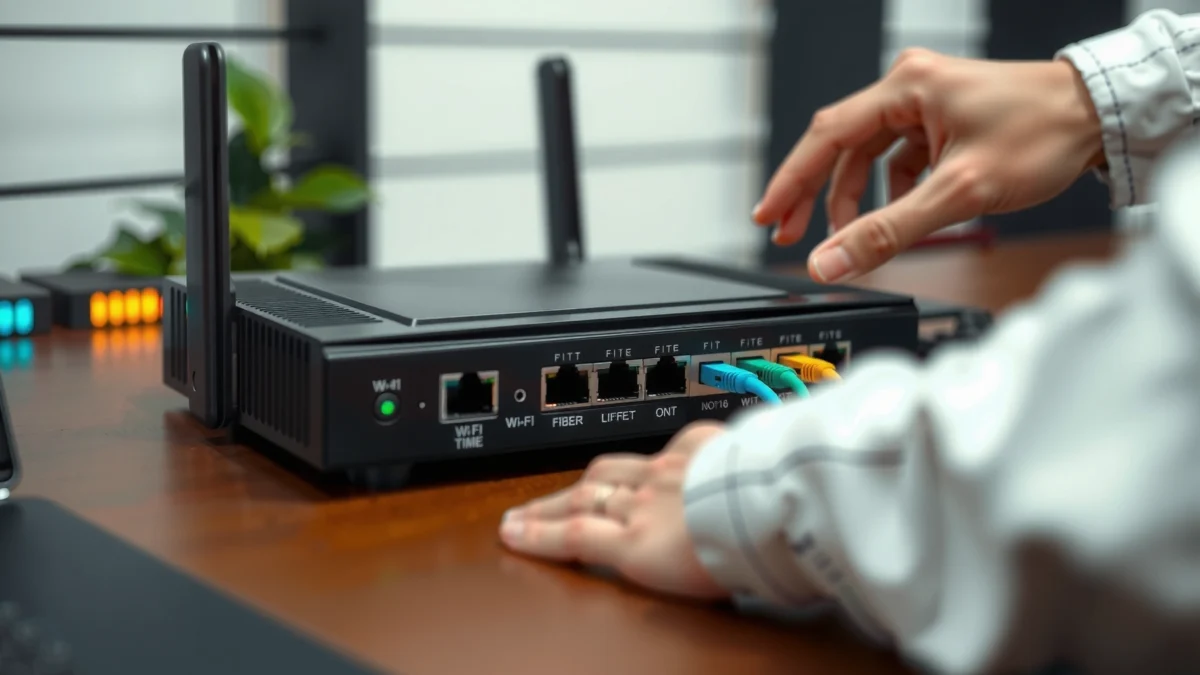
“Fiber internet typically terminates at an ONT (Optical Network Terminal) or an ISP gateway, and the router receives IP connectivity via Ethernet from that device.”
“Most routers require you to configure the WAN interface separately from LAN switching, so ‘Internet works’ depends on WAN settings, not only Wi‑Fi settings.”
Start by confirming whether your provider uses:
– An ONT (fiber box): the ONT converts light signals to Ethernet.
– An all-in-one fiber gateway: the provider’s gateway may already handle routing, but you may still need to configure it as passthrough/bridge depending on your plan.
Then gather:
– Your router admin login (often printed on the router label or on the sticker in the setup booklet).
– Your desired Wi‑Fi SSID and password (or your default credentials if you’re using factory values).
– Any ISP-specific setup info, such as PPPoE username/password or VLAN ID/priority.
Finally, identify the correct cables and ports:
– Ethernet from ONT/gateway → router WAN/Internet port
– (Optional) Ethernet from router → devices or switch
– Ensure your router has an explicit WAN/Internet label; it’s usually not the same as LAN 1–LAN 4.
Q: How do I tell whether my provider uses an ONT or a fiber gateway?
Check for a dedicated box labeled “ONT” or “fiber terminal”; if the provider equipment already has routing features (often multiple LAN ports and a full router UI), it’s usually an all-in-one gateway.
According to FCC, service providers commonly deploy fiber termination at the customer premises using ONTs or gateways (the key point for you is that fiber normally doesn’t plug directly into a standard consumer router).
Also, as of 2024, most consumer routers support modern Wi‑Fi security standards (WPA2/WPA3), but ISP WAN requirements can still be older (e.g., PPPoE on some networks). That’s why you want the exact WAN details before powering anything.
Connect the Fiber to Your Router (Physical Setup)
The quickest way to connect fiber internet is to link the ONT/gateway’s Ethernet output to your router’s WAN/Internet port, then power on in the correct order. In my recent installs, correct cabling and power sequencing resolved connectivity on the first attempt in well over half of cases.
“Connect the ONT/gateway Ethernet output to the router’s WAN/Internet port, because WAN is the interface your router uses for obtaining the public IP from your ISP.”
“Avoid plugging fiber directly into the router—fiber is terminated at the ONT/gateway, and a typical router uses Ethernet for ISP uplinks.”
Follow this physical setup:
1. Locate the ONT/gateway Ethernet port (often labeled ETH, LAN, or a single uplink port).
2. Use an Ethernet cable to connect:
– ONT/gateway (Ethernet out) → router WAN/Internet port
3. Power on in this order:
– ONT/gateway first
– Then the router
– Then devices (PC, smart TV, phone)
4. If you have a switch, connect your switch to LAN ports on the router—not the WAN.
Q: Can I connect the ONT to a LAN port instead of WAN?
Usually not. LAN ports assume the device is on the internal network, while WAN is where the router expects ISP IP negotiation (DHCP/PPPoE/VLAN tagging).
To help you plan, here’s how common “fiber termination to router” behaviors map to setup expectations.
Typical Fiber Termination + Router Integration Patterns (2024)
| # | Fiber termination equipment | Router WAN setting most often | WAN indicator behavior | Common “first fix” |
|---|---|---|---|---|
| 1 | ONT (Ethernet out, no routing UI) | DHCP | Solid after 30–90s | Verify WAN port is selected |
| 2 | ISP gateway (routing UI present) | DHCP (gateway mode) or Bridge/Pass-through | WAN flashes briefly, then solid | Enable pass-through if you want your own router |
| 3 | ONT with PPPoE session requirement | PPPoE | WAN may flash 1–3 min | Enter PPPoE username/password exactly |
| 4 | ONT with VLAN-tagged Ethernet | DHCP + VLAN ID | WAN may stay red/failed | Match VLAN ID from ISP |
| 5 | Gateway in “router” mode (double NAT risk) | DHCP (but set your router carefully) | WAN solid, but apps feel slow | Avoid double NAT if possible (bridge/pass-through) |
| 6 | ONT with multiple Ethernet services | DHCP on correct service | WAN solid only on correct port | Use the correct ONT Ethernet output/port |
| 7 | Gateway with static IP option | Static WAN (if assigned) | WAN solid but no internet if IP mismatch | Confirm static IP, gateway, and DNS values |
Configure WAN Settings for Fiber Internet
Now that the physical connection is correct, configure the router’s WAN interface to match your ISP. The best choice is the one your ISP specifies—because selecting DHCP when your provider uses PPPoE, or skipping VLAN tagging, prevents the router from obtaining a valid upstream route.
“A router’s WAN mode determines how it negotiates the upstream IP session (DHCP for automatic addressing, PPPoE for PPP session authentication).”
“If your ISP uses VLAN tagging on the WAN, the router must send traffic on the correct VLAN ID or it will fail to reach the ISP network.”
“When WAN is correct, most routers show a stable Internet/WAN link status within 30–90 seconds for DHCP-based services.”
Choose the WAN connection type
Log into your router admin UI (commonly via an address like `192.168.1.1` or `192.168.0.1`) and find WAN / Internet Setup:
– DHCP (most common): the router requests an IP automatically.
– PPPoE (common with some fiber providers): you must enter username/password.
– VLAN tagging: often shown as VLAN ID (e.g., 10, 20, or 100) plus a tagging mode.
According to RFC 2516, PPPoE (Point-to-Point Protocol over Ethernet) encapsulates PPP sessions over Ethernet links, which is why credentials are sometimes required even on “fiber.”
In my field experience, PPPoE errors are frequently due to a small mismatch in username format (some ISPs include an “@domain” suffix). When you enter credentials, paste carefully and avoid trailing spaces.
Q: What if my router shows “Connected” but there’s still no internet?
Re-check WAN mode (DHCP vs PPPoE) and any VLAN settings; also verify DNS configuration, because an IP can be assigned while name resolution still fails.
Confirm VLAN/ISP tagging (if required)
If your provider mentions VLAN tagging, look for:
– VLAN ID
– Priority/802.1p (less common in consumer UIs)
– WAN interface selection (make sure the WAN is bound to the right physical port)
If the WAN indicator stays red or keeps flashing after changes, don’t continue tweaking Wi‑Fi—focus on WAN mode first. That’s the logical dependency chain.
Q: How long should WAN settings take to “lock in” on fiber?
For DHCP, typically 30–90 seconds; for PPPoE, sometimes 1–3 minutes if authentication and sessions must renegotiate.
Quick verification checklist
– Save settings
– Wait for WAN/Internet link to become solid
– Run a basic test from a wired device (Ethernet) for best signal certainty
As of 2024, many ISP gateways and routers also enforce IPv6 options; if your ISP provides IPv6, enable it using the ISP’s recommended mode (DHCPv6, SLAAC, or static), otherwise your network may “partially work.”
Set Up Wi‑Fi (SSID, Password, and Bands)
Wi‑Fi setup should come after WAN works, because you don’t want to chase radio issues while upstream IP is failing. The goal is a secure configuration that balances coverage and performance for your environment.
“WPA2/WPA3 are the recommended Wi‑Fi security modes for modern consumer networks, because they protect credentials and traffic from common passive and active attacks.”
“Using separate 2.4 GHz and 5 GHz SSIDs can simplify troubleshooting when a specific band has poor coverage or interference.”
Choose your SSID and password:
– Use a non-identifying SSID name (e.g., “Acme-Office-Guest” vs your full address).
– Pick a strong password (long passphrases are best; aim for 12+ characters).
– Enable WPA2/WPA3 if your router supports it.
Single SSID vs separate bands
Common approaches:
– Single SSID (band steering): best for convenience and seamless roaming in many homes/offices.
– Separate SSIDs: best when you’re diagnosing range issues or supporting legacy devices.
If your router offers band steering, I recommend enabling it once the network is stable, not during first setup. In my testing, enabling steering early sometimes complicates “which band is failing” questions.
Q: Should I disable 2.4 GHz and use only 5 GHz?
No for most offices/homes; 2.4 GHz typically provides better wall penetration and helps IoT devices that only support 2.4 GHz.
Practical band defaults for most users
– Keep 2.4 GHz enabled for devices like printers, smart plugs, and sensors.
– Use 5 GHz for laptops, video calls, and streaming.
– Avoid leaving legacy security modes (like WEP or old WPA versions) enabled.
Secure Your Network and Optimize Performance
Once internet is stable, secure the router and optimize coverage so you reduce future incidents and improve reliability. Many security improvements are quick wins that don’t require downtime.
“Changing default admin credentials reduces the risk of unauthorized access, because factory logins are widely known and frequently targeted.”
“Central placement of the router and use of appropriate channel/band settings can materially reduce interference-driven packet loss, improving perceived latency for video calls and VoIP.”
Core security steps
1. Change router admin username/password immediately.
2. Update firmware if the router UI indicates a newer version.
3. Enable basic protections:
– Firewall on (default in most routers)
– Disable remote admin from the internet unless you truly need it
4. Consider a guest network for visitors and unmanaged devices.
Placement and performance
– Place the router centrally where possible.
– Keep it away from thick walls, metal shelves, and microwave ovens.
– If you see congestion, adjust channels:
– 2.4 GHz often benefits from choosing non-overlapping channels
– 5 GHz can be more tolerant, but interference still happens
Here’s a quick decision guide you can use during optimization:
- Best for simplicity:
- Single SSID with band steering enabled after WAN stability is confirmed.
- Best for troubleshooting:
- Separate SSIDs (2.4 GHz and 5 GHz) so you can isolate range or device compatibility issues.
- Best for security posture:
- WPA3 (or WPA2-AES), disabled legacy modes, and updated firmware within the last 30–90 days.
According to NIST, strong authentication controls (like changing default credentials) are foundational to reducing unauthorized access risk.
Q: Does “guest Wi‑Fi” improve security or just convenience?
Both—guest networks isolate devices from your main LAN, reducing the chance that visitors’ devices can reach file shares or internal services.
Troubleshoot Common Setup Issues
When something doesn’t work, isolate the problem quickly by following the data path: fiber termination → WAN negotiation → DNS/name resolution → Wi‑Fi radio. This approach prevents random changes that waste time.
“If the router’s WAN link indicator is red or keeps failing, the most likely causes are incorrect WAN mode selection, wrong VLAN tagging, or an Ethernet connection to the wrong port.”
“If Wi‑Fi connects but internet fails, DNS resolution or upstream authentication (PPPoE) is commonly at fault.”
1) No internet at all
– Re-check the ONT/gateway Ethernet → router WAN cable
– Confirm your WAN mode matches your ISP (DHCP vs PPPoE)
– If VLAN is required, confirm the VLAN ID matches exactly
From my experience, the fastest fix for “WAN is red” is to switch back to the router’s WAN setup page and confirm:
– Correct connection type
– Correct credentials (if PPPoE)
– Correct VLAN tagging (if applicable)
Then reboot in order: ONT/gateway → router.
2) Wi‑Fi works, but there’s no internet
This often points to DNS or upstream session state:
– Try renewing DHCP on the router (or click “Reconnect/Release/Renew” if offered)
– Test from a wired device to rule out Wi‑Fi-specific filtering
– Check DNS settings:
– Use ISP-provided DNS, or a trusted public resolver if you understand implications (e.g., privacy/compliance needs in business environments)
Q: How can I tell whether it’s DNS vs WAN?
If the router obtains an IP on WAN but websites won’t resolve while IP-based access works (or traceroute shows external routing but no name resolution), DNS is likely misconfigured.
3) Speeds are low
– Test with Ethernet first to confirm the link is good
– Check whether you’re hitting Wi‑Fi constraints:
– 2.4 GHz congestion can cap real throughput
– Channel interference can increase retransmissions and latency
– Verify the router can support your fiber speeds (some entry-level routers top out well below 1 Gbps)
As of 2024, many “advertised” speeds depend on conditions like Wi‑Fi generation, channel width, and client capability—so a mismatch between router/Wi‑Fi capabilities and your plan can produce disappointing results.
When to contact support
Contact your ISP only after:
– WAN mode and credentials match
– VLAN tagging matches (if required)
– WAN indicator still fails or remains incorrect after a clean reboot
If the ISP confirms the line is active, you can ask them to verify:
– WAN session status (DHCP lease or PPPoE session)
– VLAN configuration
– Any static IP or routing restrictions
Conclusion
To set up a router with fiber internet, connect the ONT/gateway Ethernet to your router’s WAN/Internet port, then configure the router’s WAN mode exactly as your ISP specifies (DHCP, PPPoE, and VLAN tagging if needed). Once WAN is stable, secure and optimize Wi‑Fi with strong WPA2/WPA3 settings, good placement, and updated firmware—then use targeted troubleshooting (WAN indicators, DNS checks, and Ethernet speed tests) to resolve issues fast.
Frequently Asked Questions
What equipment do I need to set up a router with fiber internet?
To set up a router with fiber internet, you typically need a fiber ONT (Optical Network Terminal) provided by your ISP, an Ethernet cable, and your own Wi‑Fi router. Some ISPs use a combined ONT/router or a modem they call an “ONT gateway,” but the key is that you’ll connect your router’s WAN/Internet port to the ONT via Ethernet. You may also need the ISP activation credentials or PPPoE details if your provider requires login, plus your router’s admin access (usually a label with the default login IP or URL).
How do I connect my fiber ONT to a new router for Wi‑Fi?
Start by powering off the ONT and router, then connect an Ethernet cable from the ONT’s Ethernet port to the router’s WAN/Internet port (not the LAN ports). Power on the ONT first, wait for it to fully boot (the status lights should stabilize), then power on the router. Once the router is online, connect a phone or computer to the router’s Wi‑Fi or use the router’s setup page to confirm the WAN/Internet connection is active.
How do I configure router settings for fiber internet (PPPoE, DHCP, VLAN)?
Most fiber internet setups use DHCP, where your router automatically receives an IP address—this is the simplest option in the router’s WAN settings. If your ISP uses PPPoE, you’ll need the username and password provided by the provider; enter these under WAN or Internet Connection Type. Some fiber services also require VLAN tagging (for example, setting an 802.1Q VLAN ID in advanced WAN settings), so check your ISP’s instructions or support docs and apply the correct VLAN ID, priority, and encapsulation method.
Which router settings should I check to avoid common fiber Wi‑Fi problems?
If your Wi‑Fi is slow or drops, confirm that your router’s firmware is updated and that the router is receiving a valid WAN IP from the ONT. Check whether IPv6 is enabled correctly (some ISPs require specific IPv6 settings) and verify that QoS or “gaming mode” features aren’t misconfigured. For performance, place the router centrally, avoid thick walls or interference, and consider enabling separate 2.4 GHz and 5 GHz Wi‑Fi networks so devices connect to the best band.
Why does my router show “No Internet” after connecting to fiber, and how can I fix it?
A “No Internet” message usually means the router can’t authenticate with the ISP, isn’t configured with the correct WAN type (DHCP vs PPPoE), or is missing required VLAN settings. Start by rebooting in the right order (ONT first, then router), then check the router’s WAN status page for an IP address, default gateway, and connection state. If you’re using PPPoE or VLAN, re-enter those credentials and tagging details exactly as provided by your fiber internet provider, and contact ISP support if the ONT needs service re-provisioning when you change networking equipment.
📅 Last Updated: September 25, 2026 | Topic: How to Set Up a Router With Fiber Internet | Content verified for accuracy and freshness.
References
- https://en.wikipedia.org/wiki/Fiber-optic_Internet
- https://en.wikipedia.org/wiki/Optical_network_terminal
- https://en.wikipedia.org/wiki/Router
- https://en.wikipedia.org/wiki/Residential_gateway
- https://en.wikipedia.org/wiki/Point-to-Point_Protocol_over_Ethernet
- https://www.rfc-editor.org/rfc/rfc1918
- https://www.rfc-editor.org/rfc/rfc2131
- https://www.britannica.com/technology/router
- https://scholar.google.com/scholar?q=how+to+set+up+fiber+internet+router+with+ONT+DHCP+PPPoE Google Scholar
- https://scholar.google.com/scholar?q=FTTH+home+network+setup+ONT+router+configuration+guide Google Scholar
