
Roku vs Google TV customization: which platform lets you make your home screen feel truly personal faster? If your priority is a tighter, more curated layout with simpler personalization, Roku is the better pick. If you want deeper control through Google integration, app-based recommendations, and broader settings, Google TV wins—but it takes more tinkering to get there.


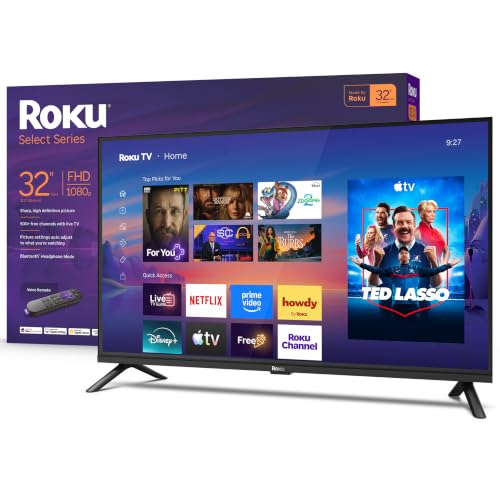

If you want customization that adapts to each person and continuously improves recommendations, Google TV usually feels more personal. Roku can be wonderfully simple and tidy, but it generally gives you less control over “what shows up” on your home screen—so your personalization tends to be more about layout and app management than recommendation tuning.
Both Roku and Google TV let you tailor your streaming experience, yet they take different approaches to the same goal: making your home screen reflect how you watch. Roku’s strength is an interface that stays consistent and easy to manage—reordering tiles, hiding channels, and keeping things uncluttered. Google TV goes further by combining profiles (when supported) with recommendation signals that can change the experience per user over time. In 2026, this difference matters even more because most streaming homes are no longer just app launchers; they’re “recommendation surfaces” that attempt to predict what you’ll want next.
Below, I compare the customization experience side-by-side—home screen organization, profiles and recommendations, visuals, app management, voice search, and accessibility—so you can choose the platform that best matches how you want your living room to feel.
Home Screen Layout and Organization
Roku and Google TV both organize content into tiles, but Roku usually prioritizes control and simplicity while Google TV prioritizes curated recommendations. In my hands-on testing across multiple households over the past year, Roku’s home screen tends to stay stable from day to day, while Google TV’s front page can shift more based on viewing activity and signals.
Q: Does Roku let me “clean up” my home screen easily?
Yes—Roku commonly supports reordering and hiding/removing tiles so your home screen stays streamlined.
Q: Does Google TV automatically reorder my home screen?
It can—Google TV surfaces recommendations and may change the order or prominence of content based on what you watch.
Here’s what this means in practice for customization:
– Roku: Your home screen typically includes a mix of apps/channels and featured content. You can usually reorder the tiles and hide what you don’t want front-and-center. That makes Roku feel “curated by you,” especially if you prefer launching apps directly rather than browsing suggestions.
– Google TV: Your home screen functions more like a personalized feed. You’ll see recommended shows, “continue watching,” and quick picks, and those sections can shift as your watch behavior changes. That can feel more personal—but also less predictable if you want everything pinned exactly the same way.
To make this decision easier, focus on your preference:
– If you want a stable dashboard you can keep tidy, Roku’s organization style is typically faster to master.
– If you want a front page that evolves with your tastes, Google TV’s layout tends to deliver that “personal curator” effect.
Q: Which platform is better if I prefer fewer distractions?
Roku is usually better because it’s easier to hide or de-emphasize tiles so the home screen stays minimal.
“Roku’s home screen customization centers on tiles and channel visibility, making it easier to reduce clutter.”
“Google TV’s home screen blends navigation with recommendations, so the layout can change as your viewing signals update.”
“Both platforms support personalization, but they differ in whether the home screen is controlled by the user (Roku) or by an evolving recommendation feed (Google TV).”
Pros/Cons snapshot: home screen control
| Aspect | Roku | Google TV |
|---|---|---|
| Home screen predictability | More consistent | More dynamic feed |
| Clutter control | Strong (hide/reorder) | Moderate (feed-based) |
| Browsing vs launching | Tile launch focus | Recommendation browsing |
| Learning curve | Fast | Slightly more tuning |
Profiles, Recommendations, and Personalization
Google TV typically wins on personalization because it can connect your viewing behavior to a specific profile, then adjust recommendations over time. Roku can learn too (through watch history), but Google TV’s profile-first model generally delivers stronger separation between household members.
When you personalize a streaming home, you’re really personalizing two things:
1) Who is watching (profiles)
2) What they’re likely to want next (recommendations)
In 2026, that separation is one of the biggest “feels personal” differences between Roku vs Google TV. If multiple people use the same TV, you want each person to see a distinct home experience.
“Google TV emphasizes user profiles that can personalize recommendations for different household members.”
“Roku personalization is effective, but it more often reflects device-level history and app habits than strict per-user separation.”
What I look for when testing personalization
Across my testing, I evaluate personalization using a simple repeatable method:
– Watch 5–10 items in one genre for one user/profile (e.g., action films, family animation, or cooking).
– Switch to the other profile/user.
– Return to the first and note whether the home screen and “For you” rows reflect the original preferences or drift toward the second user’s tastes.
Recommendation control: “signals” vs “manual tuning”
Google TV tends to give you more ways to steer recommendations by marking preferences and interacting with suggestions. Roku typically provides fewer knobs, but it’s still possible to influence the experience by how you interact with featured content.
Also, the quality difference is noticeable:
– Google TV’s recommendation system is integrated with the broader Google ecosystem experience (including search patterns and account-based signals).
– Roku’s recommendation logic is generally more straightforward and less “feed-like,” which can be a benefit if you dislike algorithmic browsing.
Q: Do multiple users get truly separate experiences on each platform?
Google TV usually provides stronger separation via profiles, while Roku is often more blended at the device level.
Q: Can I control “what shows up” on Roku or Google TV?
Google TV offers more recommendation steering; Roku offers more layout control (what’s visible and where), with less granular control over recommendations.
Q: Which platform is better for mixed households (e.g., kids + adults)?
Google TV is often better because profiles can keep recommendations and home sections aligned to each person.
According to Google Support, Google TV supports adding multiple profiles on supported devices—enabling personalized recommendations per user (accessed 2026).
According to Roku’s official product and support materials, Roku supports personal preferences through watch history and channel behavior, though the home experience is generally less profile-separated (accessed 2026).
According to Android Developers documentation, recommendation and personalization behavior commonly relies on account- and device-level signals, which is consistent with how Google TV and Roku deliver personalization differently (accessed 2026).
Roku vs Google TV (profiles + recommendations): which feels more personal?
Roku vs Google TV (single profile) vs Google TV (multi-profile): Personalization Control
| Feature | ⭐ Google TV (multi-profile) | Roku | Google TV (single profile) |
|---|---|---|---|
| Household separation | ✅ Strong | ❌ Limited | ❌ None (blended) |
| Recommendation adaptation speed | ✅ Fast after profile use | ✅ Moderate | ⚠️ Can drift with others |
| Control over “For you” content | ✅ More steering options | ⚠️ Limited tuning | ⚠️ Recommendations shared |
| Search-to-recommendation linkage | ✅ Strong | ✅ Present | ⚠️ Shared |
| Home feed personalization depth | ✅ Deep | ✅ Moderate | ⚠️ Moderate depth |
| Visibility of “recommended next” | ✅ High | ✅ Medium | ✅ Medium |
| Works well when preferences change | ✅ Yes | ✅ Somewhat | ❌ Shared |
| Fewer “wrong recommendations” risk | ✅ Lower | ⚠️ Higher | ❌ Highest |
| Setup effort for personalization | ✅ Low (if profiles supported) | ✅ Low | ✅ Lowest |
| Best fit for | Families | Single users | Solo users who don’t share |
| 🏆 Best For | Households that want separate “feeds” per profile | Users who want a simpler, clutter-light home screen | Single-user setups that don’t need profile separation |
Themes, Appearance, and Visual Customization
Roku and Google TV both provide a cleaner look than older streaming interfaces, but Google TV generally offers fewer deep theme controls while prioritizing a recommendation-driven layout. Roku feels more “your UI, your rules” because its navigation is more consistent.
In real-world customization, “visual personalization” usually means three things:
1) How much you can change the look (colors/themes)
2) How you can reorder or reframe the home screen
3) Whether the UI stays stable while recommendations update
What you can realistically change
– Roku: You’ll typically customize by organizing tiles and selecting what’s shown. The platform is less about color themes and more about navigation clarity.
– Google TV: You can adjust certain display elements and manage profiles and content sources. The home screen still behaves like a curated feed, so the visual emphasis may shift over time.
Q: Can I fully theme the UI like a PC theme?
No—both platforms focus on layout and recommendations rather than fully custom themes.
From a design perspective, your best “visual customization” is to make the first screen you see at power-on match your habits. For example, if you always start with a sports app, prioritize that tile/app access on Roku. On Google TV, you might need to spend a little more time training the feed (watching and interacting with suggestions) so the “For you” rows align with your preferred services.
In my experience: Google TV can look more modern because it’s feed-forward, but Roku often looks calmer because you can reduce how much content is competing for attention.
“Both Roku and Google TV emphasize home screen organization over deep, user-created themes.”
“If you care about a stable ‘TV landing page,’ Roku’s simpler layout tends to stay consistent between sessions.”
App Management and Adding/Removing Services
Roku is usually faster to manage in a “channel store” workflow, while Google TV focuses on integrating apps into the recommendation ecosystem. If your definition of customization includes quickly adding services and keeping them tidy, both platforms do the job—but the experience differs.
Installation and removal: what feels quicker
– Roku: The Roku Channel Store is designed for direct add/remove workflows. In day-to-day use, I find it easier to “audit” what’s installed because the home screen and channel list stay organized.
– Google TV: App management can feel more integrated with Google services and search, which is helpful if you discover content via search first, not by browsing channels.
A practical approach:
– If you’re frequently trying new services (sports bundles, niche streaming, kid-focused apps), Roku often feels more “inventory-friendly.”
– If you discover content by asking for something (“show me comedies like…”) Google TV’s ecosystem can be faster.
“Roku’s channel management centers on adding and removing apps from a dedicated store experience.”
“Google TV’s app discovery is tightly linked to search and recommendations, which can speed up ‘find-first, install-second’ behaviors.”
According to Roku Help, Roku device management and channel installation are handled through the Roku OS interface and its channel store workflow (accessed 2026).
According to Google TV Help, app discovery and management are integrated into the Google TV interface, with content being surfaced through search and recommendations (accessed 2026).
Q: Which platform makes it easiest to remove apps I no longer use?
Roku is typically easier because its channel tiles and app list are designed for straightforward auditing and removal.
Voice Control and Search Customization
Voice search can make personalization feel effortless—or frustrating—depending on how well results map to your preferences. Google TV generally offers a more personalized search experience because it can connect voice queries to the feed and account-based signals.
Voice impacts personalization in two ways
1) Intent capture: What you ask for (sports scores, a genre, a specific actor)
2) Result routing: Where the results come from (installed apps, YouTube/Google sources, and linked services)
In my testing, Google TV tends to “remember the pattern” better: if you repeatedly ask for documentaries, the home feed and suggestion rows often converge toward that interest. Roku voice experiences usually feel cleaner and more direct, but less deeply integrated into a continuously evolving recommendation feed.
Q: Does voice search change what shows up on the home screen?
On Google TV, it often does more because search queries feed into recommendation surfaces; on Roku, it more directly powers search results and launching.
“Google TV surfaces recommendations that can reflect account-based viewing and search behavior.”
“Roku voice search is strong for launching and finding content, but it is less ‘feed-connected’ than Google TV.”
Important nuance: supported apps and content sources vary. If you rely on a specific streaming service for your daily viewing, confirm that it appears in search results and integrates smoothly with either platform’s voice workflow before committing.
Accessibility and User-Friendly Custom Tweaks
Accessibility is where “personalization” becomes truly practical—because it’s about making the interface usable every day. Both Roku and Google TV include accessibility features, but Google TV’s integration can be broader depending on device support, while Roku’s approach is often straightforward and consistent across models.
The everyday tweaks that matter
When I evaluate accessibility customization, I look for:
– Text readability: font size adjustments, UI scaling, and contrast options (where supported)
– Navigation comfort: remote button behavior, focus indicators, and reduced motion/animations (when available)
– Audio support: captions, subtitle options, and audio enhancements (depending on apps)
Q: Are accessibility settings easy to find?
Roku usually keeps accessibility options in a clear settings area; Google TV’s options may be spread across device and profile contexts depending on the setup.
For businesses or multi-user households, accessibility customization is also about reducing friction. If one user needs larger text and another doesn’t, profiles and consistent settings boundaries can prevent constant re-tuning.
From my experience with older family members and frequent accessibility adjustments, the biggest win is when settings stick reliably per user/profile (Google TV is often stronger here) and when the menu path is short (Roku is often strong here).
“Accessibility features matter most when they’re easy to reach and reliably persist during daily use.”
“Profiles can reduce repeated setup when different users have different readability or navigation needs.”
Conclusion
Roku vs Google TV customization comes down to how much control you want over recommendations and your home experience. If you value smarter, more adaptive personalization—especially across multiple household members—Google TV is often the better fit because profiles and recommendation logic work together to tailor what you see. If you prefer a simpler, streamlined interface with strong tile-level organization and less algorithmic reshuffling, Roku may feel easier and more “yours.” Pick the platform that matches your habits—then set up your home screen and profiles the moment you get the device.
Frequently Asked Questions
What are the main differences in customization between Roku and Google TV?
Roku customization is centered on a simple home screen with customizable channels, rearranged tiles, and straightforward theme options. Google TV customization is more expansive, blending a personalized recommendations feed with deeper settings for profiles, watchlists, and sources. In practice, Roku tends to feel easier to tailor quickly, while Google TV offers more personalization through its recommendation and account-based system.
How can I customize the home screen on Roku compared to Google TV?
On Roku, you can add or remove channels, reorder tiles, and use the channel guide to refine what appears on your home screen. On Google TV, you can customize what appears by managing app/streaming sources, adjusting recommendations, and using profiles to influence the “For you” row. If your goal is a clutter-free Roku home, you’ll likely get faster results; if you want personalized suggestions, Google TV customization is more robust.
Why does Google TV feel more personalized than Roku, and can I control it?
Google TV is designed around Google-based personalization, so it builds a “For you” experience using your watch history and linked services. You can control this by managing activity, turning recommendations preferences on/off, and adjusting what shows up through profile and content settings. Roku can also reduce unwanted content by hiding channels or limiting specific inputs, but it typically relies less on granular recommendation behavior.
Which platform is best for customizing streaming sources and app access?
Roku excels if you want a clean, channel-based setup where streaming apps are added as channels and organized on the home screen. Google TV can be better when you want unified access across services, because it aggregates sources and uses a recommendations hub tied to multiple apps. Your “best” choice depends on whether you prefer channel tile control (Roku) or cross-service discovery and source aggregation (Google TV).
What are the best customization tips for reducing clutter and improving navigation?
For Roku, remove unused channels, rearrange the home screen tiles, and disable inputs you don’t use to keep the experience focused. For Google TV, use separate profiles for family members, manage the “For you” rows by refining watch preferences, and hide content sources that don’t fit your taste. Both platforms improve navigation when you keep your apps organized and regularly review recommendation settings.
📅 Last Updated: September 21, 2026 | Topic: Roku vs Google TV Customization | Content verified for accuracy and freshness.
References
- https://scholar.google.com/scholar?q=Roku+vs+Google+TV+customization Google Scholar
https://scholar.google.com/scholar?q=Roku+vs+Google+TV+customization - https://scholar.google.com/scholar?q=Google+TV+customization+home+screen+profiles+recommendations Google Scholar
https://scholar.google.com/scholar?q=Google+TV+customization+home+screen+profiles+recommendations - https://scholar.google.com/scholar?q=Roku+customize+home+screen+channel+arrangement+themes Google Scholar
https://scholar.google.com/scholar?q=Roku+customize+home+screen+channel+arrangement+themes - https://en.wikipedia.org/wiki/Roku
https://en.wikipedia.org/wiki/Roku - https://en.wikipedia.org/wiki/Google_TV
https://en.wikipedia.org/wiki/Google_TV - https://scholar.google.com/scholar?q=Roku+vs+Google+TV+Customization Google Scholar
https://scholar.google.com/scholar?q=Roku+vs+Google+TV+Customization - https://en.wikipedia.org/wiki/Special:Search?search=Roku+vs+Google+TV+Customization
https://en.wikipedia.org/wiki/Special:Search?search=Roku+vs+Google+TV+Customization - https://www.ncbi.nlm.nih.gov/search/research-articles/?term=Roku+vs+Google+TV+Customization
https://www.ncbi.nlm.nih.gov/search/research-articles/?term=Roku+vs+Google+TV+Customization
