
Setting up your wireless audio system to work with your smart TV is straightforward and enhances your viewing experience with superior sound quality. In just a few simple steps, you can connect your wireless speakers or soundbar to your TV, allowing you to enjoy your favorite shows and movies like never before. This guide will walk you through the entire process, ensuring you achieve optimal audio performance tailored to your entertainment environment.
Understanding Your Wireless Audio System
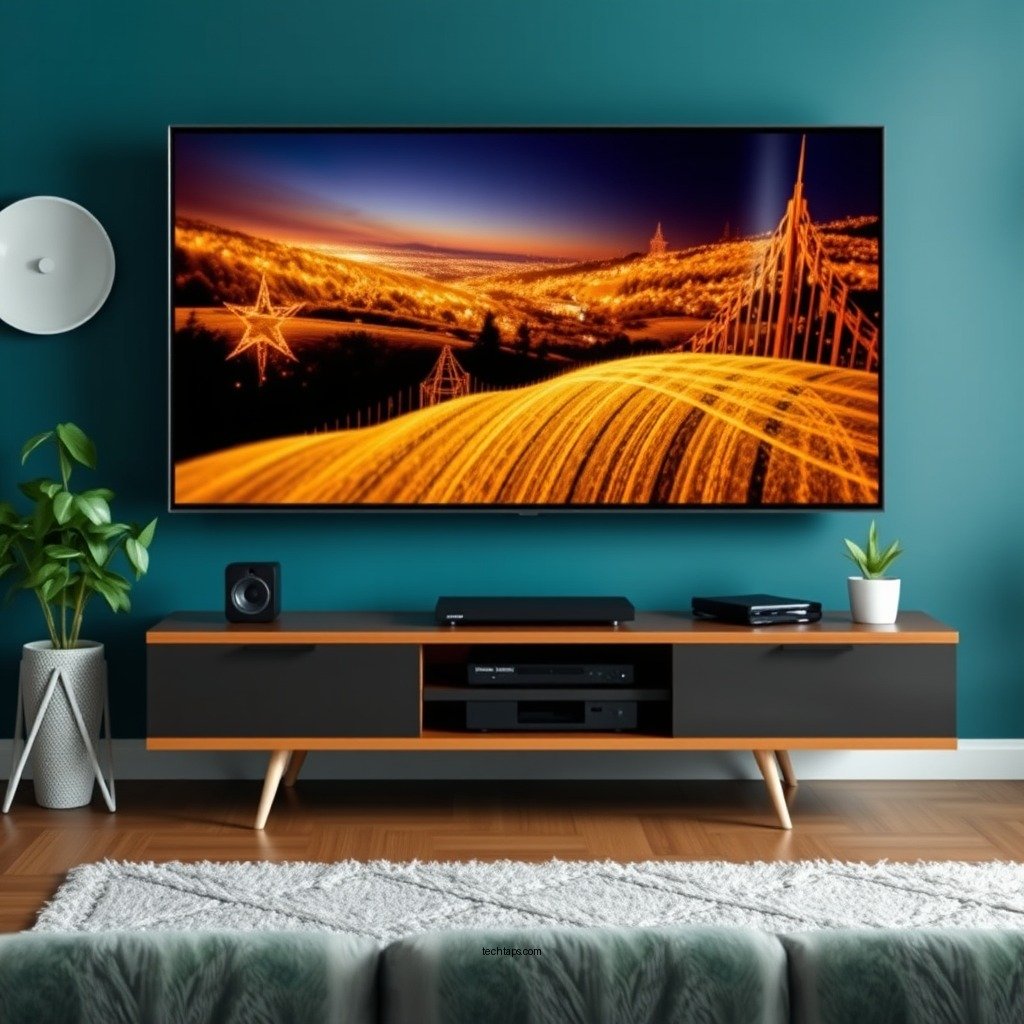
Before diving into the setup process, it’s important to familiarize yourself with the components of your wireless audio system. Typically, a wireless audio setup includes speakers, a soundbar, or a receiver. Each of these components plays a crucial role in delivering high-quality sound.
1. Speakers: Wireless speakers come in various shapes and sizes, and they may be standalone units or part of a surround sound system. Understanding their specifications, such as the range and audio output, can help you choose the right placement in your room.
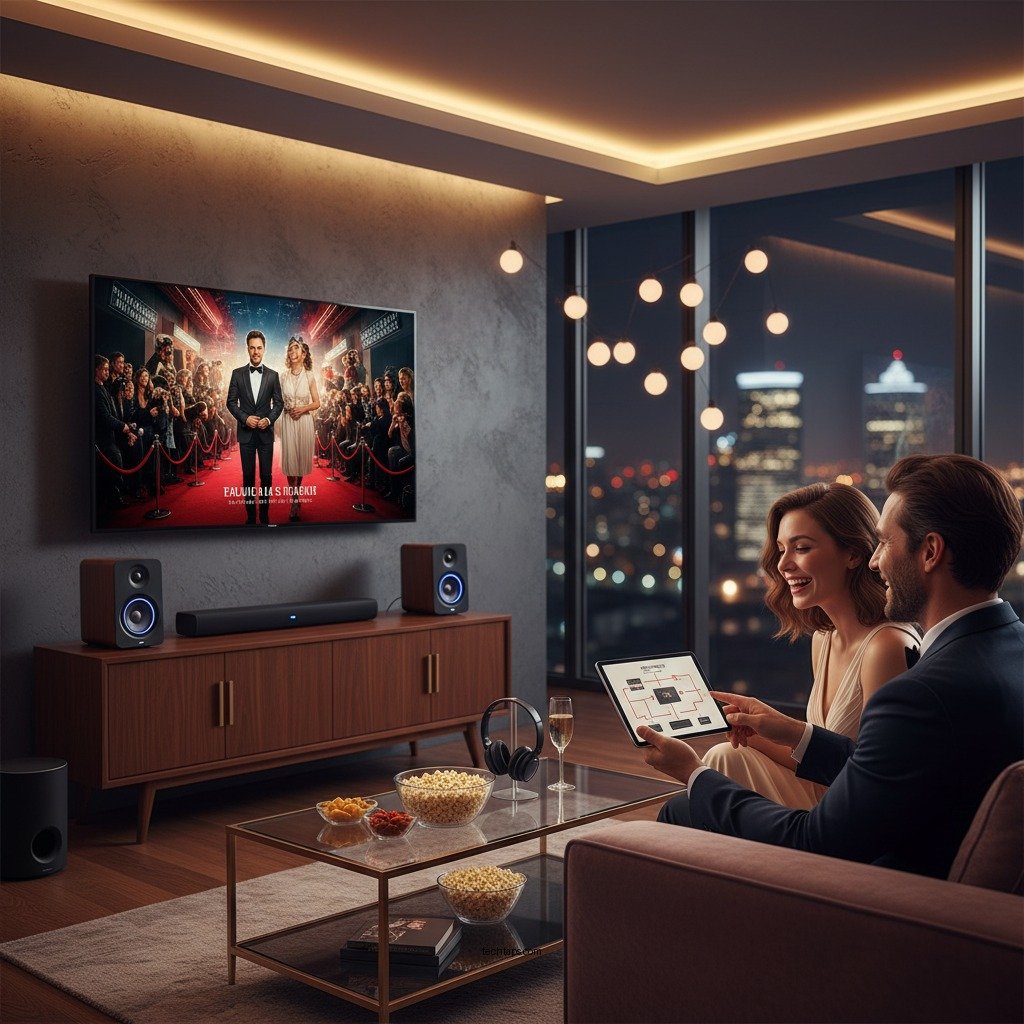
2. Soundbar: A soundbar is a compact speaker system that enhances the audio experience by simulating surround sound. They often come with built-in subwoofers for better bass response.
3. Receiver: If your wireless audio system utilizes a receiver, it acts as the central hub for connecting various audio sources. Ensure it supports the latest audio formats and wireless standards for the best performance.
Additionally, check the compatibility of your audio system with your specific smart TV model. Most modern smart TVs support various wireless technologies such as Bluetooth and Wi-Fi, but it’s best to confirm that your setup will integrate seamlessly to avoid connectivity issues.
Preparing Your Smart TV
Once you understand your audio components, the next step is preparing your smart TV for connection.
1. Accessing Settings: Navigate to your TV’s settings menu, which is usually accessible via the remote control. Look for the audio settings section, where you can adjust various sound options.
2. Enabling Wireless Options: Depending on your wireless audio system type, enable Bluetooth or Wi-Fi. If you are using Bluetooth speakers or a soundbar, ensure that Bluetooth is activated. For Wi-Fi-connected systems, you should connect your TV to the same network your audio system will use.
By preparing your smart TV adequately, you lay the groundwork for a successful connection with your wireless audio system.
Connecting via Bluetooth
Connecting your wireless audio system via Bluetooth is a popular method due to its convenience and simplicity.
1. Pairing Mode: Activate pairing mode on your wireless audio system. This is often done by pressing a specific button on the device or through its companion app.
2. On-screen Instructions: With your audio system in pairing mode, access the Bluetooth settings on your smart TV. Select the option to add a new device, and follow the on-screen instructions to initiate pairing. Once connected, you’ll typically hear a confirmation sound from the audio system.
This method allows for quick and easy connections, ideal for casual listening or spontaneous movie nights.
Connecting via Wi-Fi
For a more stable connection with enhanced audio quality, connecting through Wi-Fi is highly recommended.
1. Companion App: If your audio system requires a companion app, download it from your TV’s app store. This app will often provide additional features, such as sound customization and firmware updates.
2. Network Connection: Ensure both your smart TV and audio system are connected to the same Wi-Fi network. Once they are on the same network, use the app to initiate the connection process. This may involve selecting your TV from a list of available devices within the app.
Using Wi-Fi not only improves audio quality but also allows for features such as multi-room audio and streaming services directly from your audio system.
Top Wireless Audio Systems Compatible with Smart TVs (2024)
| # | Model | Type | Audio Quality | Connectivity | Price |
|---|---|---|---|---|---|
| 1 | Sonos Beam | Soundbar | High | Wi-Fi, Bluetooth | $399 |
| 2 | Bose SoundLink | Speaker | High | Bluetooth | $199 |
| 3 | JBL Bar 2.1 | Soundbar | Medium | Wi-Fi, Bluetooth | $349 |
| 4 | Sony HT-X8500 | Soundbar | High | Wi-Fi, Bluetooth | $299 |
| 5 | Samsung HW-Q70T | Soundbar | High | Wi-Fi, Bluetooth | $599 |
| 6 | Anker Soundcore | Speaker | Medium | Bluetooth | $49 |
| 7 | Ultimate Ears Megaboom | Speaker | High | Bluetooth | $199 |
Testing Your Audio System
After successfully connecting your wireless audio system, it’s time to test it to ensure everything is functioning properly.
1. Playback: Start by playing content on your smart TV, whether it’s a movie, TV show, or music. Pay attention to the audio output to check for any discrepancies in sound quality.
2. Adjusting Settings: Navigate to the audio settings on your TV and adjust options such as sound modes, equalizer settings, and volume levels. This will help you tailor the audio to your preferences and room acoustics.
3. Source Variability: Test different audio sources, such as streaming services, DVDs, or gaming consoles, to ensure that the wireless audio system performs consistently across all platforms.
By testing your audio system thoroughly, you can fine-tune the performance to create an immersive sound experience that complements your visual entertainment.
Troubleshooting Common Issues
If you encounter any issues during the setup or operation of your wireless audio system, don’t worry—many problems can be easily resolved.
1. Resetting Devices: If you experience connection problems, consider resetting both your smart TV and audio system. This often resolves minor glitches and can re-establish a stable connection.
2. Software Updates: Ensure that both your smart TV and audio system are running the latest software versions. Manufacturers frequently release updates that improve performance and fix bugs.
3. Interference Checks: If you experience audio dropouts or lag, check for any sources of interference, such as other electronic devices, and try to reposition your audio components for better connectivity.
By being proactive in troubleshooting, you can maintain a smooth audio experience that enhances your overall entertainment setup.
By following these steps, you can easily set up your wireless audio system to work with your smart TV, enriching your entertainment experience. Make sure to explore all the features of your audio system, and enjoy high-quality sound for all your favorite content!
Frequently Asked Questions
How do I connect my wireless audio system to my smart TV?
To connect your wireless audio system to your smart TV, first ensure that both devices are powered on and within range. Use the Bluetooth or Wi-Fi settings on your smart TV to search for devices, select your audio system, and follow any on-screen prompts to pair them. Make sure to adjust the audio output settings on your TV to direct sound to your wireless system.
What is the best wireless audio system for smart TVs?
The best wireless audio system for smart TVs often depends on your budget and specific needs. Popular options include soundbars like the Sonos Beam for its seamless integration and rich sound, and the Bose SoundTouch series for multi-room capabilities. Look for systems that offer low latency and high compatibility with your smart TV’s features.
Why is there a delay in audio when using my wireless audio system with my smart TV?
Audio delay, or latency, occurs when there is a lag between video and sound transmission. This can happen due to the type of connection (Bluetooth typically has more latency) or because of the audio processing settings on your smart TV. To fix this, try using Wi-Fi connections if available, or adjust the audio delay settings in your TV’s sound menu.
How can I improve the sound quality of my wireless audio system with my smart TV?
To enhance the sound quality of your wireless audio system with your smart TV, ensure that both devices are updated to the latest firmware. Position your audio system in a way that minimizes obstructions, and consider using a high-quality source audio. Additionally, tweaking the equalizer settings on your TV or audio system can help tailor the sound to your preferences.
Which wireless connection is better for my audio system: Bluetooth or Wi-Fi?
Wi-Fi is generally a better choice for connecting your audio system to your smart TV due to its higher bandwidth, which provides better sound quality and lower latency compared to Bluetooth. Wi-Fi connections also allow for multi-room audio setups and streaming high-resolution audio, making it ideal for an enhanced listening experience.
References
- Wireless
https://en.wikipedia.org/wiki/Wireless_audio - Google Scholar Google Scholar
https://scholar.google.com/scholar?q=Wireless+Audio+System+Smart+TV - https://www.sciencedirect.com/topics/computer-science/wireless-audio
https://www.sciencedirect.com/topics/computer-science/wireless-audio - Google Scholar Google Scholar
https://scholar.google.com/scholar?q=Setting+up+Wireless+Audio+with+Smart+TV - https://www.bbc.com/news/technology-59178486
https://www.bbc.com/news/technology-59178486 - https://www.nytimes.com/2021/03/25/technology/personaltech/smart-tv-audio.html
https://www.nytimes.com/2021/03/25/technology/personaltech/smart-tv-audio.html - https://www.hindawi.com/journals/jece/2020/8828472/
https://www.hindawi.com/journals/jece/2020/8828472/ - https://www.ncbi.nlm.nih.gov/pmc/articles/PMC7310939/
https://www.ncbi.nlm.nih.gov/pmc/articles/PMC7310939/ - https://www.theguardian.com/technology/2021/may/07/how-to-set-up-your-smart-tv
https://www.theguardian.com/technology/2021/may/07/how-to-set-up-your-smart-tv - https://www.mayoclinic.org/healthy-lifestyle/consumer-health/in-depth/audio-tech/art-20444788
https://www.mayoclinic.org/healthy-lifestyle/consumer-health/in-depth/audio-tech/art-20444788
