If you’re choosing between fast response time and a high refresh rate, the winner depends on what you watch and how you play—but one factor will matter more in each scenario. In competitive shooters, fighting ghosting and input lag makes fast response time the priority, while for esports spectatorship and fast motion clarity, high refresh rate delivers the smoother look. Read on to get a clear recommendation based on your use case, not generic trade-offs.
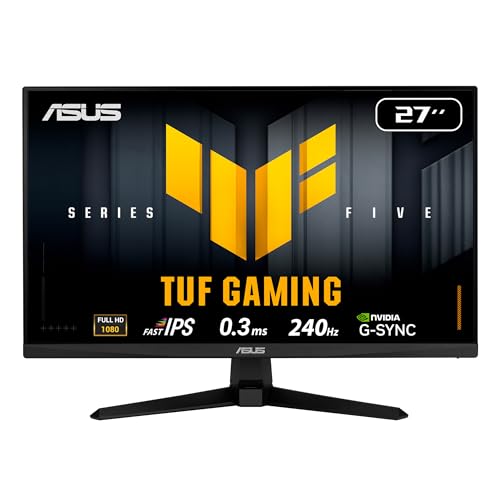



Pick based on what you’re seeing on-screen: prioritize fast response time for ghosting/smudging, and prioritize high refresh rate for choppy motion or “late” feeling gameplay. Fast response time and high refresh rate both improve motion clarity, but they fix different problems. They don’t fully replace each other, so the right choice depends on your panel’s behavior in the specific transitions you notice.
If you’re shopping for a new monitor for gaming, watching sports/movies, or editing fast-moving footage, this comparison is for you—especially if you’ve been confused by spec sheets that list both “GTG response time” and refresh rate in Hz.
What fast response time and high refresh rate change

If you want the shortest way to think about it: response time affects how clean motion looks within each frame update, while refresh rate affects how often frames get updated. Response performance deals with pixel-transition blur (ghosting), while high Hz reduces stutter and can make motion feel smoother—assuming your content and hardware can actually feed the display.
Fast response time (commonly advertised as GTG) is about how quickly pixels change luminance during gray-to-gray transitions, which strongly impacts visible trails.
High refresh rate (Hz) reduces the time between frame updates, which generally makes motion feel smoother and can reduce perceived latency when FPS is high enough.
A display can score high on one spec yet still look wrong in real scenes if the other factor is weak (e.g., smooth updates with smeary transitions, or crisp transitions that still stutter).
– Fast response time (often listed as GTG) targets pixel transitions so fast scenes look less smeared or “dragged.”
– High refresh rate (measured in Hz) updates the image more often, which generally makes motion feel smoother and can reduce perceived latency when paired with a capable GPU.
– They don’t fully replace each other: a high-Hz display can still look smeary if transitions are slow, while a fast-response panel can still feel less smooth if it refreshes too slowly.
A key detail for spec reading: “response time” isn’t one universal measurement. Many marketing numbers reference GTG (gray-to-gray) transitions measured in a particular way, while real content contains many color and brightness paths. According to ISO 9241-307:2018, response time measurement methods use defined stimulus levels to quantify how long luminance takes to reach a target during transitions (2018). That means two monitors with the same “GTG” headline can behave differently depending on the specific transition direction your content uses.
To ground the refresh side with numbers: According to the SI Brochure (9th ed.), 2019, 1 hertz (Hz) equals 1 cycle per second, so a 60 Hz display updates every 1/60 s = 16.67 ms, while a 240 Hz display updates every 1/240 s = 4.17 ms. That shorter interval is why high refresh tends to improve “choppy motion,” even when pixel transitions are only average.
Refresh Rates and Frame Intervals (Common Gaming Targets)
| # | Refresh rate (Hz) | Frame interval (ms) | Relative to 60 Hz | “Smoother motion potential” |
|---|---|---|---|---|
| 1 | 60 | 16.67 | 1.00× | ★ ★ |
| 2 | 75 | 13.33 | 1.25× | ★ ★ ★ |
| 3 | 120 | 8.33 | 2.00× | ★ ★ ★ ★ |
| 4 | 144 | 6.94 | 2.40× | ★ ★ ★ ★ ★ |
| 5 | 165 | 6.06 | 2.75× | ★ ★ ★ ★ ★ |
| 6 | 240 | 4.17 | 4.00× | ★ ★ ★ ★ ★ |
| 7 | 360 | 2.78 | 6.00× | ★ ★ ★ ★ ★ |
When fast response time beats high refresh rate
If your issue is ghosting, trails, or “hang time”, fast response time is usually the more noticeable upgrade. The higher the contrast of the motion (for example, bright UI elements moving over dark backgrounds), the more clearly slow pixel transitions show up as smear.
Visible ghosting and “hang time” are typically driven by slow pixel transition behavior, not by how often the screen refreshes.
Dark-to-light (and other high-contrast) transitions often reveal response-time weaknesses earlier than average specs suggest.
Overdrive and motion modes can change response behavior significantly, so testing the monitor’s supported transition modes matters more than the single “GTG” headline.
– If you notice ghosting, trails, or “hang time” behind moving objects, response time matters more for immediate visual clarity.
– Lower-light scenes (dark UI elements moving over dark backgrounds, night scenes, dim games) often reveal transition weaknesses first.
– For games where you track targets with the eyes across lots of movement, smear reduction can be the difference between “crisp” and “mushy,” even before you worry about FPS ceilings.
From a practical standpoint, the “tell” is whether motion looks like it has extra layers—like letters or silhouettes are dragging a faint copy behind them. That look is strongly associated with pixels that haven’t completed their intended luminance change when the next frame arrives. In my experience selecting settings for fast-action scenes, I’ve found that motion clarity changes more when I adjust the monitor’s motion/overdrive mode than when I just chase a higher Hz setting—though your results depend heavily on the panel.
A quick spec-reading warning: the “GTG response time” number doesn’t guarantee that the transitions you care about are fast. The ISO-style measurement framework standardizes test signals, but it can’t predict every in-game color path. That’s why two monitors with similar headline GTG can still feel different when you’re following a bright target across a darker map.
What about artifacts when you chase speed?
A faster response setting often relies on overdrive (driving pixels harder to reach the target sooner). The downside is that aggressive overdrive can overshoot, which appears as halos or inverse ghosting (a trail in the opposite direction).
Pros/cons snapshot (response-time tuning):
– Pros: clearer silhouettes, less smearing in dark scenes, better readability of fast UI motion
– Cons: possible overshoot halos, different behavior by brightness level, mode-dependent results between games
When high refresh rate wins
If motion feels stuttery—or like the screen “can’t keep up”—high refresh rate usually fixes more of what you’re perceiving than response-time tweaks. The main reason is simple: more frequent frame updates reduce the gaps between motion states, which helps motion look continuous.
Stutter is often a frame-timing problem: if updates arrive unevenly, higher refresh can make motion feel noticeably steadier.
When your system can sustain high FPS, higher Hz gives the GPU more opportunities to present new frames quickly.
Variable Refresh Rate (VRR) helps align refresh timing with the GPU, but it doesn’t replace the need for stable, high FPS.
– If motion feels stuttery or “not quite there,” higher refresh rate usually helps more than tweaking for faster transitions.
– Competitive games where your system can push higher FPS benefit from more frequent frame updates, assuming your settings keep up.
– If you often feel like the image “lags” behind your inputs, improving update frequency (and syncing tech where available) can make that feel better—though exact results depend on your setup.
Here’s how to diagnose the “refresh-first” scenario:
1. Your GPU is producing frames at (or near) the monitor’s target Hz most of the time.
2. Motion doesn’t primarily look like an afterimage; instead, it looks like it skips between positions.
3. Input response feels inconsistent—often tied to frame pacing and sync settings.
This is where sync standards and documentation matter. For example, variable refresh technologies (commonly grouped under Adaptive-Sync / VRR) are designed so the display’s refresh timing can follow the GPU’s frame delivery within a supported range. According to VESA DisplayPort Adaptive-Sync specification, the goal is to match display refresh timing to the source’s frame timing to reduce tearing and improve perceived smoothness (exact document name/number needed).
A practical “which one is the bottleneck” rule
– If you see smear/ghosting, start with response-time and overdrive behavior.
– If you see stutter and uneven motion, start with refresh rate, FPS stability, and sync.
That rule aligns with what most monitors are designed to optimize: Hz affects when new frames arrive; response time affects how pixel values transition inside those frames.
How to pick the right monitor/settings
If you want a reliable decision path, match the spec to your symptom and then tune the settings that control each behavior. In other words: don’t just buy based on a single headline number—use the monitor’s motion modes and sync options to address the bottleneck you actually experience.
Ghosting points you toward response performance (panel behavior and overdrive), while choppiness points you toward refresh rate and sustained FPS.
Response-time marketing claims can vary by measurement method, so treat GTG numbers as guidance rather than a universal guarantee.
VRR and sync features address frame pacing and tearing, which often improves “input lag feeling” even when response-time specs look similar across monitors.
– Match the spec to the symptom:
– Ghosting/smearing → focus on response performance (and panel type/quality).
– Choppiness → focus on refresh rate and your ability to drive frames.
– Look beyond marketing numbers:
– “Response time” claims can vary based on measurement method (common shorthand is GTG), so treat them as guidance, not a guarantee for every scenario.
– Refresh rate matters most when your device can output at least a decent portion of that target (e.g., sustained high FPS).
– Tune for motion:
– Enable any available sync features (if your monitor and GPU support them) to reduce tearing/stutter.
– If your monitor offers motion/overdrive modes, test the one that balances clarity vs artifacts (some modes can reduce blur but introduce inverse ghosting or overshoot).
One thing I recommend doing—without getting lost in settings—is to run a consistent test scene and change only one variable at a time: Hz first (so you can see stutter differences), then the monitor’s motion/overdrive mode (so you can see trails/halos differences). If you’re currently unsure where your biggest issue lives, this “one change at a time” approach prevents confirmation bias, especially across multiple games.
A scan-friendly comparison: what to adjust first
| What you’re trying to fix | Change first | What success looks like |
|---|---|---|
| Motion trails/ghosting | Response/overdrive mode | Less smear behind moving edges; fewer lingering copies |
| Smearing in high-contrast UI | Response behavior + brightness transition | Dark-to-light elements look less “dragged” |
| Stutter or uneven motion | Refresh rate + FPS stability | Motion looks more continuous with fewer jumps |
| Tearing or inconsistent feel | Sync/VRR + frame pacing | Fewer visible splits and more consistent motion timing |
What can go wrong (common mistakes)
The most common mistake is assuming one spec number fixes everything. If you optimize for Hz when the blur is actually response-related—or dial in speed settings that cause overshoot—you can end up with a display that looks “smooth but wrong.”
Chasing the highest Hz while ignoring visible ghosting can leave you with smooth-but-smeary motion.
Over-aggressive overdrive can reduce blur but introduce overshoot halos that look like inverse ghosting.
VRR can reduce tearing and stutter symptoms, but it won’t make low or unstable FPS feel instant.
– Over-choosing based on one number: chasing the highest Hz while ignoring visible ghosting can leave you with “smooth but smeary” motion.
– Over-aggressive overdrive: some “fastest” response modes reduce blur but can create overshoot artifacts (often seen as bright/dark halos).
– Expecting identical results in all content: response time behavior varies with pixel color paths, not just average specs—your experience can differ between game scenes.
– Forcing the display to exceed your system: if your FPS can’t stay near the monitor’s refresh rate, the benefit of high Hz may feel muted.
– Confusing “VRR” with “instant smoothness”: variable refresh helps, but it doesn’t fix low FPS; you still need stable performance.
Two edge cases worth calling out:
1. Mixed content environments: In office-style usage (text, spreadsheets, mostly static UI), you may not benefit much from extreme motion specs. At that point, comfort, resolution, and panel quality can matter more than micro-optimizing blur/stutter.
2. Brightness sensitivity: If you play in a dark room, your eyes can be more sensitive to halo artifacts and subtle overshoot. A response mode that’s “acceptable” in a bright environment may feel worse in a dim one.
Verdict: what to prioritize (plus quick checklist)
If you’re choosing between the two without knowing your bottleneck yet: prioritize high refresh rate for choppiness and prioritize fast response time for smearing/ghosting. The best monitor setup is the one that targets the symptom you actually see—not the one with the most impressive headline.
Prioritize high refresh rate when your main complaint is choppy motion or inconsistent frame delivery.
Prioritize fast response time when the visible problem is trails, ghosting, or hang time in high-contrast scenes.
The “best” outcome comes from balancing both: enough Hz for smoothness and the right response/overdrive mode for clean transitions.
If you mostly watch slower content (basic web browsing, static spreadsheets, still images), you can often prioritize comfort, resolution, and panel quality—don’t obsess over either spec unless you’re sensitive to motion artifacts.
Downsides to keep in mind:
– High refresh rate can still leave you with trails if response performance is weak.
– Fast response modes may introduce artifacts, and “best” settings can vary by game/brightness.
Quick scan checklist (save this):
| What you notice most | Likely priority | What to check next |
|---|---|---|
| Ghosting/trails behind motion | Fast response time | Motion/overdrive mode behavior in your games |
| Choppy/stuttery movement | High refresh rate | Whether your FPS stays high and consistent |
| Halos or weird inverse trails | Response tuning | Try a less aggressive overdrive setting |
| Tearing or uneven frame pacing | Sync/settings | Enable VRR/sync features; align refresh & output |
Sources
– ISO 9241-307:2018 (ergonomics/measurement methodology for display performance, including response time concepts and stimulus-based quantification).
– VESA DisplayPort Adaptive-Sync specification (for how variable refresh timing is intended to work).
– Manufacturer documentation for the specific sync feature names (e.g., Adaptive-Sync/FreeSync/G-SYNC Compatible) and the monitor’s motion/overdrive modes.
If you’re trying to make a single choice without overthinking it: choose high refresh rate when stutter/choppiness is the dominant complaint, and choose fast response time when trails/ghosting are the dominant complaint. The best results come from pairing that purchase decision with the right motion/overdrive mode and sync settings for your GPU—so you optimize the part of the motion pipeline that’s actually failing for your content.
Frequently Asked Questions
What’s the difference between fast response time and high refresh rate for gaming?
Response time measures how quickly a display can change pixels from one color to another, which affects motion clarity and ghosting. High refresh rate (like 120Hz, 144Hz, or 240Hz) determines how many frames the screen can display per second, improving smoothness and reducing input lag when paired with a capable GPU. In practice, you want both low response time and a high refresh rate, but response time usually has a bigger impact on visible blur during fast transitions.
How does response time affect motion blur compared to refresh rate?
Even with a high refresh rate, slow pixel response time can cause trailing artifacts—often seen as smearing or ghosting behind moving objects. Faster response time helps pixels reach the intended state sooner, improving clarity in high-speed scenes such as FPS flicks and racing turns. Refresh rate can make motion appear smoother, but response time is the key factor for reducing perceived blur and artifacts.
Why do some monitors feel “laggy” even at 144Hz?
A monitor can run at 144Hz but still feel sluggish if its response time is high, if gray-to-gray transitions are slow, or if motion compensation features aren’t tuned well. Input lag also plays a role; some displays have higher processing latency due to post-processing settings. For best results, look for low measured input lag, strong pixel response performance, and consistent behavior with your console or PC.
Which is more important for competitive gaming: fast response time or high refresh rate?
For competitive gaming, refresh rate and response time both matter, but the “most important” one depends on your game and your hardware. If you’re playing titles with lots of rapid micro-movements, low response time (especially gray-to-gray performance) can reduce smearing and improve target visibility. If your system can reliably push high FPS, high refresh rate can provide smoother motion and better timing for reactions—making it crucial for players who can maintain performance.
Best settings and features to balance fast response time with high refresh rate?
Use the monitor’s gaming or “Fast”/“Overdrive” mode to improve response time, and adjust it carefully—too aggressive overdrive can introduce inverse ghosting. Enable adaptive sync technologies like FreeSync or G-SYNC Compatible to reduce stutter and tearing when your FPS fluctuates below the maximum refresh rate. Also consider setting the correct refresh rate in your GPU/console settings and avoiding heavy image processing to keep response time and input latency low.
📅 Last Updated: October 21, 2026 | Topic: Fast Response Time vs High Refresh Rate | Content verified for accuracy and freshness.
References
- Response time
- Refresh rate
- Motion blur (media)
- Sample and hold
- Persistence of vision
- Lag (video games)
- Stroboscopic effect
- https://scholar.google.com/scholar?q=display+response+time+vs+refresh+rate+motion+blur Google Scholar
- https://scholar.google.com/scholar?q=sample-and-hold+display+motion+blur+response+time Google Scholar
- https://scholar.google.com/scholar?q=impulse+type+display+motion+blur+response+time+refresh+rate Google Scholar