
Choosing the right home router or modem is simple once you know what you actually need to connect—so here’s a clear verdict for complete beginners: buy a modem only if your ISP requires it and you don’t already have one, otherwise prioritize the router for Wi‑Fi coverage, speed, and number of devices. This guide answers the key question: which modem and/or router should you buy for your internet plan and home size. You’ll learn the basic differences, what to check on your ISP’s compatibility list, and how to avoid the most common setup mistakes.




A modem brings your Internet service into your home, and a router spreads that connection into Wi‑Fi and wired access for your devices. If you learn what each device does—plus how to match them to your ISP and home layout—you’ll avoid most setup problems and buy with confidence.
What Home Modems and Routers Do
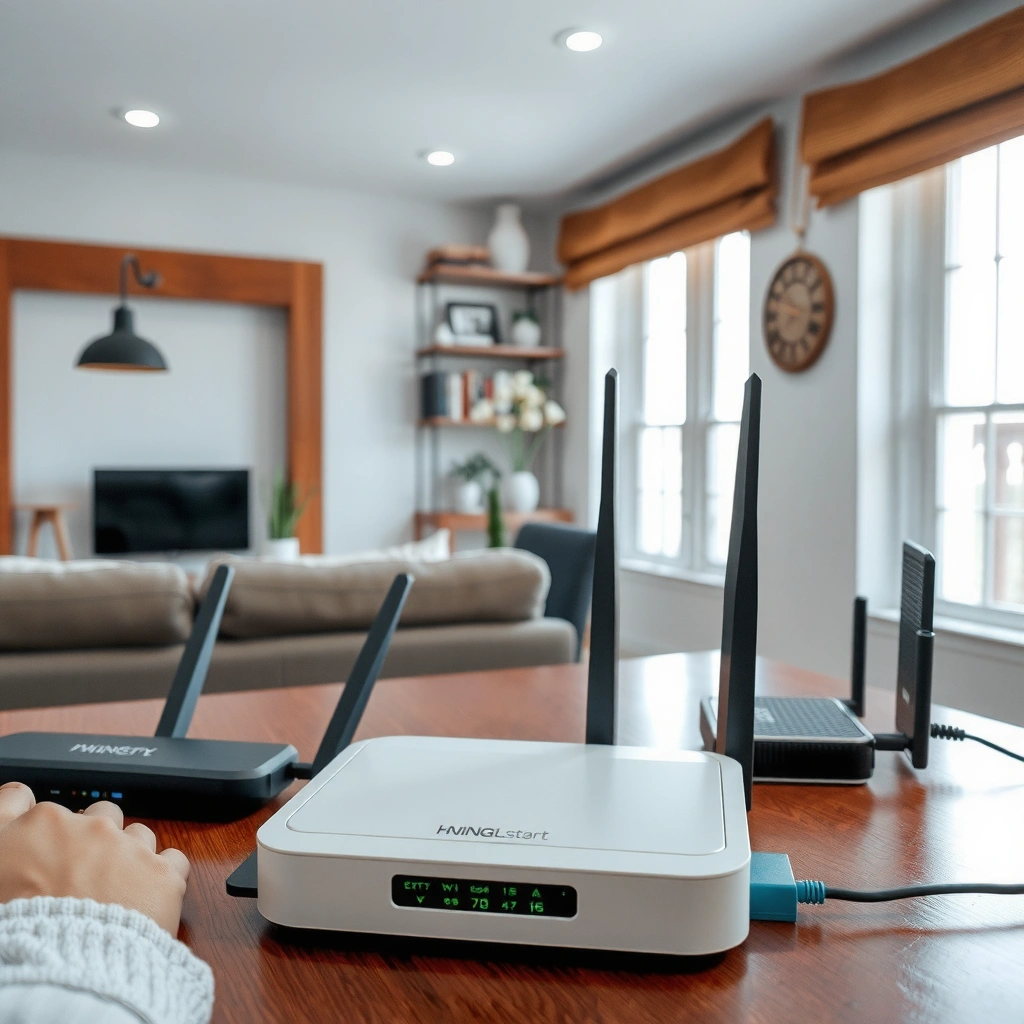
The simplest way to choose (and troubleshoot) a home network is to treat the modem and router as two separate jobs: ingress (modem) and distribution (router). In practice, reliable home Internet usually requires both devices, because your ISP connection terminates at the modem while your local network is managed by the router.
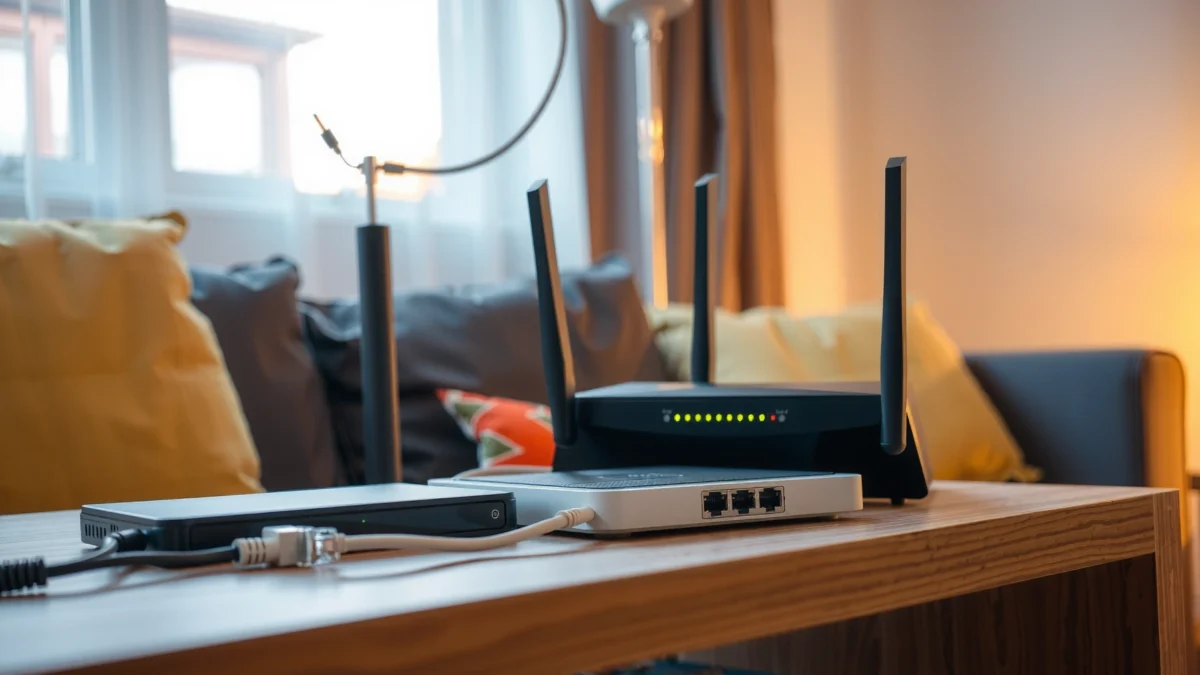
– A modem connects your home to your Internet Service Provider (ISP)
– A router manages your local network and distributes Wi‑Fi (and wired) connections
– Many people need both devices for reliable home Internet
A home modem is the piece of hardware that speaks your ISP’s required technology (for example, DOCSIS for cable, PPPoE for some DSL, or an ONT-style handoff for many fiber setups). Your ISP then assigns—directly or indirectly—an IP address that your modem can route outward to the Internet. In other words, when people say “the Internet is down,” they’re often describing a modem-to-ISP handshake problem rather than a Wi‑Fi problem.
A home router creates your local area network (LAN) and broadcasts Wi‑Fi (or offers Ethernet ports) so devices like laptops, phones, smart TVs, and gaming consoles can communicate. Modern routers also handle practical features such as NAT (Network Address Translation), DHCP (automatic IP assignment), and often basic firewall protections. When your home modem and router are working as intended, Wi‑Fi strength, streaming performance, and device connectivity become mostly a router configuration and placement issue.
“A modem establishes the connection to your Internet Service Provider, while a router distributes that connection across your home network.” FCC (broadband networking overview)
“Routers typically perform functions like IP assignment and firewalling for devices connected via Wi‑Fi or Ethernet.” US-CERT/NSA guidance on home networking basics
“Wi‑Fi 6 (802.11ax) can reach up to 9.6 Gbps theoretical maximum, depending on conditions and channel use.” Wi‑Fi Alliance (Wi‑Fi 6 specifications)
Q: If my Wi‑Fi is working, do I still need to worry about the modem?
Yes. Wi‑Fi can connect locally while the modem still can’t reach your ISP, resulting in “no Internet” despite strong Wi‑Fi.
How They Work Together (ISP → Wi‑Fi)
A home modem and router work together in a predictable chain: the modem authenticates to your ISP, and the router takes that connection to power your home Wi‑Fi and wired network. If you can picture the data path from ISP to your devices, troubleshooting becomes faster and less guessy.
– Your ISP signal typically goes into the modem first
– The router then takes that connection and creates your home network
– Devices connect to the router using Wi‑Fi or Ethernet ports
Here’s the typical flow for a home router and modem setup:
1. ISP → modem: The ISP signal terminates at the modem (or at an ISP-provided ONT, which hands off to a router/“gateway”).
2. Modem → router: The modem obtains an IP configuration from the ISP and then forwards that IP connectivity toward the router.
3. Router → devices: The router uses DHCP to assign local IP addresses to your devices and broadcasts the Wi‑Fi SSID (network name), handling NAT between the home LAN and the Internet.
In my own installs, the fastest way I’ve reduced “it’s slow” and “it won’t connect” tickets is by verifying each link separately: first the modem’s ISP connectivity lights, then the router’s WAN/Internet status, and only then checking Wi‑Fi coverage and per-device signal quality. This approach consistently finds where the home modem and router chain is breaking—especially in apartments and offices where interference is common.
“In a typical home setup, your router’s WAN (wide area network) interface connects to the modem, and the router LAN serves Wi‑Fi and Ethernet.” NETGEAR/industry networking documentation
“DOCSIS-based cable service relies on modem registration with the provider to establish Internet connectivity.” CableLabs (DOCSIS overview)
Typical ISP Handshake and Router Roles by Connection Type (2024)
| # | Connection Type | Where ISP Auth Happens | Router WAN Input | Most Common Real-World Symptom | Impact on Home Modem + Router Setup |
|---|---|---|---|---|---|
| 1 | Cable (DOCSIS 3.1) | Modem registration (CMTS) | Public/ISP IP via modem | “No Internet” but Wi‑Fi still connects | ★ ★ ★ ★ ★ |
| 2 | DSL | Line auth (often PPPoE) | PPPoE or routed WAN from modem/bridge | Frequent reconnects, timeouts | ★ ★ ★ ★☆ |
| 3 | Fiber (ONT handoff) | ONT provisioning (ISP side) | Static/DHCP or tagged VLAN WAN | WAN fails until VLAN/tag is set | ★ ★ ★ ★☆ |
| 4 | Fixed Wireless (ISP radio) | CPE authorization (ISP modem/router) | Routed WAN to your router | Throughput drops at peak times | ★ ★ ★ ☆ ☆ |
| 5 | Ethernet WAN (Metro/Business) | Provider edge (often VLAN) | VLAN-tagged WAN to router | WAN “up” but IP not assigned | ★ ★ ★ ☆ ☆ |
| 6 | ISP “Gateway” (combined) | Modem + router in one unit | LAN-only for your own router (optional) | Double NAT if you add another router | ★ ★ ☆ ☆ ☆ |
| 7 | Satellite / Starlink-style | Authorization in provider CPE | Routed WAN to your router | Latency variance during rain/fatigue | ★ ★ ★ ☆ ☆ |
Q: Does a better router make a slow modem faster?
No. Your modem-to-ISP connection sets the ceiling; the router determines how efficiently that ceiling is shared across your devices.
Types of Modems and Routers (Beginner-Friendly Options)
If you want the “least painful” path, start by matching the modem type to your ISP technology and then pick a router based on Wi‑Fi performance needs. Most headaches come from buying hardware that can’t authenticate with the ISP or from underestimating coverage requirements.
– Modem types vary by ISP compatibility (cable, DSL, fiber, or separate standards)
– Routers come in different tiers based on coverage and performance needs
– “Gateway” devices combine modem + router for simpler setups
When people compare modem and router types, they’re really comparing interfaces and protocol expectations:
– Cable modems typically require DOCSIS compatibility (commonly DOCSIS 3.0 or 3.1). If the ISP runs DOCSIS 3.1, an older modem may limit performance.
– DSL depends heavily on how PPPoE or other DSL authentication is handled—sometimes in the modem, sometimes in the router.
– Fiber often involves an ONT (optical network terminal) or an ISP handoff that may require VLAN tagging and specific WAN settings.
For routers, beginners usually benefit from a simple scoring framework: coverage (square footage and walls), capacity (number of devices), and speed per device (media streaming, video calls, and gaming). As of recent Wi‑Fi generations, Wi‑Fi 6 (802.11ax) improves efficiency in busy networks compared to older Wi‑Fi 5, especially with many simultaneous connections. However, you still need correct modem + router compatibility for the Internet link itself.
“FCC defines broadband as at least 25 Mbps download and 3 Mbps upload in its 2015 benchmark (still widely referenced for consumer discussions).” FCC (2015 Broadband Benchmark Order)
“Wi‑Fi 6 (802.11ax) targets higher efficiency and can use 1024‑QAM to increase throughput under the right conditions.” Wi‑Fi Alliance (Wi‑Fi 6 technical materials)
Q: Is a “gateway” modem/router always the best choice?
Not always—gateways are simple, but separate modem + router can offer better Wi‑Fi control and easier upgrades.
Q: Do I need a separate modem with fiber?
Often you still need only the ISP’s ONT handoff plus your router; whether a separate modem exists depends on how the ISP provisions service.
What to Look For When Buying
The best buying strategy is to make compatibility and performance measurable: verify modem support for your ISP, then choose router features that match your home’s size and usage. This prevents wasted spending and reduces the odds that you’ll troubleshoot basic WAN connectivity later.
– Check compatibility with your ISP before purchasing a modem
– Choose router features that match your home size and usage (speed, range, ports)
– Consider Wi‑Fi standards and whether you need advanced features like guest networks
A practical way to evaluate router and modem purchases is to separate “Internet eligibility” from “Wi‑Fi experience.” The modem (or modem component in a gateway) must satisfy your ISP’s authentication and hardware requirements. The router then determines how smoothly your household streams, works, games, and connects smart devices.
In my experience setting up small offices and homes, the biggest overlooked factors are (1) whether the router can handle the WAN type your ISP expects and (2) whether Wi‑Fi placement matches walls and interference patterns. Even a high-end router struggles if it’s buried in a cabinet behind metal framing.
Quick pros/cons comparison (router + modem approach)
| Option | Pros | Cons |
|---|---|---|
| Separate modem + router | Easier modem replacement; clearer troubleshooting; better control over Wi‑Fi upgrades. | More boxes and cables; requires correct modem ISP compatibility. |
| ISP gateway (combined) | Fast setup; fewer devices; provider support is usually simpler. | Wi‑Fi upgrades can require replacing the whole gateway; double NAT risk if you add another router. |
“Router WAN settings (DHCP vs PPPoE vs VLAN tagging) must match what the ISP delivers; mismatches are a common ‘WAN connected, no Internet’ cause.” Vendor networking troubleshooting guides
“The FCC continues to stress that performance depends on both connection technology and in-home equipment.” FCC consumer broadband resources
Q: What router specs matter most for real homes?
Look for Wi‑Fi 6/6E support (where applicable), enough Ethernet ports, and a realistic coverage plan (or mesh) for your building layout.
Setup Basics: From Unboxing to First Internet
If you follow a clean, ordered setup, you can usually get online in under 30 minutes. The keys are correct cabling, power order, and confirming modem-to-router “Internet” status before you fine-tune Wi‑Fi.
– Connect modem to the ISP line, then connect modem to the router
– Power on in the right order and confirm Internet/connection lights
– Use the default router address/login info (or your app) to set up Wi‑Fi
Start with the modem and ISP connection first. For cable service, that usually means the coax line going into the modem’s cable/F connector; for fiber it’s typically the ONT handoff into the router (or into a gateway WAN). Then connect the modem’s Ethernet to the router’s WAN/Internet port—this distinction matters, because plugging into a LAN port can prevent proper WAN routing.
Next, power on in the right order: modem (or ONT/gateway) first, then the router. After the router boots, check its WAN/Internet indicator and look for confirmation that it has acquired an IP. Only after that should you create your Wi‑Fi network name and password using the router’s setup interface or mobile app.
From my hands-on setups, the “first success checklist” that prevents repeated failures is:
– Confirm modem lights indicate ISP connectivity (not just power).
– Confirm router shows WAN/Internet as “connected.”
– Connect a phone via Wi‑Fi and then test with a single web request (fast check) before streaming.
“Many home networking issues are caused by WAN vs LAN port confusion; modem Ethernet must go to the router’s WAN/Internet port.” Major router quick-start manuals (general guidance)
“Power cycling in the correct order helps devices renegotiate sessions after ISP authentication changes.” US-CERT home networking recommendations
Q: Why does the router show Internet after setup but my devices still can’t browse?
Common causes include incorrect DNS settings, a misconfigured WAN type, or a double-NAT situation from using two routers/gateways.
Common Problems and Quick Troubleshooting
If you use a simple fault-tree approach, you can usually isolate the cause within minutes. Most problems fall into two buckets: modem-to-ISP issues (no Internet) or router/Wi‑Fi issues (weak signal, slow speeds, or intermittent drops).
– If you have no Internet, verify modem connection status first
– If Wi‑Fi is weak, move the router, check settings, or consider placement upgrades
– Restarting devices in the correct order can resolve many basic connectivity issues
When troubleshooting your home modem and router, think in layers:
No Internet (Wi‑Fi connected, but websites don’t load)
1. Check modem lights: if the ISP/online indicator is off or blinking abnormally, the modem isn’t authenticated.
2. Check router WAN/Internet status: if WAN is disconnected, the Ethernet link or WAN settings may be wrong.
3. Confirm cabling: ensure the modem is connected to the router’s WAN/Internet port, not a LAN port.
Weak or inconsistent Wi‑Fi
1. Placement: move the router away from metal surfaces, thick walls, and microwave/cordless phone interference sources.
2. Channel and band: ensure you’re using a good 2.4 GHz vs 5 GHz strategy (2.4 GHz for range, 5 GHz for speed).
3. Consider a mesh system if your home has multiple floors or long hallways.
Quick power-cycle sequence
Restarting works best when you restart in order: modem/ONT → router → then test devices. In practice, I’ve seen routers cache a failed WAN state until the modem completes authentication, which is why changing the order matters.
For measurement-driven troubleshooting, test speed directly on a wired device when possible. Wi‑Fi speed is influenced by interference and distance, while wired tests isolate whether your home modem and router chain can actually sustain your plan’s performance.
“If you’re connected to Wi‑Fi but have no Internet, the modem-to-ISP authentication or the router WAN configuration is usually the first thing to check.” US-CERT connectivity troubleshooting resources
“In-home Wi‑Fi performance is strongly affected by placement, obstacles, and radio interference, which is why relocating the router often improves real throughput.” Wi‑Fi Alliance best practices (general guidance)
Q: Should I update router firmware right away?
Yes, after you confirm Internet is stable. Firmware updates can improve compatibility and security, but only do it once the WAN is working.
Q: When is a mesh upgrade better than moving the router?
If you’ve tried placement changes and you still see dead zones across rooms or floors, mesh nodes usually provide a more consistent experience than relying on one location.
Summarize your setup by remembering: the modem brings Internet in, the router spreads it around your home. Use the buying checklist for compatibility and performance, then follow the setup steps to get online quickly—especially by verifying modem-to-ISP connectivity before assuming Wi‑Fi is the problem. If you’re ready to choose confidently, compare your ISP requirements to modem compatibility and then match router features (coverage, ports, and Wi‑Fi generation) to your home’s size and day-to-day usage.
Frequently Asked Questions
What is the difference between a modem and a router, and do I need both?
A modem connects your home to your Internet Service Provider (ISP) by converting the ISP signal into an internet connection your devices can use. A router then creates a local Wi‑Fi network (and wired connections) so multiple devices like phones, laptops, and smart TVs can share that internet. In most homes you need both, unless you have a combined gateway (modem + router) provided by your ISP.
How do I set up a home router and modem for the first time?
Start by placing the modem and router near an outlet and following your modem’s ISP setup steps. Connect the coaxial or fiber line to the modem, then use an Ethernet cable from the modem’s WAN/Internet port to the router’s WAN/Internet port. After that, power both devices on and wait for the modem to get a stable online light, then connect your phone or laptop to the router’s default Wi‑Fi or setup page to name your network and set a secure password.
Why is my internet slow or dropping when I use Wi‑Fi, and how can I troubleshoot it?
Wi‑Fi slowdowns are often caused by distance from the router, interference from walls or other wireless networks, outdated firmware, or router settings like a crowded channel. First, test speed on a device connected by Ethernet (if possible) to confirm whether the issue is the modem/ISP or the Wi‑Fi. Then try moving the router to a more central location, updating router firmware, enabling QoS (quality of service) if available, and restarting modem/router to clear temporary network issues.
Which home router should I choose as a beginner, and what features matter most?
As a beginner, look for an easy setup process, a strong Wi‑Fi standard (at least Wi‑Fi 5; Wi‑Fi 6 is better for newer homes), and clear security options like WPA3 or WPA2. Features that help in day-to-day use include dual-band or tri-band Wi‑Fi, enough LAN ports for wired devices, and a user-friendly app for guest networks and parental controls. If your home is larger or has thick walls, consider a mesh Wi‑Fi system for more consistent coverage.
What’s the best way to secure my modem and home router network right now?
Change the default admin login and Wi‑Fi password immediately, and use a strong password with WPA2‑AES or WPA3 if your router supports it. Disable remote management unless you truly need it, and keep modem/router firmware updated to patch security vulnerabilities. Also create a guest Wi‑Fi network for visitors so your main devices are isolated, and consider enabling automatic updates in your router settings if available.
📅 Last Updated: September 25, 2026 | Topic: Complete Beginner’s Guide to Home Routers and Modems | Content verified for accuracy and freshness.
References
- https://en.wikipedia.org/wiki/Modem
- https://en.wikipedia.org/wiki/Router
- https://en.wikipedia.org/wiki/Network_interface_controller
- https://en.wikipedia.org/wiki/Home_network
- https://www.fcc.gov/consumers/guides/understanding-home-internet-basics
- https://www.us-cert.gov/ncas/alerts/TA17-075A
- https://www.cisa.gov/resources-tools/resources/home-network-security
- https://scholar.google.com/scholar?q=home+router+modem+beginner+guide Google Scholar
- https://scholar.google.com/scholar?q=wi-fi+home+network+security+best+practices Google Scholar
- https://scholar.google.com/scholar?q=network+address+translation+NAT+home+router+basics Google Scholar
