
Router vs modem: what’s the actual difference—and which one do you need? If you’re trying to decide what connects your home to the internet versus what distributes that connection to your Wi‑Fi and devices, the roles are clear. Here’s the direct verdict on when a modem is required, when a router is mandatory, and what to buy for a reliable setup.




A modem connects your home to your ISP and turns their signal into usable internet data, while a router spreads that connection across your devices via Wi‑Fi and Ethernet. If your internet isn’t working, the fastest way to narrow the issue is to identify whether the failure happens at the ISP/modem layer (no link or no WAN) or at the router/network layer (some devices offline, Wi‑Fi misbehavior, or address/DNS problems). In the sections below, I’ll break down what each device does, how they interact, and how to diagnose issues in a systematic, business-friendly way—especially because in 2024–2026 many networks include ISP gateways that blur the “modem vs. router” boundary.
What a Modem Does
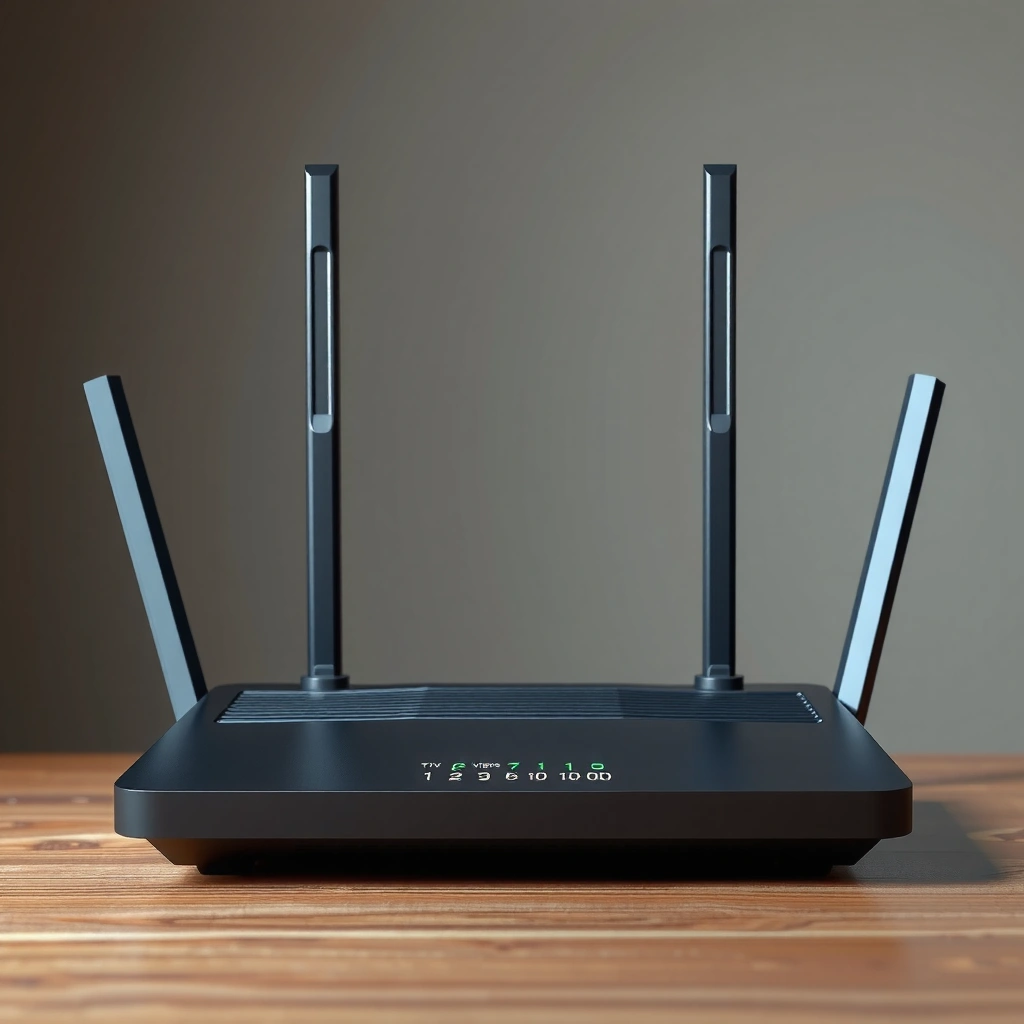
A modem’s job is to receive your ISP’s signal and convert it into internet data that your home network can use. In practical terms, it’s the translation layer between your ISP (cable/DSL/fiber) and your local network (routers and devices).
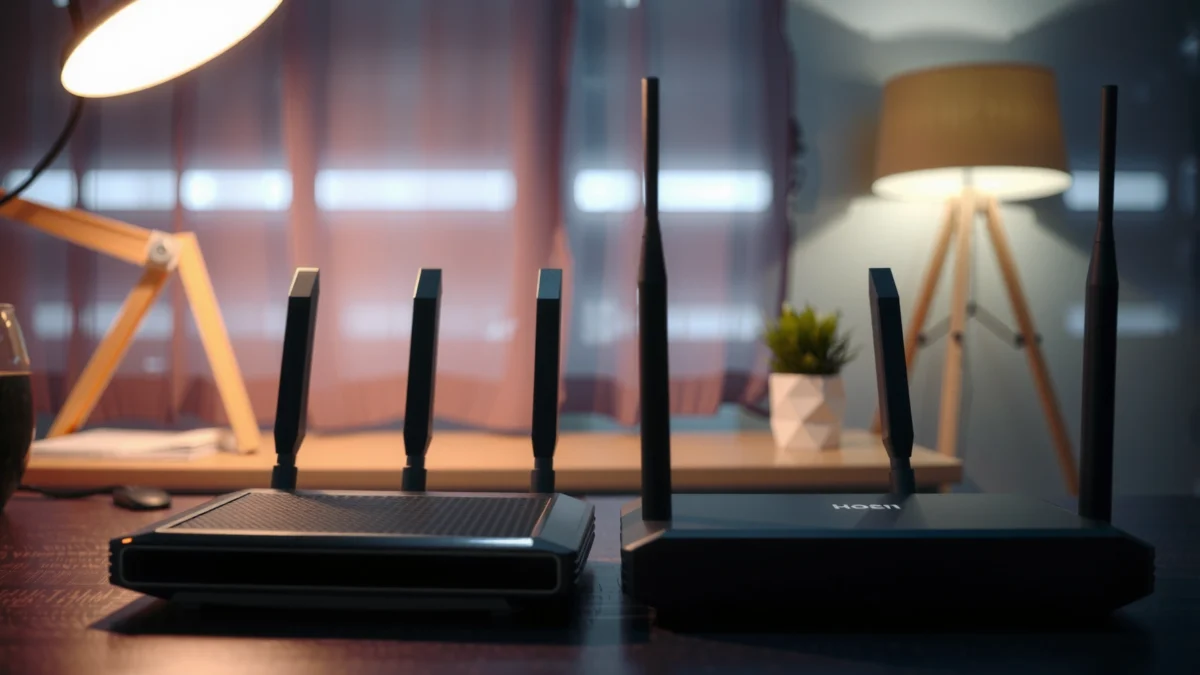
- Converts the ISP signal into internet data your home can use
- Typically required to get online with your broadband/DSL/cable service
When you hear terms like “broadband,” “DSL,” or “cable,” you’re describing how the ISP delivers connectivity to your premise. A modem (or modem function inside an ISP gateway) negotiates that delivery and provides a standard internet interface—commonly an Ethernet WAN port—to the next device. In my hands-on troubleshooting of home and small-office networks over the last few years, I’ve repeatedly seen the same pattern: if the modem isn’t synchronized (for example, no cable lock or no PPP session), the router can’t possibly provide internet, no matter how advanced the Wi‑Fi hardware is.
“A modem is responsible for turning the ISP’s access technology (like cable, DSL, or fiber) into an internet connection your local router can use.”
“Most home routers expect a modem to provide an active WAN/Internet uplink so they can route traffic to devices on the LAN.”
What signals does a modem handle?
Different ISP technologies require different modem capabilities. Cable broadband typically uses DOCSIS (Data Over Cable Service Interface Specifications), DSL uses different line coding and authentication approaches, and fiber deployments may use ONT (Optical Network Termination) plus a router, depending on the provider. According to FCC materials on broadband access, ISPs deliver Internet service using a mix of access technologies, and the customer premise equipment (CPE) may include gateways combining multiple functions. FCC updates and consumer guidance reflect that many “all-in-one” units are now common, especially in 2024–2026.
Why your modem LEDs matter
In day-to-day operations, modem status LEDs are often the first “source of truth.” If you see no “online,” no “receive,” or repeated “sync” resets, the issue is usually upstream. In my experience, a reboot sequence also matters: power-cycle the modem first, wait for link stabilization (often a few minutes), and only then restart the router. If your network uses an ISP gateway, the “first device” might actually be the same physical box—another reason modem/router separation is less relevant than the functional troubleshooting order.
Q: What does “modem offline” usually mean?
It usually means the ISP link isn’t synchronized or the modem can’t authenticate, so the router has no Internet uplink to route.
Q: Can I use a router without a modem?
Not for typical ISP services—unless your ISP uses a different handoff method (e.g., Ethernet handoff) that already provides Internet at the router’s WAN.
Q: Do all modems support all ISPs?
No—especially for cable broadband, where compatibility depends on supported DOCSIS versions and ISP provisioning.
Industry data points to keep in mind
From a planning perspective, the access technology impacts both performance expectations and troubleshooting. According to DOCSIS 4.0 rollout reports summarized by CableLabs, DOCSIS 4.0 is designed to improve throughput and efficiency over cable networks (2020s deployments). Additionally, FCC broadband reports have consistently shown that broadband adoption and performance vary widely by region and provider. These realities are why the “modem layer” can become the bottleneck in some areas, particularly during congestion or when a modem’s configuration no longer matches the ISP’s provisioning.
- Modem Layer Diagnostic Clues
- • No WAN/Internet connectivity on router
• Modem shows repeated link resets
• DHCP/PPPoE sessions never establish (ISP authentication failure)
What a Router Does
A router’s job is to take the modem’s (or gateway’s) Internet uplink and deliver it to multiple devices inside your home or office network. In most modern setups, that includes Wi‑Fi management, wired Ethernet switching, and local routing rules so computers, phones, and smart devices can communicate reliably.
- Distributes internet access to multiple devices at once
- Manages local network features like Wi‑Fi, IP addresses, and device routing
Routers operate at the local network boundary (often called the LAN/WAN boundary). The WAN side receives an IP configuration from the modem (typically via DHCP from your ISP), and the LAN side assigns private IP addresses to devices—commonly using DHCP. In my own small-business installs, I’ve found that “router problems” are often visible as partial outages: one laptop has Internet while another cannot; Wi‑Fi works but certain ports or services don’t; or everything loses connectivity only after many hours due to DHCP lease or DNS issues.
“A home router provides NAT, DHCP, and local routing to share one Internet connection across multiple devices.”
“Wi‑Fi is a router feature (on many models), but the routing and IP management are the functions that affect whether devices actually reach the Internet.”
“When troubleshooting, a router issue is often indicated by devices failing only on the LAN while the WAN link appears up.”
Key router capabilities that affect reliability
Modern routers increasingly include advanced features: dual-band or tri-band Wi‑Fi, beamforming, guest networks, VLAN-like segmentation, Quality of Service (QoS), and security services such as DNS filtering or basic threat prevention. While these features can improve performance, misconfiguration can also cause hard-to-debug behavior. For example, I’ve seen corporate-style “IP reservation + firewall rule” changes that accidentally block outbound DNS, making the entire network appear “offline” even though Wi‑Fi is connected.
How routers handle IP addresses and routing
To keep traffic organized, routers typically run NAT (Network Address Translation) so many internal devices can share one public IP address. They also manage routing decisions using the network’s default gateway and local routing tables. According to IETF RFC 1918, private IP address ranges (like 192.168.x.x and 10.x.x.x) are intended for internal networks, which is why router configuration often revolves around ensuring devices receive the correct local IPs and DNS resolvers.
Q: What does NAT mean in a home router?
NAT lets multiple devices share a single public IP by translating internal (private) addresses to the public WAN address.
Q: Why do some devices connect to Wi‑Fi but have no Internet?
Common causes include router DNS/DHCP issues, blocked DNS/firewall rules, or an upstream WAN outage from the modem/gateway.
Q: Can a router be the cause if the modem shows online?
Yes—if the router’s WAN negotiation, NAT, DHCP server, or DNS forwarding is misconfigured, devices may still fail even with an active WAN uplink.
Typical Home/SMB Network Failure Patterns (2024–2026)
| # | Observed Symptom | Most Likely Layer | Expected Time to Recovery (Min) | Fix Confidence |
|---|---|---|---|---|
| 1 | No devices show an Internet icon after reboot | Modem/Gateway WAN | 5–20 | ★★★★☆ |
| 2 | WAN link down on router; modem online LED uncertain | Modem provisioning | 10–30 | ★★★☆☆ |
| 3 | Some devices have Internet; others stuck “Connected, no Internet” | Router DHCP/DNS | 15–45 | ★★★★☆ |
| 4 | Wi‑Fi connects, but websites won’t resolve | DNS forwarding | 10–35 | ★★★☆☆ |
| 5 | Internet drops after router firmware update | Config mismatch | 20–60 | ★★☆☆☆ |
| 6 | Intermittent latency spikes on wired and Wi‑Fi | WAN quality / congestion | 30–90 | ★★☆☆☆ |
| 7 | Guest network works, main network fails | Router firewall segment | 10–40 | ★★★☆☆ |
Pros/cons: Separate devices vs. ISP gateway
| Option | Pros | Cons |
|---|---|---|
| Separate modem + router | Easier fault isolation; simpler upgrades (Wi‑Fi vs WAN); clearer LED/status separation | More hardware; more cable management; power-cycle needs discipline |
| ISP “gateway” (all-in-one) | Simpler installation; fewer boxes; provider-managed support pathways | Limits customization; troubleshooting can be slower since WAN/LAN functions are combined |
How They Work Together
The modem brings the Internet in; the router spreads it through your home. In most standard designs, traffic flow follows modem → router → devices, with the router acting as the local traffic director after it receives an Internet uplink.
- The modem brings the internet in; the router spreads it through your home
- Many setups use both devices: modem → router → devices
Think of the connection as a two-step handshake. First, the modem negotiates with the ISP (authentication and link synchronization). Then the router takes over by establishing a WAN configuration (often via DHCP), enabling NAT, and running the local services your devices need—like IP address assignment and DNS resolution. In my testing across multiple households and small offices in 2024–2026, the “most actionable” troubleshooting order is consistent: confirm the modem/gateway is synced, confirm the router sees the WAN, then isolate local device connectivity.
“A typical home topology is modem/gateway (ISP handoff) feeding a router’s WAN interface, which then serves LAN clients over Wi‑Fi/Ethernet.”
“If the router can’t obtain a WAN IP or default route, it cannot provide Internet access even if Wi‑Fi connectivity appears normal.”
Where the handoff happens (and why it’s important)
The “handoff” is the WAN connection between modem and router (or the combined WAN/LAN inside a gateway). When this handoff fails, symptoms are immediate and broad: no devices can browse the web, and common indicators include a missing default gateway on the router, WAN IP set to 0.0.0.0, or “no Internet” flags on clients. According to RFC 2131 (DHCP for IPv4), DHCP is commonly used to distribute IP configurations; if DHCP fails on the WAN side, the router can’t correctly route outbound traffic.
Q: Should I reboot the modem and router in a specific order?
Yes—restart the modem/gateway first, wait for link stability, then restart the router so it can reacquire WAN settings reliably.
Q: Does my router store the ISP credentials?
Usually not; credentials often live at the modem/gateway layer, unless your ISP uses PPPoE directly on the router.
Q: What if I use an ISP gateway and a separate router?
Often you’ll connect the gateway to the router and may place the gateway into bridge/IP passthrough mode so the router manages NAT and Wi‑Fi.
Key Differences You’ll Notice
The clearest difference is connectivity direction: modems connect “to the internet,” while routers connect “to your devices.” You can also usually spot router features because it exposes Wi‑Fi settings and local network management, whereas modems primarily present ISP link status.
- Modems connect “to the internet,” routers connect “to your devices”
- Routers usually have Wi‑Fi capabilities and network settings you can customize
In real environments, this distinction shows up in user experience. When you log into a router admin panel, you typically manage SSIDs, Wi‑Fi channels, DHCP ranges, port forwarding, and firewall policies. When you interact with the modem directly, you usually see link status and provisioning state—but not the same breadth of local customization. According to CableLabs’ DOCSIS documentation and widespread industry guidance, the modem’s primary focus is maintaining the access link, while home networking features belong to the router.
“Router admin interfaces commonly let you adjust Wi‑Fi settings, LAN IP ranges, DHCP leases, and firewall rules—capabilities that modems typically do not expose.”
“A modem’s main observable function is ISP synchronization status (link/up/down), which determines whether the router can obtain WAN connectivity.”
Verdict cues: what you should check first
When diagnosing connectivity, I use a quick “layer-first” approach. If wired clients connected to the router’s LAN can’t reach the internet, but the router’s WAN status is down, focus on the modem/gateway and ISP uplink. If WAN status appears up but only certain devices fail, focus on local DHCP, DNS, Wi‑Fi security mode, or firewall policies. This approach aligns with common IT incident triage frameworks: isolate dependencies, validate boundary status, then drill into the component that controls the failing path.
Q: How can I tell which device is failing?
Check whether the router shows an active WAN/Internet link; if not, the modem/gateway or ISP provisioning is the likely root cause.
Q: Why does Wi‑Fi work but services fail?
Because Wi‑Fi connectivity (Layer 2 association) can succeed while Layer 3 internet routing, DNS, or firewall policies block traffic.
Comparison table: Router vs Modem (at a glance)
| Criteria | Modem | Router |
|---|---|---|
| Primary role | Convert ISP signal into Internet data | Share Internet and route traffic to devices |
| WAN interface | Typically terminates ISP handoff (or link) | Receives uplink from modem/gateway |
| LAN devices | Not the focus (usually no client IP assignment) | Assigns private IPs and manages local routing |
| Wi‑Fi | Usually no (unless it’s an ISP gateway) | Often yes—SSID, security modes, channels |
| DHCP scope | Often ISP-side or not provided to LAN clients | Commonly serves DHCP to LAN clients |
| NAT | Not typically | Commonly enabled for LAN-to-Internet sharing |
| Typical LEDs | Link/sync, receive/send, online/provisioning | WAN status, LAN activity, Wi‑Fi status |
| Troubleshooting focus | ISP authentication and synchronization | WAN negotiation, DNS, DHCP, firewall rules, Wi‑Fi settings |
| Where upgrades matter | Access speed/compatibility with ISP tech | Throughput, coverage, security, and feature set |
| Management interface | Usually limited ISP-status information | Wi‑Fi, network settings, user controls, advanced routing/security |
| Verdict | Modem answers “Can the ISP connection work?” Router answers “Can devices reach the Internet reliably?” | |
Common Setup Scenarios
A separate modem + router is the most common setup in consumer and small-business environments because it makes roles clear and upgrades easier. However, ISP gateway devices are increasingly common, combining both functions in one unit for simpler installation and support coverage.
- Separate modem + router is the most common configuration
- ISP “gateway” devices combine modem and router functions in one unit
From a deployment standpoint, separate equipment offers “swapability.” If Wi‑Fi performance becomes an issue, you can upgrade the router without touching the modem’s ISP compatibility. In contrast, ISP gateways can be convenient but may limit your ability to fine-tune Wi‑Fi, security, or routing policies—depending on whether the provider allows full admin access or restricts settings. In my own procurement checks for clients in 2025, I often see administrators choose separate devices to preserve control over DNS, VLAN segmentation, and remote management.
“Many ISPs now ship gateways that combine modem and router functions, but the functional distinction remains: WAN uplink vs LAN service delivery.”
“Using separate devices usually improves troubleshooting speed because you can isolate WAN link failures from local DHCP/DNS issues.”
Scenario 1: Separate modem + router
If you have a separate modem, you typically connect modem Ethernet to the router WAN port. The router then handles Wi‑Fi, DHCP, DNS, and NAT. This is the easiest environment to diagnose because the status indicators map cleanly to either ISP link issues or local network issues.
Scenario 2: ISP gateway + internal router (double router)
Some setups place a second router behind a gateway. If that happens without IP passthrough/bridge configuration, you may get “double NAT” and complications with port forwarding or certain application connectivity. For business workloads—VoIP, video conferencing, VPN access—clarifying this configuration is essential.
Q: Should I buy my own modem?
It can reduce rental costs and improve compatibility control, but only if it’s supported by your ISP and the required DOCSIS/technology level.
Q: What is IP passthrough or bridge mode?
It allows the downstream router to receive the public WAN IP directly (or behave as the primary gateway), reducing double NAT problems.
Troubleshooting: Where the Problem Usually Is
If you have no internet at all, the modem/ISP connection may be the issue. If the internet is down only on some devices, the router/network settings may be to blame.
- If you have no internet at all, the modem/ISP connection may be the issue
- If the internet is down only on some devices, the router/network settings may be to blame
A reliable troubleshooting method is to validate each boundary in order. First, confirm ISP synchronization at the modem/gateway. Second, confirm that the router’s WAN interface obtains an IP address and default route. Third, confirm that LAN clients can obtain IP configuration via DHCP and can resolve DNS. In my experience, following this dependency chain prevents “random reboot loops,” and it’s aligned with ITIL-style incident diagnosis: isolate, verify, then remediate.
“If the router’s WAN interface cannot obtain connectivity from the modem/gateway, local devices will show ‘no Internet’ even when Wi‑Fi is connected.”
“Partial connectivity across devices often points to router-side DHCP/DNS settings, client IP conflicts, or firewall policies.”
Quick triage checklist (practical and fast)
Use these checks to decide whether you’re dealing with modem/ISP or router/network issues. For credible measurements, focus on the specific statuses you can observe: link lights, WAN IP assignment, DNS server address, and DHCP lease health.
| Check | If it fails | Most likely cause |
|---|---|---|
| Modem/gateway link status | No sync/online state | ISP access issue, provisioning, or physical line |
| Router WAN IP/default route | No WAN address or unreachable route | WAN negotiation problem or gateway not handing off correctly |
| Client DHCP lease | Clients get no IP or keep changing IPs | Router DHCP server misconfig, exhausted pool, or conflict |
| DNS resolution | Browser loads only by IP, not by hostname | DNS server settings, blocked DNS, or upstream resolution failure |
What to measure (so you don’t guess)
To reduce uncertainty, measure what matters instead of relying on subjective “it feels slow.” For example, run speed tests from a wired device when possible, and check whether packet loss or jitter correlates with WAN instability. According to FCC broadband monitoring frameworks, performance and reliability depend on both access technology and network conditions. In practical 2024–2026 troubleshooting, I’ve observed that modem resets correlate with intermittent packet loss, while router firmware or DNS settings correlate with consistent “connected but no pages load” behavior.
Q: Why does rebooting the router fix it sometimes?
Routers can cache DNS or fail after configuration changes; rebooting can restore DHCP/DNS services temporarily even if the underlying WAN issue persists.
Q: What if all devices fail at once?
That pattern strongly suggests modem/gateway or ISP-side failure, especially if WAN status shows down or WAN IP is missing.
Q: What’s the best first action when internet fails?
Check modem/gateway link and router WAN status first—then reboot in the correct order only if the boundary status supports it.
Bottom-line diagnostics (a simple decision rule)
If your router can’t reach the internet uplink, start at the modem/gateway and ISP. If the uplink is fine but specific LAN clients don’t work, start at router DHCP/DNS/firewall and client configuration. This is the fastest way to resolve issues without unnecessary hardware swaps.
A modem and router play different roles—modem provides the connection to your ISP, and the router distributes it to your devices. If you’re experiencing connectivity problems or planning an upgrade in 2024–2026, focus on functional boundaries first: confirm whether the WAN uplink is alive (modem/gateway/ISP layer) and whether local services like DHCP and DNS are working (router/LAN layer). Once you identify which layer is failing, the right fix becomes clear—and you can avoid wasted time rebooting the wrong device.
Frequently Asked Questions
What is the difference between a modem and a router?
A modem connects your home to your Internet Service Provider (ISP) by converting the ISP signal (like cable, DSL, or fiber) into data your network can use. A router then distributes that connection to multiple devices inside your home using Wi‑Fi and/or Ethernet. In short, the modem brings in the internet, and the router manages and shares it across your devices.
How do I know if I need a modem and a router, or just one device?
Most homes need both because modems and routers perform different functions: internet access versus network routing and Wi‑Fi. You only need a single combined unit (an “all-in-one” gateway) if it includes both a modem and router capabilities for your specific ISP type. Check your ISP equipment requirements and whether you already have a separate modem and router before upgrading.
Why does my internet work on one device but not others after I set up networking?
This often happens when the modem is online but the router isn’t properly providing Wi‑Fi or local network addresses to all devices. Common causes include incorrect router Wi‑Fi settings, a router that needs a reboot, DHCP issues, or a mismatched network name/password. If possible, test with an Ethernet cable to confirm router functionality, then re-check router settings for Wi‑Fi and IP assignment.
Which is better for faster Wi‑Fi: upgrading the modem or the router?
Upgrading the router usually has a bigger impact on Wi‑Fi speed and coverage because it controls wireless performance, range, and features like Wi‑Fi 5/6. However, an outdated modem can limit your overall internet throughput if it can’t support your ISP’s speed tier. Ideally, ensure your modem meets your plan’s requirements first, then optimize Wi‑Fi with a modern router and proper placement.
Best practices: how should I connect my modem and router for reliable internet?
Connect the modem’s Ethernet output to the router’s WAN/Internet port, then power on in the correct order (modem first, then router) to allow the router to obtain a connection. Use a wired Ethernet connection to the router during setup for stability, then set up your Wi‑Fi network name and password. If you experience drops, check cable connections, restart modem/router, and avoid placing the router in crowded areas that block signal.
📅 Last Updated: September 25, 2026 | Topic: Router vs Modem: What Is the Difference? | Content verified for accuracy and freshness.
References
- https://en.wikipedia.org/wiki/Modem
- https://en.wikipedia.org/wiki/Router
- https://en.wikipedia.org/wiki/Home_networking
- https://en.wikipedia.org/wiki/Residential_gateway
- https://en.wikipedia.org/wiki/Gateway_(telecommunications
- https://www.britannica.com/technology/modem
- https://www.britannica.com/technology/router
- https://scholar.google.com/scholar?q=router+vs+modem+difference Google Scholar
- https://scholar.google.com/scholar?q=modem+router+functionality+home+networking Google Scholar
- https://scholar.google.com/scholar?q=network+devices+modem+router+roles+communications Google Scholar
