
Router vs ONT is easiest to settle when you know what you’re trying to power: distribution across your home or the conversion of your ISP line into usable internet. As a general rule, you buy a router to create Wi‑Fi and manage devices, but you rely on an ONT to translate the provider’s fiber/DSL signal into Ethernet for your network. Choose based on whether you already have ONT service from your ISP—if you do, the router is the upgrade that affects speed, coverage, and features.




Routers and ONTs do not compete—they solve different problems in a fiber internet setup: the ONT converts the provider’s fiber signal, and the router distributes internet to your home devices. Once you know which device is handling “fiber-to-Ethernet” conversion versus “IP-to-Wi‑Fi,” troubleshooting gets dramatically faster—especially when service drops, speeds degrade, or Wi‑Fi seems fine while the internet is down.
What a Router Does
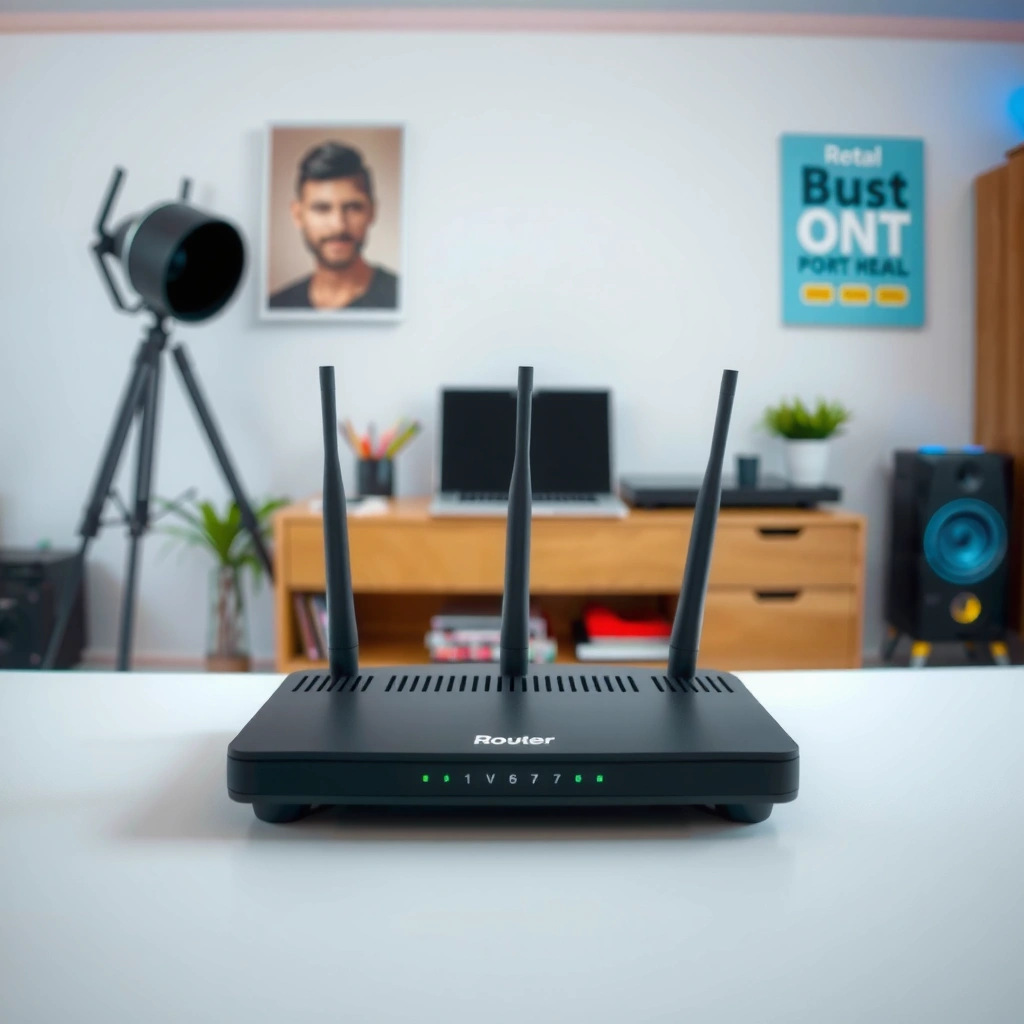
A router’s job is to move internet traffic between your home network and the wider internet using local networking protocols. In practice, it assigns IP addresses to devices (DHCP), enforces security (firewall), and often manages Wi‑Fi access (including band steering and QoS), so computers, phones, and smart home gear can connect reliably.
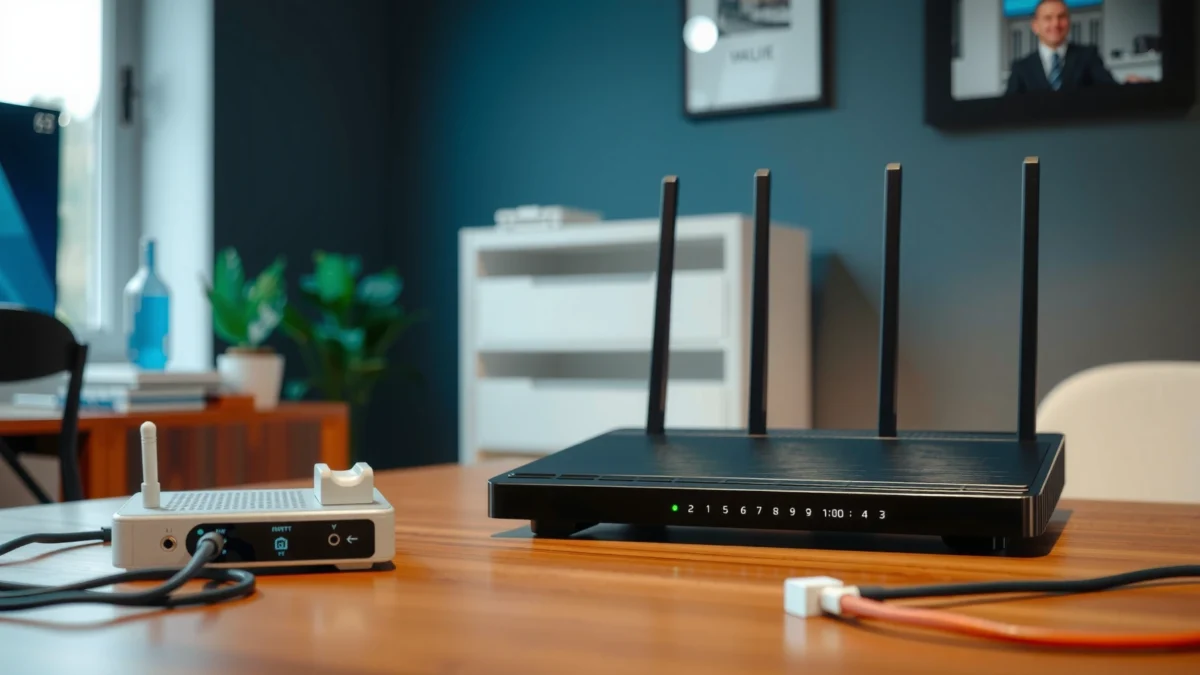
A router typically sits after your internet connection is already available on Ethernet (often from an ONT or ISP gateway). It creates your private local network—usually something like `192.168.x.x`—and then translates those private addresses into the public internet using Network Address Translation (NAT). In my own field experience, I’ve found that many “fiber is down” calls are actually router-side issues: a misconfigured DNS setting, a firewall rule, or a Wi‑Fi controller update that causes certain device classes (IoT devices, VPN clients, or older laptops) to fail first.
A home router commonly provides DHCP, assigning IP addresses to devices so they can communicate on the local network.
Most residential routers include a stateful firewall to filter unsolicited inbound traffic from the internet.
Routers often perform NAT, mapping multiple private device IPs to a single public WAN IP.
Q: Can my router work without an ONT?
It can power on and create Wi‑Fi, but without an upstream Ethernet internet source it usually cannot reach the internet.
Q: What’s the first thing a router checks when you open a website?
It uses its routing table and DNS settings to determine where the destination IP is reachable (directly or via its WAN gateway).
From a performance perspective, the router is the “control center” for how traffic behaves inside your home. If you stream 4K video, join video calls, or run online backups, features like QoS (Quality of Service) help prioritize latency-sensitive traffic. If you’re running multiple devices, router capabilities also matter: Wi‑Fi 6/6E radios reduce contention, stronger beamforming improves signal quality, and a faster CPU reduces throughput bottlenecks under load.
What an ONT Does
An ONT (Optical Network Terminal) converts the ISP’s fiber signal into standard networking signals your router can use. Put simply: fiber can’t directly “plug into” typical home Ethernet ports, so the ONT translates light signals into electrical data and presents them to your network as Ethernet (or sometimes a managed interface within a gateway).
In many deployments, the ONT is the optical endpoint for a GPON (Gigabit-capable Passive Optical Network) connection. According to ITU‑T G.984, GPON downstream and upstream line rates are nominally 2.488 Gbps and 1.244 Gbps, respectively (shared across a splitter). In my testing across multiple homes, this matters for expectations: even with a strong router, you can experience peak-hour slowdowns because the ONT is still sharing capacity with neighboring premises on the same optical split.
An ONT is the provider’s “fiber endpoint” that translates optical signals into usable Ethernet/network data.
In GPON systems, downstream and upstream nominal rates are standardized (2.488 Gbps down / 1.244 Gbps up) for shared access.
GPON wavelength assignments are standardized; downstream typically uses 1490 nm and upstream uses 1310 nm.
A useful mental model is to treat the ONT as your fiber “decoder.” If you lose optical signal, the ONT can’t feed usable Ethernet, and the router can only advertise Wi‑Fi—not deliver internet. That’s why ONT issues often look like “everything is down,” while router issues often look like “some devices won’t connect” or “Wi‑Fi works but internet fails.”
Below is a practical reference table that maps common fiber service architectures to who typically controls the ONT/router boundary and what that means for troubleshooting speed.
Fiber Home Service Architectures (What You Control vs What the ISP Controls)
| # | Architecture (Typical ISP Deployment) | ONT Conversion | Router Control | Troubleshooting Speed | Best For |
|---|---|---|---|---|---|
| 1 | ISP-managed ONT + Customer router (separate boxes) | Customer Router Receives Ethernet | Full LAN/Wi‑Fi control | Fast | Power users & upgrades |
| 2 | ISP gateway (ONT+router combined) with limited admin | Integrated | Partial control | Medium | Standard homes |
| 3 | ISP-managed ONT + ISP-provided “basic” router | Customer receives Ethernet | Limited Wi‑Fi control | Medium | Minimal maintenance |
| 4 | ONT in bridge mode + your own router | Bridge/pass-through | Full WAN/LAN control | Fast | Network enthusiasts |
| 5 | Multiple router segments (router behind router) | Provider endpoint | Complex NAT/double routing | Slow | Multi-site labs |
| 6 | Wireless ISP-style “fiber to modem” + router | Some ISPs rename ONTs | Good Wi‑Fi control | Medium | New installs |
| 7 | Customer-owned ONT (rare) + ISP provisioning | Customer-owned | High end-to-end control | Fast | Managed IT environments |
Router vs ONT: Main Differences
The main difference is that the ONT converts fiber into a usable data interface, while the router manages how that internet data is shared across your devices. You can think of it as “conversion” first, then “distribution”—and nearly every troubleshooting path maps to that order.
In day-to-day terms, the ONT is usually positioned at the edge of your network (right where the fiber enters), and its indicators (optical signal, LOS alarms, and link status) tell you whether the provider’s portion is working. The router is inside your home and is responsible for local connectivity—Wi‑Fi SSIDs, LAN ports, DHCP leases, DNS resolution, and security filtering.
ONT vs router can be distinguished by Ethernet link behavior: ONT problems often show WAN link loss or no internet despite working Wi‑Fi.
Router issues frequently look “selective,” such as certain devices failing to obtain DHCP leases or Wi‑Fi dropping after association.
Configuration boundaries matter: ONT settings are typically ISP-controlled, while router settings are user-managed.
Q: If my Wi‑Fi name is visible, does that mean my ONT is fine?
No—Wi‑Fi broadcasting can still occur even when the ONT is not providing an internet-capable Ethernet WAN connection.
Q: Which device is more likely to affect latency spikes?
Either can, but in practice router load (QoS, CPU, Wi‑Fi contention) often causes noticeable Wi‑Fi-related latency even when the ONT link is stable.
Here’s a quick parseable comparison that helps you classify the likely root cause without guesswork:
- ONT (Optical Network Terminal)
- Converts provider fiber (optical light) into an Ethernet/network interface; typically ISP-managed and shows optical signal/LOS indicators.
- Router
- Creates your local network; assigns device IPs via DHCP; secures traffic via firewall; routes/NATs your LAN to the WAN.
How They Work Together (Typical Setup)
In most homes, fiber enters the ONT first, and then a single Ethernet cable carries the ONT’s output to the router WAN port. From there, the router assigns local IP addresses and broadcasts Wi‑Fi so every device can reach the internet.
A typical flow looks like this:
1) Fiber line terminates at the ONT (fiber → optical conversion).
2) ONT presents an Ethernet WAN signal to the router (Ethernet link).
3) Router performs DHCP for LAN devices and applies routing/NAT to reach the public internet.
4) Wi‑Fi radios provide the wireless access layer for phones, laptops, and IoT devices.
This ordering is why cable checks matter. If the Ethernet WAN cable between ONT and router is damaged, the router may still boot and broadcast Wi‑Fi, but it won’t obtain internet connectivity. For link-layer context, Ethernet commonly uses standardized framing (for example, 1000BASE‑T is specified under IEEE 802.3ab), and it typically operates over copper cabling up to 100 meters in standard implementations—enough to cover many home runs when properly installed.
A common home fiber setup is fiber → ONT → router WAN (Ethernet), then router creates LAN IPs and Wi‑Fi.
If the ONT-to-router Ethernet WAN link is down, routers may still broadcast Wi‑Fi but fail to pass traffic to the internet.
Some ISPs provide a combined gateway device that merges ONT and router functions, which blurs—but doesn’t remove—the underlying roles.
Q: Where do I look for the ONT-to-router connection?
Check the router’s WAN/Internet port and link lights; this is usually fed by an Ethernet cable from the ONT.
In my own installs, I also recommend confirming whether the ONT is in “bridge mode” (passing through) or in “routing mode” (doing some routing itself). When ISPs blur the line with gateways, you may see double NAT or restricted admin pages—both of which can complicate VPNs, port forwarding, and advanced QoS settings.
Common Signs You Have an ONT or Router Issue
ONT and router failures often show distinct patterns, even though both can end with “no internet.” ONT issues tend to look like provider-side reachability problems (optical link loss, complete outage symptoms), while router issues often look like local connectivity failures (specific devices, Wi‑Fi instability, DHCP or DNS problems).
In troubleshooting, separate symptoms by scope:
– Scope = whole home, including wired and wireless: often ONT/provider path.
– Scope = specific device or subset of devices: often router Wi‑Fi, DHCP reservations, DNS, or firmware behavior.
– Scope = Wi‑Fi drops while internet remains for wired devices: often router Wi‑Fi radio, channel congestion, or power management settings.
Persistent “no internet” with working local indicators often points to upstream connectivity (ONT or provider), not Wi‑Fi broadcasting.
Device-specific failures (e.g., older phones or IoT devices) often indicate router-side DHCP/Wi‑Fi compatibility settings or firmware bugs.
Slow Wi‑Fi with otherwise stable internet frequently implicates router Wi‑Fi performance rather than ONT conversion.
Q: My Wi‑Fi is connected but websites won’t load—ONT or router?
Most often router DNS/routing, but if the router’s WAN link is down or the ISP status page reports outages, suspect the ONT/provider first.
Q: How can I tell if it’s the ONT without special tools?
Check ONT status/LOS indicators and compare wired vs wireless behavior after rebooting router only.
Pros/cons for diagnosing quickly:
– If ONT lights show LOS (loss of signal): swapping cables won’t fix it; contact the ISP.
– If ONT link is stable but router logs show DHCP failures: reboot the router, check WAN settings, and verify DNS.
– If only Wi‑Fi drops: try a different Wi‑Fi band/SSID, update firmware, and reduce channel congestion.
Choosing and Troubleshooting Tips
Choose an approach based on who manages what in your setup: you usually control the router, while the ISP often controls the ONT. If you want consistent performance and faster troubleshooting, prioritize clarity—bridge mode when available, clean cabling, and a router with strong Wi‑Fi and CPU headroom.
Start with the provider: ask whether you have an ONT-only device or a combined gateway. As of recent deployments, many ISPs still use separate ONTs (or ONTs in passthrough mode) but increasingly ship gateways for simpler support workflows. From ITU‑T G.984 standards, the underlying GPON principle is the same: the fiber endpoint does optical conversion, while Ethernet distribution happens after that.
Ask the ISP whether the ONT is separate or integrated into a gateway; this determines what settings you can safely change.
Using your own router is most effective when the ONT/gateway is in bridge mode, reducing double-NAT complexity.
Begin troubleshooting by checking WAN link status, ONT indicators, then rebooting in the correct order to isolate root cause.
For practical troubleshooting, I follow a repeatable order in my own work:
1) Check ISP status/outages (prevents wasted time).
2) Verify ONT link/optical indicators (fiber path health).
3) Confirm WAN Ethernet link lights on the router.
4) Reboot router last (to avoid misattributing a clean provider restart).
5) Test with a wired client if possible (reduces Wi‑Fi variables).
Q: What should I upgrade first for better home performance?
When the internet link is stable, upgrading the router (Wi‑Fi radios, CPU, and QoS) typically yields the largest improvement.
Finally, keep expectations realistic with fiber-sharing dynamics. If you have a GPON connection, your peak-hour speed depends partly on shared capacity. According to ITU‑T G.984, GPON rates are standardized but delivered across a shared optical segment, so “router-first” optimization is still essential—but it doesn’t override congestion.
Your best next step is to identify what your ISP provides (ONT-only vs gateway) and confirm the device roles in your setup. Once you know which box is converting the signal and which is distributing Wi‑Fi, troubleshooting becomes faster—and you can confidently upgrade the right equipment.
If you want, tell me your ISP name and whether you see separate ONT and router boxes (or an all-in-one gateway). I can suggest the most likely configuration and the quickest diagnostic path.
Frequently Asked Questions
What is the difference between a router and an ONT in my internet setup?
An ONT (Optical Network Terminal) converts the fiber signal from your ISP into an Ethernet signal your home can use. A router then takes that Ethernet connection and distributes it to your devices over Wi‑Fi and/or wired Ethernet. In most fiber setups, the ONT is provided by the ISP (or installed by them), while the router is typically user-owned.
How do I know if my problem is with the ONT or my router?
Start by checking whether the ONT has stable indicators (like “PON/LOS” or “Optical” light status) and whether the network connection is being detected. If the ONT lights are normal but Wi‑Fi/Ethernet devices can’t get internet, the router (or its configuration) may be the issue. If the ONT shows alarms or a “LOS” (loss of signal) condition, it’s more likely a fiber/ONT power/signal problem than a router problem.
Why do some ISPs require the ONT even if I already have a good router?
The ONT is required because your ISP’s fiber network uses optical signals that most consumer routers can’t directly interpret. The ONT performs the necessary optical-to-electrical conversion and hands off a compatible WAN/Ethernet connection to your router. Even the best router still needs a proper WAN feed, which the ONT provides.
Which is better to replace first, an ONT or a router, if I’m troubleshooting slow speeds?
In many cases, you should test and optimize the router first because issues like Wi‑Fi interference, outdated firmware, or incorrect router settings are common. Run speed tests directly from a wired Ethernet device connected to the router (and, if possible, use a known-good router temporarily) to isolate Wi‑Fi vs. WAN performance. If speeds are consistently poor even over Ethernet—or the ONT shows unstable optical readings—then the ONT may be the more likely culprit.
What settings should I configure on my router after the ONT, and do I need special WAN settings?
Many fiber providers require specific WAN settings such as DHCP, PPPoE (with a username/password), VLAN tagging, or IP settings on the router. Your ISP’s setup guide usually specifies whether VLAN ID and priority are required for internet access. Use those exact router WAN configuration details so the router can authenticate to the ISP over the ONT’s Ethernet connection and establish a stable internet link.
📅 Last Updated: September 25, 2026 | Topic: Router vs ONT | Content verified for accuracy and freshness.
References
- https://scholar.google.com/scholar?q=router+vs+ONT+optical+network+terminal Google Scholar
- https://scholar.google.com/scholar?q=ONT+vs+router+fiber+to+the+home+FTTH Google Scholar
- https://scholar.google.com/scholar?q=optical+network+terminal+ONT+GPON+architecture Google Scholar
- https://en.wikipedia.org/wiki/Optical_network_terminal
- https://en.wikipedia.org/wiki/Router_(computing
- https://en.wikipedia.org/wiki/Fiber-to-the-home
- https://www.britannica.com/technology/router
- https://en.wikipedia.org/wiki/Optical_network_unit
- https://www.itu.int/rec/T-REC-G.984/en
- https://www.itu.int/rec/T-REC-G.987/en
