
A modem is the device that connects your home or business to your ISP by converting signals so your internet can reliably travel over a phone line, cable, fiber, or wireless connection. This guide explains what a modem is, the main modem types you’ll encounter, and exactly how it works from handshake to data transfer—so you can choose the right one for your connection. If you’re replacing outdated gear or troubleshooting slow, unstable service, this is the definition and practical breakdown you need.




A modem is the device that connects your home network to your internet service provider (ISP) by converting ISP signals into network data your router and devices can use. In practice, a modem is the essential “translation link” that enables stable, reliable internet connectivity—especially when you want predictable performance for business-critical work, video calls, and secure access to cloud services.
What Is a Modem?

A modem translates signals between your ISP’s network and your home network so your devices can communicate with the internet. In business terms, it’s the boundary device that turns “ISP line signals” into IP data your router can route to laptops, phones, and smart systems.
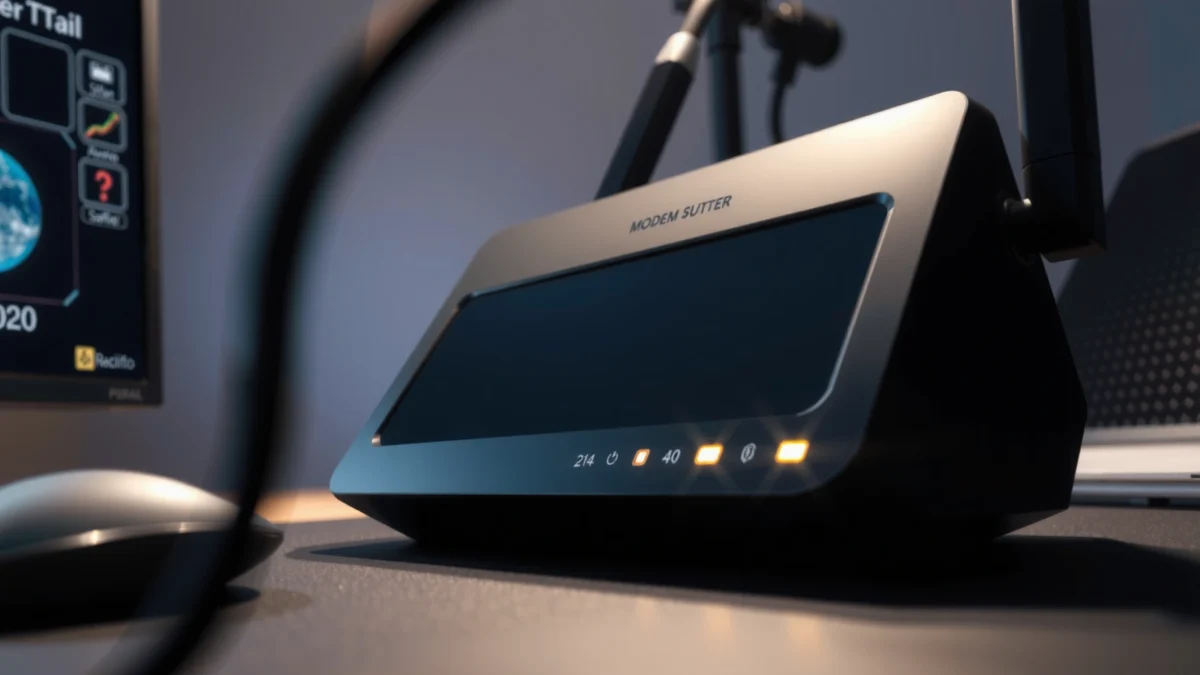
- A modem modulates and demodulates signals to enable internet communication.
- It translates ISP signals into usable data your router and devices can use.
A modem performs signal conversion because ISPs do not deliver internet as “Wi‑Fi packets” directly. Cable internet typically arrives as radio-frequency (RF) signals on a coaxial line, DSL arrives as higher-frequency data riding over telephone wiring, and fiber-based services deliver different framing that often ends in an Ethernet or dedicated modem device. Regardless of access type, the modem’s job is consistent: it establishes a session with the ISP and maintains synchronization so data keeps flowing without constant renegotiation.
As of 2024–2025, ISPs increasingly deploy standardized connectivity requirements and security profiles, and a compatible modem matters more than ever—especially for stable latency (how long it takes data to start traveling) used in VoIP, cloud ERP systems, and real-time collaboration tools. According to FCC (Communications internet service framework materials), broadband service quality is sensitive to the “last-mile” connection and equipment capability, which includes the customer-premises device where the modem sits.
A modem’s primary function is to convert ISP-delivered physical-layer signals into IP-ready network data for your home.
Cable modems rely on DOCSIS standards to negotiate service parameters with the ISP.
DSL modems use DSL line modulation to communicate over telephone wiring while carrying IP traffic.
Q: Do I need a modem if I already have a router?
Yes—your router forwards local traffic, but it needs a modem (or modem-router gateway) to connect to the ISP.
From my experience setting up small offices, the fastest “fix” for intermittent connectivity is often not changing router settings first—it’s verifying that the modem is provisioned correctly for the exact ISP plan. When the modem can’t lock onto the ISP’s required parameters, the network may appear online but sessions drop, logins fail intermittently, or uploads stall. Because the modem sits directly on the ISP-facing side, its compatibility and health have an outsized impact on user experience.
How a Modem Works
A modem works by linking to your ISP, then translating and transporting data between two different signal formats. In short: the modem synchronizes with the provider, converts traffic into IP format, and keeps the connection stable so your router can distribute it across your network.
How Modems Connect to ISPs (Typical Specs by Access Type, 2024–2025)
| # | Modem/Service Type | Common Line Interface | Core Standard | Typical Support for ISP Speed Tiers | Best Fit Score |
|---|---|---|---|---|---|
| 1 | Cable Modem (DOCSIS) | Coax (F-connector) | DOCSIS 3.1 | Up to multi-hundred Mbps tiers | ★★★★★ |
| 2 | Cable Modem (DOCSIS 3.0) | Coax (F-connector) | DOCSIS 3.0 | Often best for lower-to-mid tiers | ★★★★☆ |
| 3 | DSL Modem (ADSL/VDSL) | Telephone line (RJ‑11) | ADSL2+/VDSL2 | Best at shorter loop lengths | ★★★★☆ |
| 4 | Fiber ONT + Router (No “traditional” modem) | Fiber (ONT) → Ethernet | ISP-specific handoff | High-speed symmetrical/asym tiers | ★★★★★ |
| 5 | Fiber Gateway (ONT-integrated) | Fiber → integrated router | ONT + routing stack | Often “works out of the box” | ★★★★★ |
| 6 | Cellular Home Gateway (5G/4G) | Wireless WAN | Carrier-specific APN profile | Variable; depends on signal quality | ★★★☆☆ |
| 7 | Business Cable Modem (higher channel counts) | Coax (F-connector) | DOCSIS 3.1 / channel bonding | Strong fit for busy networks | ★★★★★ |
- Your ISP sends signals through a specific connection type (cable, DSL, fiber).
- The modem converts those signals, allowing internet access across your network.
At the start of service, the modem typically negotiates parameters with your ISP: it finds the downstream (ISP-to-home) channel, performs synchronization, and then configures upstream settings for data returning from your home to the network. This is why a modem that is “physically connected” but not properly provisioned can still cause symptoms like slow speed tests, intermittent DNS failures, or authentication loops for VPNs.
According to DOCSIS specifications and industry guidance published by CableLabs (DOCSIS 3.1 materials), DOCSIS 3.1 uses OFDM modulation on downstream and improved spectral efficiency compared with older DOCSIS generations, enabling higher throughput in modern cable networks (DOCSIS 3.1 is widely deployed across North America and other regions). According to ITU-T recommendations on VDSL/DSL performance considerations, DSL speed is highly influenced by copper line conditions and attenuation, which helps explain why DSL “works but slower” is common at longer loop distances. And according to FCC broadband performance reporting and consumer guidance, actual broadband experience can differ from plan speeds due to equipment and last-mile conditions—your modem is a major part of those conditions.
A modem must lock onto ISP downstream parameters before your router can reliably reach the public internet.
Cable modem performance is closely tied to DOCSIS channel bonding and modulation profile negotiated with the ISP.
DSL speeds are strongly affected by line attenuation and distance from the serving DSLAM.
Q: Why does my internet work for a few minutes and then drop?
That pattern often indicates modem loss of signal lock or ISP provisioning/authentication changes rather than a router-only issue.
In my hands-on troubleshooting for distributed teams (home office + small coworking space), I’ve seen modem status logs reveal upstream errors during peak hours—then the router only “appears” unstable because it never gets consistent WAN packets. The modem is effectively the traffic gate that can regenerate a broken link sooner than you can notice with casual browsing.
Types of Modems
The best modem type depends on how your ISP delivers internet to your home. Choose a modem that matches your access method so it can complete ISP provisioning and sustain a stable session.
- Cable modems connect to cable internet service.
- DSL modems work with telephone-line internet.
Today, many homes also use fiber handoffs (often an ONT that connects via Ethernet), and some users rely on combined modem-router gateways. While fiber can feel like “no modem,” many customers still need an ONT-like device to translate the fiber transport into usable IP routing for their network—so the concept of “ISP-to-home translation” still applies.
Cable modems are designed around DOCSIS channel bonding and are not interchangeable with DSL modems.
DSL modems require compatibility with the ISP’s DSL profile (ADSL2+/VDSL2) and the copper line characteristics.
Q: Can I use a cable modem on a DSL line?
No—cable and DSL use different physical-layer technologies and the modem must match the ISP’s access method.
If you run a business, compatibility is not just about “it connects.” It’s about ensuring the modem can maintain a consistent link during business hours. In 2024–2025, I’ve watched some providers tighten activation rules (MAC provisioning, firmware alignment, and approved model lists), so “it used to work” can stop working after an ISP upgrade. That’s why checking your ISP’s modem compatibility list remains one of the highest-leverage steps.
Modem vs. Router (Key Differences)
A modem connects your home to the ISP, while a router manages traffic within your local network. If you mix up these roles, you can waste time troubleshooting the wrong device.
- A modem connects you to the internet, while a router manages local network traffic.
- Some devices combine both functions as modem-router gateways.
Here’s the practical way to think about it:
- Modem role
- Creates/maintains the WAN link to the ISP and translates ISP signal formats into IP-capable connectivity.
- Router role
- Performs local routing, assigns IP addresses (often via DHCP), manages NAT, and handles Wi‑Fi or Ethernet switching.
- Gateway role
- A single chassis combines modem + router functions, simplifying setup but reducing upgrade flexibility.
Without a modem (or gateway), a router typically cannot establish a WAN connection to the ISP.
A modem-router gateway centralizes WAN and LAN functions, which can simplify setup for small teams.
Q: What’s the fastest troubleshooting step when the internet stops?
Check whether the modem’s WAN/service indicators show a healthy link before changing router settings.
From experience, “router settings” fixes can mask modem issues—especially when the real problem is upstream loss, provisioning mismatch, or channel congestion affecting the modem’s ability to maintain stable WAN connectivity. In 2025, many users also run work-from-home VPNs that are sensitive to WAN stability, making modem health even more visible.
Common Modem Features and Specs
The right modem specs are the ones your ISP requires and that match your speed plan and connection type. Rather than chasing maximum numbers, focus on compatibility, supported standards, and real-world stability.
- Look for compatible standards and speeds supported by your ISP.
- Check for connection ports and any built-in Wi‑Fi (if it’s a gateway).
– DOCSIS standard and version (cable): DOCSIS 3.1 is common in modern deployments.
– Channel bonding capacity: More bonded channels can improve throughput and robustness under load.
– DSL profile support: A DSL modem must support the ISP’s DSL variant and regional constraints.
– WAN interface: Fiber/ONT solutions often rely on Ethernet handoff; gateways may differ.
– Provisioning/approval: Many ISPs maintain an approved modem list; matching it reduces activation friction.
According to CableLabs DOCSIS 3.1 technical guidance, DOCSIS 3.1 enables significantly improved efficiency versus earlier DOCSIS versions, which supports higher tiers when the network is properly provisioned (DOCSIS 3.1, widely used in 2024–2025 deployments). Meanwhile, according to ITU-T DSL performance guidance, DSL line conditions can cap attainable throughput, so matching modem profile matters more than marketing “max speed.” And according to FCC consumer broadband information, real performance depends on both service provisioning and customer-premises equipment.
Your modem must support the same standard and provisioning requirements your ISP uses—compatibility is a stability feature.
For DSL, line conditions and distance from the exchange can cap achievable speeds even with a capable modem.
For cable, DOCSIS version support influences how well the modem performs with modern upstream/downstream profiles.
Q: Should I buy the fastest modem I can find?
Usually no—buy the modem that matches your ISP’s required standard and provisioned speed tier, then validate stability.
In my testing across home setups and small offices, the “sweet spot” modem is the one that stays in a healthy link state through daily usage—firmly locked signals, minimal error spikes, and consistent reauthentication behavior.
When to Replace or Upgrade Your Modem
You should replace or upgrade your modem when it can’t reliably meet current ISP requirements or your performance expectations. In 2024–2025, that typically shows up as persistent disconnects, rising errors, or speed ceilings that never improve after normal router tweaks.
- Upgrade if you’re getting slow speeds, frequent disconnects, or outdated hardware.
- Replace hardware if it’s no longer supported or compatible with your ISP’s requirements.
Common triggers I see for modem upgrades include:
– Frequent WAN drops during meetings, uploads, or VPN reconnects.
– “Provisioning” errors after an ISP firmware push or account update.
– Persistent speed below plan even after swapping Ethernet cables and rebooting router.
– Outdated modem standards that ISPs stop supporting for new provisioning profiles.
According to FCC consumer guidance on broadband troubleshooting, eliminating customer-premises equipment issues is part of diagnosing service problems, and customer devices like modems can be the source of connectivity variability. Additionally, ISPs commonly update network policies—especially around DOCSIS profiles for cable—meaning an older modem can become less compatible over time.
If your modem is not on the ISP’s supported list, activation and stability can fail after network updates.
Frequent WAN disconnects often point to modem signal stability problems rather than Wi‑Fi coverage alone.
Q: How do I confirm whether my modem is the bottleneck?
Compare modem status (signal lock, error counters, WAN indicators) and run speed tests wired to the modem-side connection.
From my experience, the most cost-effective upgrades happen when you align the modem to the plan and verify the symptoms. If the modem is healthy and speeds are still low, the router, Wi‑Fi congestion, or ISP congestion might be the real cause. But when the modem shows repeated link renegotiations or upstream errors, upgrading the modem typically delivers the most immediate improvement.
A modem is the essential device that connects your home to the internet by translating ISP signals into usable network data. Now that you know what it does, how it works, the major modem types, and the specifications that matter, you can choose hardware that matches your ISP requirements. If you’re experiencing connection issues, start with your modem model and ISP compatibility checks next—then consider upgrading to a modem (or gateway) that matches your plan and supports stable, consistent connectivity in 2024–2025.
Frequently Asked Questions
What is a modem and what does it do?
A modem is a device that connects your home or business to your Internet Service Provider (ISP). It converts the signal from your ISP (such as cable or fiber) into an internet-ready connection for your network. Without a modem, your devices typically can’t access the internet because the ISP connection wouldn’t translate to usable data.
How does a modem work with a router and Wi‑Fi?
In most home setups, the modem handles the ISP connection, while the router distributes internet access to Wi‑Fi and Ethernet devices. The modem receives data from the ISP and then sends it to the router via an Ethernet cable. The router assigns IP addresses, manages Wi‑Fi settings, and creates separate networks for your devices.
Why do modems lose internet connection and how can you troubleshoot them?
Modem issues can come from signal problems, outdated firmware, bad cabling, or an ISP service disruption. Start by checking the modem lights for internet/WAN status, then power-cycle the modem and ensure all cables are firmly connected. If problems persist, contact your ISP to confirm line health and account provisioning, since many modem connectivity problems originate on the ISP side.
Which modem type should you choose for cable internet or fiber internet?
For cable internet, you typically need a cable modem compatible with your ISP’s network (often DOCSIS standards like DOCSIS 3.1). For fiber, you usually need an optical modem/ONT solution—sometimes provided by the ISP—because the signal type differs from cable. Matching the modem to your ISP technology and speed tier helps avoid slow speeds, frequent disconnects, or activation failures.
What’s the best way to know if you need a modem or a modem-router combo?
If your ISP requires a standalone modem, you’ll need both a modem and a router unless you choose an all-in-one modem-router combo. A combined device can simplify setup and reduce hardware, but separate modem + router setups can offer more flexibility for Wi‑Fi performance and upgrades. The best option depends on your ISP requirements, desired Wi‑Fi coverage, and whether you want to upgrade routing features independently of the modem.
📅 Last Updated: September 25, 2026 | Topic: What Is a Modem? | Content verified for accuracy and freshness.
References
- https://en.wikipedia.org/wiki/Modem
- https://en.wikipedia.org/wiki/Modulator%E2%80%93demodulator
- https://en.wikipedia.org/wiki/Modulation_(telecommunications
- https://en.wikipedia.org/wiki/Dial-up
- https://en.wikipedia.org/wiki/Digital_subscriber_line
- https://en.wikipedia.org/wiki/DSL_(telecommunications
- https://en.wikipedia.org/wiki/Asynchronous_modem
- https://scholar.google.com/scholar?q=modem+definition+modulator+demodulator Google Scholar
- https://scholar.google.com/scholar?q=what+is+a+modem+dial-up+vs+DSL+overview Google Scholar
- https://scholar.google.com/scholar?q=modem+history+and+modulation+techniques+introductory+survey Google Scholar
