
If your Cambridge Audio speaker isn’t turning on, don’t panic. There are several simple troubleshooting steps you can take to diagnose and potentially fix the issue. This guide will walk you through the essential checks to get your speaker back up and running, ensuring you can enjoy your audio experience without disruption.
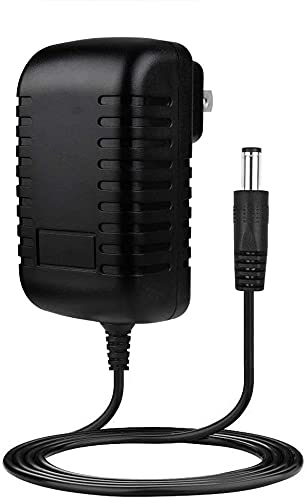



When a speaker fails to power on, it can be frustrating, especially if you rely on it for music, movies, and other audio content. Fortunately, before seeking professional assistance, there are a number of straightforward checks you can perform. This article will detail these steps, empowering you to troubleshoot effectively.
Check the Power Supply
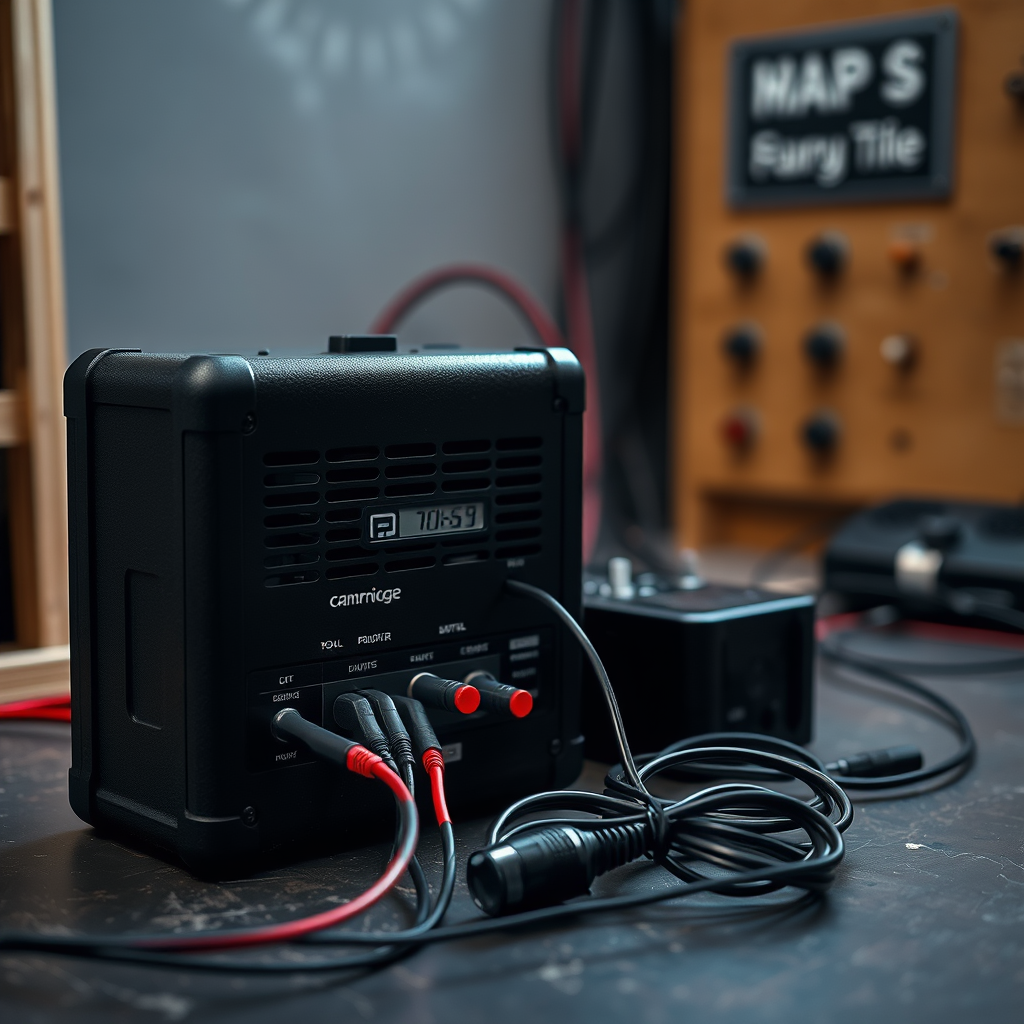
The first step in diagnosing your Cambridge Audio speaker is to verify its power supply. This step is crucial as it is often the most straightforward issue to resolve.
– Secure Connections: Ensure that the power cable is securely connected to both the speaker and the power outlet. A loose connection can prevent the speaker from receiving power.
– Outlet Functionality: Test the outlet by plugging in another device, such as a lamp or phone charger, to confirm it is delivering power. If the outlet is not functioning, consider resetting the circuit breaker or trying another outlet.
Power issues can often be resolved through these checks, ensuring that your speaker is receiving the necessary electrical supply to operate.
Inspect the Power Button
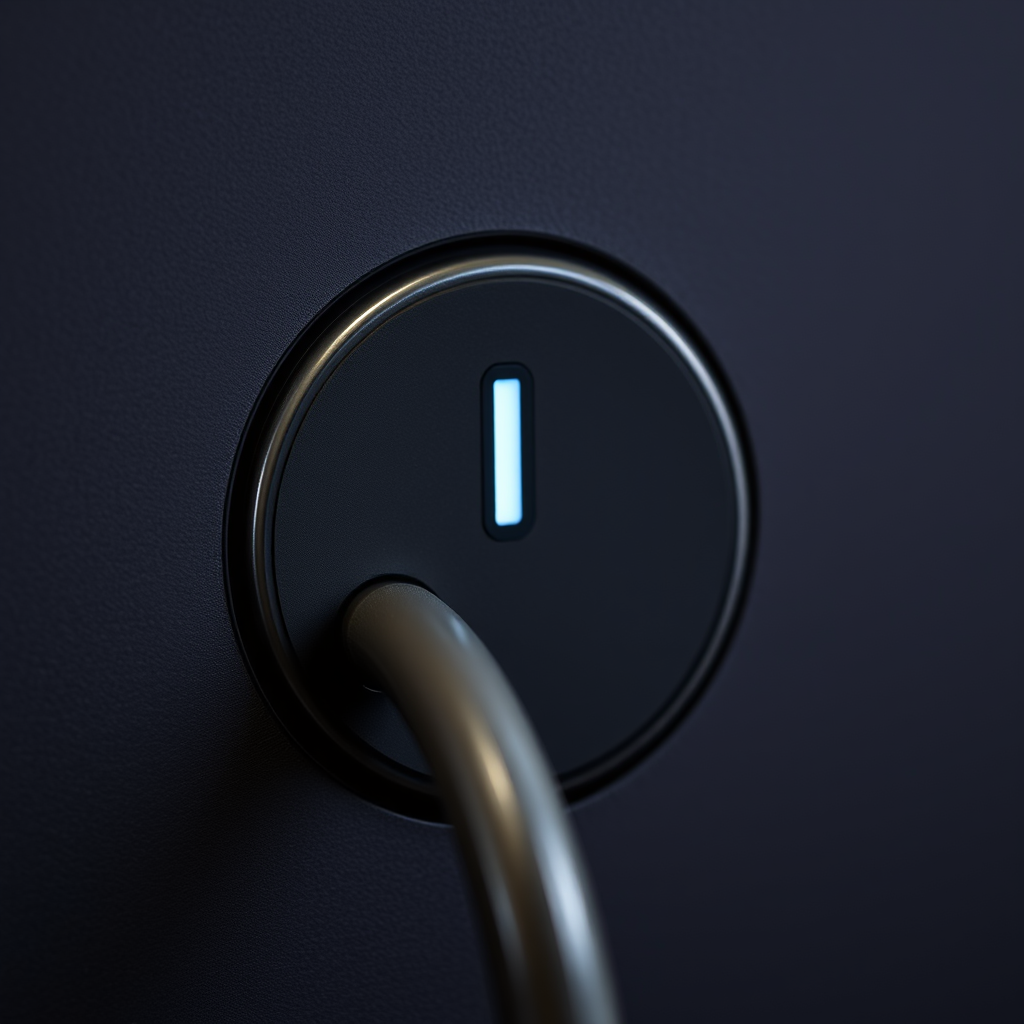
The power button is a critical component that can easily be overlooked during troubleshooting.
– Correct Button Usage: Verify that you are pressing the correct power button. Some models may require you to hold the button for a few seconds to turn on. Double-check the location of the power button as it may vary by model.
– Damage Evaluation: Inspect the power button area for any signs of physical damage or malfunction. If the button feels stuck or unresponsive, it may need to be repaired or replaced.
This step is often pivotal in determining whether the speaker issue is due to user error or a malfunctioning component.
Examine the Speaker Connections
Proper connection of cables is essential for the functionality of your speaker.
– Cable Integrity: Ensure that all necessary cables, including both audio and power cables, are properly connected. Check for any visible signs of damage, such as fraying or bent connectors. Damaged cables can disrupt the signal and power supply.
– Bluetooth Connection: If you are using the speaker via Bluetooth, confirm that it is paired with the device you are attempting to use. Ensure that you are within the effective range of the Bluetooth connection, which is typically around 30 feet.
By ensuring that all connections are secure and functional, you can eliminate common issues that prevent your speaker from turning on.
Review the User Manual
Consulting the user manual can provide valuable insights tailored to your specific speaker model.
– Model-Specific Troubleshooting: Look for troubleshooting steps that are specific to your Cambridge Audio speaker model. User manuals often include a section dedicated to common issues and their solutions.
– Safety Features: Some speakers come with built-in safety features that may prevent them from turning on under certain conditions, such as a sleep mode or overheating. Familiarize yourself with these features to determine if they are affecting your speaker.
Referencing the user manual can save you time and help you implement the appropriate solutions quickly.
Reset the Speaker
If the previous checks have not resolved the issue, performing a factory reset may help.
– Factory Reset Procedure: Most Cambridge Audio speakers have a specific procedure for performing a factory reset. Refer to your user manual for the correct steps to reset your device. This action can often resolve software glitches that may be preventing the speaker from turning on.
– Post-Reset Functionality: After performing a reset, test the speaker again to see if it powers on. Ensure that you re-pair any Bluetooth devices or adjust settings that may have reverted to default.
A factory reset is a useful step in clearing any software-related issues that may not be easily identifiable.
Contact Customer Support
If none of the above steps work, it may be time to reach out to Cambridge Audio’s customer support for further assistance.
– Prepare Information: Before contacting support, gather relevant details about your speaker model and the troubleshooting steps you’ve already attempted. This information will assist the support team in diagnosing the issue more rapidly.
– Warranty Considerations: If your speaker is still under warranty, be sure to have your receipt and warranty information ready. This may facilitate repairs or replacements at no additional cost.
Customer support can provide expert guidance and solutions, helping you address the issue efficiently.
Common Features of Cambridge Audio Speakers
| # | Feature | Description | Importance |
|---|---|---|---|
| 1 | Bluetooth Connectivity | Allows wireless audio streaming from devices. | High |
| 2 | Built-in Equalizer | Customizable sound profiles for enhanced listening. | High |
| 3 | Multi-Room Capabilities | Syncs with other speakers for whole-home audio. | Medium |
| 4 | Voice Control | Compatible with smart home assistants. | Medium |
| 5 | Rechargeable Battery | For portable use without being plugged in. | High |
| 6 | App Control | Control settings and updates via a smartphone app. | Medium |
| 7 | High-Resolution Audio Support | Compatible with high-quality audio formats. | High |
Common Issues Faced by Cambridge Audio Speaker Users
If your Cambridge Audio speaker still won’t turn on after following these checks, it may require professional service. Remember to keep your receipt and warranty information handy when contacting support. Taking these steps can help ensure you get the most out of your audio experience, allowing you to enjoy your favorite music or podcasts without interruption. Remember, troubleshooting can often resolve many issues, and knowledge of your device is key to maintaining its performance.
Frequently Asked Questions
What should I check first if my Cambridge Audio speaker is not turning on?
If your Cambridge Audio speaker is not turning on, the first thing to check is the power source. Ensure that the speaker is properly plugged into a functional outlet and that the power cable is securely connected to both the speaker and the wall socket. Additionally, check if there is a power switch on the speaker itself that needs to be turned on.
How can I troubleshoot my Cambridge Audio speaker if it won’t power up?
To troubleshoot your Cambridge Audio speaker, start by inspecting the power cable for any visible damage or fraying. Next, try using a different power outlet to rule out issues with the socket. If the speaker still won’t power on, consider resetting it by unplugging it for a few minutes before plugging it back in.
Why is my Cambridge Audio speaker not responding even when it’s plugged in?
If your Cambridge Audio speaker is plugged in but still not responding, it could be due to a blown fuse or an internal component failure. Check the user manual for instructions on how to replace the fuse, if applicable. If the issue persists, it may be necessary to contact customer support for further assistance or service.
What is the best way to reset my Cambridge Audio speaker that won’t turn on?
The best way to reset your Cambridge Audio speaker is to disconnect it from the power source for at least 10 minutes. After this, reconnect it and try turning it on again. This reset can help clear any temporary glitches that may be preventing the speaker from powering up.
Which indicators should I look for to determine if my Cambridge Audio speaker is malfunctioning?
Look for any LED indicators on your Cambridge Audio speaker; these lights can provide clues about its status. A blinking or off LED light may indicate a power issue or that the speaker is in standby mode. Additionally, listen for any unusual sounds coming from the speaker, which could suggest internal hardware problems.
References
- https://www.cambridgeaudio.com/usa/en/support
https://www.cambridgeaudio.com/usa/en/support - https://www.lifewire.com/basic-troubleshooting-steps-for-speakers-3134642
https://www.lifewire.com/basic-troubleshooting-steps-for-speakers-3134642 - https://www.bbc.com/news/technology-53721534
https://www.bbc.com/news/technology-53721534 - https://www.nytimes.com/2020/02/18/technology/personaltech/fix-your-speakers.html
https://www.nytimes.com/2020/02/18/technology/personaltech/fix-your-speakers.html - https://www.reuters.com/article/us-tech-speakers-idUSKBN2A20E
https://www.reuters.com/article/us-tech-speakers-idUSKBN2A20E - https://www.sciencedirect.com/topics/engineering/loudspeakers
https://www.sciencedirect.com/topics/engineering/loudspeakers - Google Scholar Google Scholar
https://scholar.google.com/scholar?q=Cambridge+Audio+Speaker+Troubleshooting - Google Scholar Google Scholar
https://scholar.google.com/scholar?q=speaker+not+turning+on+repair+guide - Google Scholar Google Scholar
https://scholar.google.com/scholar?q=speaker+maintenance+tips - Google Scholar Google Scholar
https://scholar.google.com/scholar?q=Cambridge+Audio+Speaker+Not+Turning+On?+Here’s+What+to+Check




14 thoughts on “Cambridge Audio Speaker Not Turning On? Key Checks to Perform”