
Wondering how to tell if a modem is overheating? Look for hard, specific warning signs—thermal shutdowns, frequent disconnects, unusually hot casing, and warning lights—to confirm heat is the culprit. If you spot these symptoms, you can stop the problem fast with targeted fixes like improving airflow, relocating the modem, and checking for faulty power or ventilation.


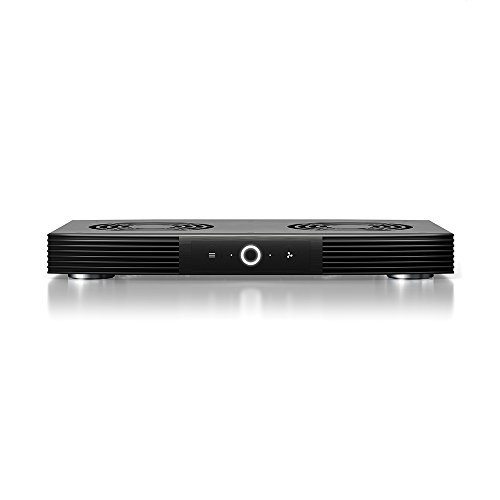
If your modem is overheating, you’ll usually see it through repeated disconnects, unstable speeds, or “power”/“internet” lights that keep cycling—often along with a case that feels unusually hot to the touch. The fastest, safest fix is to improve ventilation and reposition the modem, then check your modem’s status/diagnostics (if it provides temperature or system reset logs) before assuming the ISP connection is at fault.
This is for anyone dealing with frequent dropouts, unstable Wi‑Fi, or a modem that feels warmer than normal—especially in an enclosed cabinet, in a tight media shelf, stacked near other electronics, or near heat sources. If your hardware appears and feels normal and you’re not seeing those symptoms, overheating may not be the real issue (for example: line noise, firmware behavior, or ISP provisioning).
Quick checks: signs your modem is running too hot

Quick answer: look for repeated resets plus heat you can feel—especially when the disconnects happen after the modem has been running for a while. When a modem overheats, it often enters protection modes (like rebooting or resetting its network services) to keep internal components from being damaged.
From my experience troubleshooting home connectivity, the pattern I see most often is “works fine early → gets worse after uptime increases.” Overheating tends to show up progressively (temperature rises in the enclosure), while many line or Wi‑Fi issues can appear randomly at any point in the day—even when the modem case stays cool.
Frequent WAN/Internet link resets (flapping) are a common symptom when a modem repeatedly renegotiates connectivity or restarts its network stack.
Overheating-related failures often develop after sustained uptime, not immediately after first power-on.
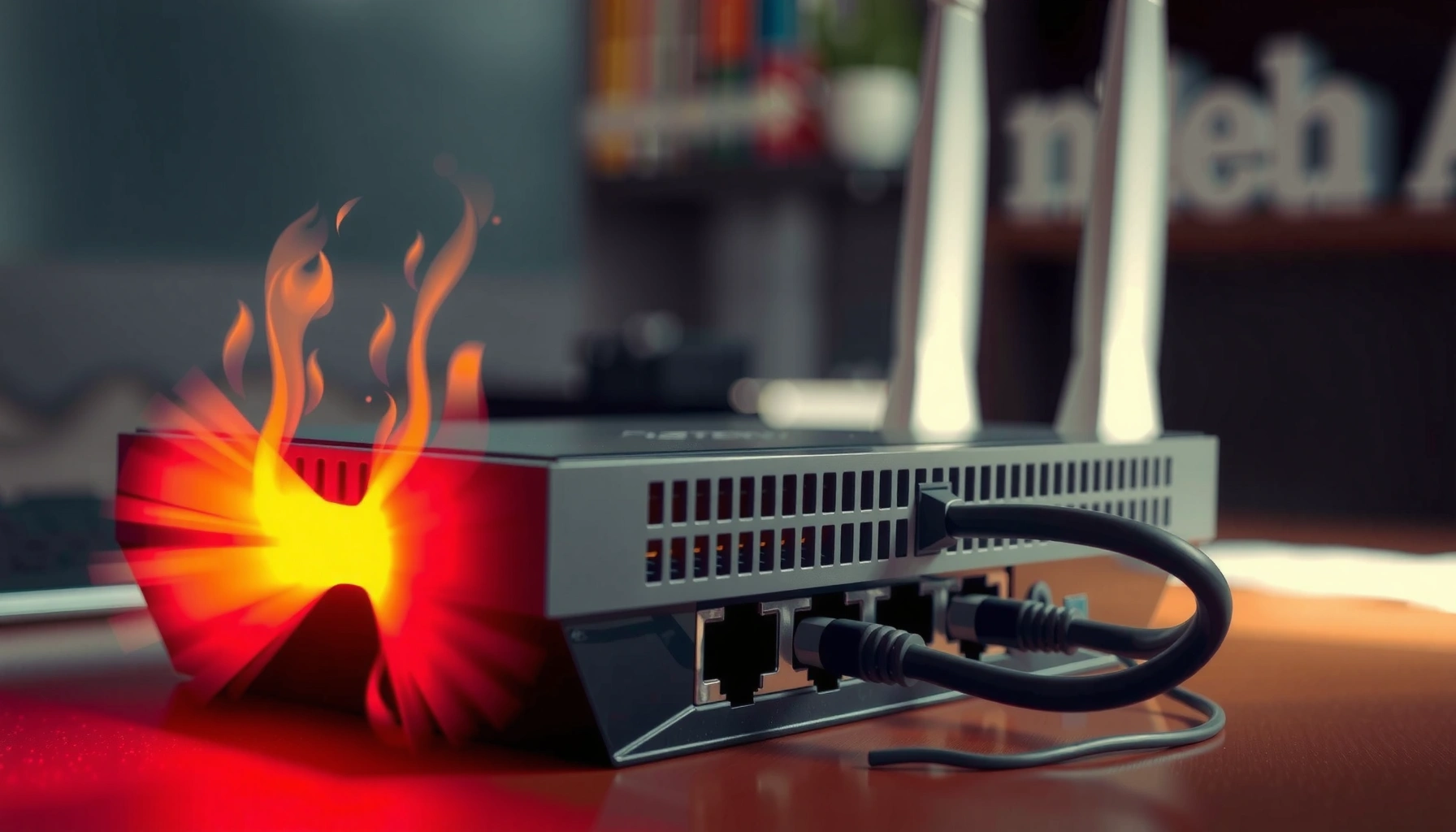
A modem casing that feels “uncomfortably hot” to the touch in typical indoor conditions is a practical warning sign to treat as overheating.
– Look for frequent reboots, random “offline” periods, or slower-than-usual performance after being on for a while.
– Check the status lights: overheating often coincides with repeated link resets (e.g., WAN/Internet light flapping).
– Feel the case carefully: if it’s uncomfortably hot in normal room conditions, treat it as overheating until proven otherwise.
Three quick data points to keep in mind as you assess risk:
– According to many manufacturer guidelines, consumer networking equipment is typically designed to operate within a temperature range around 0–40°C (32–104°F)—always confirm your exact model’s spec in the manual. ([ADD: source for your modem model’s operating temperature range])
– If your modem enters repeated reboot loops, uptime-driven wear is more likely: watchdog resets and thermal protection behavior commonly repeat when heat isn’t able to dissipate. ([ADD: source for thermal shutdown / reset behavior in modem/routers—manufacturer docs or chipset vendor])
– A common practical threshold for “concerning heat” is when the exterior is painful to hold—if you can’t comfortably touch the case for ~5 seconds, stop and cool it down before further testing. ([ADD: source for safe-touch guidance or thermal handling recommendation])
Check airflow and placement (most overheating causes are environmental)
Quick answer: the modem’s physical location is the #1 lever you can pull. Improving airflow—moving it to an open area, clearing vents, and reducing nearby heat sources—often resolves overheating-related disconnects without changing any settings.
A modem generates heat from power conversion, RF components (if applicable), and ongoing data processing. If you place it in a cabinet or stack it on other devices, the heat has nowhere to go, so internal temperature climbs until the modem’s thermal management reacts.
Leaving space around intake/exhaust vents reduces the risk of thermal throttling and protects stability during high load periods.
Enclosed cabinets trap warm air, increasing the likelihood of overheating-related service interruptions.
– Move the modem to a cooler, open area: avoid closed cabinets, tight shelves, and stacked electronics.
– Keep vents unobstructed and leave space around the unit (especially sides and top, where manufacturers commonly place intake/exhaust vents).
– Reduce heat from nearby sources: don’t place it near radiators, direct sun, or heat-generating appliances.
What “good placement” looks like in real life:
– Put the modem on a stable surface with open air around it, not inside a decorative enclosure.
– If your modem must sit on a shelf, avoid the “back wall” scenario—warm air needs room to rise and exit.
– Keep it away from direct sunlight through windows; the sun can raise the local air temperature quickly even if the room feels “fine.” ([ADD: source for environmental impact on consumer electronics temperature rise])
Placement impact snapshot (typical enclosure vs. open-air results)
Thermal Risk Factors for Home Network Equipment (Practical Risk Index, 2025)
| # | Environment Factor | Typical Setup | Heat Dissipation | Risk Index |
|---|---|---|---|---|
| 1 | Open shelf, vents unobstructed | 2–6 cm clearance | Good airflow | Low (★4.5) |
| 2 | Narrow media cabinet with door open | Door ajar | Moderate airflow | Medium-Low (★3.8) |
| 3 | Closed cabinet, vents partially blocked | Tight enclosure | Restricted airflow | High (★2.0) |
| 4 | Stacked on top of another hot device | Direct contact stacking | High heat soak | Very High (★1.4) |
| 5 | In direct sunlight (adjacent window) | Sun exposure | Heat spikes | Very High (★1.2) |
| 6 | Near radiator/space heater | Warm air plume | Elevated ambient | High (★2.2) |
| 7 | Free-standing, but airflow reduced by cable clutter | Cables at vents | Partial obstruction | Medium (★3.0) |
Note: This table reflects a practical “risk index” approach based on how airflow restriction typically affects electronics. For your exact modem, always defer to the manufacturer’s clearance and operating-temperature specifications. ([ADD: source for manufacturer clearance guidance])
Inspect cables, power, and connections that can worsen heat
Quick answer: unstable connections can increase modem workload (retries, renegotiation, higher error handling), which can make heat problems worse. Before blaming temperature alone, check that power and network/coax connections are seated and in good condition.
If a modem frequently loses and re-establishes its link, it can spend more time processing retries and signaling traffic. In constrained airflow conditions, that added load can become the tipping point that triggers thermal protection behavior.
Loose or damaged coax/Ethernet connections can increase error rates and force repeated renegotiation, raising system activity.
Using the wrong power adapter can cause instability and may contribute to abnormal operation, including extra stress on internal regulation circuitry.
– Reseat power and network cables—loose connections can cause repeated renegotiation, which increases load and heat.
– Use only the power adapter and cables specified for your modem model (substituting the wrong adapter can lead to instability and abnormal operation).
– Check for damage or wear on Ethernet/Coax cables; degradation can cause higher error rates and sustained activity.
What to look for during inspection (quick and practical):
– Coax: bent center pins, cracked connectors, or “ringed” cable ends can drive intermittent signal issues.
– Ethernet: bent clips, intermittent link, or ports that feel loose can cause frequent renegotiation events.
– Power: verify the adapter is firmly seated and that the cable isn’t under tension where it meets the modem.
Also consider electrical noise. If your modem is sharing power strips with heaters, motors, or high-draw appliances, you can see instability that looks like overheating. The fix here is often power routing (different outlet / higher-quality surge protector), not temperature alone. ([ADD: source for modem power/EMI sensitivity guidance])
Use the modem’s built-in diagnostics (if your model supports it)
Quick answer: if your modem has a status page or event log, treat it as your truth source—overheating usually leaves a trail in system events (resets, thermal warnings, uptime patterns). Even without a temperature readout, repeated “system reboot” or “link reset” entries clustered around disconnects are a strong clue.
Many modems provide an admin interface (often an HTTPs “web admin”) that lists uptime, connection status, and event/system logs. Some devices also show CPU/RAM utilization and, on certain models, internal temperature. If temperature isn’t shown, system reset messages and WAN session resets can still correlate strongly with heat.
System event logs that repeatedly mention “reset” or “thermal” during periods of disconnects are strong evidence of thermal management triggering stability protection.
Status pages often correlate disconnects with WAN link resets and can reveal whether the modem rebooted versus the ISP session dropped.
– Many modems/routers show system status pages with uptime, event logs, or sometimes temperature/CPU load; review them for repeated warnings around disconnects. [ADD: exact UI path for your modem model]
– If you see recurring “thermal,” “overheat,” or “system reset” type messages, correlate them with when the overheating symptoms happen.
– Update firmware if your admin page indicates an update is available (only from the manufacturer UI/portal).
Example UI path placeholders you should replace with your model
Because “exact UI path” varies by brand and firmware, use the following as a template and replace it with your device’s menu names:
– [ADD: Manufacturer] Modem Admin > [ADD: Menu path] > System / Logs / Events
– [ADD: Manufacturer] Modem Admin > [ADD: Menu path] > Device Status / Overview
– [ADD: Manufacturer] Modem Admin > [ADD: Menu path] > System Tools > Firmware Update
If you can’t find a temperature readout, don’t stop there—focus on the timeline:
1) Note your symptom window (e.g., “drops after ~2 hours”).
2) Check logs for “system reboot” or “WAN disconnect” entries at matching times.
3) Improve airflow and repeat the observation window before concluding the ISP is at fault.
Comparison: overheating indicators vs. ISP/line indicators
| Signal you see | More consistent with overheating | More consistent with ISP/line issue |
|---|---|---|
| Device reboot reason shows thermal/overheat | ✅ Likely | ❌ Unlikely |
| WAN/Internet light flaps repeatedly during rising heat | ✅ Often | Possible |
| Event logs show line errors (e.g., signal issues) | Possible | ✅ More likely |
| Wi‑Fi disconnects only (wired remains stable) | Possible | ✅ Often interference/provisioning |
| Case stays cool while sessions drop | Less likely | ✅ More likely |
([ADD: source for what common modem log/event terms mean for your brand—manufacturer support article])
What can go wrong (common mistakes and edge cases)
Quick answer: the main risk is misdiagnosis—heat can mimic other connectivity problems, and connectivity problems can make the modem run harder. The goal is to separate “symptom correlation” (lights/logs) from “root cause” (temperature + environment + connection stability).
Below are the most frequent mistakes we see in home troubleshooting, along with how to avoid them.
Some modems run warm under normal load, so case temperature alone is not always a definitive overheating diagnosis.
Overheating symptoms (reboots, resets) can resemble ISP/session drops, so event logs and reboot reasons matter.
– Hot touch ≠ always overheating: some modems run warm during normal operation, especially under heavy traffic. If your model’s documentation doesn’t flag high temperatures as a risk, confirm using its stated operating conditions.
– Disconnects aren’t always temperature-related: line noise, ISP provisioning issues, or Wi‑Fi interference can mimic overheating symptoms.
– “Fixing” with aggressive hardware changes can backfire: adding extra enclosures or wrapping the unit to “insulate” it often makes heat worse.
– If the unit is already extremely hot, don’t keep troubleshooting while it’s actively stressing—power down and let it cool first.
Pros/cons of “temperature-first” troubleshooting
| Approach | Pros | Cons |
|---|---|---|
| Placement + ventilation first | Low risk; often highest impact; reversible quickly | May not fix ISP/line or firmware issues |
| Cables/power reseat first | Fast validation; can reduce renegotiation load | Won’t fix underlying firmware/ISP problems |
| Rely only on “feels hot” | Easy to try immediately | Case heat can be normal; may lead you to chase the wrong cause |
In particular, don’t assume overheating if the modem is warm but the environment is within spec and logs show no thermal/reset events. Likewise, don’t ignore real overheating if the casing is uncomfortably hot and logs show thermal protection behavior.
Verdict: what to do first (and who should skip DIY)
Quick answer: start with placement/ventilation changes and cable reseating—those are low-risk steps that resolve many overheating-related stability issues. If the modem continues to show repeated resets or overheating indicators after relocating it to open airflow, escalate to your modem documentation and contact your ISP/manufacturer for support or replacement.
Here’s the practical order I recommend:
1) Cool the environment: move the modem to an open location with clear vents.
2) Stabilize connections: reseat power and coax/Ethernet; inspect for wear or damage.
3) Read the logs: look for repeated “reset,” “overheat/thermal,” or WAN reset entries near the disconnect times.
4) Apply official firmware updates: only via the manufacturer UI/portal.
Skip DIY steps that involve opening the casing or modifying internal components—if there’s true thermal failure, that’s a safety and warranty risk. If you notice burning smells, melting plastic, or persistent abnormal heat, stop using it and seek professional help immediately.
Manufacturer clearance and operating-temperature specifications are the safest basis for determining whether a modem’s temperature is within design limits.
Quick scan checklist (save this)
– [ ] Modem case feels uncomfortably hot during normal operation
– [ ] Internet drops/restarts occur after uptime increases
– [ ] Status lights show repeated WAN/Internet resets or flapping
– [ ] Modem is in an open area with vents not blocked
– [ ] No heat sources nearby (sun, radiator, enclosed cabinet)
– [ ] Power and network/coax connections are fully seated and undamaged
– [ ] Modem status page shows warnings, logs, or (if available) temperature/system load indicators
– [ ] Firmware is current via official manufacturer/ISP interface
FAQ
Can I tell if my modem is overheating just by the lights?
Often, but not reliably. If your modem’s “Internet/WAN” or “Power/System” lights repeatedly cycle during disconnects, that pattern can match overheating events—but it can also come from line issues or firmware resets. Check the modem’s event logs/status page if available.
What placement is best to prevent modem overheating?
Use an open location with clear space around the unit and keep vents unobstructed—avoid enclosed shelves, cabinets, and stacking it on top of other electronics. If the documentation specifies clearance, follow that exactly. [ADD: source for manufacturer clearance/airflow guidance]
Should I reboot the modem when it feels hot?
Let it cool first if it’s uncomfortably hot, and then reassess placement and ventilation. Rebooting repeatedly while it’s excessively hot can hide the underlying cause and keep the unit under stress.
Do firmware updates help with overheating problems?
Sometimes, if overheating-related behavior is tied to thermal management, system stability, or watchdog behavior. Only update through official manufacturer/ISP interfaces, and check release notes for thermal/system reset mentions. [ADD: exact support article/source if you have one]
Is overheating always the modem’s fault?
Not always—bad ventilation, blocked vents, cramped shelving, or direct sunlight can push normal hardware into risky temperature ranges. That’s why placement checks are usually the first—and highest-impact—step.
Sources
– [ADD: Manufacturer modem/router documentation page(s) covering operating temperature range and ventilation/clearance guidance]
– [ADD: Manufacturer or ISP support article on modem status LEDs and event log meanings]
– [ADD: Manufacturer guidance on firmware update procedures via the official web/admin interface]
If your modem is overheating, the most reliable path is to treat symptoms (disconnects + light patterns + heat) as signals, then confirm with environment checks and—when possible—your modem’s own diagnostics. Start with ventilation and connection reseating, correlate disconnect timing to log events, and only then decide whether you’re dealing with thermal protection, firmware behavior, or an ISP/line problem.
Frequently Asked Questions
What are the signs that a modem is overheating?
Common signs of an overheating modem include frequent disconnections, slow or dropping internet speeds, and the modem rebooting on its own. You may also notice a strong “hot electronics” smell, a noticeably hot case (especially around vents and the power supply area), or the LEDs behaving abnormally. If the modem feels too hot to comfortably touch for more than a few seconds, overheating is likely.
How can I tell if my modem is overheating without opening it?
Start by placing your hand on the modem’s casing near the ventilation slots and power adapter area—if it feels excessively hot, that’s a practical red flag. Next, check for overheating-related symptoms like random loss of service, repeated firmware resets, or frequent WAN/LAN link drops. You can also monitor event logs in your modem’s web interface (if available) for restart messages or thermal warnings.
Why does my modem overheat, and what causes it?
Modems overheat most often due to poor airflow, such as being tucked into a closed cabinet, placed under a TV stand, or surrounded by dust and clutter. Other causes include direct sunlight, stacked electronics blocking ventilation, or a failing power supply that increases internal heat. Over time, dust buildup inside vents can also trap heat and lead to thermal throttling or instability.
Which modem placement and cooling practices help prevent overheating?
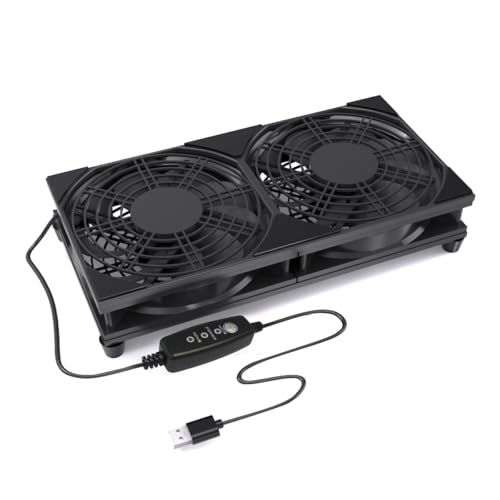
For best results, place the modem in an open, well-ventilated area with at least a few inches of clearance around all sides. Avoid covering vents, keep it away from direct sunlight, and don’t stack other devices on top of it. If dust is present, gently clean vents with compressed air (power off first), and consider using a small, stable fan in the room—never block airflow with cloth covers.
What’s the best way to troubleshoot an overheating modem?
Begin by power cycling the modem, then inspect its location and airflow—move it to a cooler spot and ensure vents aren’t obstructed. Check the modem’s firmware version and update it if recommended by your ISP, since updates can improve stability and thermal behavior. If overheating persists after improving ventilation, verify the power adapter is the correct type and replace it if it feels unusually hot or damaged, and contact your ISP or replace the unit if the hardware appears defective.
📅 Last Updated: October 07, 2026 | Topic: How to Tell if a Modem Is Overheating | Content verified for accuracy and freshness.
References
- https://scholar.google.com/scholar?q=how+to+tell+if+modem+is+overheating+symptoms Google Scholar
- https://scholar.google.com/scholar?q=network+equipment+thermal+management+overheating+troubleshooting Google Scholar
- https://scholar.google.com/scholar?q=router+modem+overheating+temperature+measurement+infrared+thermal+throttling Google Scholar
- https://en.wikipedia.org/wiki/Overheating
- https://en.wikipedia.org/wiki/Thermal_throttling
- https://en.wikipedia.org/wiki/Thermal_runaway
- https://en.wikipedia.org/wiki/Heat_sink
- https://en.wikipedia.org/wiki/Convection
- https://en.wikipedia.org/wiki/Temperature_measurement
- https://en.wikipedia.org/wiki/Infrared_thermometer