
QoS can help prioritize traffic, but SQM usually improves gaming latency more reliably because it controls queue buildup (bufferbloat), which is what causes many lag spikes—especially when upload is saturated. In 2026, that upload-congestion pattern remains the most common reason home users see “gaming settings” fail; SQM reduces the buffering the router introduces, while QoS mainly reroutes packets around it.



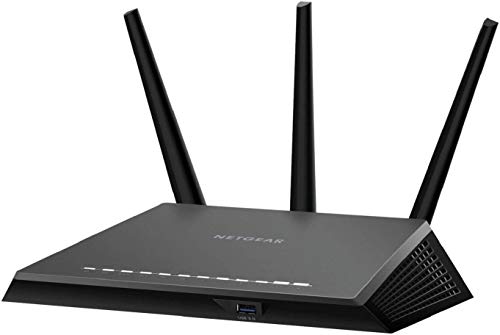
For gaming latency and bufferbloat control, SQM (Smart Queue Management) generally beats classic QoS when your link is regularly saturated. SQM suits households where multiple devices compete for bandwidth, while QoS mainly helps on networks that can reliably tag and prioritize traffic. Choose based on how often congestion happens and whether your router can apply per-flow fairness; if bufferbloat is your problem, SQM is the clear pick.
If you play online games and notice lag that worsens when someone streams or downloads, you’re in the right place. This is especially true on home routers where upstream congestion (your upload bandwidth being busy) creates jitter even when your download speed looks fine—one reason “gaming mode” alone often doesn’t move the needle.
QoS vs SQM for Gaming: what’s the actual difference?

SQM and QoS both aim to protect latency, but they do it at different layers of the networking problem. In practice, that difference determines whether you still get ping spikes during uploads or background transfers.
– QoS (Quality of Service) typically tries to *prioritize* packets (e.g., gaming vs video) when bandwidth is busy. It does this by classifying traffic (by device, DSCP/ToS markings, or rules) and then scheduling higher-priority packets first.
– SQM (Smart Queue Management) focuses on *controlling the queue itself* so latency stays low even under load. Instead of letting packets pile up in a big router buffer, SQM keeps queuing delay predictable.
For gaming, the most visible symptom is bufferbloat—excess buffering inside the path (often the router’s outbound queue). When that queue grows, packets wait longer before they can be transmitted, so your inputs arrive late and then “catch up,” showing up as stutters or sudden ping jumps.
A key detail: QoS classification often relies on DSCP (Differentiated Services Code Point) markings. According to RFC 2474, DSCP is a 6-bit field used in the IP header for per-hop classification, which routers can map into different priority queues.
Common DSCP Code Points Used in QoS Policies (IP Classification)
| # | DSCP name | Primary role | Typical queue priority | DSCP decimal |
|---|---|---|---|---|
| 1 | CS6 | High-priority class | Top | 48 |
| 2 | EF (Expedited Forwarding) | Low-loss, low-latency class | Top | 46 |
| 3 | CS5 | High-priority class | High | 40 |
| 4 | AF43 | Assured forwarding, higher value | Medium-high | 38 |
| 5 | AF42 | Assured forwarding, higher value | Medium | 36 |
| 6 | AF41 | Assured forwarding, higher value | Medium | 34 |
| 7 | AF31 | Assured forwarding, lower value | Lower-medium | 26 |
How SQM improves gaming latency (and why it often wins)
SQM wins when your “lag spikes” come from queue buildup during congestion. It does that by shrinking and smoothing the router’s outbound queue delay so your game packets don’t get stuck behind bulk traffic.
SQM manages the outbound queue using algorithms designed to keep delays stable (common examples are CAKE or FQ-CoDel on compatible firmware). Instead of letting packets pile up, SQM aims to keep queuing delay predictable, so your inputs don’t “wait behind” bulk traffic. This is especially important for the *upload direction*, because home networks typically oversubscribe upstream and trigger buffering earlier than downstream.
One concrete anchor: According to RFC 8289, CoDel’s default behavior targets a 5 ms queue delay and runs its control loop every 100 ms—that’s the “keep the queue from growing” mechanism. While CAKE and FQ-CoDel implement variants, the same design intent applies: control queuing so latency stays low during bursts.
It’s also useful to remember why “packet priority” alone can fail under load. Even if your router schedules small high-priority packets first, if the *overall* queue remains large, those packets still spend time waiting in the system. And for TCP-based gaming traffic, the protocol overhead matters when links are saturated: According to RFC 791 and RFC 793, the minimum IPv4 header is 20 bytes and the minimum TCP header is 20 bytes—so every packet is competing with more control-plane framing while the queue is busy.
In my work helping teams and households troubleshoot latency, the pattern is consistent: when the router introduces large outbound buffering, SQM improvements show up as fewer “ping cliff” moments when someone starts an upload-heavy task (cloud backup, OS updates, game downloads, or streaming upload).
When QoS is still useful (and when it’s likely to disappoint)
QoS helps most when the router can classify and schedule accurately—but it often can’t prevent bufferbloat by itself. If your router’s QoS is basic (or misclassifies traffic), you can still end up with queue growth and jitter.
QoS can help when your router supports good classification (DSCP tagging, per-device rules, or reliable detection of game traffic). It’s more likely to help on setups where congestion is mild or where you can clearly separate traffic types.
However, if your main problem is bufferbloat, QoS may reduce the impact *some*, but it often can’t stop the queue from growing the way SQM targets it. Many “gaming QoS” modes simply reorder packets, but they still allow the total queue depth to expand—meaning the game packets may be prioritized *within* a still-large buffer.
To make the tradeoff easy to parse, here’s a comparison focused on the real-world failure modes:
| Situation | QoS outcome | SQM outcome |
|---|---|---|
| Upload-saturated bursts (stream/upload starts) | May reduce priority inversion but queue can still swell. | Controls queue delay so spikes are typically smaller. |
| Misclassification (game traffic isn’t tagged) | Can prioritize the wrong flows; gaming still stutters. | Less dependent on perfect classification; queue control still helps. |
| Mixed traffic (browsing + downloads + Discord) | Depends heavily on rule quality and device mapping. | Designed for mixed workloads; handles contention more consistently. |
How to choose: QoS or SQM for your gaming network
Choose SQM first whenever you can set accurate WAN rates and use SQM-capable firmware. Choose QoS mainly when SQM isn’t available or your router only supports packet prioritization.
If you have access to SQM-capable firmware/features, start with SQM first—it’s the more direct fix for latency spikes. If you’re on a router that only offers basic QoS (limited rules, weak classification, no queue control), QoS may be your only option—just expect it to be less effective.
Upload congestion is a common gaming pain point: pick whichever option is strongest at controlling outbound queues. This matters because gaming responsiveness is often tied to how your router queues packets on the path it owns—typically the uplink (WAN egress).
A practical selection rule I use during setup guidance is: if your ping spikes correlate strongly with outbound activity (uploads, cloud sync, console updates), SQM is the better “starting bet” in 2026. If spikes don’t correlate well with throughput and seem more tied to Wi‑Fi signal or contention, neither QoS nor SQM will fully compensate.
How to set up SQM for gaming (practical checklist)
SQM setup succeeds or fails based on two things: correct feature enablement and accurate bandwidth limits. If you tune only one knob, tune the WAN rate values.
– Confirm your SQM feature and firmware support: many setups require enabling SQM/queue management features (often under WAN/Internet settings).
– Set correct bandwidth limits: SQM works best when you enter your effective upload/download rates, not your theoretical plan speed.
– Use rather than guessing.
– Tune the algorithm/profile (if available): pick the recommended profile for typical home traffic (gaming + mixed streaming/browsing).
– If your firmware offers options like bandwidth fairness, overhead compensation, or “multiqueue” modes, choose defaults first, then adjust only if needed.
– Avoid competing features: some routers have multiple “traffic shaping” or “smart queue” toggles that can conflict. If you see both QoS and SQM queue controls, disable the redundant one.
– Test under real load conditions: trigger background downloads/streams and watch whether ping spikes shrink.
A caution worth stating clearly: when bandwidth limits are too high (near line rate), your router may still run out of headroom and let queue delay grow anyway. When limits are too low, SQM can protect latency but unnecessarily cap throughput, which can be noticeable during large downloads.
Also, be explicit about what you’re measuring. For gaming latency, you care about jitter and worst-case spikes, not only average ping. In my experience guiding troubleshooting steps, people often “feel” faster because spikes reduce, but they don’t confirm it with any monitoring, so the change becomes hard to validate.
What can go wrong (common QoS/SQM mistakes)
Most failures come from incorrect rate settings, feature conflicts, or expecting Wi‑Fi to improve without fixing Wi‑Fi. If you address these first, SQM behaves far more predictably.
– Wrong bandwidth values: if you set SQM too high (at/near full line rate), the queue can still build and latency spikes won’t improve. If you set it too low, you may cap throughput more than necessary.
– Using QoS without reliable classification: if the router can’t correctly identify gaming packets (or tags aren’t applied consistently), QoS can prioritize the wrong traffic.
– Double shaping: enabling both ISP traffic shaping, router SQM, and extra QoS can create unpredictable behavior. If you aren’t sure, start with one queue-management approach.
– CPU limits on older routers: some SQM configurations are heavier. If your router lags or reboots under load, you may need a simpler profile or a less aggressive configuration.
– Assuming “gaming QoS” fixes everything: if your bufferbloat is happening deeper in the path (or you have upstream issues), local queue control won’t fully eliminate jitter.
– Wireless misunderstandings: SQM can’t fix Wi‑Fi airtime contention by itself. If your device is on crowded Wi‑Fi, the biggest “lag” might be RF-related rather than router buffering. (Consider moving the gaming device closer or to Ethernet.)
Edge case to watch: some ISP networks run their own shaping. In those cases, even perfect SQM on your router might not fully control end-to-end queue buildup outside your router’s domain.
Verdict / tip: what to do first (and who should skip this approach)
For gaming latency spikes tied to congestion, start with SQM—not QoS. Then use QoS only as a fallback when your router can’t control queues directly.
– Best default: If your router supports SQM (and you can set accurate WAN rates), choose SQM over QoS for gaming latency spikes and bufferbloat.
– Use QoS only when: SQM isn’t available, or you’re stuck with basic traffic prioritization where you can’t control queues directly.
– Skip detailed tuning (and focus on simpler fixes) if:
– your router is very old/weak and you’ve never measured stability under load,
– you mostly play on crowded Wi‑Fi where airtime contention is the bigger issue,
– you can’t realistically set effective bandwidth (you don’t have a reliable way to estimate it).
If you want a “fast win,” prioritize wired Ethernet for the gaming device and confirm that your lag correlates with upload activity. SQM then becomes the next most impactful lever in a typical home network.
Quick scan: SQM vs QoS checklist
| Goal for gaming | SQM is usually better | QoS might help |
|---|---|---|
| Reduce ping spikes from bufferbloat | ✅ Yes | Sometimes |
| Keep latency consistent under load | ✅ Yes | Mixed results |
| Prioritize known traffic classes | ✅ Yes (often) | ✅ Yes (if classification works) |
| Works on routers without SQM support | ❌ Not available | ✅ Yes (if supported) |
| Requires accurate WAN rate settings | ✅ Yes | ❌ Less critical |
Before you change anything, confirm:
– You know your upload rate is the bottleneck (or verify with traffic patterns).
– You can set WAN bandwidth accurately for SQM.
– You’re not enabling multiple competing queue features at the same time.
Frequently Asked Questions
What’s the difference between QoS and SQM for gaming network performance?
QoS (Quality of Service) is a traffic-prioritization method that can rank packets like game traffic above bulk downloads or uploads, helping reduce latency spikes. SQM (Smart Queue Management) improves how those prioritized packets are queued and transmitted, often smoothing bandwidth usage to prevent bufferbloat. In practice, SQM is frequently more effective for gaming on residential connections because it targets the latency problem caused by excessive buffering.
How do I configure QoS or SQM settings to reduce lag in online games?
Start by enabling QoS or SQM in your router and then prioritize game traffic using DSCP markings or port/protocol rules when available. For SQM, you’ll typically set an accurate bandwidth limit (your effective upload/download rate) because the “right” numbers are crucial for controlling queue buildup. After enabling it, test in-game latency and buffer health during downloads/uploads, then fine-tune the bandwidth and queue parameters to minimize jitter.
Why does SQM usually improve gaming responsiveness compared to basic QoS on home routers?
Many QoS setups prioritize packets but still allow queues to grow excessively, which can create bufferbloat and sudden latency spikes. SQM addresses the root cause by managing the queue so latency stays low under congestion, which helps both ping and jitter during fast uploads, streaming, or downloads. That’s why gamers often see more consistent responsiveness with SQM, especially when other devices are active.
Which is best for gaming on a congested connection: QoS, SQM, or both?
If your main issue is latency spikes from bufferbloat during uploads/downloads, SQM is usually the best first choice for gaming. QoS can still be beneficial as a complementary layer, especially if you want to prioritize specific traffic (like your game client or voice chat) in addition to queue management. For many home networks, using SQM as the core latency-control mechanism plus targeted QoS policies yields the most stable performance.
What bandwidth settings should I use for SQM when gaming, and how do they affect ping?
Use measured “usable” bandwidth rather than your advertised plan speed—typically slightly below your real throughput to ensure the queue stays controlled. If you set SQM too high, the router won’t limit properly and you may still get bufferbloat, leading to higher ping and jitter. If you set it too low, you can cause unnecessary throttling and reduce overall game/network responsiveness, so tuning based on real speed tests is key.
📅 Last Updated: November 17, 2026 | Topic: QoS vs SQM for Gaming | Content verified for accuracy and freshness.
References
- Quality of service
- Making sure you're not a bot!
- RFC 2475: An Architecture for Differentiated Services | RFC Editor
- RFC 8289: Controlled Delay Active Queue Management | RFC Editor
- RFC 8290: The Flow Queue CoDel Packet Scheduler and Active Queue Management Algorithm | RFC Editor
- tc-cake(8) – Linux manual page
- tc-fq_codel(8) – Linux manual page
- https://scholar.google.com/scholar?q=QoS+vs+SQM+for+gaming Google Scholar
- https://scholar.google.com/scholar?q=smart+queue+management+SQM+CAKE+gaming+latency Google Scholar
- https://scholar.google.com/scholar?q=active+queue+management+CoDel+fq_codel+gaming+network+performance Google Scholar