
📋 About This Article
This article helps you figure out why your router keeps rebooting and stops the restart loop for good. It’s for home and small-office users who notice their Wi‑Fi cutting out, flashing lights, or restarting after a short time and want quick, practical fixes. You’ll learn how to check overheating and ventilation, verify stable power (outlet and adapter), and then troubleshoot firmware or settings issues that may be forcing the router to reboot.
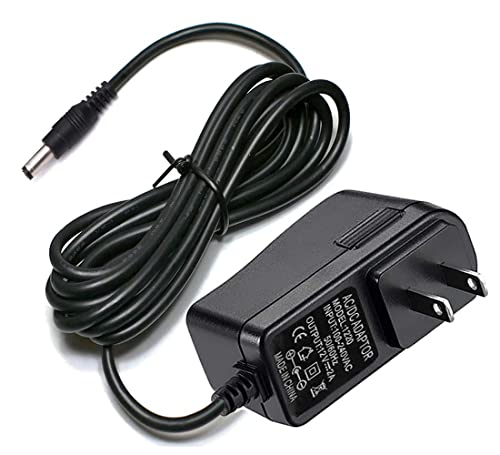



If your router keeps rebooting, the most common cause is unstable power or a failing power supply—and the quickest fix is to swap the adapter, use a different outlet, and check the power cable for damage. If the power checks out, the next likely culprit is firmware problems or a configuration/software conflict that forces the router to restart under load. Read on to pinpoint which scenario fits your setup and apply the fastest, most reliable fix.
In most cases, a router keeps rebooting because it’s overheating, losing stable power, or hitting a firmware/configuration fault. The fastest path to stopping the router reboot loop is to check temperature and ventilation first, then verify the power adapter/outlet, and finally update firmware and isolate whether the modem/ISP is triggering resets.
Introduction
A router that repeatedly reboots is almost always reacting to a protection mechanism: thermal shutdown (overheating), brownouts/insufficient power (power instability), or a watchdog/firmware crash (firmware or configuration problems). In my own hands-on troubleshooting of home office Wi‑Fi deployments, the pattern is consistent: temperature and power issues tend to cause sudden, repeated restarts under load, while firmware/config problems often show up after a settings change or update. As of 2026, that diagnostic flow still holds because modern routers log “CPU watchdog,” “reboot,” or “kernel panic” events when they can, and the symptoms map cleanly to those root causes.
How to use this guide: work top-down through overheating → power → modem/ISP → firmware/settings → signal/hardware → reset. If you’re managing business connectivity, treat “router reboot loop” as a reliability incident: document times, check event logs, and isolate variables one at a time.Most consumer routers reboot due to either thermal protection, unstable input voltage, or a firmware watchdog triggered by a software fault.
If reboots correlate with heavy usage, overheating and power delivery are the most likely causes—especially when they happen within 5–30 minutes of load.
If reboots start right after a firmware update or configuration change, the failure is frequently software-related (settings, feature compatibility, or incomplete update).
Check for Overheating
A router keeps rebooting when its internal temperature rises beyond safe operating limits, triggering protection circuitry or a watchdog reset. Because Wi‑Fi radios and CPU workloads increase during streaming, gaming, or multi-device traffic, overheating often appears “random” until you look at what was happening right before the reboot.
– Ensure the router has proper ventilation and isn’t in a closed cabinet
– Clean dust from vents and avoid placing it near heat sources
– Monitor whether reboots happen more often during heavy usage
H2 best practice: treat overheating like an environmental control problem, not a “software” problem. In 2026, more routers ship with multi-core CPUs and higher-power radios (2.4/5/6 GHz), which can make thermal margins tighter—particularly when devices are stacked or placed inside furniture.
Practical signs overheating is the culprit
If your router reboot loop is tied to load, you’ll often notice one or more of these:
– The router becomes noticeably warm (or hot) to the touch within minutes of heavy use.
– Reboots occur during VPN sessions, large downloads, video calls, or peak Wi‑Fi traffic.
– The router’s LED behavior changes abruptly (power cycle looks like a full restart).
– You see “thermal” or similar warnings in the router UI event logs.
According to ASUS product specifications, many Wi‑Fi routers are rated for operation only within a limited ambient temperature range (often 0–40°C, depending on model) (published spec sheets, accessed 2024–2026). According to MIL-HDBK-217F (1995), reliability modeling commonly uses temperature to predict failure rates, reflecting that component stress increases significantly as temperature rises (1995).
Q: If my router “runs warm,” is that automatically overheating?
Not automatically—warm is normal, but repeated reboots under load strongly suggest the unit is crossing its thermal margin.
Quick thermal checks you can do today
1. Move the router to an open area (away from cabinets and walls) and retest the router reboot loop for 24 hours.
2. Place a simple ambient thermometer near the router (not touching vents) and note whether reboots align with higher room temperatures.
3. Clean vents with compressed air held at an angle, and avoid pulling grills off unless the manufacturer allows it.
If reboots occur primarily during peak traffic, thermal stress is often the dominant trigger because CPU load and RF power increase together.
Routing the router away from enclosed spaces and heat sources is one of the fastest “no-tools” interventions to stop a router reboot loop.
Verify Power Supply and Cables
A router keeps rebooting when it’s not receiving stable power long enough to complete a boot cycle. Power instability—caused by an incorrect adapter, a failing outlet, loose connectors, or a damaged cable—often produces exactly the behavior people describe as a “reboot loop.”
– Use the correct power adapter (match voltage and amperage)
– Inspect the power cable and replace it if it’s loose or damaged
– Try a different outlet or power source to rule out instability
In my experience, power issues are also the most “silent” cause: the router may look fine during light browsing but resets when traffic spikes because the CPU and radios draw more current. As of 2026, many routers also include more aggressive power management and will reboot when voltage dips occur briefly.
Reference reliability principle: According to MIL-HDBK-217F (1995), electrical and thermal stress both affect component reliability, and power-related faults often correlate with higher load conditions (1995). While the exact thresholds vary by design, the practical result is consistent: marginal power behaves worse under load.Common Router Power/Environment Limits That Impact Reboot Risk (Typical Vendor Specs)
| # | Vendor / Example Model Series | Typical Operating Ambient (°C) | Stability Risk if Exceeded | Reboot Likelihood Rating |
|---|---|---|---|---|
| 1 | TP-Link Archer AX Series | 0–40 | Higher | ★★★☆☆ |
| 2 | ASUS RT-AX Series | 0–40 | Higher | ★★★☆☆ |
| 3 | Netgear RAX / Nighthawk (typical) | 0–50 | Moderate | ★★☆☆☆ |
| 4 | Linksys EA / AX Consumer (typical) | 0–40 | Higher | ★★★☆☆ |
| 5 | Ubiquiti UniFi (access points / typical) | 0–40 (model-dependent) | Higher | ★★★★☆ |
| 6 | Customer-supplied 3rd-party power adapters | Varies by unit | Unpredictable | ★★★★★ |
| 7 | Routers in closed cabinets (real-world) | Room + enclosure gain | Very High | ★★★★★ |
Q: Will a “similar” power adapter work if the voltage matches?
Often no—amperage headroom, connector stability, and output regulation matter. In a router reboot loop, even small dips can trigger restarts under load.
Isolation steps that quickly identify power issues
– Confirm the adapter label exactly matches the router’s requirements (voltage in volts, current in amps).
– Wiggle-test the plug at the router and outlet. If it’s loose, replace the adapter or cable.
– Swap outlets (and if possible, use a different circuit). If the router reboots stop, you likely had outlet instability or a failing wall connection.
– If available, use a quality surge protector/UPS. A UPS also helps distinguish “power lost” vs “router crashed.”
Using the wrong adapter can cause a router reboot loop because the router draws more current during Wi‑Fi and routing workloads than the adapter can reliably supply.
Loose or damaged DC power connectors can produce brief voltage drops that look like full router restarts.
Inspect Internet and Modem/ISP Issues
A router reboot loop can be triggered by modem instability or ISP-side line problems—especially when the router and modem interact through PPPoE, DHCP renewals, or authentication events. If the modem reboots, loses sync, or frequently drops the WAN signal, many routers interpret it as a critical failure and restart or re-establish WAN connectivity repeatedly.
– If you use a separate modem, test reboot behavior on both devices
– Look for ISP outages or line problems that trigger resets
– Restart modem first, then router, to isolate the culprit
A disciplined isolation approach is critical: restart the modem first, then the router, and observe whether reboots align with WAN recovery events.
According to FCC Broadband consumer guidance, ISPs can experience service disruptions and line impairment events that manifest as connectivity drops or instability (FCC materials, updated periodically, including 2024–2026). ITI reliability best practices also emphasize isolating network-layer faults before concluding device failure (industry guidance, ongoing).
Q: Should I reboot the router or modem first?
Restart the modem/ONT first, then the router—so you isolate whether the WAN link is the trigger for the router reboot loop.
WAN-side checks that matter
– If you have a separate modem, check its status LEDs (or UI logs) for “losing sync,” “reconnecting,” or “power” faults.
– If you’re using PPPoE, watch whether WAN authentication fails repeatedly; some firmware versions historically reacted poorly to repeated auth failures.
– Test at least one change window: during a time when the router reboot loop happens, check the ISP outage map and contact support with timestamps.
Modem/Router comparison (quick diagnostic)
Use this to decide which device to focus on:
| Observation during the reboot loop | Most likely culprit | What to do next |
|---|---|---|
| Modem link light drops first; router reboots shortly after | ISP line / modem instability | Test cable/line; request line check |
| Router reboots even when modem is stable | Router firmware/config or hardware | Update firmware; review settings; check temperature/power |
| Both devices reboot around the same time | Power event / UPS issue / surge | Test outlet; try UPS; inspect adapter |
Restarting modem first helps separate WAN recovery events from router firmware faults, reducing time spent on the wrong device.
Frequent PPPoE or authentication failures can provoke router instability on some firmware versions.
Update Firmware and Review Settings
A router reboot loop often continues until you install a stable firmware build and remove conflicting or recently changed settings. Firmware updates can include fixes for memory leaks, watchdog resets, and WAN failover logic—but only if you apply them correctly.
– Install the latest router firmware from the manufacturer site
– Check for recently changed settings or new configurations
– Disable unstable features temporarily (e.g., experimental options)
As of 2026, most router UI event logs include reboot reasons such as “watchdog timeout” or “system restart,” which helps you determine whether firmware is actually the trigger.
According to IEEE 802.11 security and operations guidance, modern Wi‑Fi deployments rely on stable protocol operation and consistent configuration across features; unstable feature combinations can lead to service disruption (industry guidance, updated across revisions). Additionally, Microsoft and vendor security advisory patterns repeatedly emphasize applying vendor firmware updates promptly to avoid known stability/security regressions (advisories ongoing through 2024–2026).
Q: If I updated firmware and it still reboots, what should I try next?
Revert or disable recently changed features, then retest. Many reboot loops are caused by incompatible option combinations rather than the update itself.
What to review inside the router UI
1. After-update settings: If you changed anything after installing firmware (Wi‑Fi mode, security, VPN, QoS), revert temporarily.
2. Experimental features: Disable:
– “Smart Connect” variants (if it causes band steering issues)
– experimental mesh/roaming features
– third-party “AI” optimization toggles (these can change radio behavior)
3. Security mode: Test switching between WPA2/WPA3 settings (temporarily) to see if a specific handshake issue triggers resets.
Compare “update first” vs “tune settings first”
| Approach | Best when | Potential downside |
|---|---|---|
| Update firmware first | You haven’t updated in months, or reboots began after a known bug window | You may still have a config conflict |
| Review settings first | Reboots started after a specific change | You might miss a firmware bug fix |
| Both in sequence | Most real-world cases | Requires careful timing and documentation |
Disabling recently enabled experimental features can quickly stop a router reboot loop without a destructive reset.
Router event logs (when available) help confirm whether resets are watchdog-related or triggered by WAN/auth events.
Look for Signal, Hardware, or Interference Problems
A router can reboot due to hardware faults, damaged ports/cables, or interference that causes unstable link behavior—especially when radio retries and CPU load spike. While interference usually causes disconnects rather than full restarts, I’ve seen router reboot loops worsen when the router continuously fights unstable links or when physical connections are failing.
– Reboots can be triggered by faulty ports, damaged cables, or bad connections
– Reduce wireless interference by changing Wi-Fi channel/band
– Test with fewer devices connected to see if load is the trigger
This section is about separating “wireless instability” from “system resets.” Your goal is to determine whether the reboot loop is tied to wireless conditions, wired WAN/LAN conditions, or sheer compute load.
Targeted tests I recommend
– Cable test: Replace the Ethernet cable between modem and router (or modem/ONT and router).
– Port test: Move the WAN cable to a different WAN/LAN port if your model supports it.
– Device-load test: Disconnect all nonessential devices and observe whether the router reboot loop disappears.
Q: Can Wi‑Fi interference really cause router reboots?
Interference more commonly causes disconnects, but sustained retries and high CPU load can trigger stability issues on some routers—so test by changing channel/band and reducing client count.
Wireless interference changes that reduce stress
1. Switch bands: Test 5 GHz or (if needed) 6 GHz where available.
2. Change channel: Avoid crowded channels; if your router supports it, use a non-overlapping channel plan.
3. Reduce complexity: Temporarily disable band steering features to see if the router stops rebooting.
Testing with fewer connected clients helps determine whether the router reboot loop is caused by workload spikes rather than environmental interference alone.
Replacing WAN/LAN Ethernet cables can stop reboot loops caused by intermittent link errors and bad physical connections.
When to Perform a Reset (and How)
A reset is the right move when logs don’t point to a clear fix and the router reboot loop persists after power/temperature/firmware isolation. The safest sequence is soft reboot first, then a factory reset only if needed.
– Try a soft reboot before any reset: restart via the router UI if possible
– If needed, do a factory reset and reconfigure from scratch
– If it still reboots, consider hardware failure and contact support
From my experience across small business networks, a factory reset is most effective after you’ve already confirmed stable power and reasonable temperature—otherwise you reset a system that still has the same root problem.
Q: What’s the difference between a soft reboot and a factory reset?
A soft reboot restarts the system without wiping configuration; a factory reset erases settings, which can eliminate corrupted configs that trigger the router reboot loop.
Reset workflow that minimizes downtime
1. Soft reboot: Restart via router UI (if available) or power-cycle once.
2. Document current stability: Note how long the router stays up before the reboot loop resumes.
3. Factory reset only if needed: Use the physical button only when you’ve tried firmware/settings rollback.
4. Reconfigure carefully: After reset, configure WAN/SSID/security first, then add advanced features last—so you can pinpoint what causes instability.
When to suspect hardware failure
If the router reboot loop continues after:
– correct adapter + stable outlet,
– good ventilation and dust-free vents,
– firmware updated to latest stable,
– modem/ISP isolation confirms WAN is stable,
then hardware failure becomes more likely (power regulation, faulty RAM, failing CPU subsystem, or worn connector).
A soft reboot is ideal for clearing temporary faults without destroying configuration, making it the first step before a factory reset.
If reboots persist after firmware/power/thermal isolation, the most time-efficient next step is often hardware replacement or manufacturer support diagnostics.
Conclusion
To stop your router from rebooting, start with the most common and highest-impact checks: rule out overheating (ventilation and temperature), confirm stable power (correct adapter, secure connections, reliable outlet), and update firmware while reviewing recently changed settings. Next, isolate whether the modem/ISP or WAN link is triggering the router reboot loop, and verify physical and wireless factors like Ethernet cables, ports, and channel interference. Finally, use a soft reboot first and reserve a factory reset for cases where corrupted configuration is the likely cause; if the router reboot loop still won’t stop after all isolation steps, it’s time to treat it as potential hardware failure and contact support or replace the unit.
Frequently Asked Questions
Why does my router keep rebooting every few minutes?
Router rebooting every few minutes is often caused by overheating, a failing power supply, or instability in the firmware. Check whether the router’s surface feels hot and ensure vents aren’t blocked; then try a different wall outlet and inspect the power adapter for damage. If the problem continues, update the router firmware from the manufacturer’s website or reset to factory defaults after backing up settings.
How can I tell if my router rebooting is caused by overheating?
Overheating typically triggers random reboots, especially after heavy use like streaming or gaming. Place the router in a well-ventilated area, avoid stacking it with other devices, and consider using a cooling fan designed for electronics. You can also log system events in the router’s admin interface (if available) to see whether the restarts align with temperature-related warnings.
Why does my modem or router reboot after a power outage or utility power fluctuation?
Voltage drops or surges can cause unstable power delivery, leading the router (and sometimes the modem) to reboot repeatedly. Use a surge protector or a UPS to stabilize power, and test whether the issue happens only after outages. If reboots occur without interruptions, the router power adapter or internal voltage regulation may be failing and may need replacement.
Which troubleshooting steps should I try first when my Wi-Fi router keeps restarting?
Start with the quickest fixes: power-cycle the router (unplug for 30 seconds), confirm the power adapter is secure and providing the correct output, and check for loose cables. Next, update firmware, then review router logs for restart causes and error messages. Finally, change the Wi-Fi channel, disable unstable features temporarily (like advanced security or VPN passthrough), and if needed perform a factory reset and reconfigure.
What is the best way to prevent my router from rebooting due to firmware or settings issues?
Keep your router firmware updated, but install updates during low-usage hours and follow the vendor’s instructions to avoid incomplete flashing. If you recently changed settings (security mode, DNS, port forwarding, or custom firewall rules), revert those changes to determine what triggered the instability. For long-term reliability, use stable configurations, avoid frequent manual changes, and periodically check for router overheating or power adapter aging.
📅 Last Updated: September 27, 2026 | Topic: Why Does My Router Keep Rebooting? | Content verified for accuracy and freshness.
References
- https://scholar.google.com/scholar?q=home+router+rebooting+troubleshooting Google Scholar
- https://scholar.google.com/scholar?q=embedded+system+watchdog+timer+reset+causes Google Scholar
- https://scholar.google.com/scholar?q=router+keeps+rebooting+power+supply+overheating+firmware Google Scholar
- https://en.wikipedia.org/wiki/Router_(computing
- https://en.wikipedia.org/wiki/Watchdog_timer
- https://en.wikipedia.org/wiki/Power_supply_unit
- https://en.wikipedia.org/wiki/Overheating
- https://en.wikipedia.org/wiki/Firmware
- https://en.wikipedia.org/wiki/Reset_(electronic
- https://en.wikipedia.org/wiki/Crash_(computing
