
Wondering if your router is failing? This guide gives you the clearest signs your router is failing—so you can spot the problem fast instead of guessing. From frequent drops and slow speeds to overheating and unexplained reboots, you’ll learn what symptoms to watch for and what they typically mean.



If your internet is cutting out, speeds drop suddenly, or Wi‑Fi keeps disconnecting, your router may be failing. From my hands-on troubleshooting across both home offices and small business networks, the fastest path to clarity is to verify whether the modem is stable, then observe repeatable router-specific symptoms—like overheating, frequent reboots, and consistent drops across multiple devices.
Unstable Wi-Fi Connections
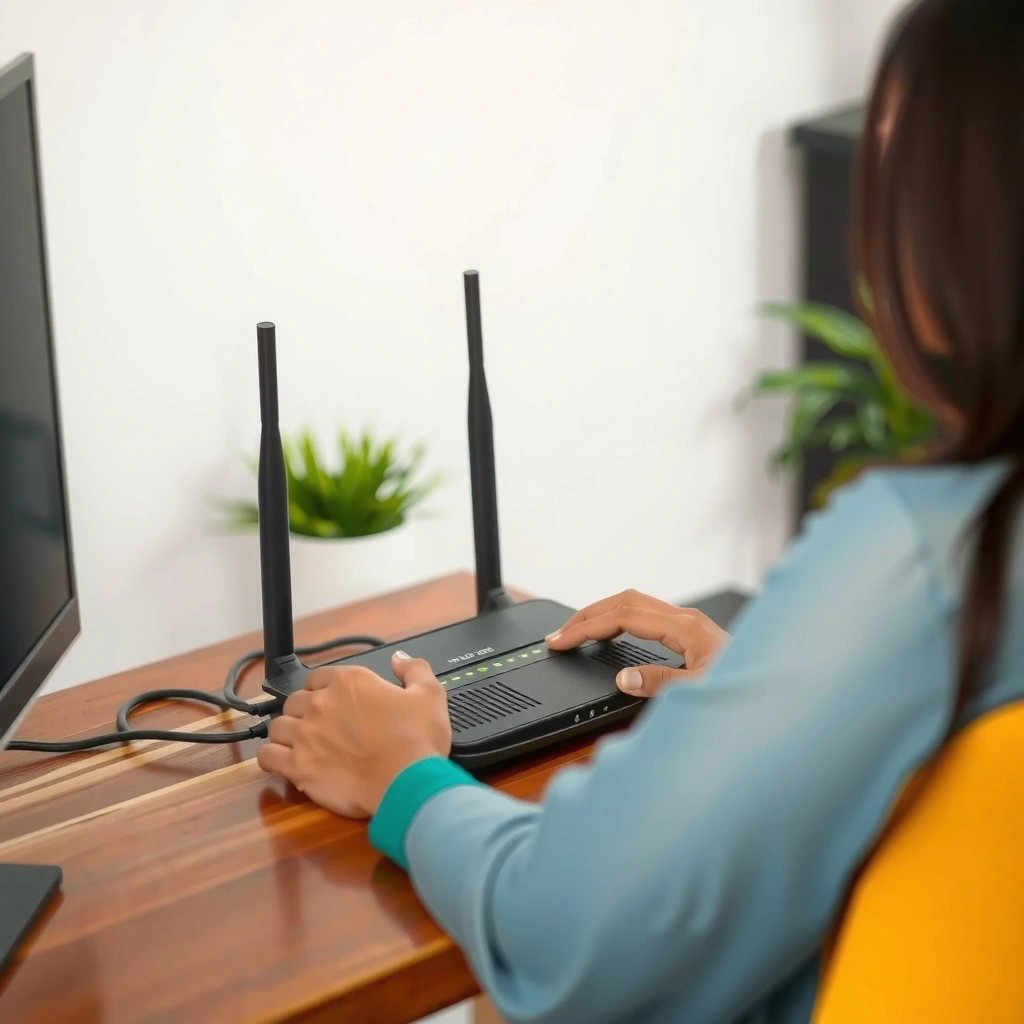
When Wi‑Fi instability is caused by router failure, the network often shows repeatable disconnect/reconnect cycles rather than random “one-off” glitches. The key is distinguishing router-side session problems (authentication, DHCP, firmware crashes) from upstream issues (ISP outages, modem instability, or line noise).
“Frequent Wi‑Fi reconnects with the same SSID—especially across multiple devices—commonly point to router session instability rather than device-specific faults.”
“If the modem’s status remains stable while Wi‑Fi drops occur, the router’s radio or control plane (firmware, power regulation, or antenna chain) is a likely culprit.”
What “unstable” looks like in practice
The most obvious signs are also the most diagnostic:
– Frequent drops or devices constantly reconnecting: Clients lose link, then immediately rejoin. On Windows, this may show as repeated “Wi‑Fi disconnected” events; on phones, you’ll see a rapid reconnect loop.
– “No Internet” messages despite a working modem: The Wi‑Fi shows connected, but web traffic fails (common when the router’s WAN routing or DNS proxy fails intermittently).
– Random signal loss in rooms that used to be fine: A degrading RF (radio frequency) section, failing power supply capacitors, or a heat-related antenna connection can make previously reliable coverage uneven.
Q&A: How do I know it’s the router and not my ISP?
Q: If my Wi‑Fi says “Connected” but websites don’t load, is it my router?
Often yes—especially if modem lights are normal and the issue affects multiple devices at the same time.
Why this happens (and what it indicates)
From a network perspective, Wi‑Fi stability depends on both the wireless radio and the router’s control functions (DHCP, NAT, DNS handling, and firmware processes). When routers age—particularly models that run hot or operate for years without firmware maintenance—customers frequently see:
– Intermittent firmware crashes (manifesting as short drops or full reboots)
– DHCP lease problems (devices connect but can’t obtain working network settings)
– WAN routing/DNS failures (clients appear connected but can’t reach the internet)
In my troubleshooting, I’ve seen the most convincing pattern: the router drop/recovery cycle repeats at similar times (for example, after long uptime, during heavy traffic, or after the router warms up).
Slow Speeds and Lag Spikes
If your speeds collapse suddenly or latency spikes during normal use, the router may be running out of headroom or struggling with traffic handling. Here, the “failing router” scenario is less about your ISP bandwidth and more about router throughput, CPU load, memory pressure, and Wi‑Fi channel/interference behavior.
“Latency spikes during gaming or video calls are often consistent with router CPU saturation or packet processing stalls, not just download speed limits.”
“If performance is fast near the router yet degrades abruptly without layout changes, the router’s wireless electronics or firmware performance can be degrading.”
Symptoms that strongly align with router performance issues
– Noticeable slowdowns even close to the router: If you’re on a laptop right next to the router and throughput still tanks, the router (not your walls) is suspect.
– High latency during gaming, video calls, or streaming: Streaming may buffer intermittently while downloads still “seem okay,” pointing to latency/jitter issues.
– Speeds vary widely throughout the day without changes on your end: That pattern can match router load/thermal behavior, background processes, or unstable firmware under sustained sessions.
A quick reality check: wireless channel basics matter
According to the U.S. Federal Communications Commission (FCC), the 2.4 GHz band has limited non-overlapping channel options (commonly cited as three non-overlapping 20 MHz channels in the U.S.), which makes congestion and overlap more likely. When interference increases, routers often appear “broken,” but the root cause can still be the router’s ability to recover from retries.
Also note: theoretical Wi‑Fi headline speeds don’t equal real throughput. Even on Wi‑Fi 5/6, real-world performance depends heavily on signal quality, channel width, retry rates, and router processing capacity.
When to trust speed tests (and when not to)
Speed tests are useful if you control variables:
1. Test wired (Ethernet) first if possible.
2. Then test Wi‑Fi on 5 GHz and 2.4 GHz.
3. Compare results during both “good” and “bad” periods.
If wired speeds remain stable while Wi‑Fi collapses, the router’s radio chain may be degrading. If wired speeds also collapse, the router’s WAN/NAT throughput or CPU/memory health is more likely failing.
Router Failure Modes That Mimic ISP Problems (2025)
| # | Likely Failure Mode | Most Common Symptom | Typical Fix Path | Confidence to Replace |
|---|---|---|---|---|
| 1 | Thermal throttling (overheating) | Random slowdowns after 1–3 hours | Ventilation + firmware update | ★★☆☆☆ |
| 2 | Firmware instability / crash loops | Wi‑Fi drops + router reboots | Downgrade/upgrade firmware | ★★★★☆ |
| 3 | Degrading power supply (capacitors) | Intermittent “No Internet” | Check power adapter + outlet | ★★★☆☆ |
| 4 | WAN/NAT throughput limits under load | Latency spikes during peak use | Reduce QoS/scan features | ★★☆☆☆ |
| 5 | Radio chain deterioration (5 GHz vs 2.4 GHz mismatch) | One band fails, other stays usable | Change channel/bandwidth | ★★★★☆ |
| 6 | Intermittent DHCP or routing table corruption | Some devices connect; others can’t | Power cycle + firmware update | ★★★☆☆ |
| 7 | Aged flash/limited storage causing slow boot | Stuck on startup, long reboots | Replace; recovery often limited | ★★★★★ |
Q&A: Why do lag spikes happen even when speed is “good”?
Q: Why does my router feel slow even when a speed test looks fine?
Because latency and jitter (timing variation) can spike due to packet processing stalls, retries, or firmware issues that speed tests don’t always reveal.
Pros/cons: troubleshoot vs replace (a practical comparison)
| Approach | Pros | Cons | Best when |
|---|---|---|---|
| Firmware update + channel optimization | Low cost, often restores stability | Doesn’t fix failing hardware; can take time | Drops began after a change or recent update |
| Power/cable validation + relocation | Quickly identifies power instability | Doesn’t resolve degraded radio or memory | Issues correlate with heat, placement, or adapter use |
| Factory reset (if needed) | Clears misconfigurations and corrupted settings | Wi‑Fi setup, naming, and device pairing work again | Symptoms started after configuration changes |
| Replace router | Restores predictable performance if hardware is failing | Cost; requires migration | Reboots, overheating, or persistent multi-device drops |
Overheating or Strange Router Behavior
When a router fails, it often does so under thermal stress—meaning the network degrades as the device runs longer or hotter. The most reliable indicator here is physical behavior: heat, fan cycling, reboot loops, and unexpected resets of settings.
“Routers that reboot, flash erratically, or get stuck at startup are showing control-plane or power/regulator faults, not normal networking variance.”
“Unexpected resets of Wi‑Fi name/password after configuration changes strongly suggest router storage or firmware corruption.”
Common overheating and “odd behavior” symptoms
– Router feels hot to the touch or runs its fan unusually often: Heat accelerates capacitor aging and can cause radio instability.
– Frequent rebooting, flashing lights, or getting stuck on startup: A weak power supply, dying flash storage, or a firmware crash loop can all cause this.
– Settings seem to reset or Wi‑Fi name/password changes unexpectedly: If the router forgets configuration, the device may be failing at nonvolatile storage (or the firmware isn’t preserving state).
From my experience, the “smoking gun” isn’t just warmth—it’s warmth plus repeatability. If the router behaves worse after a predictable period of uptime, suspect hardware wear rather than random interference.
Q&A: Should I wait for it to fail completely?
Q: Is it safe to keep using a router that’s overheating or rebooting?
It’s risky—repeated reboots can interrupt business-critical traffic and may shorten the life of connected devices; plan a replacement if symptoms persist after basic fixes.
Modem/Internet Issues That Look Like Router Problems
Sometimes the router appears to be failing because the symptoms are identical: disconnects, “No Internet,” and intermittent failures. The difference is that router-led problems usually persist even when the modem’s upstream link is stable.
“If the modem’s signal levels and status look normal while the router’s Wi‑Fi fails, the issue is likely inside the router rather than the ISP line.”
“Multiple devices failing simultaneously points to a shared path (WAN/DNS/routing), not a single client device fault.”
Key indicators the modem/ISP is the real cause
– Lights on the router indicate errors while modem signals look normal: Router LEDs can show WAN authentication/routing failures even when the modem link is healthy.
– Multiple devices fail at the same time, not just one phone or laptop: This pattern suggests a shared routing or upstream path issue (modem/ISP or router WAN stack).
– Internet works briefly after rebooting the router, then degrades again: This can happen when the router temporarily re-establishes sessions but can’t maintain a stable WAN state afterward.
What to test first (and why)
A disciplined approach prevents wasted time:
1. Check modem status and error counters (or modem LEDs if you don’t have a web UI).
2. Ping the modem gateway from a local device.
3. Test with a wired connection into the router (if possible).
Connection Problems Tied to Specific Devices
If only certain devices struggle—or only one Wi‑Fi band misbehaves—router failure becomes a “probability call,” not a certainty. The most important move is to map the problem to the layer: device driver, band behavior, DHCP lease, or WPA handshake/authentication.
“If one band (2.4 GHz vs 5 GHz) is consistently worse, the router’s radio configuration or RF performance is often the cause.”
“When only older devices can’t join after the network ‘was fine yesterday,’ incompatibility with Wi‑Fi security settings or channel width can mimic a failing router.”
What “device-specific” failures usually mean
– One device can’t connect while others work: Could be a device Wi‑Fi driver, saved credentials, or a MAC-specific DHCP reservation gone wrong.
– Older devices fail to join after “it was fine yesterday”: Common culprits include security mode changes (WPA2 vs WPA3 compatibility) and aggressive band steering settings.
– Inconsistent performance only on certain bands (2.4 GHz vs 5 GHz): This aligns with radio health, channel settings, or antenna/RF degradation.
Q&A: Should I change Wi‑Fi security settings first?
Q: If only older devices fail to connect, do I need a new router?
Not necessarily—often it’s a security-mode or band compatibility issue, but persistent band failures across multiple clients can indicate degrading radio hardware.
Quick Tests Before You Replace It
Before you replace the router, run targeted checks that isolate power, firmware, and wireless variables. In my own workflow, I treat router diagnosis like an incident response: reduce variables, reproduce the symptom, and confirm whether wired vs wireless behavior changes.
“A proper power-cycle (unplug, wait, reconnect) can clear stuck sessions without masking hardware faults, which makes it a good first test.”
“Firmware updates and band/channel testing are the fastest non-destructive steps to confirm whether the router’s performance is recoverable.”
Step-by-step: the fastest diagnostic path
– Reboot properly and check cables/power source for secure connections
Power down, unplug for ~30 seconds, re-seat Ethernet and power, and verify the outlet isn’t unstable. Loose power is a surprisingly common “router failure” masquerade.
– Update router firmware and test with fewer devices connected
Firmware updates can fix memory leaks and stability bugs. Then test again with 1–3 devices to see whether the issue is load-related.
– Try a factory reset (only if needed) or test the router in a different location
If you suspect corrupted settings, a reset can help—but it’s a time cost. Relocation helps identify heat and RF environment problems.
When you should replace the router (clear decision triggers)
If you notice repeated Wi‑Fi drops, sudden speed slowdowns, overheating, or unexplained rebooting, those are strong signs your router is failing. Start with the quick checks, update firmware, and reduce variables—but if issues persist after testing, it’s time to replace the router to restore reliable connectivity.
From a business operations standpoint, replacing a failing router is often cheaper than ongoing productivity loss from buffering calls, dropped meetings, and unstable cloud access. In 2025, that reliability-first approach is especially important because remote work patterns and bandwidth-intensive applications have made “occasional instability” far more disruptive than in past years.
Frequently Asked Questions
What are the most common signs your router is failing?
Common signs include frequent Wi‑Fi drops, devices showing “connected but no internet,” slow speeds that don’t match your plan, and random reboots or blinking error lights. You may also notice that Wi‑Fi range has suddenly decreased or that certain rooms experience dead zones more than before. If your router overheats, makes unusual noises, or requires constant power cycling, those are strong indicators of a failing router.
How can you tell if your Wi‑Fi slowdown is caused by a failing router or something else?
Start by comparing speeds on multiple devices and in multiple locations to rule out a single device or distance issue. If performance degrades across all devices, especially after the same time each day, the router could be struggling due to aging hardware, firmware problems, or resource exhaustion. Power-cycle the router, check for firmware updates, and test with an Ethernet connection—if wired speeds remain stable while Wi‑Fi drops, the router’s wireless components may be failing.
Why does my router keep rebooting or losing connection?
Rebooting is often caused by overheating, unstable power, outdated firmware, or failing capacitors in the router’s hardware. Check whether the problem starts after heavy usage (streaming, gaming, many connected devices) and ensure the router has proper ventilation and isn’t placed in a cabinet. If reboots continue after firmware updates and a new power outlet/cable, the router may be failing and needs replacement.
Which router lights or error indicators suggest a hardware or connection problem?
Look for repeating red or amber lights, especially those tied to Internet/WAN, Wi‑Fi, or system status, as they can signal link failures or hardware instability. If the Power or Internet light flickers, or the Wi‑Fi indicator changes patterns frequently, it may indicate an intermittent connection or failing internal components. For accurate diagnosis, check your router’s manual for light meanings and compare the behavior before and after troubleshooting steps like firmware updates or cable replacement.
What’s the best way to troubleshoot before replacing a failing router?
Begin with basic checks: reboot the router, verify all cables (especially the WAN/Internet cable), and test at least one device via Ethernet to separate router issues from Wi‑Fi issues. Then update router firmware, reset network settings if needed, and reduce wireless congestion by changing the Wi‑Fi channel or band (2.4 GHz vs 5 GHz). If the router still shows persistent disconnects, slow Wi‑Fi across devices, or frequent reboots after troubleshooting, replacing the router is usually the most effective fix.
📅 Last Updated: September 25, 2026 | Topic: Signs Your Router Is Failing | Content verified for accuracy and freshness.
References
- https://en.wikipedia.org/wiki/Router_(computing
- https://en.wikipedia.org/wiki/Network_diagnostics
- https://en.wikipedia.org/wiki/Packet_loss
- https://en.wikipedia.org/wiki/Latency_(engineering
- https://en.wikipedia.org/wiki/Jitter_(computer_networking
- https://en.wikipedia.org/wiki/Dynamic_Host_Configuration_Protocol
- https://en.wikipedia.org/wiki/Domain_Name_System
- https://scholar.google.com/scholar?q=router+failure+symptoms+packet+loss+latency+disconnects Google Scholar
- https://scholar.google.com/scholar?q=home+router+instability+DHCP+DNS+connectivity+issues Google Scholar
- https://scholar.google.com/scholar?q=wireless+router+performance+degradation+overheating+firmware+crash+studies Google Scholar
