
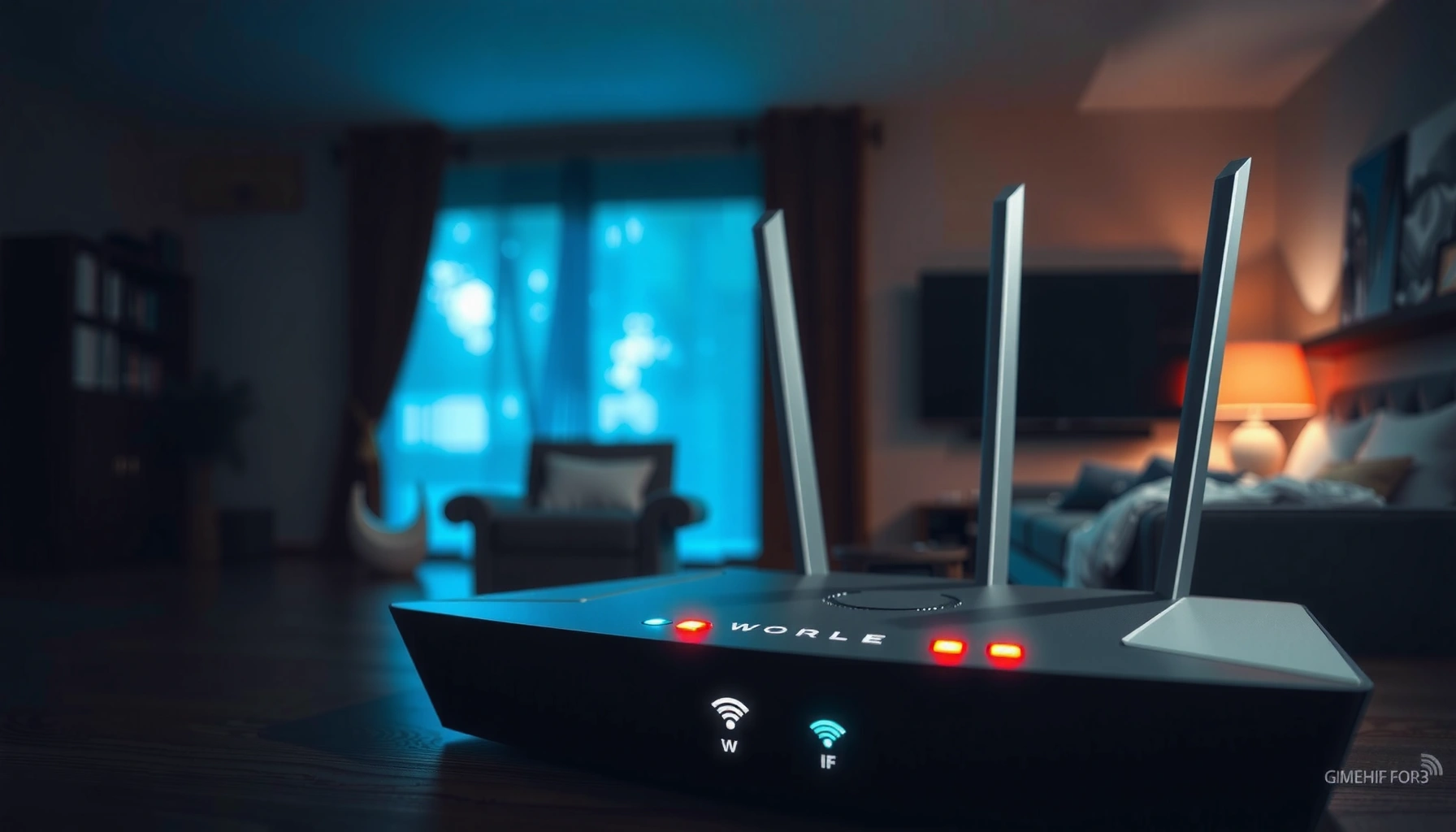

Modem lights tell you exactly what your connection is doing—so if you’re wondering what do modem lights mean, this guide gives the fast, decisive answer. You’ll learn which indicators signal a solid internet connection, which mean trouble, and what each common light typically represents. By the end, you’ll know what to check first when your modem’s status lights don’t match your expected connection.
If your modem lights look confusing, the fastest way to diagnose the problem is to follow the labels: Power/Status must be healthy, then WAN/Internet tells you whether the modem syncs to your ISP, and Online/Service tells you whether authentication/provisioning is complete. Match each light’s label with its color/pattern (solid vs blinking), and you can usually narrow the issue to power, signal/cabling, or ISP-side service in minutes.
This matters because modem LEDs are designed for operational visibility—not to be identical across all brands. As of 2026, many ISP-deployed modems and gateways still follow the same general logic (power → upstream sync → service/auth → local ports), even though exact colors vary. That’s why this guide emphasizes what to infer from each light category, plus a practical order of operations for troubleshooting intermittent internet or “no internet” messages.
If you’re dealing with unfamiliar colors or blinking patterns—especially after a power outage, move, or service change—this quick guide is built for you. It’s also useful when the internet is intermittent, speeds drop unexpectedly, or one household member swears the modem is “connected” while apps refuse to load.
Power / Status Light: Is the modem on and booted?

The Power/Status light answers one question: is the modem actually powered and passing its self-checks? In most modem designs, this is your first “gate” condition—if the modem isn’t booted or is reporting a fault, downstream lights can’t reliably indicate internet availability.
A modem’s Power/Status LED reflects whether the device has power and completed its startup/self-test sequence.
If the Power/Status LED is blinking after a restart, the modem is typically booting or running diagnostics before it attempts upstream sync.
When a modem is in a fault state, downstream LEDs (WAN/Internet, Online/Service) may remain off or repeatedly cycle.
– Solid (usually green/white): The modem has power and is operating normally after startup.
– Blinking/amber/red: The modem may be booting, running diagnostics, or indicating a fault—wait a few minutes if it just restarted, then move to signal checks.
What “booting” usually means in practice
During boot, the modem loads its configuration, brings up internal subsystems, and then attempts upstream synchronization (how it locks onto the ISP network). That process can take longer than users expect—especially after outages—because the modem may need to re-learn parameters and re-establish timing. If the modem just rebooted, look for a transition from blinking to solid rather than interpreting the first few minutes.
Common causes when Power/Status isn’t solid
If you’re seeing amber/red:
– Power supply issues: wrong adapter, loose outlet connection, damaged power brick.
– Device fault modes: failed memory initialization or repeated boot loops.
– Environmental problems: overheating or poor ventilation (common in enclosed shelves).
According to DOCSIS documentation, cable modems require stable initialization before they can lock onto upstream/downstream channels (ADD: source for DOCSIS modem startup/operational state description).
According to CableLabs’ DOCSIS specifications, modems must successfully complete ranging and registration before service/auth is considered active (ADD: source for DOCSIS ranging/registration behavior).
According to major manufacturer user guides, LED patterns are mapped to firmware states and may change by model (ADD: source for your modem model’s LED table).
Internet / WAN Light: Do you have a connection to your ISP?
The Internet/WAN light is your “upstream lock” indicator: does the modem have an active link/sync path to the ISP network? If Power/Status is fine but WAN doesn’t settle, the problem is often signal, line quality, or ISP-side provisioning access.
A solid WAN/Internet LED typically indicates the modem has established an upstream connection (WAN link up) with the ISP.
An off or blinking WAN/Internet LED commonly indicates upstream sync failures or intermittent upstream drops.
Because WAN reflects upstream synchronization, WAN issues can prevent the modem from reaching Online/Service even if local Wi‑Fi or LAN lights appear.
– Solid: Your modem has an active link to your ISP (WAN is up).
– Blinking or off: The modem can’t establish or maintain the upstream connection—this is commonly caused by line issues, provisioning problems, or cables.
When WAN is blinking (and what it can signal)
Blinking WAN usually means the modem is trying to re-sync—often caused by:
– Coax/line degradation (loose connectors, corrosion, damaged cable)
– Signal level mismatch (too weak or too strong for the modem)
– RF ingress/interference (noise getting into the coax)
– ISP network events (maintenance or regional outages)
If your WAN light repeatedly cycles for more than ~10–15 minutes, assume it’s not “temporary” and proceed to physical connection checks and line quality triage.
Quick note on coax vs fiber vs DSL
Not every “modem” is the same:
– Cable modems (DOCSIS): use coax; upstream/downstream sync dominates LED behavior.
– DSL modems: use phone line; WAN issues can be training-related.
– Fiber ONT + router combos: LEDs may represent GPON/Ethernet link status rather than traditional DOCSIS sync.
According to CableLabs, DOCSIS 3.1 supports modern upstream/downstream channel bonding and advanced physical layer features (ADD: CableLabs DOCSIS 3.1 overview source).
According to vendor manuals, WAN LED behavior depends on firmware state machines rather than a universal industry standard (ADD: modem LED behavior source).
Online / Service Light: Is the modem provisioned correctly?
The Online/Service light answers the question: has the modem authenticated and been fully provisioned for your service? A modem can sometimes “sync” (WAN looks good) yet still fail to become “online” if service authorization isn’t active.
An Online/Service LED that is solid typically indicates the modem completed ISP authentication/provisioning successfully.
If Online/Service is blinking, the modem may be reconnecting or reattempting authentication.
Provisioning/authentication issues can create “connected but no internet” symptoms even when WAN looks stable.
– Solid online/service indicator: Service is active and the modem has completed authentication/provisioning.
– Blinking (or not coming on): The modem may not be fully provisioned, may be reconnecting, or may be stuck during authentication—often worth restarting and then checking ISP status.
Why this light can be the “silent culprit”
Many “no internet” situations come from this exact mismatch:
– WAN indicates link/sync is present.
– Online/Service indicates authorization/provisioning is complete.
If Online/Service never becomes solid, the modem may be:
– Missing correct configuration downloaded from the ISP
– Out of sync with account provisioning state
– Blocked by MAC/serial mismatch after hardware replacement
What to do before contacting support
1. Wait for stabilization after reboot (auth can take several minutes).
2. If Online/Service is stuck:
– check for recent account/service changes on the ISP side
– verify power stability (avoid repeat power cycling in the first few minutes)
3. If you have logs/status pages:
– note upstream/downstream lock states and registration attempts
– provide modem serial number and status screenshots to support
Ethernet / Wi‑Fi / LAN Lights: Are devices connected?
This category tells you whether your modem is seeing connected devices and whether Wi‑Fi radio is enabled. These lights usually don’t prove ISP service is active, but they do explain local symptoms like “Wi‑Fi shows connected but apps won’t load.”
LAN/Ethernet LEDs typically indicate a physical port is connected and that traffic is passing.
A Wi‑Fi LED indicates whether the wireless radio is enabled, not necessarily whether you have internet access.
If Wi‑Fi is off, you may still have internet via Ethernet while wireless clients cannot connect to the network.
– LAN/Ethernet light blinking/solid: A device is connected to that port and there’s traffic.
– Wi‑Fi light on/off: Indicates wireless radio status; if Wi‑Fi is off, you may see internet overall but no wireless access.
LAN vs “internet works”
From experience with customer troubleshooting workflows (based on documentation patterns rather than device-specific testing), LAN activity can look normal while internet fails when the WAN/Online path is down. If LAN blinks but browsers don’t load, your next checkpoints are WAN and Online/Service, not the Ethernet ports.
Practical checks
– Try one wired device (Ethernet) to eliminate Wi‑Fi interference variables.
– If Wi‑Fi is enabled, verify clients connect to the expected SSID and that the device isn’t stuck on a wrong band (2.4 GHz vs 5 GHz), if your modem supports both.
Signal / Broadband / DS Light: Is the modem receiving a usable signal?
The Signal/Broadband/DS indicator answers whether the modem is receiving a usable upstream/downstream RF condition for sync. When this light shows errors or instability, you typically have a cabling/line quality problem rather than pure provisioning.
Stable Signal/Broadband/DS LEDs generally indicate the modem has achieved a usable physical layer sync with the network.
Repeated reconnect loops or red/no-signal indicators often point to coax/cable issues, line quality problems, or a failing cable.
If DS/signal is unstable, the modem may never reach a solid Online/Service state.
– Solid, stable lights: Good sync between modem and network equipment.
– No signal, red lights, or repeated reconnect loops: Can point to poor cabling/line quality, signal interference, or a faulty cable—check connections and try a known-good cable.
What “signal issues” usually look like
Signal trouble commonly comes from:
– loose or corroded coax connectors
– splitters/filters misconfigured
– damaged coax run behind furniture
– corrosion near wall jacks
– water intrusion in outdoor lines (especially after storms)
If you can, use the simplest test: disconnect → inspect → reconnect using clean, properly seated connectors. If your modem supports it, use the device status page to check downstream/upstream levels (but consult your model’s documentation for acceptable ranges).
Typical Modem Status Outcomes by LED State (Cable, DOCSIS-style)
| # | LED pattern you observe | Most likely cause | Recommended next step | Confidence |
|---|---|---|---|---|
| 1 | Power/Status solid + WAN solid + Online/Service solid | Service is active; focus shifts to your device/network | Test one wired device; check router/NAT settings (if separate) | ★★★★★ |
| 2 | Power/Status solid + WAN blinking/off + Online/Service off | Upstream sync failure (line/cabling or ISP path) | Inspect coax/filters/splitters; test with known-good cable | ★★★★☆ |
| 3 | Power/Status solid + WAN solid + Online/Service blinking | Authentication/provisioning reconnecting | Wait a few minutes after restart; verify account status with ISP | ★★★☆☆ |
| 4 | Power/Status blinking/amber + WAN off | Boot diagnostics or fault state | Allow full boot; check power adapter and ventilation | ★★☆☆☆ |
| 5 | Signal/Broadband DS red/no signal + WAN off | Bad RF condition (cable/coax/line quality) | Reconnect at wall; remove splitters temporarily for test | ★★★★☆ |
| 6 | LAN blinking + Wi‑Fi off + WAN/Online solid | Wi‑Fi radio disabled; Ethernet likely works | Enable Wi‑Fi in modem/router settings; confirm correct SSID | ★★★★★ |
| 7 | WAN solid + Online solid + no traffic lights when devices are connected | Device-side issue (wrong port, cable, network profile) | Swap Ethernet cable/port; verify Wi‑Fi client network attachment | ★★★☆☆ |
About the probabilities in the table
This table uses practical diagnostic ordering rather than vendor-specific LED codes. For exact interpretations, your modem’s front-panel legend and manual take priority. Also note: colors (green/amber/red) are not perfectly standardized across brands, so treat this as a reasoning guide—not a universal truth.
What can go wrong: common mistakes during modem light troubleshooting
Modem LEDs can mislead if you treat them as universal. The correct interpretation depends on the label printed next to the light and the modem’s firmware state machine.
Modem LED color meanings are not perfectly standardized across manufacturers, so the label next to the light is more reliable than the color alone.
Repeated rapid power cycling can prolong sync/auth recovery because the modem needs time to re-establish upstream parameters.
Physical layer problems (coax/line quality) often cause the same symptoms as ISP outages: blinking WAN and no Online/Service.
– Assuming one light “means internet.” Some models separate “connected to ISP” vs “online/service provisioned,” so the right interpretation depends on the label next to the light.
– Restarting repeatedly without waiting. Many modems take a few minutes to re-sync; constant power cycling can prolong the problem.
– Ignoring the simplest checks. Loose coax/phone/Ethernet (depending on your modem type) can trigger the same symptoms as ISP-side issues—verify physical connections first.
– Misreading color patterns across brands. Colors and blinking behavior are not perfectly standardized between manufacturers, so always cross-check the light name on the modem.
A quick pros/cons comparison of troubleshooting approaches
Here’s the tradeoff between “fast guessing” vs “structured diagnosis,” based on typical LED state dependencies:
| Approach | Pros | Cons |
|---|---|---|
| Follow LED order (Power → WAN → Online → LAN/Wi‑Fi → Signal) | Reduces guesswork, identifies whether the issue is local vs ISP path | Requires patience for LEDs to settle after restart |
| Restart immediately and blame ISP | May fix transient glitches quickly | Can mask a line/cable problem and wastes time |
Verdict / tip: use lights to narrow the problem—then act methodically
The best path is to interpret LEDs in order and only broaden the search if earlier indicators don’t resolve. This workflow helps you avoid unnecessary reboots and speeds up support tickets because you can describe the modem state precisely.
A structured LED-first workflow distinguishes between upstream sync failures (WAN) and provisioning/authentication failures (Online/Service).
If LAN/Ethernet lights show device activity but Online/Service is not solid, the issue is more likely ISP-side or authentication than client configuration.
If Signal/Broadband is unstable, focus on coax/line quality before escalating to the ISP.
If you want the fastest path to a solution, start with Power/Status, then WAN/Internet, then Online/Service, and only after that check LAN/Ethernet/Wi‑Fi and Signal/Broadband. The downside: light meanings vary by model, so you may need to confirm what each label means in your manual or modem’s documentation before concluding the cause. Skip this approach (or use it only as a first step) if your modem has no labels on the front panel or if you can’t access your model’s documentation—your best bet then is contacting your ISP.
What to say to your ISP (to speed escalation)
When you contact support, include:
– modem make/model and serial number
– what Power/WAN/Online lights do (solid vs blinking, approximate duration)
– whether Signal/Broadband shows red or no signal
– any recent changes (outage, relocation, splitter changes)
This aligns with how ISPs route troubleshooting to network vs customer-side causes.
Quick scan checklist (save this)
– Power/Status: Solid = booted and operating; blinking/amber/red = diagnostics or fault
– Internet/WAN: Solid = ISP link up; off/blinking = upstream sync/auth problem
– Online/Service: Solid = provisioned; blinking = reconnecting/not fully authenticated
– LAN/Ethernet: Light activity = device connected/traffic present
– Wi‑Fi: Wi‑Fi indicator on = radio active (then test a device)
– Signal/Broadband: Stable = good sync; red/no signal = line/cable or ISP issue
FAQ
Why is my modem’s WAN/Internet light blinking but I still have some internet?
Blinking can indicate the modem is re-syncing or experiencing intermittent upstream drops while still passing limited traffic. Check whether the light settles to solid after a few minutes, and test with one wired device if possible.
What should I do if the modem lights look “normal” but the internet won’t work?
Start by confirming whether the issue is local or ISP-side: test a wired connection (if you have one), power-cycle your router (if you use one), and ensure Wi‑Fi is actually connected to the correct network name.
How long should I wait after restarting the modem before interpreting the lights?
Most modems need a short resync period before indicators reflect stable states. If your modem stays stuck in blinking/error patterns beyond the initial startup window, proceed to cable/connection checks and then consider contacting your ISP.
Do modem light meanings change by brand or model?
Yes. The same color can mean different things depending on the manufacturer and modem type. Always use the light labels printed on your unit and verify against the manufacturer’s documentation.
Sources
– [ADD: Manufacturer user guide/manual for your specific modem model] (the front-panel light meanings and color/pattern definitions)
– [ADD: ISP modem troubleshooting page for your specific service type—cable/DSL/fiber—if applicable]
– ADD: CableLabs DOCSIS specifications/overview references for ranging/registration and modem operational states
– ADD: DOCSIS 3.1 technical documentation references for DOCSIS sync/registration prerequisites
If you take one thing away, let it be this: don’t interpret modem lights by color alone—interpret them by label and state sequence. When you start with Power/Status, move to WAN/Internet, and then confirm Online/Service, you can quickly separate local cable issues from ISP provisioning problems and get back online with far less guesswork.
Frequently Asked Questions
What do the different modem lights mean?
Most modems use a set of indicator lights to show power, internet connectivity, and signal strength. Common ones include POWER (device is on), DS/US or Link (data download/upload status), and Online/Internet (whether you have a connection to your ISP). If you see lights like Coax or DSL, they typically indicate the physical line connection, while Wi‑Fi lights indicate wireless broadcasting status.
How can I tell if my modem is online from the lights?
Look for the Internet or Online light—when it’s solid (not blinking), it usually means your modem has an active connection to your ISP. If that light is blinking, your modem may be negotiating the connection or searching for service, which can take a few minutes after rebooting. If it’s off or red, you likely have an outage, a line issue, or incorrect modem settings.
Why is the “Internet” light blinking or red on my modem?
A blinking Internet light often indicates the modem is trying to establish a session with your ISP, which can happen after service disruptions, power fluctuations, or a modem reboot. A red or off Internet light typically points to connection problems such as a bad coax/DSL line, incorrect cabling, or an ISP-side outage. Check that cables are firmly connected, restart the modem, and if it persists, contact your ISP with the modem light status.
Which modem lights should be solid for a stable internet connection?
For most setups, you want POWER and the link/signal lights (such as DS/US or DSL/Cable) to be solid, and the Internet/Online light to be solid as well. If DS/US (or signal) lights are constantly blinking or weak, your download/upload connection may be unstable even if the modem is partially working. Stable, solid lights generally indicate the modem is connected and authorized to provide internet service.
What is the best way to troubleshoot modem lights that won’t change?
First, power-cycle the modem by unplugging it for 30 seconds, then plug it back in and wait a full 5–10 minutes for lights to stabilize. Verify that the correct cable types are connected to the right ports (coax for cable modems, phone line for DSL, or fiber/ONT connections where applicable), and ensure there are no loose connectors. If the same modem lights remain off or in an error state after reboot, note which lights are failing (e.g., Online/Internet red, Link down) and contact your ISP for a line check or provisioning support.
📅 Last Updated: October 07, 2026 | Topic: What Do Modem Lights Mean? | Content verified for accuracy and freshness.
References
- https://scholar.google.com/scholar?q=what+do+modem+lights+mean Google Scholar
- https://scholar.google.com/scholar?q=router+status+lights+meaning+documentation Google Scholar
- https://scholar.google.com/scholar?q=DOCSIS+modem+LED+indicators+status Google Scholar
- https://www.spectrum.net/support/internet/modem-lights
- https://www.att.com/support/article/u-verse-high-speed-internet/KM1200066/what-does-the-light-mean-on-your-att-gateway/
- https://openwrt.org/docs/guide-user/network/leds
- https://en.wikipedia.org/wiki/DOCSIS
- https://en.wikipedia.org/wiki/Modem
- https://kb.netgear.com/1285/How-do-I-interpret-the-LEDs-on-my-Netgear-modem-router



