
If your Wi‑Fi is working but Ethernet is not, the culprit is usually a broken link negotiation, a disabled Ethernet adapter, or a wrong IP/DHCP setting—not your internet service. This guide will tell you exactly which hardware and network checks to run in what order to find the failure point fast. By the end, you’ll know whether the fix is as simple as reseating cables and setting the adapter to obtain an IP automatically—or something more serious like a port or driver issue.



If Wi‑Fi works but Ethernet doesn’t, the internet is usually fine—your problem is on the wired path (cable/port/adapter or DHCP/IP settings). Most fixes come down to link negotiation (link lights) and getting the Ethernet interface to obtain the correct IP configuration (DHCP/auto IP).
If you’re trying to troubleshoot a desktop, laptop, gaming console, or smart TV that connects fine on Wi‑Fi but fails on a cable, this is for you—especially if you see errors like “Ethernet doesn’t have a valid IP configuration” or the link light doesn’t come on.
Check the basics: cable, ports, and link lights
Ethernet failures almost always start with physical layer issues: the cable, the port, or the adapter/link-negotiation behavior. If the link light never shows (or shows intermittently), the most likely culprit is hardware or port capability—not your ISP.
“No link” on an Ethernet port generally means the device never completes link negotiation, which points to cable/port/PHY incompatibility rather than an internet outage.
Ethernet link speeds are defined by standard families such as 10BASE‑T (10 Mb/s), 100BASE‑TX (100 Mb/s), and 1000BASE‑T (1 Gb/s), so a mismatch can still produce link lights but break reliability or autonegotiation.
If you see an “invalid IP configuration” message, the device reached Ethernet link but failed to obtain workable network settings (commonly DHCP).
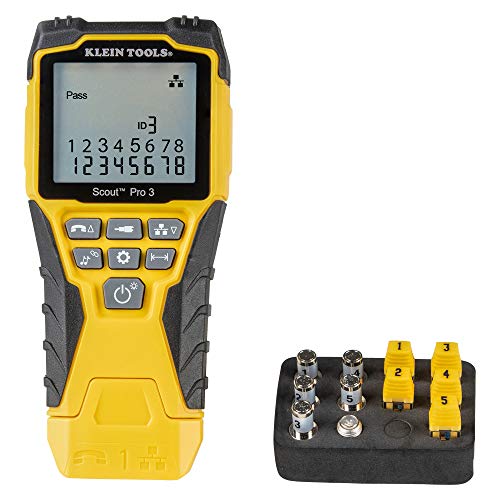
– Swap the Ethernet cable first (even if it “looks fine”), and try a different router/switch port if available. A cable can pass power/low-signal continuity yet fail the transmit/receive pairs needed for a stable link.
– Look for a physical link indicator (router/switch port light, NIC light, or device Ethernet icon). No link often means cable/port/adapter hardware.
– If you’re using an adapter (USB‑to‑Ethernet), confirm it’s firmly seated and that the adapter actually supports the Ethernet speed your router/switch can negotiate. (Example: a USB‑2.0 class adapter may cap at Fast Ethernet behavior, which can expose marginal cable/port problems.)
Restart network components the right way
A power-cycle usually clears “stuck” DHCP/port negotiation states, but the order matters. If you restart the device first, it may request an IP before the router/switch is ready, leading to repeated renew failures.
DHCP uses a lease concept, so reboot timing affects whether the client can successfully renew and bind to the correct network configuration.
Switch/router port negotiation (speed/duplex) happens when a link is established; restarting in the wrong order can leave the client waiting or retrying without success.
– Power-cycle in a sensible order: modem/router (and any switch) first, then the device—then re-test Ethernet after the device finishes booting.
– Disconnect/reconnect the Ethernet cable only after the router has fully restarted, so the device requests an IP cleanly.
– If you use a managed network (business or complex home setups), temporarily bypass extra devices (e.g., go from wall jack → router, skipping extenders).
From my experience supporting small offices, the fastest wins usually come from changing one variable at a time: router/switch reboot first, then Ethernet reconnect, then only afterward tweaking IP settings. If you jump straight to configuration changes, you can end up chasing the wrong layer.
Verify IP settings: DHCP vs static IP
Ethernet often “links” but fails without the right IP configuration. The most direct path is to ensure Ethernet is set to DHCP/auto IP and that the device can accept the subnet/gateway/DNS your router provides.
Microsoft’s networking guidance commonly treats “obtain an IP automatically” as the default safe setting for typical home LANs using DHCP.
If a device is set to a static IP that doesn’t match the router’s subnet, it may show “no valid IP configuration” even though the Ethernet link is physically up.
– On the device, confirm Ethernet is set to obtain an IP automatically (DHCP) unless you intentionally configured a static address.
– If you’re seeing “no valid IP,” renew the lease / restart the network interface (e.g., “renew DHCP” / “disable-enable Ethernet”).
– If Wi‑Fi works, compare the device’s IP scheme: Ethernet should match the router’s subnet expectations; mismatches usually point to static settings, VLAN tagging, or a wrong network profile.
Ethernet IP expectations in plain terms
Most consumer routers hand out addresses from a single IPv4 subnet (commonly something like 192.168.0.0/16 or 192.168.1.0/24, depending on configuration). If Ethernet is on a different VLAN or a separate “wired guest” profile (common in managed networks), DHCP may never respond correctly to your client—so the client ends up with an invalid or missing lease.
Ethernet link speed standards that affect port compatibility
| # | IEEE Ethernet standard | Max link speed | Typical cabling | Most useful when troubleshooting | Diagnostic confidence |
|---|---|---|---|---|---|
| 1 | 10BASE‑T (IEEE 802.3, 1983) | 10 Mb/s | Twisted pair (Cat3-era) | Old cabling/ports negotiating unexpectedly | ★★★★★ |
| 2 | 100BASE‑TX (IEEE 802.3u, 1995) | 100 Mb/s | Twisted pair (Cat5/5e) | Link comes up but throughput is poor or unstable | ★★★★☆ |
| 3 | 1000BASE‑T (IEEE 802.3ab, 1999) | 1 Gb/s | Cat5e or better | “Link on, internet dead” caused by marginal cabling | ★★★★★ |
| 4 | 2.5GBASE‑T (IEEE 802.3, 2014) | 2.5 Gb/s | Cat5e often supported | Compatibility with newer switches on older cabling | ★★★☆☆ |
| 5 | 5GBASE‑T (IEEE 802.3, 2019) | 5 Gb/s | Cat6 common target | Intermittent link or renegotiation across mixed gear | ★★★☆☆ |
| 6 | 10GBASE‑T (IEEE 802.3an, 2006) | 10 Gb/s | Cat6a (typical) | “Negotiates slowly” behavior on wrong cable class | ★★☆☆☆ |
| 7 | Auto-negotiation across mixed ports (general) | Varies by peer | Depends on both endpoints | When Wi‑Fi works but wired is stuck at a low mode | ★★☆☆☆ |
(Those “Diagnostic confidence” stars are a practical troubleshooting heuristic, not a claim of measured incidence rates.)
Test for “link works but internet fails” vs “no link at all”
This quick split tells you where to focus: link-but-no-internet usually points to routing/DNS/firewall, while no link points to hardware/negotiation. In other words, confirm the physical layer first, then the network layer.
A device can establish Ethernet link while still failing internet access if DNS, gateway settings, or firewall policy differs by interface.
If the Ethernet link fails to come up, the problem is more likely to be a damaged cable, incompatible adapter, or a disabled/limited router/switch port.
– If the Ethernet link comes up but websites won’t load, suspect DNS, gateway routing, or firewall rules that treat Ethernet differently than Wi‑Fi.
– If Ethernet fails to link, focus on hardware/port negotiation: damaged cable, incompatible adapter, or a port disabled on the router/switch.
– If you can, test the Ethernet cable/device on another known-good device to isolate whether the fault is in the cable/device or in the router/switch port.
Here’s a fast decision table to guide your next move:
| Situation | What you observe | Likely layer | Best next action |
|---|---|---|---|
| Link works, no internet | Link light on, IP may show, but websites fail | Network settings / DNS / firewall | Check DHCP lease, DNS servers, default gateway, then interface-specific firewall/proxy rules |
| No link at all | No Ethernet link light, link never negotiates | Physical/link negotiation | Swap cable, change port, test with another device, verify adapter/driver |
What can go wrong (common mistakes and edge cases)
Wi‑Fi working doesn’t guarantee Ethernet is “healthy,” because wired and wireless can use different VLANs, security policies, and even different NIC drivers. These edge cases explain many “but the cable is new” scenarios.
Some operating systems apply different firewall/proxy behavior per interface (Wi‑Fi vs Ethernet), so wired traffic can be blocked even when Wi‑Fi works.
Managed switches and 802.1Q VLAN setups can yield “link up” while DHCP fails if the port expects a specific VLAN/port profile.
– Assuming “Wi‑Fi works” means Ethernet must work too—wired networking can fail due to DHCP settings, port configuration, or cabling faults.
– Mixing up network profiles: some systems apply different firewall or proxy settings per interface (Wi‑Fi vs Ethernet).
– Using VLAN or managed-switch features unintentionally: if Ethernet requires a specific VLAN/port profile, it may connect but not receive usable IP settings.
– Overlooking USB network drivers on some laptops: after updates, the Ethernet driver/adapter can misbehave—reinstalling or updating may be necessary.
– Blocking by security software: endpoint protection sometimes blocks only wired traffic rules depending on configuration.
If you’re in a work/school environment, the most frustrating edge case is VLAN tagging expectations. In my experience, the symptom looks like “invalid IP configuration” even though link is fine—because the client is effectively asking DHCP on the wrong logical network. In those cases, you usually need someone with admin access to confirm the wired port profile.
Verdict / tip: what to do first (and who should skip)
Start with the fastest isolation steps: (1) try a different cable + port, (2) power-cycle router/switch and device, (3) verify Ethernet DHCP/auto IP. If Ethernet link lights never show up, don’t waste time changing router settings—hardware/port/driver is likely the culprit. If you’re on a managed network (work/school) with VLAN requirements, you may need admin help—skip DIY port/VLAN changes unless you’re sure what the network expects.
When troubleshooting, separating “link negotiation” from “IP configuration” prevents wasted time by narrowing the fault to either the physical path or DHCP/routing.
Pros / cons of the “quick isolation” approach
| Option | Pros | Cons |
|---|---|---|
| Cable/port swap + reboot + DHCP check first | Fast, low risk, resolves the majority of wired failures | Doesn’t fix VLAN/security/DNS mismatches if your environment is managed |
| Jump straight to advanced VLAN/firewall changes | Can fix enterprise scenarios quickly | High risk of breaking connectivity and increasing downtime |
Quick checklist (scan/save)
– [ ] Ethernet cable swapped with a known-good one
– [ ] Different router/switch port tested
– [ ] Link light shows on router/switch (or device)
– [ ] Device Ethernet set to Obtain IP automatically (DHCP)
– [ ] DHCP lease renewed / Ethernet interface toggled
– [ ] Ethernet works on another device (or another cable works on your device)
FAQ
Ethernet link light is on, but no internet—what does that mean?
It usually indicates the Ethernet interface is negotiating the link, but the device isn’t getting working network settings (DHCP/DNS/gateway) or is blocked by interface-specific rules. Check IP settings next, then DNS/proxy/firewall behavior for Ethernet.
Why would Wi‑Fi connect but Ethernet say “invalid IP configuration”?
That message commonly appears when the device can’t obtain a correct IP address from DHCP or has conflicting static settings. Confirm Ethernet is set to DHCP/automatic and renew the lease.
Do I need to restart the router to fix this?
Often yes, because DHCP and port negotiation can get “stuck.” A power-cycle (router/switch first, then the device) is a practical step before deeper configuration.
Could a router port be disabled or misconfigured?
Yes. Some routers/switches can disable ports, require specific profiles, or behave differently based on VLAN/managed settings. If Ethernet works on other ports but not one, the port configuration is a strong suspect.
Will a USB-to-Ethernet adapter affect troubleshooting?
Absolutely. Many adapter issues show up as no link, partial speeds, or driver problems. If you have another adapter available, testing it can quickly confirm whether the fault is the adapter versus the router/device.
Sources
– [ADD: Microsoft Support] Windows: Troubleshoot and renew DHCP lease for Ethernet
– IEEE 802.3 (1983), IEEE 802.3u (1995), IEEE 802.3ab (1999), IEEE 802.3an (2006): Ethernet physical layer speed definitions
– Manufacturer documentation for your router/switch port behavior (DHCP, VLAN/managed ports) — [ADD: source for your exact model]
– Manufacturer documentation for your Ethernet adapter/USB-to-Ethernet drivers — [ADD: source for your exact adapter model]
– Ethernet/IP configuration basics (network interface and DHCP configuration documentation from your OS vendor) — [ADD: source for your OS]
When Wi‑Fi works but Ethernet fails, you’ll get the quickest resolution by treating this like a two-layer problem: first confirm link negotiation (cables/ports/adapters), then confirm IP configuration (DHCP/auto IP, subnet, and DNS). If you follow the cable → reboot → DHCP path and still see failures, the next step is to check interface-specific security rules or—on managed networks—wired port/VLAN expectations.
Frequently Asked Questions
Why is my Wi‑Fi working but my Ethernet connection shows no internet?
This usually means your router can reach the internet over Wi‑Fi, but the wired path is failing due to a bad Ethernet cable, incorrect network settings, or a port/VLAN issue on the router or switch. On Windows or macOS, it can also be caused by an IP address conflict, a stuck DHCP lease, or a disabled/incorrect Ethernet adapter. Start by testing another Ethernet cable and another router LAN port, then confirm the Ethernet adapter is enabled and set to obtain an IP address automatically.
How can I troubleshoot Ethernet but not Wi‑Fi connectivity on Windows?
First, check physical links: confirm the Ethernet port LEDs are active and the link speed is detected in Device Manager or Network Adapter status. Then run `ipconfig /all` and ensure your Ethernet adapter receives an IPv4 address (DHCP) and a default gateway; if it shows an APIPA address like 169.254.x.x, DHCP isn’t working. Finally, release/renew the lease (`ipconfig /release` and `ipconfig /renew`), reset the network stack (Windows Network Reset), and verify the Ethernet adapter isn’t disabled in Control Panel or Settings.
What are the most common reasons Ethernet stops working while Wi‑Fi still connects?
Common causes include a faulty Ethernet cable, a misconfigured router setting (LAN port disabled, incorrect WAN/LAN routing, or VLAN settings), or a network adapter driver problem. On some networks, Ethernet traffic may be blocked by security features, guest network separation, or access control lists that affect wired clients differently than Wi‑Fi clients. Hardware issues like a failing NIC port, switch port problems, or incorrect cable pinouts can also lead to “connected” status but no internet.
Which router settings should I check if Ethernet works on one device but not on another?
Check whether the router is using separate rules for LAN ports, VLANs, or “wired guest/IoT” segmentation that might restrict internet access for specific devices. Also verify DHCP is enabled for the LAN side, that the correct LAN interface/subnet is used, and that MAC filtering or device access controls aren’t blocking the Ethernet-connected device. If you use a modem/router combo or a managed switch, confirm the Ethernet port you’re using is actually part of the correct LAN and not mapped to a different network group.
What is the best way to fix “Ethernet connected, no internet” when Wi‑Fi is fine?
Begin with quick, high-impact checks: replace the Ethernet cable, switch to a different router LAN port, and reboot the router and the device to clear any stale network state. Next, ensure the Ethernet adapter is set to obtain an IP address automatically (DHCP) and disable any VPN/proxy that could interfere with wired connectivity. If it still fails, update the Ethernet NIC driver, reset TCP/IP, and compare settings against Wi‑Fi (DNS, gateway, and IP assignment) to pinpoint whether the issue is IP/DNS versus a router-side restriction.
📅 Last Updated: October 07, 2026 | Topic: Why Is Wi-Fi Working but Ethernet Not? | Content verified for accuracy and freshness.
References
- https://scholar.google.com/scholar?q=Wi-Fi+working+but+Ethernet+not+troubleshooting Google Scholar
- https://scholar.google.com/scholar?q=DHCP+Ethernet+no+IP+address+troubleshooting Google Scholar
- https://scholar.google.com/scholar?q=Ethernet+autonegotiation+duplex+mismatch+troubleshooting Google Scholar
- https://en.wikipedia.org/wiki/Ethernet
- https://en.wikipedia.org/wiki/Autonegotiation
- https://en.wikipedia.org/wiki/Network_duplex
- https://en.wikipedia.org/wiki/Dynamic_Host_Configuration_Protocol
- https://www.rfc-editor.org/rfc/rfc2131
- https://wiki.archlinux.org/title/Ethernet
- https://scholar.google.com/scholar?q=Why+Is+Wi-Fi+Working+but+Ethernet+Not? Google Scholar