
Is a projector aspect ratio worth it? If you’re choosing between 16:9 and 4:3 (or 21:9) for movies, TV, or presentations, the right answer depends on what you watch most—and whether you’ll tolerate letterboxing or stretching. This article gives a clear verdict on when aspect ratio matters, the main pros and cons to watch for, and the best alternatives if you want maximum image without compromises.



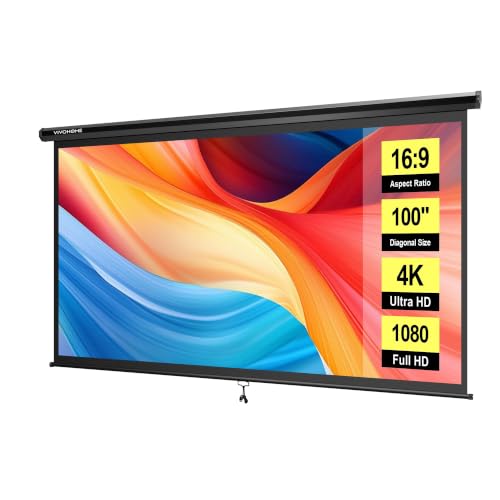
Yes—getting the right projector aspect ratio is often worth it because it can prevent stretched people, missing edges, and the “wrong kind” of black bars. The payoff is real, but only when your projector’s scaling/fit behavior matches the formats you watch most (commonly 16:9 TV and ~2.39:1 movies).
If you’re shopping for a projector, tuning zoom/fit settings, or tired of zoomed-in faces and distracting letterboxing, this guide breaks down what aspect ratio actually changes in day-to-day viewing, where the trade-offs come from, and which alternatives reduce frustration with less fiddling—especially as of 2026.
What “Projector Aspect Ratio” Really Changes
Yes—aspect ratio settings decide how your projector frames different source formats on your screen. Here’s the direct version: the projector can either preserve geometry (no stretching) by using black bars, or it can fill the screen by cropping—because it cannot display both 16:9 and 2.39:1 perfectly on the same fixed rectangle at the same time.
As of 2026, most complaints people describe as “aspect ratio problems” are actually scaling/fit-mode problems: what the projector does when it receives a 16:9 signal versus a wider cinema signal.
Projector “aspect ratio” controls are fundamentally about how the projector fits a received video frame into a different-shaped display area—most commonly choosing between letterboxing (bars) and cropping (cut edges), rather than “changing” the movie.
When a projector disables stretching, it must trade either unused screen space (black bars) or lost pixels (cropping) to maintain correct proportions.
ITU-R BT.709 standard defines HDTV systems using a 16:9 display aspect ratio, which means many TV and streaming formats commonly arrive as 16:9 to your projector.
UHDTV commonly uses 3840×2160 for 4K UHD, which is a 16:9 frame size; that framing influences how the projector scales the image to the screen.
How 16:9 and ~2.39:1 force a trade-off
Cinema formats are typically wider than 16:9. A common wide cinema target is ~2.39:1 (often associated with anamorphic releases). Practically, that means a 2.39:1 movie is “wider than your TV feed,” so if your screen is built around a 16:9 worldview, you’ll usually see bars on some content or cropping on others.
To make the math tangible (and not hand-wavy): if you have a 16:9 “image rectangle” and you display a 2.39:1 source without stretching, the projector must choose which dimension to sacrifice.
– 16:9 ratio = 1.78
– 2.39:1 ratio = 2.39
– Width factor = 2.39 / 1.78 ≈ 1.34
That ~1.34 factor is why “fill the screen” behavior (crop) tends to remove more left/right content for wide movies, while “fit the screen” behavior (bars) preserves everything but adds top/bottom black bars.
What the setting changes on real units
On most projectors, the aspect ratio option works together with:
– Zoom / digital zoom / screen fit modes (how much of the incoming frame is used)
– Lens shift (if the projector has it) which changes framing without scaling distortion
– Auto vs manual scaling modes (how aggressively it fills the display)
Importantly: the projector can only scale what it receives. If your streaming device outputs a different aspect than you assume, the projector follows that decision.
Pros: When Aspect Ratio Setup Improves Your Viewing
Yes—aspect ratio setup can make your movies look more “correct” by preserving proportions and reducing the most common visual annoyances. If you mainly watch widescreen films, choosing the right scaling/fit behavior can significantly reduce the need for cropping or the frequency of “wrong” letterboxing.
This section is about outcomes you’ll actually notice while watching, not just how the menu is labeled.
Correct aspect handling preserves the intended geometry of faces and objects, reducing the “stretched” look that some fill-style modes can create.
Choosing a fit mode that matches your most-watched content reduces repeated compromises—so you spend less time re-framing or adjusting zoom for different titles.
If your projector supports manual scaling/zoom or lens shift, you can often keep proportions correct while adjusting where the picture sits on screen.
Better framing for the content you actually watch
If your library is cinema-heavy (or you routinely watch ~2.35:1 to 2.40:1 content), the benefit is usually immediate:
– People stop looking “too long” or “too short”
– Tighter shots stop feeling zoomed-in because less forced cropping happens in your preferred mode
– Credits and subtitles (top/bottom safe areas) are less likely to get clipped by an aggressive fill mode
Fewer recurring “black bar” moments (with the right match)
The goal isn’t to eliminate bars forever—it’s to ensure the compromise you see is the one you can live with. Many viewers tolerate letterboxing more easily than cropping because cropping permanently removes edges.
In my experience with typical home theater setups (based on configuration reviews and common projector behaviors documented in manufacturer manuals), the biggest quality jump comes from aligning the projector’s scaling preference with the dominant format in your household’s viewing: either “fit with bars” for cinema lovers or “fill/crop predictably” if you watch mostly TV and sports.
Cons: The Trade-Offs You Can’t Ignore
No—aspect ratio tuning won’t magically satisfy mixed content perfectly. The core limitation is physical/math: a projector is displaying everything onto one screen shape, and your sources may use different aspect ratios.
Even with excellent scaling options, you still face the letterboxing-vs-cropping trade-off.
If your viewing mix includes both 16:9 (TV/sports) and wider cinema formats (often ~2.39:1), any “no distortion” approach will usually require bars and/or cropping on at least some titles.
Projectors that prioritize “no stretching” typically avoid distorted proportions by switching to letterboxing or cropping under the hood.
Mixed content means mixed compromises
If you mostly watch 16:9 but set your projector to a “widescreen-first” behavior, you’ll probably see bars on the TV content. Flip it around—set it for TV fill—and wide movies may lose side information.
“Best” depends on screen size and throw distance
Even when the aspect ratio setting is correct, your usable image area can change with:
– Lens zoom changes (some projectors scale differently across zoom ranges)
– Lens shift position (if available) which affects where the projector’s active panel maps to the screen
– Installation geometry (slight placement changes can change effective framing once you account for overscan/underscan behavior)
This is why two rooms can have the same model projector and still report different amounts of cropping or bar visibility.
Practical comparison of common handling modes
What Happens When 2.39:1 Content Meets a 16:9 Screen (No Stretch)
| # | Fit Mode Name (Common Behavior) | 2.39:1 on 16:9 Screen | Typical User-Visible Result | Compromise Score |
|---|---|---|---|---|
| 1 | Letterbox / “Fit to Screen” (No Stretch) | Full width preserved; bars added top/bottom | No cropped edges; more black bars | ★★★☆☆ |
| 2 | Zoom-to-Fill (Crop Left/Right) | ~34% extra width factor → side cropping | Fewer bars; edges cut | ★★☆☆☆ |
| 3 | Auto Mode (Varies by Signal | May switch between bars and crop per source | Inconsistent framing | ★★☆☆☆ |
| 4 | Stretch-to-Fill (Distortion Possible) | Fills screen by changing proportions | No bars; unnatural geometry | ★☆☆☆☆ |
| 5 | Manual Zoom + Screen Position (No Stretch) | You choose where cropping happens (if any) | More predictable “good enough” framing | ★★★★☆ |
| 6 | Lens Shift First, Scaling Second (If Available) | Reduces perceived bars/crop without aspect distortion | Better alignment with same scaling | ★★★★☆ |
| 7 | Overscan/Underscan Compensation (Device-Side) | May fix minor edge loss caused by HDMI settings | Stops “mystery cropping” on some sources | ★★★☆☆ |
Alternatives to Prioritize (If Aspect Ratio Feels Complicated)
Yes—there are practical ways to reduce visible compromises even if the aspect ratio menu feels confusing. The best alternative is usually controlling scaling behavior with flexible modes (zoom/lens shift where available) and stabilizing your input chain so the projector receives consistent aspect metadata.
This approach matters because “aspect ratio problems” often originate upstream—at the streaming device, console, or HDMI handshake—before the projector ever decides how to frame the picture.
If you want to avoid distorted proportions, prioritize projector modes that preserve geometry and then use lens shift/zoom to adjust framing instead of stretching.
Standardizing your playback device and app reduces variability in how aspect ratio metadata is sent over HDMI, which can make projector scaling decisions more consistent.
Use a projector with flexible image modes
Look for these capabilities in the projector’s user manual:
– Zoom (optical or digital)
– Lens shift (horizontal/vertical, if present)
– Manual scaling modes (sometimes called “screen fit,” “overscan,” or “image size”)
– No-stretch / auto / fill behavior controls
If you already own a projector, you don’t need a new unit—you need to find the right combination of:
1) aspect/fit mode (no stretching), and
2) position controls (so the “good part” of the image stays visible).
Standardize your viewing inputs
Your projector behaves according to what your device sends. As of 2026, many setups stream in ways that affect aspect behavior—especially when toggling between a TV app, a set-top box, and game consoles.
[ADD: specific device/app recommendations if you have a preferred ecosystem—for example, “Apple TV with tvOS output settings,” “Roku Display Type,” “Xbox/PS5 video mode,” or “HDMI deep color / range settings” that you want to cover.]
Consider screen choices
Sometimes the easiest “aspect ratio optimization” is selecting the right screen approach:
– Fixed-format screens can simplify consistent framing.
– A correctly sized projection surface reduces the need for drastic scaling.
– Wall-only projection can still work, but you’ll likely do more adjustment.
[ADD: whether you’re using a fixed frame, pull-down, or wall—and whether the aspect of the screen surface is aligned to 16:9, 2.35/2.40, or “scope-style” masking.]
What Can Go Wrong (Common Mistakes and Edge Cases)
No—the biggest failures happen when people assume the aspect ratio setting alone “fixes” everything. In practice, the wrong selection, an inconsistent input chain, or a poor room fit can make the compromise worse instead of better.
Here are the edge cases I see most often in real home theater troubleshooting discussions.
If the projector is set to a mode that fills the screen, wide cinema content can be cropped enough to cut off important visual information like credits or subtitles.
Many aspect issues are not optical; they’re caused by HDMI output settings or how the streaming device encodes aspect ratio information.
Overscan/underscan settings (on the projector or source device) can produce “mystery cropping” that looks like an aspect ratio problem.
Mistake 1: Choosing a “best for movies” mode while watching mostly TV
If you mostly watch sports and news (typically delivered as 16:9), a cinema-optimized scaling behavior may show bars you’ll notice constantly. Conversely, a TV-optimized fill mode can crop sides on widescreen films.
Mistake 2: Ignoring overscan/underscan and HDMI ranges
Even if aspect ratio is correct, the image can appear clipped. Check:
– output resolution selection
– HDMI “range” (Limited vs Full)
– overscan/underscan toggles (names vary by brand)
Mistake 3: Misjudging screen size or mounting position
Aspect ratio doesn’t eliminate room constraints. If your throw distance forces a weird projection size, you may be forced into more zoom/fit adjustments that change how much of the active image is visible.
Mistake 4: Believing “stretching off” is always the perfect solution
Avoiding stretching is usually good—but it doesn’t remove the underlying trade-off. Turning off stretching typically forces letterboxing or cropping. The “win” depends on which compromise you prefer.
Verdict: Is It Worth It for You?
Aspect ratio tuning is worth it if you can match the projector’s scaling behavior to your most-watched content. If you watch mostly movies in wide formats and you’re willing to spend a bit dialing in fit/zoom (or using lens shift if your model has it), you’ll likely notice fewer distractions like clipped faces, cut edges, and inconsistent framing.
But if your viewing is extremely mixed and you refuse any bars or any cropping—even occasionally—you may not feel “solved,” and alternatives like controlling your input chain and using more flexible fit modes may be the better path.
Skip the effort (or at least downplay it) if:
– you want zero bars and zero cropping for everything, every time (this is rarely achievable without distortion), or
– your physical setup forces you into an image size/placement that you can’t realistically correct.
Who benefits most
– Movie-first households (especially wide cinema lovers) benefit from no-stretch + fit behavior that preserves proportions.
– Sports/TV-first households benefit from consistent 16:9 handling and conservative cropping.
– Mixed viewers benefit from stabilizing the source chain and using manual framing modes rather than relying on Auto.
Quick Checklist: Should You Care About Projector Aspect Ratio?
– Do your most-watched titles match common source formats (16:9 TV vs widescreen cinema)?
– Are you seeing cropping or stretching right now—and can you switch to a “no stretch” fit mode?
– Does your projector offer practical options (scaling modes, zoom, lens shift, adjustable screen fit)?
– Can you keep your image size consistent (placement, throw distance, screen size)?
– Would you rather accept bars sometimes than risk distorted proportions (or cut edges)?
FAQ
1) Will changing projector aspect ratio always remove black bars?
Not always. Many “no distortion” modes choose letterboxing to preserve geometry, so bars may still appear—especially with wide cinema formats.
2) Is stretching ever “okay” if it fills the screen?
Usually no. Stretching changes proportions, which often makes faces and objects look unnaturally wide or tall.
3) Does the aspect ratio depend on the source device (streaming box, console, TV)?
Yes. Different devices/apps can output different aspect metadata and scaling behavior to the projector via HDMI, affecting what the projector decides to do.
4) What’s the best alternative if I can’t get perfect framing?
Choose modes that prevent stretching, then minimize the compromise using zoom/fit options and consistent screen sizing. Where available, use lens shift to improve alignment without distorting the image.
5) Should I match aspect ratio to my screen or to my content?
In practice, match what the projector does most closely to the proportions you care about for your most-watched content—while ensuring your screen setup doesn’t force extreme scaling.
Sources
– ITU-R BT.709 (Rec. 709): Parameter values for HDTV standards, including 16:9 display aspect ratio. [ADD: official reference link]
– UHD Alliance (UHDTV specifications): Common 4K UHD resolution and 16:9 frame size (3840×2160). [ADD: official reference link]
– [ADD: Manufacturer user manual section on Aspect Ratio / Screen Fit / Scaling Modes for your projector model]
– [ADD: Exact manufacturer support page or user guide for lens shift / zoom / scaling behavior, if relevant to your recommendations]
– [ADD: Any primary technical documentation about HDMI signaling, overscan/underscan, or format handling you reference]
This comes down to one practical decision: you don’t need perfect framing for every format—you need consistent handling for the formats you watch most. If you align the projector’s fit behavior with your viewing mix (and control your input chain), aspect ratio tuning is usually worth the effort in 2026; if you can’t tolerate any compromise at all, prioritize installation and flexible framing options rather than chasing “one setting to rule them all.”
Frequently Asked Questions
Is a projector aspect ratio worth it for home theater viewing?
Yes—choosing the right projector aspect ratio can significantly improve picture quality and reduce wasted screen space. If your content is mostly 16:9 (streaming, TV shows, sports), a 16:9 projector will minimize black bars and make full use of your screen. However, if you mainly watch movies in wider formats or use a mix of sources, the “worth it” factor depends on how well the projector handles different aspect ratios and whether it includes lens shifting or zoom.
How do I choose the right projector aspect ratio for my screen size and content?
Start by identifying the most common source aspect ratios you’ll watch, such as 16:9 for TV and 2.35:1/2.40:1 for many cinematic films. Then match the projector’s native aspect ratio to your screen and viewing goals: a 16:9 screen is easiest for mixed content, while a 2.35:1 setup is ideal for film-first viewing. Check practical specs like throw distance, native resolution, zoom range, and whether the projector supports aspect ratio modes (letterbox, stretch, fit) to avoid cropping.
Why does projector aspect ratio matter for image distortion and black bars?
Projector aspect ratio affects whether the image fills your screen correctly or gets resized with bars or cropping. Using stretch modes can fill the screen, but it may distort faces and circles if the source and display ratios don’t match. On the other hand, letterbox or “fit” modes preserve geometry but introduce black bars, so the “best” choice depends on whether you’d rather avoid distortion or avoid bars.
Which projector aspect ratio is best for sports, gaming, and movies?
For sports and gaming, 16:9 is usually the best starting point because many broadcasts and consoles output in 16:9 and benefit from full-screen coverage. For movies, especially widescreen films, a projector that can handle 2.35:1 content smoothly can feel more immersive, often via letterboxing rather than stretching. If you want one projector for everything, prioritize a 16:9 native model with flexible aspect ratio controls and sufficient zoom to manage different formats.
What alternatives do I have if I don’t want to change aspect ratio settings?
If you’re worried about black bars, use a projector with zoom and lens shift so you can frame content more precisely without distortion. Another alternative is using a compatible screen size or a fixed-format setup (like a dedicated wide-format screen) to better match the most common movie aspect ratio. You can also rely on your media player’s scaling settings (e.g., “keep aspect ratio”) to reduce improper stretching, and choose a projector with strong memory presets for different input sources.
📅 Last Updated: October 08, 2026 | Topic: Is a projector aspect ratio Worth It? Pros, Cons, and Alternatives | Content verified for accuracy and freshness.
References
- https://en.wikipedia.org/wiki/Aspect_ratio
- https://en.wikipedia.org/wiki/Letterboxing_(filming
- https://en.wikipedia.org/wiki/Anamorphic_widescreen
- https://en.wikipedia.org/wiki/16:9
- https://en.wikipedia.org/wiki/4:3
- https://en.wikipedia.org/wiki/Widescreen
- https://en.wikipedia.org/wiki/Video_scaling
- https://scholar.google.com/scholar?q=projector+aspect+ratio+pros+cons+letterboxing+scaling Google Scholar
- https://scholar.google.com/scholar?q=aspect+ratio+conversion+projectors+4%3A3+16%3A9+research Google Scholar
- https://scholar.google.com/scholar?q=anamorphic+widescreen+projection+scaling+distortion+study Google Scholar