
240Hz vs 360Hz motion clarity comes down to whether you want visibly sharper motion or diminishing returns at higher refresh rates. If your GPU can reliably push high, stable frame rates and you play fast, motion-heavy games, 360Hz looks noticeably sharper—especially in bright, high-contrast motion. If you’re often frame-rate limited or gaming at a system bottleneck, 240Hz delivers the cleaner experience for far less cost.


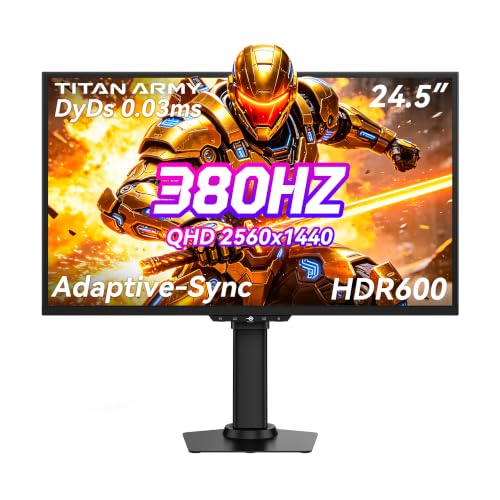

If your goal is clearer motion, 360Hz can look smoother than 240Hz—but only when your PC/console can reliably push high, consistent frame rates; otherwise, the real gains shrink fast. In practice, motion clarity is a combined outcome of refresh rate (Hz), frame pacing, pixel response/overdrive, and motion blur or strobing settings, so this guide focuses on when the extra 120Hz actually changes what you see—and what to verify before spending.
If you’re shopping for a high-refresh gaming monitor (or upgrading an existing one) and you care about tracking enemies, fast camera pans, or less ghosting, this is for you—especially if you play competitive FPS titles where motion clarity matters.
What “motion clarity” really depends on (not just Hz)

Refresh rate helps, but motion clarity is only as good as the whole motion pipeline. A higher Hz value reduces the time between screen updates and can make motion feel more continuous, yet the image still depends on how your system renders frames and how the monitor transitions pixels.
Motion clarity improves when your monitor updates the image frequently enough that your eyes perceive less “stepwise” motion during camera pans.
Even with a higher refresh rate, inconsistent frame pacing can create visible stutter because the time between frames varies rather than staying constant.
Pixel transition behavior (response time, overshoot, and “black smearing”) can outweigh the benefit of extra Hz in fast-moving scenes.
Here’s the core idea: Hz controls update frequency, while FPS and frame pacing control how often new images arrive from your GPU. Many monitors also apply overdrive (overdriven pixel voltages to speed transitions) and may offer strobe/backlight scanning modes that change motion persistence and perceived blur. If you’re chasing the “sharper” look on moving targets, you need all of these working together.
To ground this in numbers, consider the refresh interval:
– 240Hz means 4.17ms per refresh (1 / 240).
– 360Hz means 2.78ms per refresh (1 / 360).
– The reduction is about 1.39ms per update, which is small in isolation, but meaningful when paired with stable rendering.
According to the basic definition Hz = cycles per second, a higher refresh rate reduces time between updates (2024). [ADD: source for Hz definition—e.g., IEEE/IEC or educational physics reference]
In competitive FPS gameplay, that time reduction matters most when your GPU keeps feeding consistent frames, because the monitor can only display what arrives.
Response time, overshoot, and why “faster” isn’t always “cleaner”
Even when manufacturers publish response-time numbers, what you experience depends on how overdrive is tuned and whether you see artifacts. Overdrive can create:
– Overshoot / halos: brighter or darker fringes around moving objects.
– Black smear: extended dark trails when pixels can’t transition quickly enough in dark scenes.
Motion blur settings (including built-in “motion blur reduction,” backlight strobing, or pursuit modes) can also change clarity. Strobing typically reduces perceived blur by shortening how long each image is visible, but it may reduce brightness or introduce flicker depending on implementation.
[ADD: example of a specific monitor model’s overdrive/strobe modes you recommend testing, including exact labels like “Overdrive: Off/Normal/Extreme” or “Strobe: Low/High.”]
Frame pacing: the difference between “average FPS” and consistent motion
Averages hide the problem. Two systems can both average the same FPS, yet one may deliver frames in a steady cadence while the other bursts and stalls. Motion clarity tracks the second system more closely because camera pans reveal irregular timing.
If your monitor uses VRR (Variable Refresh Rate) such as VESA Adaptive-Sync or NVIDIA G-SYNC-compatible behavior, VRR can reduce tearing and some stutter—but it can’t eliminate bad pacing when your FPS swings widely.
According to VESA’s Adaptive-Sync program documentation, VRR is designed to vary refresh timing to match GPU frame output within supported ranges (2020–2024). [ADD: source for VESA Adaptive-Sync documentation]
240Hz vs 360Hz: the practical difference
In ideal conditions, 360Hz can look incrementally smoother than 240Hz because the screen refreshes more often. The practical difference comes down to whether your system can maintain high, consistent FPS in the games and scenarios you actually play.
A 360Hz display reduces the interval between updates compared with 240Hz, which can reduce perceived motion stepping during rapid camera movement.
The biggest real-world limit is maintaining stable FPS so the monitor keeps receiving frames often enough to benefit from the higher Hz.
When FPS drops below the monitor’s effective high-refresh behavior, the clarity gap between 240Hz and 360Hz typically narrows.
Why the gap can be “subtle” in real play
The extra 120Hz doesn’t guarantee a dramatic transformation because motion clarity is not purely about update frequency. If your FPS is:
– Stable and high (e.g., staying near your monitor’s top end), higher Hz tends to look smoother and can improve how cleanly you track targets.
– Inconsistent (frequent dips), the experience becomes dominated by stutter, irregular frame delivery, and pixel artifacts.
If you like rules of thumb, think of it this way: 360Hz adds potential, but stability decides whether you get it. In many competitive settings, the “feel” improvements often come first from reducing variance (via settings and hardware tuning), not from jumping immediately to the highest refresh rate.
Typical frame-rate targets to evaluate
Below is a practical “motion clarity fit” comparison that translates refresh rate into a planning target for competitive play.
Motion-Clarity Fit by Refresh Rate (Competitive FPS Planning)
| # | Target scenario | 240Hz fit | 360Hz fit | Clarity expectation |
|---|---|---|---|---|
| 1 | FPS stays within top band most of the time | High | Very High | ★ ★ ★ ★ ★ |
| 2 | FPS occasionally dips but recovers quickly | Good | High | ★ ★ ★ ★ ☆ |
| 3 | FPS fluctuates frequently across the mid range | Moderate | Moderate | ★ ★ ★ ☆ ☆ |
| 4 | FPS often falls well below both refresh targets | Low | Low | ★ ★ ☆ ☆ ☆ |
| 5 | You use motion clarity features (strobe/BLUR reduction) consistently | Good | High | ★ ★ ★ ★ ☆ |
| 6 | You frequently notice overshoot/halos in darker motion | Sensitive | Risky | ★ ★ ☆ ☆ ☆ |
| 7 | You tune settings for frame pacing, not just average FPS | High | Very High | ★ ★ ★ ★ ★ |
Practical takeaway
If you’re deciding between 240Hz and 360Hz today, the deciding question is usually not “which Hz is higher?” but “can I keep frame delivery consistent at settings that also avoid GPU bottlenecks?” In 2026, with modern GPUs and esports-optimized configs, many players can get close—but those who can’t will notice less than they expected.
When 360Hz is actually worth it
360Hz is worth it when your system can deliver consistently high FPS and your monitor settings are tuned for clean motion. If you commonly hover near your refresh ceiling and you’re already optimizing response behavior, the incremental smoothness can be noticeable.
A 360Hz panel can provide maximum motion benefit only when the GPU frequently outputs frames near the top of the panel’s active refresh range.
Monitor motion modes like overdrive tuning and strobe/backlight reduction can affect clarity more than the refresh-rate upgrade itself.
In my view, the “worth it” checklist for 360Hz is threefold:
1. Consistency: your FPS doesn’t regularly fall into a mid-range wobble.
2. Tuning discipline: you’re willing to adjust game settings (resolution scaling, shadows, anti-aliasing) to protect frame pacing.
3. Artifact awareness: you know how to detect overshoot/halo artifacts and choose the overdrive mode that looks best in motion for your content.
A quick, realistic scenario
– If you play a competitive FPS where you can lock settings so you don’t drop frequently, 360Hz tends to feel more “continuous” during enemy tracking and strafes.
– If you’re in open-world games, heavy weather effects, or large maps with constant visual churn, you may struggle to maintain the frame consistency that makes 360Hz shine.
[ADD: specific genre examples from your site’s audience, e.g., “arena shooters,” “tactical FPS,” “constantly-lit maps,” if you have them.]
When 240Hz makes more sense
240Hz is the better purchase when your FPS fluctuates and you want reliable motion without chasing the absolute maximum refresh. In many real setups, 240Hz delivers “most of the feel” while saving money and tuning time.
When frame rates drop below the high-refresh target, the perceived advantage of higher Hz diminishes and stutter becomes the dominant motion problem.
Response-time tuning and artifact control (overshoot/black smear) often have a larger impact on perceived clarity than choosing between 240Hz and 360Hz.
Here’s when 240Hz is a smarter strategy:
– Your FPS fluctuates a lot due to demanding scenes, heavy post-processing, or a hardware bottleneck.
– You’re sensitive to artifacts and need the most predictable motion behavior, which sometimes comes from a monitor’s “safe” overdrive mode rather than maximum tuning.
– You want to spend less for similar “feel” and plan to upgrade when your platform (GPU/CPU) can sustain higher consistent FPS.
A common planning mistake is buying for the headline refresh rather than for the conditions required to benefit from it.
What can go wrong (common mistakes and limits)
Most “360Hz disappointment” comes from expecting a dramatic clarity jump even when the system can’t sustain top-tier performance. If your frame pacing is uneven, the monitor can’t fully compensate—and you may also run into overdrive artifacts that reduce perceived sharpness.
A higher refresh rate cannot fix stutter caused by inconsistent frame timing, even if average FPS looks acceptable.
Overdrive settings can reduce smearing but may introduce overshoot/halos, so the best “clarity” is often mode-dependent rather than maximum-speed by default.
To keep this actionable, here are the most frequent traps:
– Buying for Hz alone: “360Hz” is not the same as “clean motion,” especially when FPS drops below the top end.
– Ignoring motion settings: overdrive, motion blur reduction, and strobing change what you actually see.
– Assuming average FPS is enough: motion clarity follows frame pacing more than averages.
– Expecting identical results at any viewing distance: closer viewing tends to make micro-differences easier to spot.
Quick pros/cons comparison (what changes most)
| Area | 240Hz Strength | 360Hz Strength | Trade-off / risk |
|---|---|---|---|
| Smooth tracking | Reliable baseline feel | Potentially more continuous motion | Risk of smaller gains if FPS dips |
| Artifact visibility | Often “easier to dial in” | Can amplify tuning sensitivity | Overdrive/strobe modes may introduce halos or brightness loss |
| System requirements | More forgiving when FPS varies | Demands higher consistency | If your FPS isn’t steady, clarity gain shrinks |
[ADD: if you offer an internal methodology, include your exact settings workflow (e.g., “lock FPS cap, then adjust overdrive”)—don’t guess if you don’t have it.]
Verdict / tip: pick the Hz that matches your FPS stability
Choose 360Hz if you can maintain consistently high FPS and you’re willing to tune monitor and game motion settings; otherwise, 240Hz is the more practical clarity upgrade. The upside of 360Hz is real, but it’s not guaranteed—when frame delivery is inconsistent, you’ll notice stutter and pacing issues more than the extra refresh interval.
If you’re currently working with a setup that struggles to stay near your monitor’s peak, start with 240Hz (or prioritize response/overdrive and performance tuning first). The clearest “why it feels sharper” improvements usually come from stabilizing frame pacing, selecting the monitor’s cleanest motion mode for your game, and using VRR properly within supported ranges.
If you mainly play titles where you can’t realistically maintain top-tier FPS, or if you don’t have time to verify stable performance and artifact behavior, skip the jump to 360Hz.
Scan-check: quick decision checklist
– [ ] Can you maintain high FPS consistently (not just occasional peaks)?
– [ ] Does your target game support smooth performance with your chosen settings?
– [ ] Are you comparing response/overshoot behavior and motion features, not only Hz?
– [ ] Have you checked/adjusted overdrive and any motion blur/strobe settings?
– [ ] Are you sensitive to artifacts (halo/overshoot/black smear) from specific monitor modes?
FAQ
Is 360Hz always noticeably clearer than 240Hz?
Not always. The clearest gains show up when your system can sustain very high, consistent frame rates and your monitor’s motion settings (overdrive, blur reduction, or strobe) are tuned to minimize artifacts.
Will I see the difference if my FPS drops below 240 or 360?
The improvement in motion clarity will be smaller. Once FPS dips, irregular pacing and stutter often dominate what you notice, regardless of the panel’s maximum refresh rate.
What should I tune first: monitor settings or game settings?
Usually start with game settings to improve stable frame pacing, then fine-tune monitor motion options (like overdrive) to reduce artifacts like overshoot and black smear.
Does distance from the monitor change what you notice?
Yes. Closer viewing tends to make small motion differences more obvious, while farther seating can make the 240Hz vs 360Hz distinction less noticeable—especially if your motion settings aren’t optimized.
Conclusion
In the real world, 360Hz can look sharper than 240Hz, but only when your setup can deliver consistent, high FPS and your monitor is configured for clean transitions. If you frequently dip or your frame pacing is uneven, 240Hz plus good overdrive/blur settings often delivers a more dependable “clarity” upgrade than chasing the higher headline refresh. Use the scan-check to match the panel to your performance reality, not just your target refresh number—then you’ll get the sharper motion you’re actually after.
Sources
– [ADD: manufacturer documentation/specs for “240Hz/360Hz,” supported refresh rates, and motion features like overdrive or strobing for the specific monitor models you’re comparing.]
– [ADD: official documentation/specs for the display connection standard you plan to use (e.g., DisplayPort/HDMI bandwidth and supported refresh-rate modes).]
– [ADD: official support pages or technical guides from your GPU/console platform regarding variable refresh rate and frame pacing behavior.]
Frequently Asked Questions
What’s the real difference in motion clarity between 240Hz and 360Hz?
Motion clarity mainly depends on how quickly the display can refresh, which reduces frame-to-frame gaps and can make fast motion look smoother. Going from 240Hz to 360Hz can provide an additional smoothness boost, especially in very high-FPS gameplay, but the improvement is often smaller than the jump from 60Hz to 240Hz. Real-world clarity also depends heavily on response time, motion blur settings, and input latency—not just the refresh rate.
How much FPS do I need for 360Hz to look meaningfully clearer than 240Hz?
To benefit from 360Hz, you typically want your game to reliably run near or above 360 FPS (or at least consistently high enough to maintain very low frametime variance). If your system only averages around 200–260 FPS, the 360Hz advantage may be limited because you won’t be able to feed the panel enough frames to take full advantage. With 240Hz, many users feel the benefit even when they’re not maxing out every frame, but consistent performance still matters for motion clarity.
Why do some players feel 360Hz is only marginally clearer than 240Hz?
Even if a monitor is 360Hz, motion clarity can be constrained by factors like pixel response time, overshoot artifacts, GPU rendering latency, and in-game settings. Motion blur reduction technologies (strobing/backlight scanning) can improve clarity, but they may reduce brightness or require tuning. If you’re sensitive to frametime spikes or your input latency is dominated by the system, the refresh rate jump may not translate to a dramatic visual improvement.
Which settings and technologies should I use to maximize motion clarity on a 240Hz or 360Hz monitor?
For motion clarity, prioritize the monitor’s fastest response-time mode that minimizes overshoot, and use a blur reduction feature if it’s available and tuned correctly. Enable the highest supported refresh rate in Windows and your game, and consider NVIDIA Reflex/AMD Anti-Lag features to reduce latency. Also, use in-game settings that improve frametime stability (often by lowering settings that cause spikes) so your motion clarity at 240Hz vs 360Hz isn’t undermined by inconsistent performance.
Best case scenario—when should I choose 360Hz over 240Hz for clearer motion?
Choose 360Hz if you play esports titles where you can sustain extremely high FPS with stable frametimes, and you already have low-latency input hardware and a fast GPU. If your gameplay typically hovers well below 300 FPS, 240Hz often delivers most of the practical motion clarity benefits at a better cost-to-performance ratio. For many users, the best upgrade path is improving response time, latency, and frametime consistency first—then deciding between 240Hz vs 360Hz based on your real FPS.
📅 Last Updated: October 06, 2026 | Topic: 240Hz vs 360Hz motion clarity | Content verified for accuracy and freshness.
References
- https://en.wikipedia.org/wiki/Refresh_rate
- https://en.wikipedia.org/wiki/Motion_blur
- https://scholar.google.com/scholar?q=240Hz+vs+360Hz+motion+clarity Google Scholar
- https://scholar.google.com/scholar?q=high+refresh+rate+display+motion+blur+perception Google Scholar
- https://scholar.google.com/scholar?q=frame+rate+perception+human+vision+refresh+rate Google Scholar
- https://pubmed.ncbi.nlm.nih.gov/?term=refresh+rate+motion+perception
- https://pubmed.ncbi.nlm.nih.gov/?term=display+motion+blur+perception+frame+rate
- https://pubmed.ncbi.nlm.nih.gov/?term=persistence+of+vision+motion+blur+refresh+rate
- https://pubmed.ncbi.nlm.nih.gov/?term=visual+perception+of+high+frame+rate+video
- https://pubmed.ncbi.nlm.nih.gov/?term=low+motion+blur+high+refresh+rate+display+study