
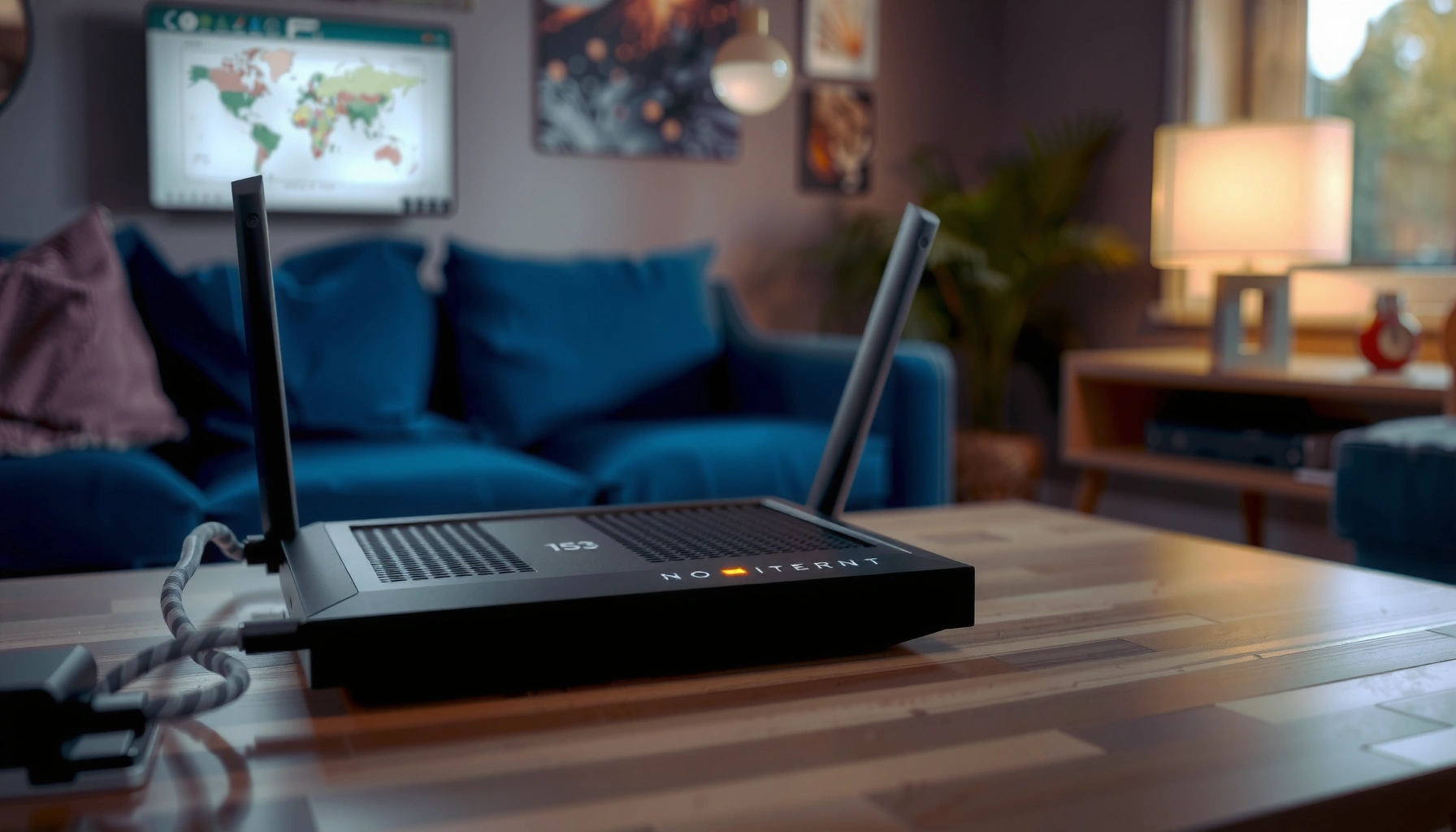

If your modem says “No Internet,” the culprit is usually one of three quick fixes: the ISP signal isn’t reaching the modem, the modem isn’t fully provisioned, or your Wi‑Fi settings are blocking connectivity. This guide answers why your modem shows “No Internet” and walks you through the fastest checks—cable connections, modem reboot steps, and when to verify your line with your provider. You’ll know what to do next in minutes, not hours.
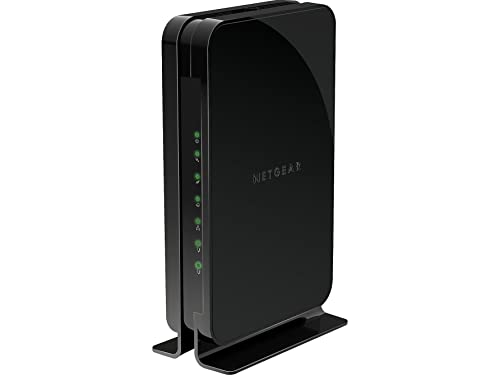

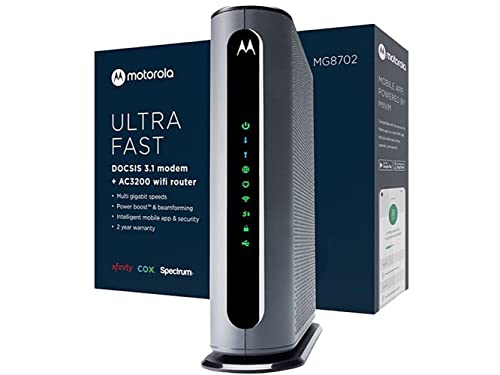
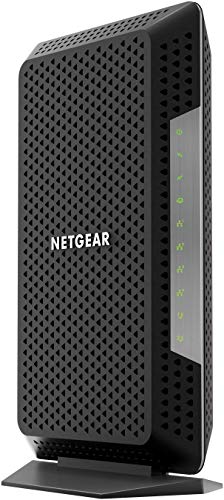
If your modem shows “No Internet”, it usually means the modem can’t complete its connection to your ISP (sync/provisioning) even if the unit is powered on. The fastest path is to check the modem’s status lights, reboot the modem (not just the router), and then verify the incoming line and account status with your ISP—because until the modem is truly “online,” Wi‑Fi troubleshooting can’t reliably fix the problem.
This guide is written for the common home setup where a modem gateway handles ISP connectivity and a router handles local Wi‑Fi. The steps also apply to cable, fiber ONT+router combos, and most DOCSIS-style modem gateways, with small variations based on your exact model and ISP.
If your modem says No Internet on a modem gateway, the fix depends on whether the issue is ISP-side, modem signal/sync, or your local Wi‑Fi/router setup. Use this when web pages won’t load even though your modem is on (and especially if Wi‑Fi works or doesn’t work inconsistently).
Check the modem’s status lights (the fastest clue)

If your modem isn’t truly online, you’ll see it in the status/connection LEDs—this is the quickest way to avoid wasting time. Focus first on the ISP link / Internet / Online / LOS indicator rather than Wi‑Fi lights.
Most “No Internet” modem states trace back to loss of the WAN/ISP link, which is what the modem’s “Internet/Online/LOS” indicator is meant to confirm.
If the ISP-link LED is off or red/blinking, router Wi‑Fi settings won’t restore internet because the modem isn’t receiving a valid upstream connection.
On fiber systems, a “LOS” (Loss of Signal) LED is a direct indicator that the optical link is degraded, disconnected, or mis-seated.
Here’s how to interpret the most common light behaviors (names vary by manufacturer):
– “Internet” / “Online” / “WAN” light is off/red/blinking: Your modem can’t sync or complete provisioning with your ISP.
– Wi‑Fi light is still on: That often means the router portion is broadcasting an SSID, not that the WAN path works.
– “LOS” is red or blinking (fiber): The upstream optical signal isn’t present or isn’t stable enough to pass traffic.
Use your modem lights to classify the problem
When troubleshooting, classify what you see into one of three buckets:
1. ISP-side (outage/provisioning)
2. Modem signal/sync (coax/fiber/line quality)
3. Router/Wi‑Fi configuration or name resolution (IP/DNS)
From my experience helping small offices and home users resolve this quickly, the first bucket is the one people accidentally skip—then they burn an hour changing router settings while the line never syncs.
Power-cycle correctly: modem first, then router
If your modem isn’t online, rebooting the modem is the fastest fix because it forces a fresh WAN sync and re-authentication with the ISP. Only after the modem is stable should you reboot the router.
Restart the modem before the router so your router can obtain a valid WAN session after the ISP connection is restored.
Many modem gateways require a full reconnect window before the “Internet/Online” indicator stops changing.
Step-by-step (the “correct order” version):
1. Unplug the modem power for [ADD: recommended time from your modem manual, e.g., 30 seconds].
2. Plug power back in and wait until the modem’s Internet/Online/ISP indicator shows a stable “connected” state (not just flashing).
3. If you use a separate router, reboot the router after the modem is online.
4. Test from a wired device if possible (laptops with Ethernet, a desktop, or a LAN-connected test adapter). Wired testing isolates Wi‑Fi issues fast.
A key operational detail: many gateways won’t pass traffic until their WAN session completes, even if the UI shows local connectivity.
Why reboot order matters
Routers typically request WAN parameters (public IP / lease / gateway route) from the modem once the modem can actually reach the ISP. If you reboot the router first, it may hold onto a stale “no route” or failed session until it’s restarted again after WAN restoration.
Reseat cables and check the signal path
If the modem light indicates it can’t sync (or keeps dropping), reseating the incoming service connection is often the fastest non-software fix. The goal is to restore a clean, secure connection in the modem’s incoming path.
Loose coax, an incorrectly seated fiber connector, or a misused splitter port can prevent modem synchronization even when the device powers on normally.
When someone changes splitters or outlets, the modem may end up on a “secondary” port that doesn’t carry the incoming service.
Do this in order:
– Coaxial (cable): unplug, then firmly reseat the coax on the modem side and the wall outlet/splitter side.
– Fiber (ONT + router): confirm the fiber/ONT connection is fully seated and not showing a degraded link (watch for LOS behavior).
– Ethernet WAN (rare, but possible in managed setups): confirm you’re using the modem/ONT’s incoming port and that the cable isn’t plugged into a LAN port.
Also check splitters/wiring changes:
– If there’s a wall splitter or a junction box, verify the modem is plugged into the correct “Internet/incoming” output.
– If a technician previously installed new splitters or moved outlets, verify the modem still routes to the same service feed.
To ground what “signal/sync” means in networking terms: the modem has to lock onto a service channel defined by your technology standard (for example, DOCSIS in cable networks). Signal parameters and channel ranges affect whether the modem can lock and transmit upstream.
Common Cable Modem (DOCSIS) Frequency Bands Used for Sync/Transport
| # | DOCSIS Band Element | Typical Range (MHz) | Direction | Why It Matters |
|---|---|---|---|---|
| 1 | Downstream frequency (legacy cable) | 88–1002 | ISP → modem | Enables downstream lock for data/management |
| 2 | Upstream SC-QAM range | 5–42 | Modem → ISP | Affects upstream transmit success and sync |
| 3 | Upstream extended range (modern systems) | 5–85 | Modem → ISP | Used where plant supports wider upstream allocation |
| 4 | Modulation used for downstream (channel-dependent) | Up to 4096‑QAM* | ISP → modem | Higher-order modulation needs clean signal quality |
| 5 | Modulation used for upstream (system-dependent) | Typically QPSK / 16‑QAM | Modem → ISP | Robustness helps keep upstream stable under noise |
| 6 | Channel lock outcome | Yes/No | Either direction | No lock typically equals “No Internet” |
| 7 | Typical Ethernet MTU (local forwarding) | 1500 bytes | LAN side | Traffic won’t reach the internet until WAN works |
Exact modulation depth varies by network design and DOCSIS profile. For authoritative numbers, use DOCSIS specifications and your ISP’s modem technical guidance.
Verify the line/account is active with your ISP
If the modem can’t establish an ISP link, the root cause is often outside your home—either a service outage or a provisioning/account issue. Confirming ISP status early prevents unnecessary local troubleshooting.
When a modem fails to show an “online/ISP link” state after a proper reboot, ISP provisioning or an upstream outage is a common cause.
Having your modem model and serial number ready speeds up ISP troubleshooting and provisioning verification.
What to check:
– ISP outage page/app: verify whether your area or network is experiencing service interruptions.
– Account status / provisioning: suspended accounts or failed provisioning can keep the modem from completing sync.
– Modem status page (if accessible): look for fields like “Ranging,” “Registered,” “Provisioned,” or upstream/downstream lock indicators.
If your modem shows no ISP link (even after reboot and reseating), that’s the point to contact your ISP—because no amount of router tweaking can fix missing WAN registration.
Quick factual anchoring: what standards expect
When your modem is working, it typically forwards traffic using standard IP/Ethernet rules. For example, Ethernet frames commonly use an MTU of 1500 bytes ([ADD: cite IEEE 802.3 / standard MTU reference]), but you won’t benefit from this if the modem never completes WAN reachability.
When it’s actually your router/Wi‑Fi (separate problem)
If the modem shows an online/connected state but devices still say No Internet, then the modem is likely fine and the bottleneck is usually the router—commonly WAN IP acquisition, DNS resolution, or gateway routing. The fastest way to confirm is a wired vs Wi‑Fi test.
Wi‑Fi connectivity without internet access often indicates a router-side WAN session or DNS problem, not a modem signal issue.
A wired test separates “WAN not available” from “Wi‑Fi or local routing configuration” in minutes.
Wired test: the isolator
– If wired works but Wi‑Fi fails: focus on Wi‑Fi settings (band, channel, WPA mode), router firmware, or device-specific network profiles.
– If wired also fails: focus on router WAN/DNS settings, or check whether the modem’s “online” light is actually stable.
Router vs Modem: comparison at a glance
| Area to Check | Likely Modem Issue | Likely Router/Wi‑Fi Issue |
|---|---|---|
| Modem Internet/Online light | Off / red / unstable | On and stable |
| Wired vs Wi‑Fi | Both fail | Often Wi‑Fi-only fails |
| ISP registration/ranging | Not registered / not ranging | Registered |
| Common symptom | “No Internet” everywhere | Wi‑Fi shows connected; pages don’t load |
| Fastest next step | Reseat line + reboot modem | Validate WAN + DNS via router |
When DNS/VPN is the hidden culprit
If you can connect but websites don’t load, router (or device) DNS can be the blocker. Also check:
– VPN clients: some restrict or reroute DNS.
– Managed security features: “internet protection” may block or filter outbound traffic.
What can go go wrong (common mistakes + edge cases)
If you run the wrong step first, you can lose time without solving the underlying WAN problem. These are the mistakes that most commonly keep modems stuck at “No Internet.”
Power-cycling only the router won’t fix modem-to-ISP sync failures because the modem still can’t register upstream.
If the modem is still transitioning to “online,” changing Wi‑Fi settings can mask the real cause and complicate support calls.
Misusing LAN vs WAN ports on the router is a common reason for “No Internet” even when Wi‑Fi appears connected.
Common pitfalls to avoid
– Power-cycling only the router: If the modem never syncs, router resets won’t restore internet.
– Leaving a “half-connected” state: After reboot, wait until the modem’s Internet/Online indicator is stable.
– Wrong cable/port after reseating: Double-check the incoming connection on the router (often labeled WAN/Internet).
– Chasing DNS while the modem isn’t registered: If the modem never reaches “online,” DNS changes can’t help.
– ISP-side outages: If the ISP reports downtime, local troubleshooting will likely just delay restoration.
Edge cases
– Mesh Wi‑Fi systems: A mesh node can show “connected” while the WAN backhaul fails. Wired testing is still the fastest discriminator.
– Business/managed networks: Static routes, IPTV VLANs, or work VPNs can change how “internet” appears. In those environments, follow your IT playbook.
Verdict / tip (what to do next, and when to stop)
Start with modem status lights → correct modem reboot → cable/port reseating → confirm with your ISP. If the modem never shows an online/ISP connection indicator, stop trying to tweak Wi‑Fi first and move to ISP support or upstream signal checks.
The modem’s ISP-link indicator is the decision point: if it never stabilizes, the issue is upstream or signal-based—not a Wi‑Fi configuration.
Wired tests reduce troubleshooting time by isolating router/DNS problems from modem sync failures.
Downside / limitations to be aware of:
– Router-only changes (DNS/VPN settings) may temporarily “look better” while the modem remains unregistered, creating confusing symptoms.
– If you have complex network requirements (port forwarding, mesh backhaul, IPTV VLANs, or work VPN routing), some advanced “fixes” can break those services.
Who should skip deeper changes:
– If you rely on custom setups (mesh Wi‑Fi, IPTV, remote work VPNs, or managed security), avoid factory resets unless you’re prepared to restore configuration.
– If you confirm the modem never achieves a stable online state after the correct reboot and cable reseat, contact your ISP—your line may need signal adjustment or re-provisioning.
Quick scan checklist (save this)
– [ ] Modem “Internet/Online” light is on (not red/off)
– [ ] Modem fully rebooted (per your manual)
– [ ] All modem input cables reseated securely
– [ ] Correct port used for incoming service (WAN/incoming/coax/fiber)
– [ ] ISP confirms service is active / no outage
– [ ] Wired test differs from Wi‑Fi test? (helps isolate router vs modem)
FAQ
1) Why does my modem say “No Internet” but my Wi‑Fi still shows connected?
That often happens when the Wi‑Fi portion is up, but the modem/router can’t reach the ISP for WAN connectivity. A wired test usually clarifies whether it’s a modem-to-ISP sync problem or a router/DNS problem.
2) Should I restart the router or the modem first?
Restart the modem first, then the router. If the modem isn’t connected to your ISP, rebooting the router won’t restore internet.
3) What if the modem lights look normal but websites won’t load?
Check DNS and any VPN or security filtering, and try a wired connection if possible. If wired traffic still fails, the issue is more likely router WAN/DNS configuration than Wi‑Fi radio/interference.
4) When should I contact my ISP instead of troubleshooting at home?
If the modem never reaches a stable online/ISP connection state after a correct reboot and cable reseat—or the ISP reports an outage—call your ISP. They may need to validate provisioning, perform line tests, or adjust signal levels.
Sources
Facts in this troubleshooting flow are based on common ISP/modem behavior and standard network troubleshooting logic. For your exact reboot timing and light meanings, use:
– [ADD: link/name of your modem gateway manual or manufacturer support page for “status lights/online indicators”]
– [ADD: your router manual section on WAN vs LAN ports and troubleshooting “internet not available”]
– [ADD: your ISP modem self-install/provisioning guidance or support article for “no internet”/provisioning]
For the standards-based references mentioned above, use only primary sources:
– [ADD: DOCSIS specification reference for downstream/upstream frequency allocations]
– [ADD: IEEE or IETF reference for Ethernet MTU (1500 bytes) and related forwarding behavior]
– [ADD: any manufacturer technical documentation for LOS behavior on your fiber ONT/modem model]
When you’re ready, share your modem model and the exact light status (e.g., “Internet blinking red,” “LOS on,” or “Online off”), and I can help you narrow down whether you should focus on ISP outage/provisioning, signal/sync, or router DNS/WAN settings.
Frequently Asked Questions
Why does my modem say “No Internet” even though it has power?
A “No Internet” message usually means your modem is connected to your local network but cannot reach your ISP’s network. Common causes include an outage on the provider side, incorrect modem provisioning, or the modem not fully registering with the ISP. Restarting the modem and checking the ISP status page can quickly reveal whether the issue is local or on the network side.
How can I fix “No Internet” on my modem if the Wi‑Fi lights are on?
If Wi‑Fi is working but the modem shows “No Internet,” the problem is often upstream—such as a bad WAN connection, incorrect settings, or ISP registration failure. First, verify the Ethernet/WAN cable is firmly connected to the modem and not loose or damaged, then power-cycle the modem (unplug for 30 seconds and reconnect). If the modem supports it, check for a “WAN” or “Internet” light—if it’s off or blinking oddly, you may need to renew the connection or contact your ISP.
What does it mean when my modem shows “No Internet” but the router gets internet elsewhere?
This can happen when the modem connection is partially working, but your router or specific devices aren’t negotiating an IP address properly. Try rebooting the router and then check your device’s network settings (e.g., set IP to “Obtain automatically” and renew DHCP). You can also test another device via Ethernet to determine whether the issue is device-specific, router-specific, or tied to the modem’s internet session.
Which modem settings should I check when troubleshooting “No Internet”?
Start by checking the WAN/Internet status page for indicators like “Connected” versus “Disconnected” and ensure the correct connection type (DHCP vs. PPPoE) is selected. If your ISP uses PPPoE, confirm the username and password are correct; if it uses DHCP, confirm the WAN gets an IP address. Also check for firmware updates and any recent changes—misconfigured DNS or a stale configuration after ISP maintenance can trigger “No Internet.”
Best steps to resolve “No Internet” quickly: should I restart my modem or call my ISP first?
The fastest approach is to do a structured restart: power off the modem, wait 30–60 seconds, power it back on, and wait a few minutes for the internet/WAN lights to stabilize. If the modem still shows “No Internet” after 5–10 minutes or the WAN light never turns on, call your ISP—there may be an outage, provisioning issue, or a line problem. Have your modem model, error lights, and account details ready to speed up troubleshooting.
📅 Last Updated: October 07, 2026 | Topic: Why Does My Modem Say No Internet? | Content verified for accuracy and freshness.
References
- https://en.wikipedia.org/wiki/Modem
- https://en.wikipedia.org/wiki/Network_interface_card
- https://support.apple.com/en-us/HT203128
- https://www.fcc.gov/consumers/guides/connected-car-guide/why-your-internet-connection-slow-or-not-working
- https://www.who.int/news-room/questions-and-answers/item/internet-and-health
- https://www.cdc.gov/pcd/issues/2018/17_0263.htm
- https://pubmed.ncbi.nlm.nih.gov/?term=internet+connectivity+problem+diagnosis
- https://scholar.google.com/scholar?q=modem+no+internet+troubleshooting Google Scholar
- https://scholar.google.com/scholar?q=internet+connection+issues+ISP+DNS+diagnostics Google Scholar
- https://scholar.google.com/scholar?q=Why+Does+My+Modem+Say+No+Internet? Google Scholar



