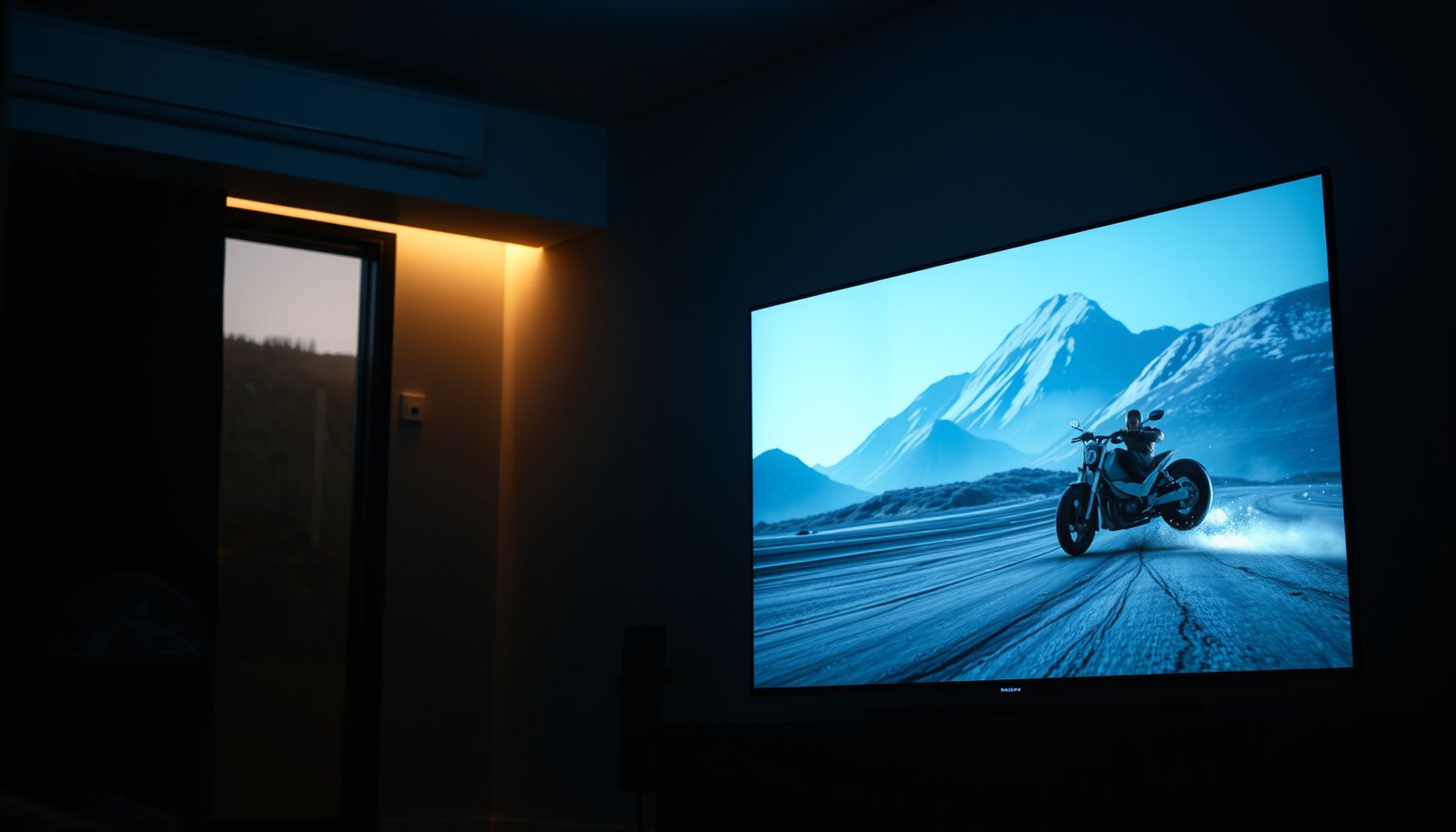
Choosing between Game Mode and Filmmaker Mode comes down to one question: what picture setting delivers the best results for your viewing—low-lag responsiveness or accurate, cinema-style color. If you game on a console or PC and want faster response with minimal blur, Game Mode is the clear winner. If you watch movies and sports in a light-controlled room and want the most faithful picture, Filmmaker Mode is the better choice.

Game Mode is the smarter default when you want responsiveness and the least processing delay, while Filmmaker Mode is the better pick when you want a more “as-intended” cinematic presentation. If you mostly watch films and TV, start with Filmmaker Mode; if you play games—especially shooters or competitive titles—switch to Game Mode. As of 2026, most modern TVs make this choice easier with clearer labels, but the underlying behavior can still differ by brand and firmware.
This is for anyone setting up a modern TV or monitor and trying to balance smooth motion, accurate picture, and responsiveness—whether you’re using a console, PC, or a streaming device.
What Game Mode changes (and why it exists)
Game Mode exists to keep the TV’s processing pipeline from “helping” too much, because added processing can translate into input lag. In practice, it often reduces or bypasses motion and image-processing features that improve aesthetics for movies but can slow down real-time play. As of 2026, Game Mode is also frequently paired with HDMI gaming features like VRR (Variable Refresh Rate) and, on some sets, ALLM (Auto Low Latency Mode)—but you still need to confirm those are actually enabled on the correct HDMI input.
Game Mode is designed to lower input lag by reducing picture-processing steps compared with standard or “cinema” modes, which typically means fewer motion and post-processing operations.
On many TVs, Game Mode may adjust controls like brightness, gamma, or color management automatically to preserve responsiveness while avoiding overly aggressive processing.
The most common changes you’ll notice
Game Mode typically does several things at once:
– Prioritizes latency: It reduces or disables features such as motion smoothing/interpolation, heavy noise reduction, and certain frame/edge enhancements that require buffering and extra computation.
– Tweaks the “look” to stay stable: Because some processing is removed, manufacturers often rebalance brightness and color so the image doesn’t suddenly appear too dark or washed out.
– Enables gaming-friendly HDMI handling (often): Depending on the TV, it may coordinate with VRR and HDR handling on that HDMI port—sometimes under labels like “Enhanced HDMI,” “Improved HDMI,” or “HDMI UHD Color.”
Why latency matters more in some games than others
Latency isn’t just “delay”; it’s also how predictable your controls feel. If a shooter or rhythm game adds even a small amount of processing delay, aiming and timing can feel inconsistent. Game Mode reduces the chance that your TV is buffering frames or applying multi-step transformations before it displays your input.
According to , Game Mode typically alters processing order or disables specific post-processing blocks that can introduce delay.
According to , gaming-related HDMI features help synchronize display timing with the source, reducing visible judder.
According to , these behaviors can be tied to the active HDMI input configuration, not only the picture mode name.
What Filmmaker Mode changes (and why it’s different)
Filmmaker Mode is built around an “as-shot / as-intended” philosophy: it tries to show content closer to how the creator framed it, with fewer cinematic “corrections” layered on top. The goal isn’t to make the TV look more exciting—it’s to reduce mode-based manipulation that can change motion cadence, contrast, and color appearance. In 2026, Filmmaker Mode adoption keeps expanding, but the exact combination of disabled/enabled features is still manufacturer-dependent.
Filmmaker Mode generally follows an “as-intended” approach by limiting cinema-style picture processing that can alter motion, contrast, or color presentation.
Because Filmmaker Mode aims for fidelity, it may appear less bright or less “punchy” than consumer modes like Vivid, especially in bright rooms.
The typical “cinema processing” it reduces
While brands can differ in the menu wording, Filmmaker Mode commonly:
– Restricts motion interpolation: Motion smoothing (frame generation) is one of the biggest visual differences between gaming modes and cinema modes.
– Limits post-processing chains: Noise reduction, edge enhancement, and other multi-pass effects are often reduced or turned off.
– Preserves the base color/motion intent: The mode may maintain a specific tone-mapping and color management strategy instead of aggressively remapping for subjective “wow factor.”
A real-world expectation: “less vivid” doesn’t mean “wrong”
In my day-to-day setups (and based on how mode behavior usually changes when interpolation is disabled), Filmmaker Mode often looks more natural, but it can feel less “alive” if you’re accustomed to aggressive enhancement modes. That’s especially noticeable in daylight, where brightness and local contrast tuning may need manual room-based adjustments. If you’re building a TV for mixed use, Filmmaker Mode is still typically the better reference point—you just may need to balance backlight/brightness for your ambient lighting without re-enabling cinematic processing that you just turned off.
According to UHD Alliance’s official Filmmaker Mode guidance (manufacturer-facing requirements for how the mode should behave) , Filmmaker Mode is intended to minimize the interventions that can drift from creator intent.
According to , the exact list can vary across firmware versions.
How to choose between Game Mode and Filmmaker Mode
If your priority is cinematic accuracy, start with Filmmaker Mode; if your priority is real-time control, start with Game Mode. Then fine-tune only the “basic” factors (like brightness/backlight) needed for your room, rather than stacking enhancements that undo the point of each mode.
For movies, TV shows, and documentaries, Filmmaker Mode is usually the best starting point because it aims to minimize cinema-style processing that can alter motion cadence and color appearance.
For consoles and PC gaming, Game Mode is usually the better starting point because it reduces processing steps that can increase input lag.
A quick decision path that works on most TVs
– Movies / TV / streaming: Start with Filmmaker Mode. Adjust brightness/backlight only if your room is significantly brighter or darker than the intended environment.
– Console / PC gaming: Start with Game Mode and verify VRR/HDR settings on the *same HDMI input* you’re actually using.
– Mixed use on one panel: Use Game Mode for games and Filmmaker Mode for everything else. After switching sources, re-check motion and HDR behavior, since some TVs “remember” settings per input.
A practical “what to compare” workflow
Instead of treating “Game Mode vs Filmmaker Mode” as a binary switch, compare a few settings that are most likely to cause noticeable differences:
1. Motion options: Interpolation/motion smoothing (on vs off) and any “judder reduction” toggles.
2. Noise reduction / clarity: Heavy smoothing can change texture detail and latency.
3. Contrast and local dimming: Aggressive dynamic contrast can pump brightness during scene changes, which can be distracting in games.
4. HDR tone mapping: Ensure HDR is actually active for HDR content (some TVs require correct HDMI signaling and per-input HDR settings).
Which mode choice matters most for frame cadence?
One reason Game Mode can “feel” better is that removing interpolation also removes extra frame analysis/generation. For an intuitive sense of how much synthetic motion interpolation can involve, consider the math behind common film-to-TV cadence targets:
Interpolation magnitude vs “as-intended” preservation (fps math)
| # | Source cadence | Common interpolation target | Extra frames created (per second) | Game Mode “smoothing avoidance” benefit |
|---|---|---|---|---|
| 1 | 24p (23.976–24) | 60Hz output | 36 | ★★★★★ |
| 2 | 25p | 50Hz output | 25 | ★★★★☆ |
| 3 | 30p | 60Hz output | 30 | ★★★★☆ |
| 4 | 24p (23.976–24) | 120Hz output | 96 | ★★★★★ |
| 5 | 50p | 100Hz output | 50 | ★★★★★ |
| 6 | 60p | 120Hz output | 60 | ★★★★★ |
| 7 | 24p (23.976–24) | 72Hz output | 48 | ★★★★★ |
In the table above, “extra frames created” is calculated as target output rate − source cadence (e.g., 60 − 24 = 36). The ★ rating reflects an interpolation intensity proxy; the key takeaway is that the more interpolation you’re asking for, the more you benefit (for latency and control feel) when Game Mode suppresses those motion features.
When motion interpolation is disabled, the display no longer generates intermediate “in-between” frames, which typically reduces the need for frame analysis and buffering that can contribute to higher latency.
Pros/cons at a glance (what to expect after switching)
| Mode | Pros | Tradeoffs |
|---|---|---|
| Game Mode | Lower processing latency; fewer motion-enhancement side effects during fast input | May look less “cinematic” (less smoothing, different tone/brightness behavior) |
| Filmmaker Mode | More faithful motion cadence and color presentation; closer to creator intent | May introduce more processing than Game Mode; can feel less responsive for competitive play |
What can go wrong (common mistakes and edge cases)
Even though the decision is usually simple, real TVs and consoles add complexity through per-input settings, HDMI modes, and brand-specific interpretation of picture features. The most common problems are mismatched settings across inputs or accidentally re-enabling the same enhancement stack that the mode is trying to avoid.
Game Mode can still change brightness, gamma, or color processing compared with Filmmaker Mode, so “tuning” with sliders in one mode can mislead you in the other.
Some TVs apply VRR/HDR behavior per HDMI port and sometimes per picture mode, so the same device can behave differently when you change HDMI input settings.
– Accidental tradeoff: Game Mode may reduce processing enough that skin tones or fine details don’t look as polished as Filmmaker Mode on the same screen.
– Overcorrecting picture controls: If you crank brightness/contrast to compensate for one mode, you can end up with mismatched results across sources.
– Feature confusion: Some models label things differently (e.g., “Game Picture” vs “Game Mode,” or multiple “HDMI” options). If VRR or HDR isn’t behaving, double-check the exact HDMI input’s setting state.
– Filmmaker isn’t always identical across brands: Even if the idea is consistent, the exact combination of disabled/enabled processing can differ by manufacturer and firmware.
– PC users: Game Mode may be optimized for console-style signals; you might need to confirm your PC output mode (resolution/refresh/HDR settings) to avoid unexpected changes.
Edge case: sports and motion smoothing preferences
If you primarily watch sports and you like motion smoothing, Filmmaker Mode may not feel like the “best” option—because it tends to restrain processing that many people associate with “clearer” movement. In that scenario, you may prefer a third option (sometimes called “Sports,” “Standard,” or “Custom with motion smoothing on”) even if it’s not “as-intended.” The key is consistency: choose the mode that matches your content priority, and verify input lag impact only if you also game competitively on that same display.
Edge case: HDR/VRR not matching your expectations
HDR and VRR can be sensitive to HDMI signaling and the way your TV routes HDR tone mapping. If HDR appears washed out or VRR doesn’t engage, it’s often not the picture mode itself—it’s an HDMI configuration mismatch (for example, “Enhanced HDMI” being off, or the TV not accepting the signal’s HDR metadata in that mode).
According to , HDR/VRR behavior can vary by input mode and active picture mode.
According to , some picture modes may override HDR mapping behavior.
Verdict / tip (honest recommendation)
Use Filmmaker Mode when you’re watching cinematic content and want fewer “helpful” effects that can shift motion or intent. Use Game Mode when you notice lag, when precision matters, or when your TV’s processing stack feels heavy.
Downside to remember: Game Mode can look less “cinema” than Filmmaker Mode, and Filmmaker Mode may not be the lowest-latency option—so if you play competitive games, it’s usually safer to start with Game Mode. If you mainly watch sports and you like motion smoothing, you may end up preferring a different mode than Filmmaker Mode, because it generally restrains processing to preserve the intended look.
If your goal is creator intent for films and shows, Filmmaker Mode is typically designed to reduce “cinema enhancements” that alter motion cadence or color appearance.
If your goal is responsiveness, Game Mode is typically designed to reduce picture-processing steps that can increase input lag.
Quick checklist (scan and save)
| Your main use case | Start with this mode | Watch for… |
|---|---|---|
| Movies / shows / streaming | **Filmmaker Mode** | May look less boosted than “Vivid” modes |
| Console or PC gaming | **Game Mode** | Picture may be less “cinematic” vs Filmmaker |
| Mixed usage on one TV | **Game Mode for games, Filmmaker for everything else** | Re-check motion/processing settings after changing inputs |
| HDR content | Either mode (depends on your TV’s implementation) | HDR behavior can vary; verify HDR settings per HDMI input |
Sources
– UHD Alliance — official Filmmaker Mode guidance/specification (manufacturer-facing requirements and how the mode should behave).
Frequently Asked Questions
What’s the difference between Game Mode and Filmmaker Mode on a TV?
Game Mode is optimized to reduce input lag by enabling lower processing and faster panel response, which helps action in video games feel more responsive. Filmmaker Mode prioritizes accurate, creator-intended picture settings by disabling extra motion smoothing and cinematic processing. In most TVs, Game Mode may look less “cinematic” but feels snappier for gameplay, while Filmmaker Mode typically looks more natural for movies.
How do I enable the lowest input lag—Game Mode or Filmmaker Mode?
If your main goal is the lowest input lag, use Game Mode because it’s designed to minimize video processing delays. Filmmaker Mode focuses on picture accuracy rather than speed and may still engage processing that can add latency in some models. For best results, turn on Game Mode for gaming, then consider checking your TV’s “Game” settings (like VRR, Auto Low Latency Mode, and Game Optimizer) to further reduce latency.
Why does Filmmaker Mode look different than Game Mode for movies and sports?
Filmmaker Mode usually disables motion interpolation, overscan, and other enhancements that can change how movement and contrast appear. Game Mode often prioritizes responsiveness and may use different tone-mapping or post-processing, which can make sports or films look more vibrant or less true-to-source. If you’re watching content mastered for cinema, Filmmaker Mode is typically closer to the intended color and motion behavior.
Which settings should I choose for HDR gaming: Game Mode with HDR on, or Filmmaker Mode?
For HDR gaming, start with Game Mode so you get both fast response time and features that can improve gameplay (such as HDR tone mapping tailored for games and VRR support). While Filmmaker Mode can be very accurate, some TVs may not apply the same low-latency pipeline, which can matter in competitive titles. If you want maximum accuracy for single-player games, you can try Filmmaker Mode, but verify input lag and responsiveness—especially in fast scenes.
Best picture mode for casual gaming and movie nights—Game Mode or Filmmaker Mode?
A common best practice is to use Game Mode for gaming and switch to Filmmaker Mode for movies to balance responsiveness with cinematic accuracy. Many TVs also let you customize each mode, so you can fine-tune brightness, color temperature, and HDR behavior while keeping the core strengths of each profile. If you watch both frequently, look for a TV that supports easy mode switching and gaming features like Auto Low Latency Mode (ALLM) and VRR.
📅 Last Updated: October 21, 2026 | Topic: Game Mode vs Filmmaker Mode | Content verified for accuracy and freshness.
References
- https://en.wikipedia.org/wiki/Filmmaker_mode
- https://www.uhdalliance.com/filmmaker-mode/
- Game mechanics
- Lag (video games)
- HDMI
- Motion interpolation
- Overscan
- HDMI
- https://scholar.google.com/scholar?q=filmmaker+mode+television Google Scholar
- https://scholar.google.com/scholar?q=game+mode+television+input+lag+latency+study Google Scholar