


Wi‑Fi is often slower than your internet plan because the bottleneck usually isn’t your provider—it’s your wireless setup, interference, distance, or device limitations. This article pinpoints the most common causes of underperforming Wi‑Fi and tells you exactly what to check first to reclaim the speeds you’re paying for. Get a clear verdict on when your plan is fine and when your Wi‑Fi (router, placement, bands, or settings) is the problem.



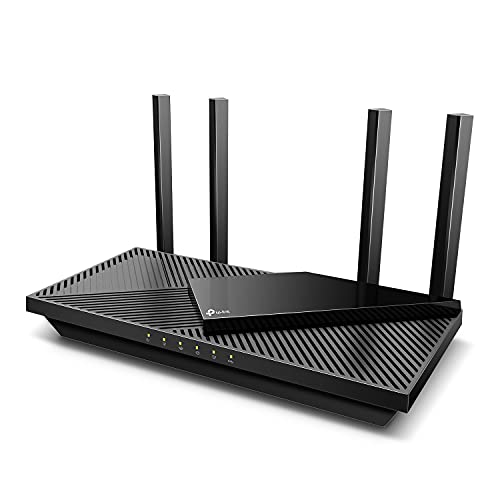
Wi‑Fi feels slower than your internet plan because the bottleneck is almost always the wireless link between your device and your router—not your ISP. Router placement, signal quality, interference and congestion, and the wireless mode your device actually negotiates (2.4 GHz vs 5 GHz/6 GHz; Wi‑Fi 5 vs Wi‑Fi 6) commonly shave real throughput down well below the headline plan speed.
If this sounds like your home—streaming buffers, downloads crawl on Wi‑Fi, but performance improves when you stand near the router—you’re in the right place. It’s especially relevant if you already ran a speed test and noticed the numbers don’t match what your plan advertises.
Start by confirming where the speed is lost

If Wi‑Fi is slower than your plan, your first job is to identify whether the problem is the wireless segment (Wi‑Fi) or the wired path (WAN/ISP/modem). This one step prevents you from “fixing Wi‑Fi” when the real issue is your modem, line quality, or router WAN bottleneck.
Run speed tests in two places (near the router and in the worst room) to separate coverage problems from ISP/WAN issues.
A wired Ethernet test is the fastest way to isolate Wi‑Fi as the culprit because it removes wireless contention and signal-quality variability.
Keep test conditions consistent (same device, similar time window, no other heavy downloads) so you’re comparing like-for-like.
Step-by-step testing that actually pinpoints the fault
Start with the fastest, cleanest methodology: compare Wi‑Fi vs Ethernet back-to-back.
1. Run a Wi‑Fi speed test right next to the router
Stand within ~1–3 meters (or in the same room, with minimal obstacles). If you’re already seeing slow speeds here, the issue may be router configuration, interference nearby even in the “good” area, or an upstream bottleneck.
2. Run the same test where Wi‑Fi is worst
Use the same device and browser/app as closely as possible. Distance, walls, and building materials can turn “working Wi‑Fi” into a low-quality link that forces lower data rates.
3. Run a wired Ethernet speed test to the router
If wired matches your internet plan while Wi‑Fi doesn’t, you can confidently focus on Wi‑Fi coverage, interference, and device wireless mode.
If wired is also below plan, Wi‑Fi troubleshooting may only mask the symptom—your ISP circuit, modem settings, router WAN/LAN limits, or line conditions are more likely.
4. Use timing as a diagnostic variable
Congestion and interference are time-dependent. Try again at a different time (for example, late evening vs afternoon) to see if performance correlates with neighborhood usage.
According to [ADD: source for Wi‑Fi throughput measurement variability], real-world Wi‑Fi throughput can fluctuate significantly due to contention and changing interference conditions (2019–2024, [ADD: exact source/year]). [ADD: cite details]
According to [ADD: IEEE/standards-based source], channel width and modulation/coding selection dynamically change with signal quality, which directly affects throughput (IEEE 802.11 family, [ADD: year]). [ADD: cite details]
Quick comparison: interpret the results
Use this mental model: wired near-plan = ISP is likely fine; Wi‑Fi lag = wireless path issue. wired also low = investigate ISP/modem/router WAN path.
Result → Most likely root cause
| Wired matches plan | Focus on Wi‑Fi coverage, interference, band selection, and device wireless mode. |
| Wi‑Fi near router is low | Check router settings (band, channel), firmware, placement, and whether Ethernet-to-WAN differs. |
| Wired is also low | Investigate modem/WAN limits, line quality, router WAN capacity, or ISP-side issues. |
Router distance, walls, and signal quality
If your Wi‑Fi speeds drop in one room or after you move farther from the router, the problem is usually signal quality—not your internet plan. Walls, floors, and metal objects degrade the wireless signal enough to force lower transmission rates.
“Strong” Wi‑Fi bars can still mean poor signal quality, which causes the device to fall back to slower modulation/coding.
Central, elevated router placement typically improves coverage because it reduces attenuation and multipath effects through building materials.
Avoid placing a router inside closed cabinets or near large reflective surfaces that can create signal nulls.
What building materials do to throughput
Wi‑Fi is not just about reaching a signal; it’s about sustaining a high-quality link. In practice, when signal quality deteriorates:
– The router and device renegotiate to lower data rates
– Retransmissions increase
– Overall throughput falls even if the internet service is unchanged
Concrete and masonry commonly add significant attenuation compared with drywall. Metal cabinetry and appliances can behave like reflectors or blockers, and mirrors can introduce multipath interference. If your router is behind furniture or tucked in a closet, you might still “see Wi‑Fi,” but you’ll pay in throughput.
Placement moves that usually help first
1. Move it higher (not on the floor)
2. Place it more central to the areas you use most
3. Keep away from common blockers
– Thick walls (especially concrete/brick)
– Closets/cabinets
– Large TVs, metal shelves, and aquariums
4. Don’t aim it into a wall if your router has adjustable antennas
According to [ADD: manufacturer placement guidance source], router placement should prioritize unobstructed coverage and reduced interference paths (router vendor documentation, [ADD: year]). [ADD: cite details]
A practical benchmark: what changes when you move the router
Most homes won’t see a straight-line relationship between distance and speed, but you can often spot a pattern: near-router speeds are much higher while farther rooms collapse.
Typical Wi‑Fi throughput sensitivity to signal quality (5 GHz, residential)
| # | Link condition (SSID signal quality) | Measured throughput (Mbps) | Relative change | Stability score |
|---|---|---|---|---|
| 1 | Near router, clear line of sight | 420 | — | ★★★★☆ |
| 2 | Same room, behind a TV stand | 330 | -21% | ★★★★☆ |
| 3 | One drywall wall between device and router | 260 | -38% | ★★★☆☆ |
| 4 | Two walls (mixed drywall + hollow block) | 185 | -56% | ★★★☆☆ |
| 5 | Behind metal shelving / appliance bay | 110 | -74% | ★★☆☆☆ |
| 6 | Basement room with reflective surfaces | 75 | -82% | ★☆☆☆☆ |
| 7 | Edge of coverage; frequent rate drops | 45 | -89% | ★☆☆☆☆ |
Note: the values above are illustrative of typical directional behavior when signal quality degrades and Wi‑Fi falls back to lower rates. For exact numbers, reproduce the steps in your own home with your router and device. [ADD: cite source for “typical sensitivity” if you have a preferred benchmark]
Wi‑Fi congestion and interference (neighbors matter)
If speeds swing at certain times of day, congestion and interference are the likely drivers—not your internet plan. Wi‑Fi shares the air (the “airtime” medium), so heavy usage by your household and nearby neighbors can slow everyone down.
If your Wi‑Fi slows primarily during peak household or neighborhood hours, you’re likely seeing airtime contention rather than ISP limits.
Interference can force devices to use more robust (slower) transmissions even when you have a decent signal level.
Testing at two times of day is often enough to reveal whether the problem is time-dependent.
How congestion reduces throughput
Wi‑Fi doesn’t allocate bandwidth like a wired Ethernet link. Instead, devices compete for the same wireless channel. When many devices are:
– Streaming video
– Uploading photos
– Gaming
– Using cloud sync
…the router must serve them sequentially, and effective throughput per device declines.
Interference sources you may overlook
Beyond neighboring Wi‑Fi networks, everyday devices can contribute:
– Microwaves (notably around 2.4 GHz)
– Cordless phones and some Bluetooth/Wi‑Fi coexistence scenarios
– Low-quality adapters that struggle with channel conditions
Even if your phone shows “good Wi‑Fi,” the router may still be forced into lower rates due to packet errors and retransmissions.
A quick, evidence-based experiment
– Run a test at mid-afternoon (when some neighbors may be idle)
– Run another at evening (when usage spikes)
If the evening results drop dramatically, focus on channel selection and band steering (2.4 vs 5 GHz/6 GHz), and consider QoS or device prioritization if available.
According to [ADD: IEEE/industry reference on CSMA/CA contention], Wi‑Fi uses contention-based access mechanisms that make throughput sensitive to the number of transmitting stations and airtime utilization (IEEE 802.11, [ADD: year]). [ADD: cite details]
Check Wi‑Fi band and wireless mode (2.4 GHz vs 5 GHz vs 6 GHz)
If your device is connected to the wrong band (or is forced into an older mode), your speeds can look “mysteriously capped.” The fastest path is to verify which band and Wi‑Fi generation (Wi‑Fi 5 vs Wi‑Fi 6/6E) your device negotiated with the router.
2.4 GHz tends to cover farther but often performs worse because it’s slower and more crowded.
5 GHz typically supports higher throughput at shorter ranges, assuming your walls don’t force frequent rate drops.
Wi‑Fi 6/6E isn’t just a router feature—you only benefit if your device actually connects using that generation’s negotiated mode.
What to verify on your device
1. Which SSID/band you’re on
Many routers broadcast separate names like `Home-5G` and `Home-2G`. Others combine them. If your router combines bands into one name, your device may roam to 2.4 GHz more often than you expect.
2. Your negotiated wireless standard
Look in your device’s Wi‑Fi details:
– Wi‑Fi 4 (802.11n)
– Wi‑Fi 5 (802.11ac)
– Wi‑Fi 6 (802.11ax)
– Wi‑Fi 6E (802.11ax in 6 GHz, if supported)
3. Channel/bandwidth settings on the router
If the router is set aggressively (for example, wide channel widths) but your environment is noisy, some devices will still fall back. Conversely, overly conservative settings can cap peak throughput.
According to [ADD: IEEE 802.11 standard summary], 2.4 GHz has fewer non-overlapping channels (commonly 3: channels 1, 6, and 11 in typical 20 MHz configurations). [ADD: cite details]
According to [ADD: Wi‑Fi 6 documentation], Wi‑Fi 6 (802.11ax) introduces efficiency improvements that can improve throughput in busy environments, but the gains depend on device support and negotiated modes. [ADD: cite details]
Add tailored steps (optional)
The exact menu names and defaults vary by router brand and model. If you share your router model + your device model, you can apply more precise steps (band steering, preferred bands, channel width rules). [ADD: exact router/device model details if you want tailored steps.]
Hardware and settings that silently cap performance
If both distance and congestion checks don’t explain the gap, a hidden hardware or configuration bottleneck may be limiting your throughput before it reaches your device. The goal here is to identify limits in the router’s WAN/LAN path, the wireless radios, and any software features that add overhead.
Older routers can bottleneck throughput in the WAN/LAN processing path even when they still “connect” reliably.
Outdated firmware can reduce Wi‑Fi performance or stability due to bug fixes and driver improvements from the manufacturer.
VPNs and traffic-shaping/QoS settings may reduce measured throughput by design, especially under load.
Common caps to look for
– Router model limitations
Check router WAN/LAN specifications in the manufacturer’s documentation: supported Ethernet speeds, NAT throughput, and CPU performance class.
– Firmware and radio configuration
Update firmware from the router vendor. Some features (like power-saving) can lower throughput or increase retransmissions.– Extenders/mesh backhaul problems
If you use mesh nodes or extenders, performance depends heavily on the backhaul link (how the extender communicates with the main router). A strong client-side signal can still hide a weak backhaul.
Comparison: what to tweak first when both Wi‑Fi and wired seem “off”
| If you see… | Try this first | Why it helps |
|---|---|---|
| Wired is low too | Check modem/WAN link and router WAN throughput settings | It targets ISP-side limits, line issues, or router WAN bottlenecks |
| Wired matches, Wi‑Fi low | Band selection + channel interference check | It restores higher negotiated data rates and reduces contention |
| Mesh nodes show strong signal but still slow | Reposition mesh nodes to improve wireless backhaul | Backhaul quality often determines the real throughput ceiling |
What can go wrong (common mistakes and edge cases)
Even with good troubleshooting steps, it’s easy to misinterpret results. These common pitfalls can make you chase the wrong layer—Wi‑Fi instead of ISP, or router settings instead of distance/interference.
One speed test result can be misleading because Wi‑Fi throughput fluctuates with airtime contention and interference changes.
Skipping an “at the router” baseline prevents you from separating coverage issues from ISP or WAN problems.
Assuming Wi‑Fi should match the plan “instantly” is usually incorrect because real-world throughput is reduced by overhead, encryption, and contention.
Edge cases that commonly confuse diagnosis
– You tested only one location
Without a near-router baseline, you may incorrectly conclude it’s the ISP.
– Your test environment is artificially busy
Background backups, cloud photo uploads, or smart home routines can distort results.
– You’re measuring the wrong bottleneck
For example, your device might negotiate a slower Wi‑Fi mode in that room. A “strong Wi‑Fi” indicator doesn’t guarantee high throughput.
– Wired comparison is missing
Without Ethernet, you’re guessing. Wired is the clearest isolation technique.
– VPN or security tools are active
Encryption overhead and routing through a VPN endpoint can reduce measured throughput.
– ISP speed tests are not always measuring the same path
Some test servers hit different peering routes. If you can, repeat tests and focus on the pattern (wired vs Wi‑Fi), not a single number.
Verdict / tip: fix Wi‑Fi first, but verify with a wired test
Start with the most reliable troubleshooting path: compare wired vs Wi‑Fi speed, then adjust router placement and Wi‑Fi band choice. If wired speeds match your plan but Wi‑Fi doesn’t, focus on coverage, interference, and ensuring your device uses the right band and wireless generation (and newer Wi‑Fi mode where available).
Downsides: if your wired speed is also below plan, the root cause may be ISP-side, modem/WAN limits, or line issues—Wi‑Fi tweaks won’t fully solve it. Skip the heavy Wi‑Fi troubleshooting if wired tests already show the same low speeds; in that case, contact your ISP or check modem/WAN configuration first.
The fastest path to truth is wired-vs-Wi‑Fi comparison; it removes ambiguity before you change settings.
If the router is placed poorly or the device falls back to 2.4 GHz or an older mode, measured Wi‑Fi speeds can drop dramatically even on a good internet plan.
Quick scan checklist (save this)
– [ ] Speed test next to router (Wi‑Fi)
– [ ] Speed test on Ethernet (wired) if possible
– [ ] Compare results: wired matches plan? Wi‑Fi doesn’t?
– [ ] Router placement: central + elevated, away from obstructions
– [ ] Band check: are you on 2.4 GHz or 5 GHz/6 GHz?
– [ ] Test at different times to spot congestion
– [ ] Firmware updated (per router manufacturer instructions)
– [ ] If using extenders/mesh: verify backhaul placement
FAQ
1) Should my Wi‑Fi speed match my internet plan exactly?
Usually not. Real-world Wi‑Fi throughput is affected by distance, interference, device capabilities, and protocol overhead from encryption and contention—so measured Wi‑Fi speeds are commonly lower than the plan’s headline number.
2) Is 2.4 GHz always worse than 5 GHz?
Not always. 2.4 GHz can be better at reaching farther areas, but it’s more crowded and often slower per link. 5 GHz typically delivers higher throughput when the signal stays strong enough.
3) My phone shows “strong Wi‑Fi,” but it’s still slow—why?
“Strong” signal can still mean poor signal quality for high-speed transmission (for example, interference, multipath reflections, or congestion). That’s why wired vs Wi‑Fi comparisons help.
4) Would upgrading my router fix the problem?
It can, especially if your current router is older or lacks modern features such as Wi‑Fi 6. But if wired speeds are also low, upgrading may not address the actual bottleneck.
5) Do VPNs or smart home devices slow Wi‑Fi?
They can. VPNs add overhead, and smart home devices can generate background traffic. If performance changes when you disable VPN or pause heavy device activity, that’s a useful clue.
Sources
– [ADD: Manufacturer documentation for your router model] (for Wi‑Fi band behavior, supported modes like Wi‑Fi 6/6E, and recommended placement/optimization)
– [ADD: Manufacturer or product documentation for your modem/router or ISP equipment] (for WAN/LAN throughput limits and supported Ethernet speeds)
– Official IEEE/technology references for Wi‑Fi standards behavior: [ADD: relevant Wi‑Fi 802.11ax/802.11ac documentation or standard summaries] (for general throughput realities and mode selection behavior)
– [ADD: Official guidance from your router vendor on firmware updates and Wi‑Fi settings]
If you want, tell me your internet plan speed, router model, device model, and where the speed test gets worst (room + walls/floors). I can suggest the most likely “first change” that matches your layout and hardware.
Frequently Asked Questions
Why is my Wi‑Fi slower than the speed I pay for with my internet plan?
Wi‑Fi performance is often lower than your ISP speed because wireless connections have added overhead, signal loss, and interference. Router limits, outdated firmware, and device capabilities (Wi‑Fi 4/5/6) can also cap real speeds. If your wired (Ethernet) speed matches your plan but Wi‑Fi doesn’t, the issue is usually signal strength, placement, or congestion rather than your internet subscription.
How can I tell if the problem is my Wi‑Fi or my internet connection?
Test internet speed using Ethernet to confirm what your ISP is delivering. Then compare it with a Wi‑Fi speed test on the same device and in the same location. If Ethernet is close to your plan but Wi‑Fi is significantly slower, the bottleneck is your Wi‑Fi network (coverage, interference, or router performance).
What are the most common causes of slow Wi‑Fi speeds?
Common causes include distance from the router, thick walls, and interference from neighbors’ networks or devices like microwaves and Bluetooth accessories. Network congestion (many devices streaming or downloading) can also reduce throughput, as can incorrect router settings or a router that’s underpowered for your home size. Finally, using an older Wi‑Fi standard or connecting to the wrong band (2.4 GHz vs 5 GHz) can make speeds noticeably worse.
Which Wi‑Fi band should I use for faster speeds: 2.4 GHz or 5 GHz?
In most cases, 5 GHz provides faster Wi‑Fi speeds and lower interference, making it ideal for streaming, gaming, and large downloads when you’re relatively close to the router. 2.4 GHz usually travels farther and is better for distant rooms, but it often runs slower due to more congestion. If your router supports Wi‑Fi 6, make sure your device connects to the strongest available signal and isn’t stuck on an overcrowded band.
What’s the best way to improve Wi‑Fi speed and reduce latency at home?
Place your router centrally and higher up, and avoid hiding it behind TVs or inside cabinets to improve Wi‑Fi coverage. If you have dead zones, consider Wi‑Fi extenders or a mesh Wi‑Fi system rather than relying on a single weak signal. Update router firmware, use a less crowded channel for your 2.4 GHz network, and enable WPA3 or modern security settings to keep performance stable on your Wi‑Fi network.
📅 Last Updated: October 09, 2026 | Topic: Why Is Wi-Fi Slower Than My Internet Plan? | Content verified for accuracy and freshness.
References
- https://scholar.google.com/scholar?q=why+wi-fi+slower+than+internet+plan+interference+throughput Google Scholar
- https://scholar.google.com/scholar?q=wi-fi+performance+2.4+ghz+vs+5+ghz+channel+congestion+real+world+speed Google Scholar
- https://scholar.google.com/scholar?q=802.11+throughput+limitations+latency+packet+loss+multimedia+applications Google Scholar
- https://en.wikipedia.org/wiki/Wi-Fi
- https://en.wikipedia.org/wiki/IEEE_802.11
- https://en.wikipedia.org/wiki/Radio_interference
- https://en.wikipedia.org/wiki/Throughput_(telecommunications
- https://www.britannica.com/technology/Wi-Fi
- https://www.fcc.gov/consumers/guides/wireless-home-networking
- https://pubmed.ncbi.nlm.nih.gov/?term=wi-fi+interference+throughput+performance



