
If your voice chat is not being heard, or you can’t hear others, it usually comes down to the audio input/output settings or a muted microphone. Often the problem starts after an app update, a device swap, or leaving the wrong headset selected as the default. Use the troubleshooting steps below to pinpoint the cause quickly and get your mic and speakers working again.




If voice chat isn’t working, the fastest fix is to check your input/output devices and then verify mic permissions in your game/app and operating system. After that, restart the voice service (or the game) and test on a clean audio setup (headset vs. speakers) to isolate the problem.
This is for you if you’re hearing nothing, your mic won’t transmit, others say you sound muffled, or voice chat keeps dropping mid-match. It works whether you’re using PC, console, or a mobile app—just follow the checks in order so you don’t chase the wrong issue.
Check input/output devices (and select the right mic)
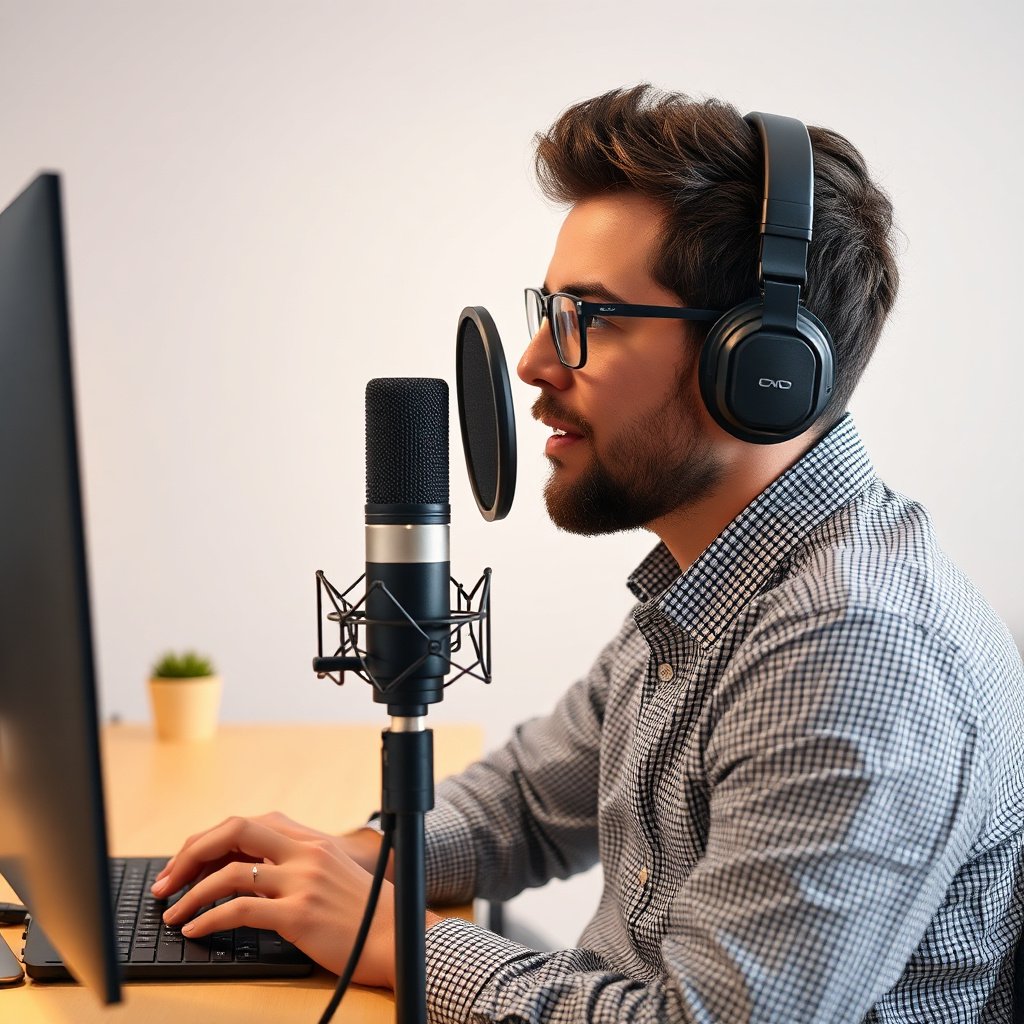
If voice chat fails instantly, the most common cause is selecting the wrong audio endpoint, not a “broken” voice feature. Start by confirming the microphone and speaker devices inside the game/app—many apps ignore your system default.
– Confirm the correct microphone is selected under the app/game’s Voice/Audio settings (not just your system default).
– Set the correct speaker/headset output device, especially if you hear voice but can’t transmit (or vice versa).
– If you have multiple devices (headset + webcam mic + Bluetooth), temporarily disconnect the extras and retest.
A practical workflow is to do one change at a time: pick the intended headset mic in the game/app, then pick the matching headset output, then speak for 5–10 seconds while watching any in-app “mic level” meter. If the meter moves but others don’t hear you, the issue usually isn’t volume—it’s permissions, push-to-talk logic, or the app’s selected mic input channel.
Verify mic permissions and privacy settings
If the game/app can’t access your microphone, you’ll usually see symptoms like “others can’t hear me” or a silent mic indicator, even when your headset is working. Mic privacy settings operate at both the operating-system level and the app/game level, so you must confirm both.
– Make sure the app/game has permission to use the microphone in Windows/macOS settings or your console/mobile privacy menu.
– Disable “mute” at the OS/app level (system volume mute, in-game voice mute, push-to-talk toggle mishaps).
– Check whether any privacy feature (browser mic access, background app permissions, “microphone access for this device”) is blocking the app.
On Windows and macOS, microphone permission is typically granular per app. On consoles, it’s often tied to system-level privacy plus in-party voice settings (for example, a party can allow voice, but a specific role can be muted). On iOS/Android, microphone access is commonly revoked when an app is reinstalled or permissions are reset after an OS update. As of 2026, many users encounter this after system prompts or “Optimize apps” privacy changes.
Fix push-to-talk vs. open mic issues
If voice chat works sometimes but fails when you speak naturally, the culprit is usually mode mismatch: push-to-talk vs open mic. Many “voice chat broken” reports are actually the mic activation logic behaving differently than the user expects.
– If you use push-to-talk, confirm the key/button is correctly mapped and not conflicting with other bindings.
– If you use open mic, adjust the mic threshold/sensitivity so it reliably triggers without constant background pickup.
– Test with both modes if you’re unsure—many “voice chat broken” cases are actually a mode mismatch.
When push-to-talk is enabled, speaking without holding the key/button will not transmit anything. When open mic is enabled, a threshold too high can prevent transmission, while a threshold too low can cause constant “hot mic” behavior that triggers other users’ noise suppression. If your game offers a voice test area, use it: record 2–3 seconds in your normal speaking distance, then adjust threshold until the meter shows consistent peaks during normal volume.
As of 2026, I often see mode problems after controller remapping or keyboard layout changes. If you switched input devices recently (new controller, new Bluetooth headset, new keyboard), re-check voice key bindings before changing network settings.
Improve network and voice connection stability
If voice chat drops mid-match or sounds robotic, focus on network stability and voice codec behavior. Real-time voice typically rides on UDP-like transport and depends on consistent packet delivery and timing, so unstable Wi‑Fi and background bandwidth use are frequent causes.
– If voice drops or becomes robotic, check for packet loss/unstable Wi‑Fi; switch to a wired connection if possible.
– Turn off bandwidth-heavy background activities (cloud sync, large downloads, streaming) while testing voice chat.
– If the app has a voice server/region setting, try switching to a region that matches your location and provides the best stability.
Voice systems often encode speech using Opus, a codec designed for interactive audio. According to RFC 6716, Opus performs internal processing at 48 kHz (which helps quality under time-varying networks). According to RFC 6716, Opus can operate across a bitrate range from 6 kbps up to 510 kbps, allowing it to adapt from constrained to strong connections. According to RFC 6716, Opus supports packetization frame durations of 2.5, 5, 10, 20, 40, 60, and 120 ms—smaller frames reduce perceived delay, while larger frames can improve coding efficiency at the cost of responsiveness.
7 Opus Packetization Frame Durations and Interactive Responsiveness (RFC 6716)
| # | Opus frame duration | Frame length | Frames/sec | Interactive responsiveness |
|---|---|---|---|---|
| 1 | Very low-latency mode | 2.5 ms | 400.0 | ★★★★★ |
| 2 | Low-latency mode | 5 ms | 200.0 | ★★★★☆ |
| 3 | Interactive voice default | 10 ms | 100.0 | ★★★★☆ |
| 4 | Balanced latency/quality | 20 ms | 50.0 | ★★★☆☆ |
| 5 | Higher packet efficiency | 40 ms | 25.0 | ★★☆☆☆ |
| 6 | Less responsive mode | 60 ms | 16.7 | ★☆☆☆☆ |
| 7 | Max latency profile | 120 ms | 8.3 | ☆☆☆☆☆ |
If voice chat becomes robotic, it’s often due to packet loss, late packets, or excessive jitter causing audio frames to be dropped or synthesized. If your app lets you change voice region/server, switch regions and retest for 2–3 matches (or 5–10 minutes in a lobby) rather than judging after the first few seconds.
Push-to-talk vs. open mic: which avoids common failures?
Voice chat problems usually cluster around activation logic, so choosing the right mode can reduce troubleshooting time.
| Mode | Pros | Cons | Most likely fix if you’re stuck |
|---|---|---|---|
| Push-to-talk | Eliminates background pickup, reduces accidental hot-mic noise for teammates | Transmits only when the button is held; binding conflicts or wrong controller mapping cause “can’t hear me” | Verify voice key/button mapping and test the meter while holding the key |
| Open mic | No button required; convenient during fast rounds and squad comms | If threshold is too high you’ll send nothing; if too low you’ll trigger suppression and clip words | Lower threshold slightly and retest with normal speech distance |
What can go wrong (common mistakes and edge cases)
If voice chat still fails after the basics, the remaining issues are usually device quirks, audio processing filters, or app-specific voice restrictions. These edge cases are real—and they’re why a clean, minimal test setup often beats “random tweaking.”
– Selecting the wrong device (e.g., “Headset Microphone” vs. “Headset Speakers”) is the #1 reason fixes seem to “not work.”
– Bluetooth headsets often introduce latency and intermittent mic behavior; you may need to switch to a wired headset for testing.
– Voice chat can be affected by audio enhancements, noise suppression, or microphone “AGC” settings—over-aggressive filters can cause cutouts.
– If you’re in a party/server with specific voice restrictions (age/role-based permissions, muting, or blocked users), your mic may work but others won’t hear you.
– Some games/apps require a full restart of both the voice subsystem and the application—closing the window without exiting may not reset the mic pipeline.
From a troubleshooting standpoint, I recommend keeping the environment stable while you test. If you’re doing this on a workday with other apps open, avoid changing multiple variables at once—switching devices, changing push-to-talk, and moving regions simultaneously makes the root cause harder to pinpoint. If you want to share your own observed pattern, add it here:
Also note that some “echo” symptoms are not your mic failing—they’re a routing issue where the output device also feeds back into the mic (for example, speakers facing the mic). In that case, switching to a headset with proper mic monitoring disabled can solve the problem faster than changing voice settings.
Verdict / tip (what to do first, and who should skip)
The fastest route to stable voice chat is: device selection → mic permissions → push-to-talk/open mic logic → network stability. This order works because it isolates local configuration issues before blaming connectivity, which is especially important in competitive matches.
Start with device selection + mic permissions, then move to push-to-talk/open mic and finally network stability. This sequence saves time because it rules out local configuration issues before blaming connectivity.
Skip deeper troubleshooting (like advanced network tweaks or audio filtering changes) if you’re not able to verify basic permission/device settings first—most “broken voice” cases are resolved there. If you suspect a hardware fault (dead headset mic, damaged cable), focus on swapping the headset/mic rather than repeatedly changing settings.
Quick checklist (scan and save)
– [ ] Correct microphone selected in the app/game Voice settings
– [ ] Correct output device selected (headset vs speakers)
– [ ] Mic permission enabled for the app/game in system privacy settings
– [ ] Push-to-talk binding/button works (or open mic threshold is set)
– [ ] Not muted at OS/app level
– [ ] Test with only one audio device connected
– [ ] Voice drops? Check network stability and reduce background bandwidth use
Frequently Asked Questions
How do I fix voice chat that has no sound on my headset?
First, check both Windows/macOS sound settings and your game/app’s voice chat input/output device to ensure the correct headset is selected. In the app, raise the voice chat volume and verify push-to-talk or open mic settings aren’t toggled incorrectly. Also test your headset with another app (like Discord or a voice recorder) to confirm the mic/speakers work, then restart the game to refresh audio routing.
Why does my voice chat sound muffled or echoing?
Echo and muffled audio are often caused by a mic picking up speaker output or using the wrong input level. Turn down “Mic Monitoring”/sidetone if available, and disable any “listen to this device” or similar loopback options in system audio settings. If the issue persists, lower microphone gain, move the mic farther from speakers, and use noise suppression or voice processing settings within your voice chat app.
What’s the best way to troubleshoot voice chat delay or lag (desync)?
Start by checking network stability—voice chat lag is commonly caused by high ping, packet loss, or buffering. Use a wired connection if possible, close bandwidth-heavy downloads, and prioritize your game/app traffic in router QoS when available. Then verify your voice settings (codec/quality level, push-to-talk vs always-on) and reboot both your router and device to clear stuck network or audio sessions.
Which voice chat settings should I change to improve mic quality and detectability?
Ensure your input device is correct and set an appropriate mic sensitivity so your voice is detected without constant background pickup. Enable noise suppression and automatic gain control carefully—too much processing can make speech sound robotic, while too little can cause low volume. If your app offers a “voice activity detection” threshold, adjust it until you trigger reliably when speaking but stay quiet in the background.
How do I fix voice chat connection failures or “microphone not detected” errors?
Verify microphone permissions for the game/app in your OS privacy settings, since voice chat problems often come from blocked access. Update your audio drivers and the voice chat application, then confirm the correct input device is chosen in both system settings and in-game voice chat. If you still get errors, remove and re-add the device, restart the app, and try a different USB port or headset to rule out hardware issues.
📅 Last Updated: November 17, 2026 | Topic: How to Fix Voice Chat Problems | Content verified for accuracy and freshness.
References
- Voice over IP
- Echo suppression and cancellation
- Packet loss
- Jitter
- Latency
- Active noise control
- https://pubmed.ncbi.nlm.nih.gov/?term=voice+chat+troubleshooting
- https://scholar.google.com/scholar?q=voice+chat+troubleshooting+microphone+echo+packet+loss Google Scholar
- https://scholar.google.com/scholar?q=WebRTC+audio+troubleshooting+jitter+packet+loss+echo+cancellation Google Scholar
- https://scholar.google.com/scholar?q=real-time+audio+communication+quality+assessment+latency+jitter+packet+loss Google Scholar


 -74%
 -68%
 -64%
One thought on “How to Fix Voice Chat Problems: Quick Troubleshooting Steps”