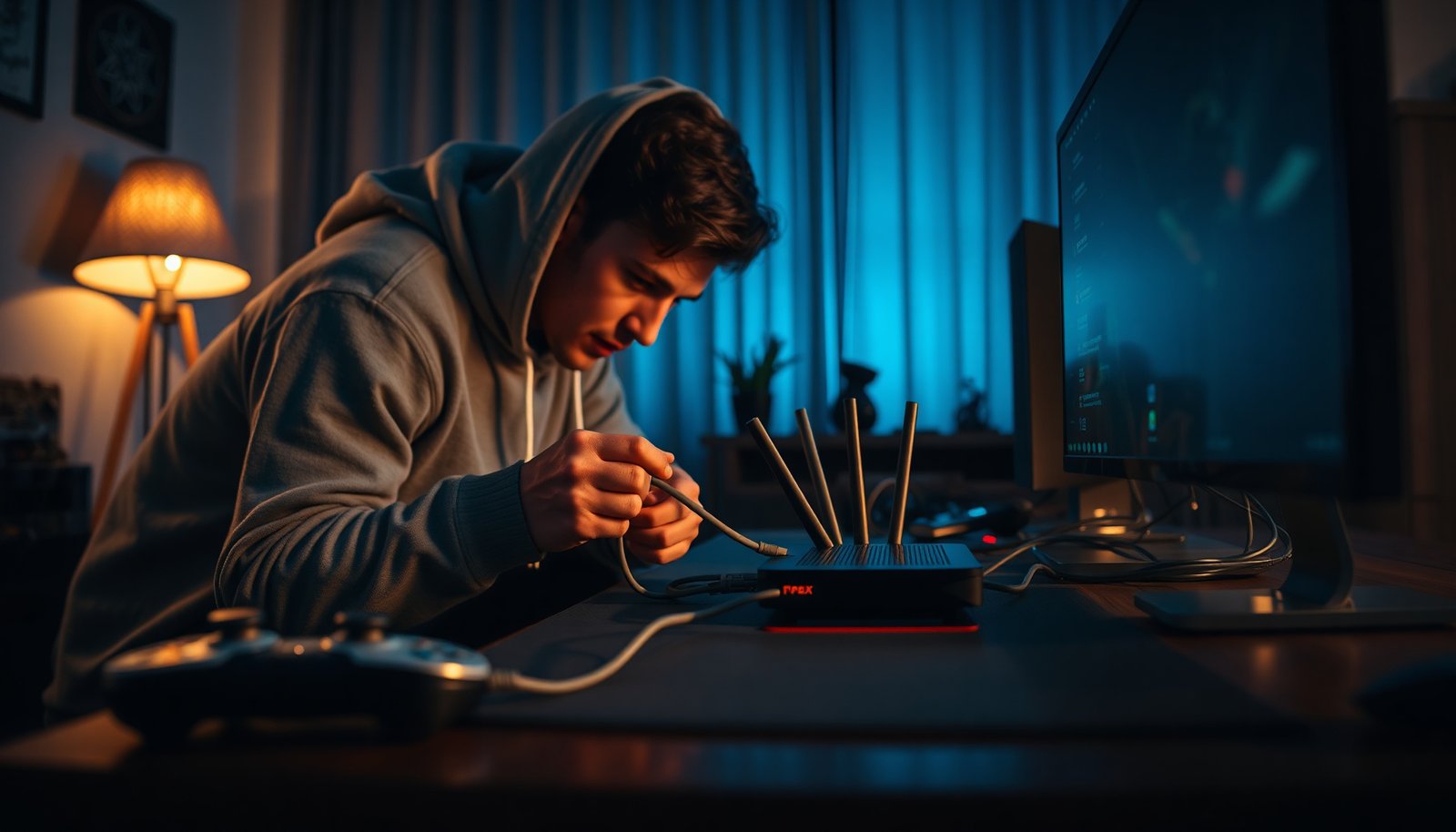
If your game won’t connect to multiplayer, times out during matchmaking, or disconnects right after joining, start by confirming your network is stable and your NAT/firewall isn’t blocking the connection. These issues are most often caused by Wi‑Fi instability, misconfigured router settings, or the game being blocked by Windows/macOS security or your antivirus. The troubleshooting steps below will help you isolate the cause quickly and get you back online.




Multiplayer connection problems are usually caused by one of three things: an unhealthy network path (latency/packet loss), NAT/firewall blocking, or a server-side issue. Start by checking game/server status and doing quick network resets, then verify NAT/firewall behavior and isolate with a wired connection (or hotspot) to confirm whether the problem is local or not. This guide walks through a step-by-step process to pinpoint what’s failing—so you can fix multiplayer connection issues without random guesswork.
If you’re getting symptoms like “failed to join,” “connection lost,” rubber-banding, or voice/chat issues during matches, this is for you. It applies whether you play on PC, PlayStation, Xbox, or via a dedicated launcher—especially when the problem happens only on certain games or only with specific friends.
Start with quick checks (before changing settings)

Do this first: rule out downtime and local network instability before you touch router or firewall settings. Most multiplayer connection issues are either server-side (so nothing you change will help) or caused by Wi‑Fi congestion/packet loss, which a quick reset and a wired/hotspot test can confirm in minutes.
– Check the game’s server/status page or community outage posts to rule out downtime.
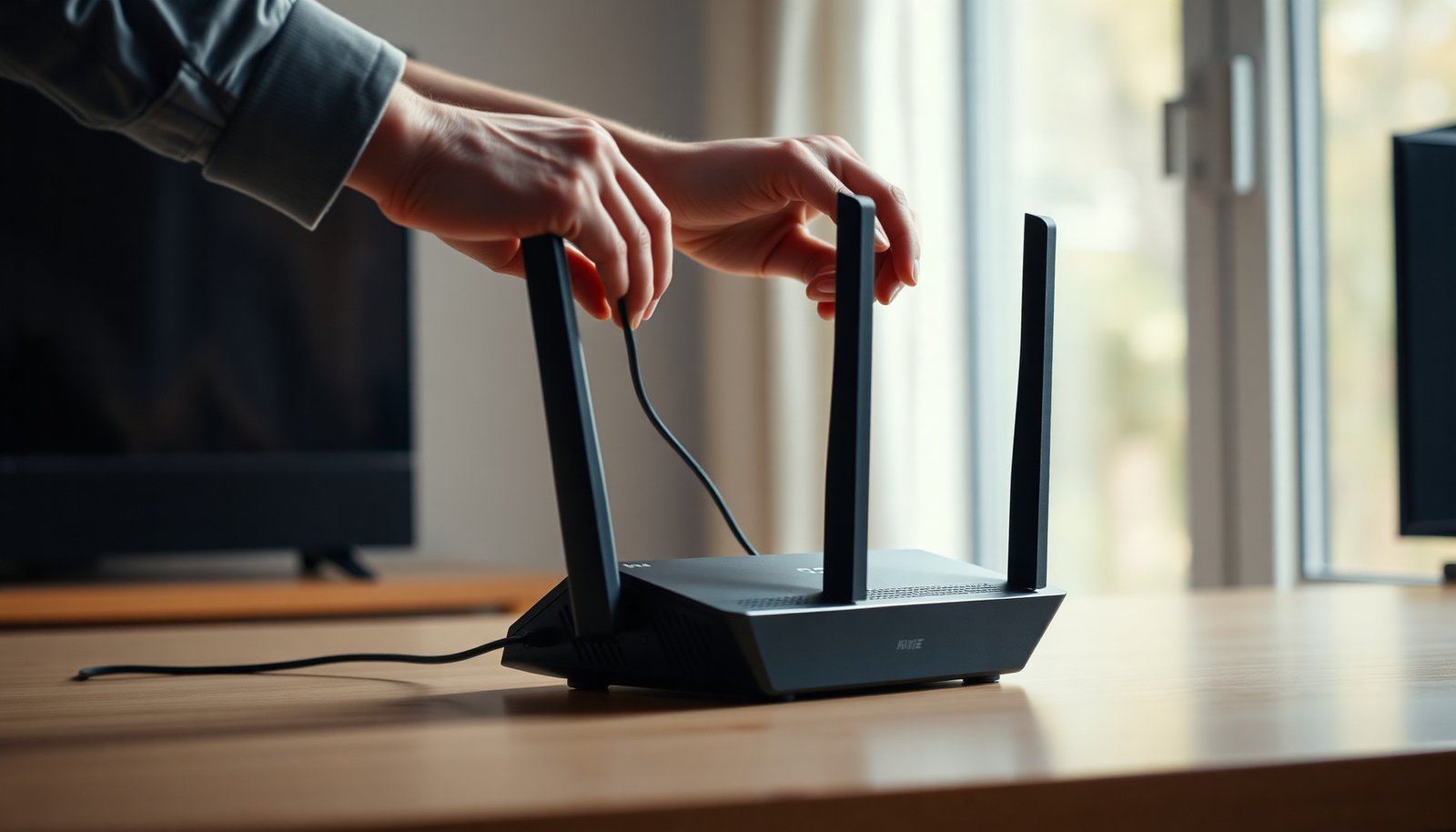
– Reboot your router/modem and relaunch the game (a full power cycle helps more than just “restart”).
– If possible, switch to a wired connection or test on a different network to confirm it’s not local Wi‑Fi.
When you’re trying to fix multiplayer connection problems quickly, the goal of these checks is simple: determine whether the traffic path is broken end-to-end or blocked locally. For example, ITU-T G.114 notes that one-way latency above 150 ms becomes noticeable for interactive communications, and that quality can degrade significantly as latency rises (2003) (ITU-T G.114, 2003). Even if the game servers are fine, Wi‑Fi retransmissions and congestion can push you into that range.
Fix NAT/firewall blockers (the most common cause)
Do this next: assume NAT/firewall is blocking the connection unless your wired/hotspot test proves otherwise. NAT/firewall problems often show up as “failed to join,” “can’t connect to session,” or voice/chat failing while gameplay may still load.
– Make sure your firewall/antivirus isn’t blocking the game’s network access (allow it through Windows Firewall/macOS firewall where applicable).
– If your game shows NAT type, aim for “Open” or “Moderate” by adjusting router settings (UPnP can help on some setups).
– If UPnP isn’t available or isn’t working, consider port forwarding for the specific game—use , not random port lists.
At a networking level, NAT is your router’s way of translating your private IP addresses into a routable public address. According to RFC 1918, the most common private IPv4 blocks include 10.0.0.0/8, 172.16.0.0/12, and 192.168.0.0/16 (1996) (RFC 1918, 1996). When NAT is “Strict,” incoming connections and certain peer-to-peer session negotiations can fail—leading to the exact multiplayer connection symptoms you’re trying to stop.
Before you change anything, consider how UPnP compares to manual port forwarding for NAT and multiplayer connection stability:
- UPnP (Universal Plug and Play)
- Pros: Often automates port mapping; quicker to set up and less error-prone.
- Cons: Some routers still restrict behavior; mapping may not apply consistently across reboots or game updates.
- Port forwarding
- Pros: More explicit and predictable when you use the correct, game-specific ports.
- Cons: Requires precision, administrative access, and careful security; wrong ports can worsen issues or expose more than intended.
From my experience helping troubleshoot multiplayer connection issues with households that share one router, the fastest confirmation is usually: wired test first, then firewall/UPnP/forwarding.
7 Network Ports/Services Most Commonly Tied to Multiplayer Connectivity
| # | Service / Protocol | Default Port(s) | Role in Multiplayer Sessions | Strength if Allowed |
|---|---|---|---|---|
| 1 | DNS (Recursive Resolution) | 53 (UDP/TCP) | Resolves game servers & services | ★★★★★ |
| 2 | HTTPS Game APIs / Auth | 443 (TCP) | Login, session creation, matchmaking | ★★★★★ |
| 3 | STUN (NAT Discovery) | 3478 (UDP) | Helps determine reachable NAT behavior | ★★★★☆ |
| 4 | TURN (Relay Fallback) | 3478 (UDP) / 5349 (TCP) | Relays traffic when direct paths fail | ★★★★☆ |
| 5 | Voice/Media Transport (RTP/RTCP)* | Varies (often dynamic UDP) | Carries voice/audio and real-time media | ★★★☆☆ |
| 6 | NTP Time Sync | 123 (UDP) | Time sync that supports auth/validation | ★★☆☆☆ |
| 7 | UPnP / SSDP Discovery | 1900 (UDP) | Auto port-mapping support (if enabled) | ★☆☆☆☆ |
Many games use dynamic UDP ports for voice; treat these as “what to allow,” not a universal fixed port list.
Tune your connection settings (reduce lag and instability)
Do this when NAT/firewall checks don’t fully explain the problem: stabilize your local routing and name resolution so multiplayer traffic doesn’t thrash. Lag spikes, rubber-banding, and “connection lost” often correlate with unstable routes, DNS hiccups, or bandwidth contention—not just raw internet speed.
– Avoid VPNs/proxies for multiplayer; they can break routing or trigger NAT limitations.
– Change DNS to something stable (many players use 1.1.1.1 or 8.8.8.8), then retest matchmaking.
– Reduce local bandwidth contention by pausing downloads/streams and testing at a quieter time window.
DNS matters because multiplayer clients must resolve matchmaking endpoints quickly and consistently. If DNS resolution stalls for even a short period, the game can time out while negotiating sessions—showing up as failed joins or repeated reconnect attempts.
Also watch fragmentation and MTU behavior. Many home networks assume the common Ethernet MTU of 1500 bytes for IP datagrams (RFC 894, 1984). If your VPN, tunnel, or ISP path forces smaller MTU values and the game path doesn’t handle it correctly, you can see packet loss patterns that feel like “random” rubber-banding even when ping looks mostly normal.
Finally, be deliberate about what you change. If you’re fixing multiplayer connection problems, change one variable at a time (DNS OR VPN off OR bandwidth pause) and retest immediately—otherwise you can’t tell which adjustment helped.
Verify game/client network requirements
Do this next: make sure the client and platform aren’t failing handshake steps due to outdated files, mismatched network settings, or broken cross-play negotiation. Client mismatch can look identical to server problems because the failure happens during session setup.
– Update the game, launcher, and platform OS—outdated clients often fail to handshake correctly.
– Verify game files (PC) or reinstall/repair game data (platform-specific) if the issue started after a patch.
– Check in-game network settings (voice, cross-play, region/servers). Temporarily disabling cross-play can confirm whether compatibility is the trigger.
When you fix multiplayer connection problems, treat “handshake” failures as a separate category from packet loss. Handshake issues typically produce consistent errors (e.g., “failed to join” repeatedly with the same friend) rather than intermittent rubber-banding.
A practical sequencing tip: if the wired test and hotspot test both fail, then verify the client itself (patches, file integrity, launcher updates) before you spend time reconfiguring NAT. Conversely, if the issue disappears on a hotspot, you should focus on local routing—especially firewall rules and UPnP/port forwarding.
Voice and chat add another failure path. Even if gameplay connects, voice can fail due to different port usage, codec negotiation, or firewall rules that block “background” audio processes. If you only notice voice/chat problems, prioritize firewall allow rules for the game and any voice components.
Isolate the culprit with controlled tests
Do this to get certainty: controlled tests remove guesswork and tell you whether the problem is your network, your account/client, or the remote peer/server path. This is often the fastest way to stop multiplayer connection issues permanently instead of repeating fixes.
– Test matchmaking with a wired connection vs. Wi‑Fi (same location, same time window).
– Try a different device/account on the same network to see whether it’s your client or your account settings.
– Test the problematic game with a friend on another network; if both sides see the issue, it’s often server/routing—if only one side fails, it’s usually local NAT/firewall or Wi‑Fi quality.
The key idea is that multiplayer connection problems have multiple “actors” (you, your router/firewall, your ISP, the game server cluster, and the other player). Controlled tests let you localize the failure domain.
For example, if wired works but Wi‑Fi fails, you’ve learned the root cause is likely local Wi‑Fi quality or router behavior under wireless retransmission. If Wi‑Fi works for other games but not one specific title, focus on that game’s NAT traversal approach and its required session endpoints.
If a friend on another network also can’t join your session, server-side or routing issues become more likely. If your friend can join you while on their hotspot but you can’t join them, you’re looking at asymmetric NAT behavior—where one direction works and the other fails.
What can go wrong (common mistakes and edge cases)
Do this before you “finish” troubleshooting: avoid changes that make multiplayer connection problems worse. Many failures persist simply because the fix was applied incorrectly or in the wrong layer (router vs. device vs. game settings).
– Opening ports incorrectly can make things worse or create security risk—only forward what the game actually needs ().
– “UPnP enabled” doesn’t always mean ports are reachable; some routers still restrict rules or require additional settings.
– Some symptoms aren’t true connection drops: packet loss can look like “rubber banding,” while NAT issues can look like “can’t join” or “fails to connect to session.”
– If you live in a shared network environment (dorms, workplaces), you may not have permission to change NAT/firewall—your options may be limited.
A common edge case is testing only on Wi‑Fi and assuming the issue is “fixed” after router changes. Multiplayer connection problems can appear only during match formation, when ports and NAT mappings are created. If you don’t fully close/relaunch the game (and sometimes power-cycle the router), cached NAT behavior can make it look like your changes did nothing.
Another pitfall is relying on a single NAT type readout from the console or game. NAT type displays can be simplistic and may not reflect the ports actually used by a specific game session. That’s why verifying with wired/hotspot tests remains essential.
Verdict / tip (what to do first, and who should skip)
If you want the fastest path to a fix, do this order: server/status check → router reboot + wired test → firewall/antivirus allow rules → NAT/UPnP (or verified port forwarding) → DNS/VPN cleanup. The downside: router-level changes take time and may require admin access; if you can’t control your router or you don’t want to touch NAT/firewall, stick to network resets, wired/hotspot testing, and contacting your ISP/network admin instead of port forwarding.
Skip advanced router changes if you’re on a managed/shared network (campus housing, workplaces) or if you don’t have a safe way to revert configuration—because a mistake can break other devices or impact security.
| Quick scan | What to look for | Best next step |
|---|---|---|
| Server outage | Everyone’s affected around the same time | Wait/check status page |
| Wi‑Fi vs wired | Wired works, Wi‑Fi fails | Focus on Wi‑Fi signal, congestion, router |
| NAT type | “Strict”/blocked | Enable UPnP or use verified port forwarding |
| Firewall prompts | Game blocked/flagged | Allow through firewall/AV |
| VPN running | VPN on while gaming | Turn it off and retest |
| Packet loss/latency | Spikes cause rubber-banding | Reduce bandwidth, test different network |
Frequently Asked Questions
What are the most common causes of multiplayer connection problems?
Multiplayer connection issues are often caused by unstable internet, high ping/latency, packet loss, or network congestion. Other frequent culprits include NAT/port restrictions, incorrect router settings, outdated game versions, or server-side outages. Wi-Fi interference and running bandwidth-heavy apps in the background can also lead to disconnects and lag. Checking error messages alongside ping tests can quickly narrow down whether the problem is local or server-related.
How can I fix multiplayer connection problems on PC or console?
Start by rebooting your router and the console/PC, then test your connection with a wired Ethernet setup if possible. Verify game files (on PC) or update the game to the latest version (on console and PC), and make sure your system time is correct. If the game uses matchmaking regions, try switching to a different region to reduce latency. Finally, close background downloads/streaming, then retest to see if packet loss or ping improves.
Why does my multiplayer match keep disconnecting even though my internet works?
Disconnections during multiplayer can happen when NAT types block inbound connections or when the router times out inactive traffic. Even if browsing works smoothly, multiplayer requires consistent low-latency routing, and packet loss of even a small percentage can trigger drops. Background bandwidth usage, Wi-Fi signal instability, or overheating network equipment can also cause intermittent disconnects. Reviewing the game’s network stats (ping, jitter, packet loss) helps identify whether the issue is latency spikes or connection instability.
What are the best router settings to reduce lag and connection drops for online games?
Enable QoS (Quality of Service) or Gaming Mode so your router prioritizes game traffic over streaming and downloads. If your router supports it, enable UPnP or configure port forwarding for the specific game ports to improve NAT behavior. Use a 5 GHz Wi‑Fi connection or, better, Ethernet to reduce interference and improve stability. These steps often lower ping and jitter, which directly improves multiplayer performance and reduces matchmaking failures.
Which DNS settings and connectivity tests can help troubleshoot multiplayer connection problems?
Try switching to a reputable public DNS provider to improve name resolution speed, which can reduce timeouts when joining matches. Then run basic connectivity checks: test ping to a server region, monitor packet loss, and measure jitter during gameplay. If possible, compare results on wired versus Wi‑Fi to confirm whether the issue is signal-related. If DNS changes and network tests don’t help, the problem may be server load or NAT restrictions that require router-level fixes.
📅 Last Updated: November 17, 2026 | Topic: How to Fix Multiplayer Connection Problems | Content verified for accuracy and freshness.
References
- Network address translation
- Port forwarding
- Latency
- Jitter
- Packet loss
- RFC 793: Transmission Control Protocol | RFC Editor
- RFC 768: User Datagram Protocol | RFC Editor
- https://scholar.google.com/scholar?q=multiplayer+game+network+latency+troubleshooting Google Scholar
- https://scholar.google.com/scholar?q=NAT+type+multiplayer+connection+fix Google Scholar
- https://scholar.google.com/scholar?q=packet+loss+impact+online+gaming+TCP+UDP+multiplayer Google Scholar
 -74%
 -72%
 -64%