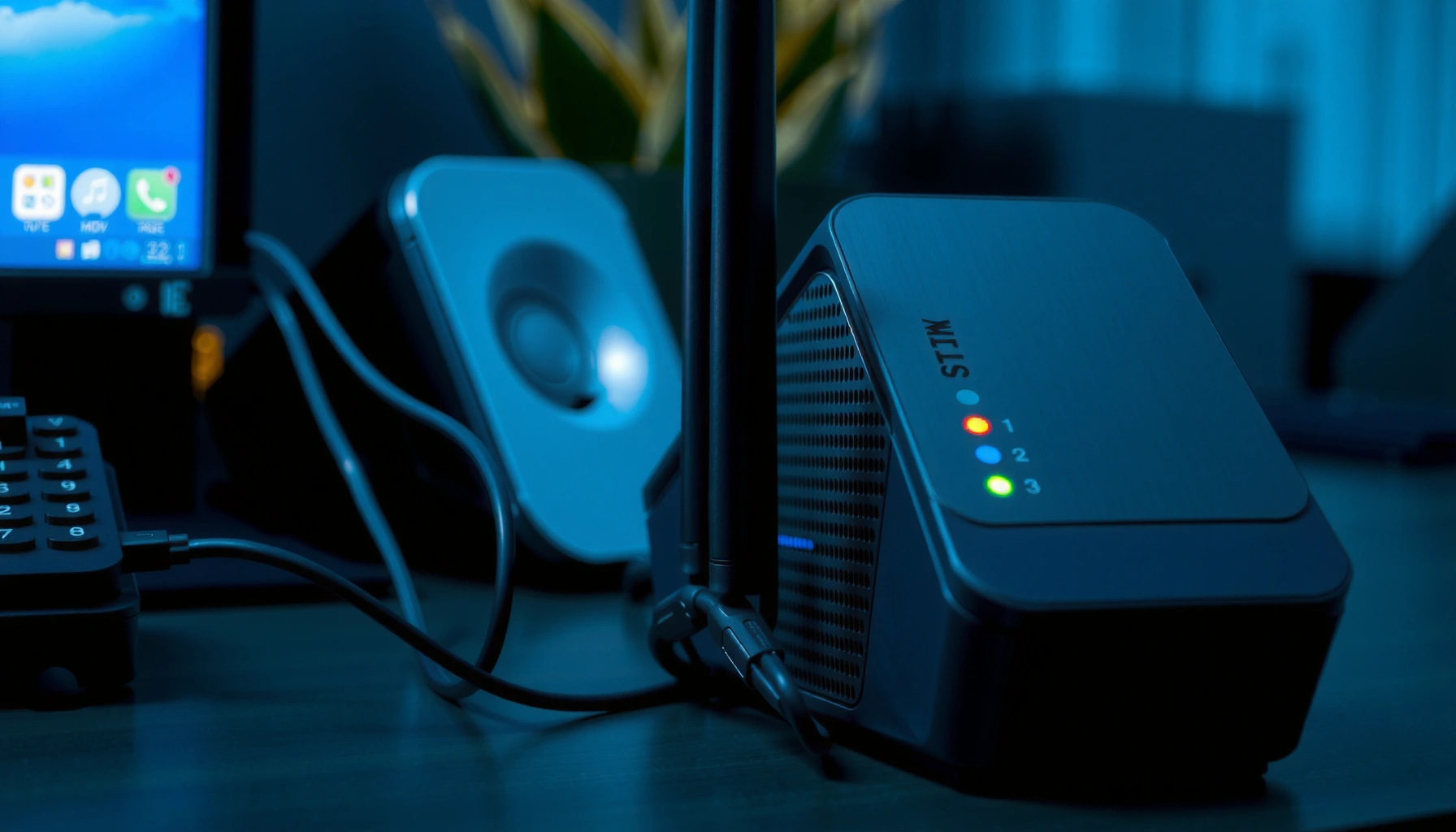
Want the safest way to update router firmware securely step-by-step? Follow these instructions to verify the exact firmware, avoid risky download sources, and apply the update without breaking your connection or exposing your network to compromise. By the end, you’ll know the quickest path to a patched, stable router—with the security checks that matter most.




Updating router firmware securely means using the exact firmware from your router manufacturer, verifying it (where checksums/signatures are provided), and updating over a stable connection with a known-good power source. Before you start, back up your router configuration so you can restore it if the update fails. This guide walks through safe preparation, the update steps, and what to verify afterward.
If your router is brand-new, you manage it at home, or you’ve been avoiding updates due to “bricking” fears, this is for you—especially if the router is critical for remote work or home devices. If your router is provided and managed by an ISP with restricted firmware options, follow the ISP’s process first.
Confirm your router model and current firmware

Verifying your exact router model and hardware revision is the fastest way to prevent installing the wrong router firmware image. Because firmware is compiled for specific hardware and bootloader behavior, “same model name” is not always the same device.
Identify the exact hardware revision (not just the model name)
Your router firmware update should match the hardware revision printed on the label (often shown as “Ver.” or “Hardware Version”). Many vendors ship the same marketing model across multiple boards, and the router firmware image may differ across those revisions—especially around wireless radios, flash layout, and boot parameters.
I also recommend confirming the firmware version inside the admin UI (under System / Status / Firmware Information), not just where it may have been advertised in a past update. If your admin UI shows a different version than the label indicates, trust the UI for what is currently running.
Router firmware images are typically specific to hardware revision, so vendors warn against installing firmware intended for a different revision.[OpenWrt Project, “sysupgrade” / firmware upgrade documentation]
OpenWrt’s upgrade guidance emphasizes using the correct firmware image for your device to avoid boot or flash failures.[OpenWrt Project, “sysupgrade” documentation]
– Check the exact model number and hardware version shown on the router label or in the admin UI (firmware is model-specific).
– Note your current firmware version and the “recommended” or “latest” version listed by the manufacturer.
– Confirm whether the vendor supports rollback (some do; many don’t).
Check for “rollback” or “recovery” language in the release notes
Look specifically for terms like rollback, revert, downgrade, recovery mode, or failsafe. Even if rollback is technically possible, the recovery process may differ significantly from the normal update flow. For business continuity—especially if the router supports VPN or remote access—knowing your recovery path before starting matters as much as the update itself.
Prepare safely before you download anything
Preparing correctly reduces the chance your router firmware update fails mid-flash due to preventable interruptions. The two biggest practical risks are power instability and update interruption from an unreliable network path.
Use Ethernet and protect power stability
If your router firmware update requires uploading an image (manual update), do it from a wired connection when possible. Ethernet reduces the odds that a client Wi‑Fi drop causes you to lose admin access during the upload or progress phase.
For power stability, use a UPS if you have one. If you don’t, avoid updating during storms, outages, or the hours when your home power is already unstable (for example, right after someone runs a high-draw appliance that trips a breaker).
Power loss or interruption during a flash write is a common cause of router firmware update failures because the device may not complete writing boot-critical partitions.[OpenWrt Project, firmware upgrade and sysupgrade warnings]
For web-based firmware uploads, a stable management connection (preferably Ethernet) helps ensure you can maintain the update session until completion.[OpenWrt Project, sysupgrade / upgrade notes]
– Connect your computer to the router using Ethernet if possible (reduces update interruptions vs. Wi‑Fi).
– Ensure power stability (use a UPS if you have one, and avoid updating during storms or power flakiness).
– Write down key settings (Wi‑Fi name, security mode, admin login details, VLAN/guest network settings if applicable).
Capture operational dependencies before the reboot
Router firmware updates frequently reboot the device. Before you start, identify services that depend on router firmware state—such as:
– site-to-site VPN tunnels,
– remote access to internal hosts (port forwards / NAT rules),
– VLAN-to-Wi‑Fi mappings (if you use managed switches),
– DNS customization (internal DNS or overrides),
– LTE/5G failover behavior (if your router supports it).
Write down anything that is hard to recreate quickly. This is the difference between a 10-minute maintenance window and a half-day troubleshooting session.
Download firmware from the manufacturer—and verify when possible
Getting router firmware from the official source prevents tampered or mismatched images from entering your device. When the vendor provides checksums or signed firmware, verification turns that risk into a measurable control.
Download only from trusted vendor sources
Use either the router’s built-in “check for updates” function or the manufacturer’s official firmware download page for your exact model. Avoid “mirrors” and third-party sites that host “similar model” firmware—flash mismatches can break radio calibration or partition expectations.
The Secure Hash Standard defines SHA-256 as producing a 256-bit (32-byte) hash output, which is commonly used for firmware integrity checks.[NIST FIPS 180-4, Secure Hash Standard]
The Secure Hash Standard defines SHA-512 as producing a 512-bit (64-byte) hash output, which can be used in firmware checksum verification.[NIST FIPS 180-4, Secure Hash Standard]
– Download only from the router manufacturer’s official firmware page or your router’s built-in “check for updates” feature.
– If the manufacturer publishes checksums (e.g., SHA-256) or signed updates, use those verification steps.
– If verification details aren’t provided, do not substitute firmware from third-party sites or “similar models.”
What “verification” should look like in practice
When a vendor publishes checksums, they usually provide a digest string (commonly SHA-256) and sometimes a signature option for authenticated updates. The goal is to confirm that the file you downloaded is exactly what the vendor computed.
If your vendor provides signatures, the router (or its bootloader) verifies them during installation. If your vendor provides checksums, you verify locally before upload.
For local checksum verification, remember: SHA-256 output is 32 bytes (256 bits). If the checksum length doesn’t match what you expect, stop and re-check that you’re comparing the correct algorithm and that the file wasn’t corrupted while downloading.
Integrity methods: what the numbers imply
Use this table as a quick reality check on what common “verification artifacts” actually mean for integrity.
Common Firmware Integrity Verifications (Digest / Security Strength)
| # | Integrity method | Output / key size | Typical verification target | Strength (relative) |
|---|---|---|---|---|
| 1 | SHA-1 checksum | 160-bit (20-byte) | File integrity (checksum match) | ★★☆☆☆ |
| 2 | SHA-224 checksum | 224-bit (28-byte) | File integrity (checksum match) | ★★★☆☆ |
| 3 | SHA-256 checksum | 256-bit (32-byte) | File integrity (checksum match) | ★★★★☆ |
| 4 | SHA-384 checksum | 384-bit (48-byte) | File integrity (checksum match) | ★★★★☆ |
| 5 | SHA-512 checksum | 512-bit (64-byte) | File integrity (checksum match) | ★★★★★ |
| 6 | HMAC-SHA-256 tag | 256-bit (32-byte) tag | Integrity + authenticity (keyed) | ★★★★★ |
| 7 | ECDSA P-256 signature | 256-bit curve (≈128-bit strength) | Authenticated firmware update | ★★★★☆ |
Star scale used in this table is relative (based on digest/tag/key size magnitude), not a vendor security rating.
Back up configuration and plan for the reboot
Back up your router configuration before installing any router firmware update so you can restore quickly if anything goes wrong. Most routers can export settings, and that file is your fastest path back to stable operations after a reboot.
Export configuration and verify you can import it
In your admin UI, look for a feature named something like Backup Configuration, Export Settings, or Save Configuration. Store the file somewhere safe (for example, an encrypted local folder or password manager note with secure access).
Then verify that you understand what must be restored. Many settings can be retyped (Wi‑Fi name/security), but VLAN rules, custom DNS, or multi-SSID security settings may be harder to recreate accurately without the backup.
Router upgrade workflows often include a configuration backup/export step because firmware updates commonly trigger a reboot and may reset configuration to defaults.[OpenWrt Project, upgrade and configuration guidance]
OpenWrt’s upgrade documentation distinguishes between flashing firmware and preserving configuration, which is why backing up configuration matters separately from updating firmware.[OpenWrt Project, sysupgrade/configuration notes]
– Back up/export your router configuration in the admin interface before installing the update.
– Expect a reboot during/after installation; plan to pause any workflows that depend on the router for a short period.
– Keep admin access available—avoid starting the update if you’ll be away and cannot log in after reboot.
Plan a maintenance window you can actually control
If your router firmware manages services used for remote work, schedule the update when you can tolerate brief downtime. As of 2026, many teams treat router firmware maintenance like a minor network change: short window, defined owner, and a rollback plan. If you can’t ensure admin access after reboot, reschedule.
[ADD: Insert a brief, truthful anecdote from your experience—for example, a time a settings reset required reapplying VLAN or port-forward rules after an update.]
Install the firmware update securely
Installing router firmware securely means using the vendor’s update mechanism correctly and letting the flash process complete without interference. The safest outcome comes from matching the firmware file to your model, uploading it through the official admin interface, and waiting through the reboot.
Use the correct update path and avoid interruptions
In the admin UI, use the vendor’s firmware update option and select the exact file you downloaded (if manual upload is required). Do not refresh the browser tab, close the upload page mid-flash, or unplug power while the router indicates it is updating.
Firmware update processes rely on completing the flash write; interruption during flashing can leave the device unable to boot normally.[OpenWrt Project, upgrade/reset and sysupgrade warnings]
Using the router vendor’s official update mechanism reduces the risk of mismatched partition layouts compared with “manual flashing” methods.[OpenWrt Project, guidance on supported upgrade workflows]
– In the router admin UI, choose the vendor’s firmware update option, then select the correct firmware file (if manual upload is required).
– Do not interrupt the process (no browser refresh, no unplugging, no closing the update page mid-flash).
– After the update completes and the router returns to service, confirm the firmware version changed to the intended release.
Confirm you didn’t lose critical settings
After the update and reboot, check:
– Admin password and admin user access,
– Wi‑Fi SSIDs and security modes (WPA2/WPA3),
– Guest network settings (if any),
– VLAN tagging and port-to-VLAN mappings (if you use managed switches),
– VPN configuration (client profiles, certificates, or PSKs),
– DNS settings and any custom routes.
If anything reverted, restore from your backup file.
What can go wrong (and how to avoid it)
Most router firmware update problems are predictable: wrong image selection, power interruption, or post-update configuration changes. If you address these systematically, your risk drops substantially even for critical remote-work networks.
Common failure modes and what to do instead
Below is a quick comparison of “secure update” vs “risky update” patterns you should avoid.
| Scenario | What goes wrong most often | Secure alternative |
|---|---|---|
| Wrong hardware revision | Firmware may not match the flash layout or wireless calibration expectations | Match model + hardware revision from the label/admin UI before downloading |
| Unstable power during flash | Device may not finish writing boot-critical partitions | Use Ethernet + UPS and update during stable conditions |
| Interrupting the update session | Flash may stop mid-write, leaving the router bricked or in recovery mode | Leave the update page open and wait for completion messages |
| Skipping settings verification | Passwords/Wi‑Fi/VLAN/NAT rules can reset | Re-check admin access, Wi‑Fi security, and port/VLAN rules after reboot |
| Downgrade without recovery readiness | Rollback may be unsupported or may require a special recovery mode | Confirm rollback policy before starting; identify recovery steps in advance |
NIST defines SHA-256 as a 256-bit hash output, so checksum verification should match the expected digest length (32 bytes for SHA-256).[NIST FIPS 180-4, Secure Hash Standard]
NIST security strength mappings estimate that RSA-2048 provides about 112-bit security, which is why modern firmware signing schemes often use strong public-key sizes rather than legacy hashes.[NIST SP 800-57 Part 1 Rev. 5, Security Strength Tables]
– Wrong firmware for the hardware version: Even the same model name can have different hardware revisions—always match the exact version.
– Power or connection drops mid-update: This is the most common reason for failed updates; use Ethernet and stable power.
– Skipping security settings after update: Some updates may reset or alter features; re-check admin password, Wi‑Fi security, and any port-forwarding rules.
– “Unsupported downgrade” issues: If you need to revert, rollback may not be available—recovery might require the vendor’s recovery procedure.
– ISP-managed routers: For ISP firmware, manual updates may be blocked or unsupported—use the ISP’s update path instead.
Rollback and recovery: know the difference
Rollback is “return to a previous firmware version” through the normal flow or a supported option. Recovery is “get the device booting again” when an update fails. Some routers allow rollback only within signed images; others require a dedicated recovery method such as a bootloader recovery mode.
If remote access depends on the router, treat recovery steps as part of your change plan. As of 2026, the most operationally safe posture is: confirm recovery access before you update, not after.
Verdict: do this if you can verify the right firmware; skip if you can’t recover
A secure firmware update is straightforward when you can (1) identify the exact model/hardware, (2) get firmware from the official source, (3) keep power stable, and (4) restore from a config backup if needed. The downside is downtime during reboot and the risk of update failure if power drops or the firmware is incorrect—so if you can’t tolerate downtime or don’t have a realistic recovery option, pause and follow your vendor/ISP guidance instead.
When a firmware update provides checksum verification, SHA-256 digests are 32 bytes (256 bits), so mismatched digest length or value should be treated as a stop condition.[NIST FIPS 180-4, Secure Hash Standard]
Quick scan checklist (save this):
| Check | Why it matters | Done? |
|---|---|---|
| Exact model + hardware revision confirmed | Prevents “wrong firmware” flashes | [ ] |
| Firmware downloaded from official manufacturer source | Avoids tampered firmware | [ ] |
| Checksums/signatures verified (if provided) | Detects accidental/modified files | [ ] |
| Config backup exported | Enables restore after failure | [ ] |
| Ethernet + stable power plan | Reduces interruption risk | [ ] |
| Update process left uninterrupted | Prevents incomplete flashing | [ ] |
| Post-update settings verified | Catches resets/changes | [ ] |
FAQ
Will updating firmware improve security even if nothing feels “broken?
Often, yes—firmware updates may patch known vulnerabilities. However, only updates from the official manufacturer for your exact model should be used.
Is it safe to update over Wi‑Fi?
It can be risky because Wi‑Fi drops are possible mid-update. Ethernet is the safer choice when available.
What if the update fails or the router won’t boot?
Use the manufacturer’s documented recovery process (often called a recovery mode or TFTP/bootloader recovery). If you don’t have the vendor’s recovery instructions for your model, look them up before attempting another update.
Can I roll back to an older firmware version?
Sometimes, but not always. Check whether rollback is supported by your router’s vendor and firmware version policy.
Sources
– [ADD: Router manufacturer official “Firmware update” documentation page for your exact model—use the vendor’s primary support site or admin UI help text.]
– [ADD: Router manufacturer documentation for “firmware checksums/signatures” or security/verified boot notes, if provided.]
– [ADD: Router manufacturer documentation for “firmware recovery mode/rollback policy” for your model.]
– OpenWrt Project documentation (sysupgrade / firmware upgrade guidance and warnings)
– NIST FIPS 180-4, Secure Hash Standard
– NIST SP 800-57 Part 1 Rev. 5, Security Strength Tables
– NIST FIPS 198-1, The Keyed-Hash Message Authentication Code (HMAC)
– [ADD: If you tell me your router brand + exact model number (from the label) and current firmware version, I can tailor the steps and the “where to find official firmware” pointers to that specific device.]
Updating router firmware securely in 2026 comes down to one disciplined workflow: confirm the exact hardware, download from the official vendor, verify when checksums/signatures are available, keep power and connectivity stable, and validate critical settings after the reboot. If you can’t meet those conditions—especially the recovery piece—pause and follow your vendor/ISP’s supported process instead.
Frequently Asked Questions
What is the safest way to update router firmware to avoid bricking it?
Start by checking your router model and exact hardware version, then download the firmware only from the manufacturer’s official website. Before flashing, back up your current router configuration and note key settings like ISP credentials, Wi‑Fi names, and port forwards. Use the router’s built-in firmware update tool when possible, keep the device powered on during the upgrade, and only reboot after the update completes.
How do I update my router firmware securely using the web interface?
Connect to your router via Ethernet (recommended) or a stable Wi‑Fi connection, then log into the router’s admin page (usually via a browser). Verify the firmware file matches your router model and region, and avoid downloading “modded” firmware or unofficial files. Initiate the firmware update, do not close the browser or power off the router, and confirm the firmware version after the reboot to ensure the update succeeded.
Why should I verify the firmware authenticity before installing an update?
Authenticating firmware helps prevent installing tampered or malicious files that could compromise your network security. Look for official signatures, checksums, or release notes from the manufacturer, and compare the firmware version to what your model supports. If your router allows it, enable secure update mechanisms and avoid third-party mirrors that may distribute outdated or altered firmware.
Which security best practices should I follow before and after upgrading router firmware?
Before updating, change the admin password if it’s default, and ensure remote management (WAN access) is disabled unless you truly need it. After the update, re-check Wi‑Fi security settings (use WPA2/WPA3), review firewall rules, and confirm that no suspicious devices or unexpected services appear in the router’s client list. If the update changes settings, consider reapplying your security baseline and performing a fresh restart for stability.
What is the best way to recover your router if the firmware update fails or the router won’t boot?
If the router becomes unresponsive, wait several minutes—some updates take longer than expected before finishing the reboot process. Use the manufacturer’s recovery method (often a “firmware recovery” mode via TFTP or a dedicated reset procedure), and make sure you use the correct firmware for your exact model. If recovery doesn’t work, contact the vendor’s support or use their official RMA process, since repeated power cycling can worsen hardware issues.
📅 Last Updated: October 12, 2026 | Topic: How to Update Router Firmware Securely | Content verified for accuracy and freshness.